MANUAL | QUICK START GUIDE
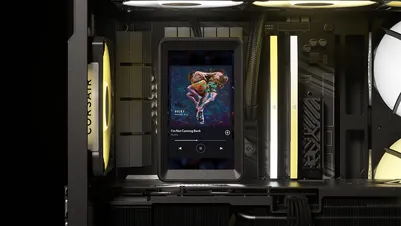
iCUE LINK 5″ LCD SCREEN MODULE
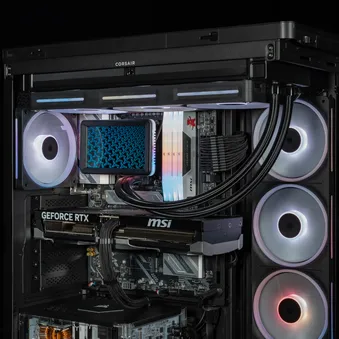
iCUE LINK AIO PUMP CAP LCD SCREEN MODULE
In this Guide


BEFORE YOU START
IMPORTANT: On Intel systems, the iCUE LINK 5'' LCD Screen Module can be rotated freely. On AMD systems, screen rotation depends on the AMD mounting bracket. Earlier AMD brackets secure the AIO pump to the motherboard in a single fixed orientation, which prevents the pump, and therefore the screen, from being rotated.
- For iCUE LINK TITAN coolers, the updated TITAN II AMD bracket is not compatible and should not be requested. When used with an AMD system, the LCD screen is only supported in the vertical orientation.
- For iCUE LINK TITAN II coolers, if your bracket matches the earlier version shown below, contact CORSAIR Support to request the updated AMD bracket.
Bracket 1: Supports horizontal LCD mounting.
Bracket 2: Contact CORSAIR Technical Support for an updated AMD mounting bracket.
NOTE:
- Turn the computer off prior to the installation of the iCUE LINK 5" LCD Screen Module.
- The iCUE LINK 5" LCD Screen Module comes with an integrated DisplayPort cable that needs to be connected to a DisplayPort output on your GPU. If your GPU doesn't have a DisplayPort output, you can use a DisplayPort output on your motherboard (if available), or an active adapter to convert a compatible video output to DisplayPort.
- Do not apply pressure directly on the LCD screen to avoid any damage.
- Update iCUE to version 5.37 or higher, and the iCUE LINK System Hub to version 3.11.646 or higher. Both are required for proper functioning and control of the iCUE LINK 5" LCD Screen Module.
INCLUDED HARDWARE
1x iCUE LINK 5′′ LCD Screen Module
1x PCIe Slot Cover
INSTALLATION
1. INSTALL THE LCD SCREEN MODULE
- With a firm grip, gently pull the iCUE LINK pump cap away from the pump base.
- Align the guide pin on the 5" LCD Screen Module (A) with its corresponding slot on the pump base, then gently push the module onto the pump base to latch it in place.
2. CONNECT THE DISPLAYPORT CABLE
NOTE: The DisplayPort cable routing shown below is an example. Ideal routing depends on your specific system components, clearance, and orientation.
- Remove the top PCIe slot cover from the PCIe plate.
- Guide the DisplayPort cable from the iCUE LINK 5" LCD Screen Module (A) through the top-left cutout in the motherboard tray so it passes behind the motherboard, out of view.
- Route the cable downward behind the motherboard tray and out through the opening near the 24-pin motherboard connector.
- Guide the cable along the graphics card and out through the top opening in the PCIe plate.
- Seat the DisplayPort cable into the U-shaped cutout of the PCIe Slot Cover (B), then attach the cover to the PCIe plate.
- Connect the DisplayPort cable to the graphics card.
TIP: As an alternative to routing the DisplayPort cable through the PCIe slot cover, some CORSAIR cases let you run it through a XENEON EDGE opening instead.
SOFTWARE SETUP
1. INSTALL iCUE

2. UPDATE iCUE SOFTWARE
- Once iCUE is installed, run the software. The iCUE LINK 5" LCD Screen Module tile will appear in the iCUE interface.
- If any of the connected devices need a firmware update, you will be prompted to perform an update via a notification in the top right corner. You can also click the settings (cog wheel icon in the top right corner) and check for the software and firmware updates manually.
NOTE: Update iCUE to version 5.37 or higher, and the iCUE LINK System Hub to version 3.11.646 or higher. Both are required for proper functioning and control of the iCUE LINK 5" LCD Screen Module.
3. NEW DEVICE DETECTION
While the iCUE LINK System Hub and iCUE LINK 5" LCD Screen Module do not support hot-plugging, you can still quickly detect newly connected devices without powering down your PC by following these steps:
- Click on Settings cogwheel in the iCUE LINK System Hub tile.
- Click Start next to Device Enumeration to re-detect all connected devices.
4. LCD SCREEN BRIGHTNESS ADJUSTMENT
- Click on Settings cogwheel in the iCUE LINK 5" LCD Screen Module tile and use the brightness slider to adjust the desired brightness.
5. LIGHTING EFFECTS
Choose which lighting effect will be displayed when the iCUE software is running:
- Select the iCUE LINK 5" LCD Screen Module tile.
- Select "Lighting Effects" in the left-hand panel.
- If present, click an existing layer in the "Lighting Layers" panel to edit it, or click on the "+" button to create a new lighting layer.
- Select the desired lighting effect by clicking on one of the available options in the "Lighting Type" panel.
- In the "Quick Lighting Zones" panel, select the product you want to apply the selected effect to. Choose "All" to apply the selected effect to all listed products.
6. LIGHTING EFFECTS - DEVICE MEMORY MODE
Choose which lighting effect will be displayed when iCUE software is not running, usually during computer the startup phase:
- Toggle the Device Memory Mode by clicking the button.
- Select the desired lighting effect by clicking on one of the available options in the "Lighting Type" panel.
- Click on the memory card icon to save the setting.
7. LCD SCREEN SETUP
The Screen Setup page allows you to choose how the 5-inch LCD Screen Module is used and configure keyboard shortcuts for switching between screens.
- Select "Screen Setup" in the left-hand panel.
- In the bottom "Screen Setup" panel, select "iCUE Widgets" to display iCUE widgets, such as system monitoring, images/videos, or other customizable widgets.
- Select "Desktop" to use the LCD screen as a secondary desktop display.
- Assign a keystroke to "Switch Display Option" to toggle between "iCUE Widgets" and "Desktop" modes.
- Assign a keystroke to "Previous Display Screen" to switch to the previous screen page.
- Assign a keystroke to "Next Display Screen" to switch to the next screen page.
8. PAGES PERSONALIZATION
The Pages Personalization page allows you to customize the look of each LCD screen page.
- Select "Pages Personalization" in the left-hand panel.
- Select the page you want to personalize by clicking the page indicator under the screen preview image.
- Adjust the page theme, background, widget colors, and widget transparency using the options available in the bottom "Pages Personalization" panel.
- To add or change the background, click the "+" button next to "Device Background" and select a preset image or upload a custom one.
9. WIDGETS
The Widgets page allows you to add, configure and personalize iCUE Widgets.
- Select "Widgets" in the left-hand panel.
- Click the "+" button on the screen preview image to add a new widget.
- To add a new page, click the "+" button under the screen preview image.
- Select the desired widget from the bottom "Widgets" panel.
- Configure the selected widget using the various options in the bottom centre and right panels.
10. COOLING SETUP
- Select the iCUE LINK 5" LCD Screen Module from the navigation bar.
- Select "Cooling" in the left-hand panel.
- Select the desired cooling preset for each device.
- Alternatively, click the “+” icon under “Cooling Presets” to create a new preset with a custom fan curve.
11. COOLING SETUP - DEVICE MEMORY MODE
Choose how your fan(s) will perform when iCUE software is not running, usually during computer the startup phase:
- Toggle the Device Memory Mode by clicking the button.
- Select the desired setting by clicking on one of the available options in the "Cooling Presets" panel.
- Alternatively click the “+” icon under “Cooling Presets” to create a custom fan curve.
- Click on the memory card icon to save the setting.
12. ALERT SETUP
The "Alerts" feature allows you to set custom alerts or trigger specific actions when your device reaches a certain temperature:
- Click “Alerts” to access the alerts page.
- Set the temperature values for triggering specific alert action.
FAQ
Can I install the iCUE LINK 5" LCD Screen Module while my computer is on?
To ensure proper operation, please only install the iCUE LINK 5" LCD Screen Module while your computer is powered off.
Can I rotate my images and / or GIFs through iCUE?
Yes, you certainly can! Once the LCD screen is recognised by iCUE software you are able to upload, change and adjust the images and gifs shown on the screen through the settings option on the device.
Why isn’t iCUE software detecting the LCD Screen module?
If the iCUE LINK 5” LCD Screen Module is not detected, first check whether your iCUE LINK AIO cooler appears in iCUE. If the cooler is not detected, make sure the iCUE LINK cable connections are properly secured, then restart your system. If the cooler is detected, ensure the LCD module is properly installed
Can I use the iCUE LINK 5’’ LCD SCREEN MODULE as a monitor without iCUE?
Yes. When connected via DisplayPort (DP), the LCD Screen Module can function as a standard display without iCUE. However, iCUE enables additional features such as system monitoring widgets and display customization that are not available through Windows. For the best experience, we recommend using iCUE.
Do I need to keep the DisplayPort (DP) cable connected?
Yes, the DisplayPort (DP) connection must remain connected to use all LCD features. Without a DP connection, the screen will not display content. However, fan and RGB lighting control will continue to function normally through iCUE.
Does the iCUE LINK 5’’ LCD SCREEN MODULE support auto-rotation?
Yes, the LCD screen automatically adjusts its orientation based on how it is installed, ensuring the content is always displayed correctly.
POWER RATING
iCUE LINK 5" LCD Screen Module: 12Vdc 0.5A
COMPATIBILITY
The iCUE LINK 5" LCD Screen Module is only compatible with the following iCUE LINK TITAN and iCUE LINK TITAN II AIO coolers:
CW-9061016 iCUE LINK TITAN 240 RX RGB AIO Liquid CPU Cooler - Black
CW-9061017 iCUE LINK TITAN 280 RX RGB AIO Liquid CPU Cooler - Black
CW-9061018 iCUE LINK TITAN 360 RX RGB AIO Liquid CPU Cooler - Black
CW-9061019 iCUE LINK TITAN 420 RX RGB AIO Liquid CPU Cooler - Black
CW-9061020 iCUE LINK TITAN 240 RX RGB AIO Liquid CPU Cooler - White
CW-9061021 iCUE LINK TITAN 360 RX RGB AIO Liquid CPU Cooler - White
CW-9061022 iCUE LINK TITAN 240 RX LCD Liquid CPU Cooler - Black
CW-9061023 iCUE LINK TITAN 360 RX LCD Liquid CPU Cooler - Black
CW-9061025 iCUE LINK TITAN 240 RX LCD Liquid CPU Cooler - White
CW-9061026 iCUE LINK TITAN 360 RX LCD Liquid CPU Cooler - White
CW-9061037 iCUE LINK TITAN II 360 RX RGB AIO Liquid CPU Cooler - Black
CW-9061038 iCUE LINK TITAN II 360 RX RGB AIO Liquid CPU Cooler - White
WARRANTY

CORSAIR iCUE LINK 5" LCD Screen Module has a 5-year warranty.
LEGAL
© 2026 CORSAIR MEMORY, Inc. All rights reserved. CORSAIR and the sails logo are registered trademarks of CORSAIR in the United States and/or other countries. All other trademarks are the property of their respective owners. Product may vary slightly from those pictured.
RELATED CONTENT