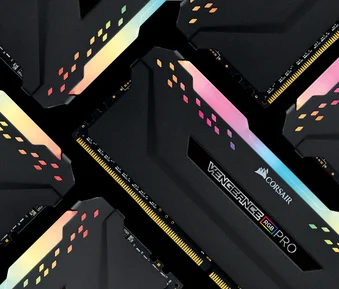
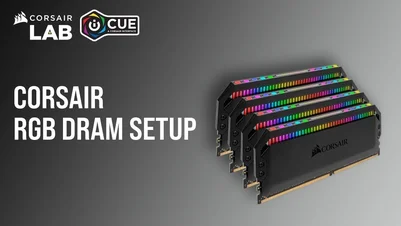
MANUAL | QUICK START GUIDE
DRAM
In this Guide
INSTALLATION
Notice: Turn your computer off prior to installing your memory modules and refer to motherboard/system owner’s manual for correct slots for your configuration. For optimal performance, please refer to your motherboard/system owner’s manual to enable XMP in the BIOS.
- Note the orientation of the memory module. Unlatch the retaining clip(s) at the end of memory socket.
- Place the memory module on the socket with the notch aligned correctly.
- As indicated in the picture above, place your fingers on the top edge of the memory, gently push down on the memory and insert it vertically into the memory socket until the latches lock.
SOFTWARE
CORSAIR iCUE software connects all your CORSAIR iCUE compatible products together in a single interface, giving you complete control of everything from RGB lighting and powerful macros to system monitoring and cooling control.
DOWNLOAD CORSAIR iCUE

For the full CORSAIR iCUE experience, please download our latest CORSAIR iCUE software at www.corsair.com/downloads.
* An internet connection is required for software download. CORSAIR iCUE is required for RGB lighting control.
DOMINATOR TITANIUM TOP REMOVAL & INSTALLATION
- Carefully unscrew the top screws on both sides using a 1.5mm hex screwdriver.
- Gently and cautiously lift off the top and the LED panel.
- To install the top, follow the same steps in reverse.
HOW-TO VIDEOS
- How to setup VENGEANCE RGB PRO in CORSAIR iCUE - https://youtu.be/OtzofbV7cb0
- How to setup DOMINATOR PLATINUM RGB in CORSAIR iCUE - https://youtu.be/doogzUZ7jq0
- How to enable full software control for RGB DRAM for full customization - https://youtu.be/GoUqthopA3s
- How to setup ASUS motherboard integration in CORSAIR iCUE - https://youtu.be/C9tz1-fdlKo
COPYRIGHT/LEGAL INFORMATION
© 2023 CORSAIR MEMORY, Inc. All rights reserved. CORSAIR and the sails logo are registered trademarks of CORSAIR in the United States and/or other countries. All other trademarks are the property of their respective owners. Product may vary slightly from those pictured.
RELATED CONTENT