-
S-CLASS EDGE AI INTRODUCTION
-
ORIGIN PC S-CLASS EDGE AI CONTENTS
-
ORIGIN PC S-CLASS EDGE AI CONNECTIVITY
-
SETTING UP YOUR ORIGIN PC S-CLASS EDGE AI
-
ORIGIN PC S-CLASS EDGE AI LED INDICATORS
-
FLASHING IMAGE GUIDE
-
COMPLIANCE STATEMENT
-
LIMITED PRODUCT WARRANTY
-
REMEDIES
-
OBSOLETE OR DISCONTINUED PRODUCTS
-
EXCLUSIONS
-
SAFETY INFORMATION
-
FEDERAL COMMUNICATION COMMISSION INTERFERENCE STATEMENT
HANDLEIDING | SNELSTARTGIDS
ORIGIN PC S-CLASS EDGE AI
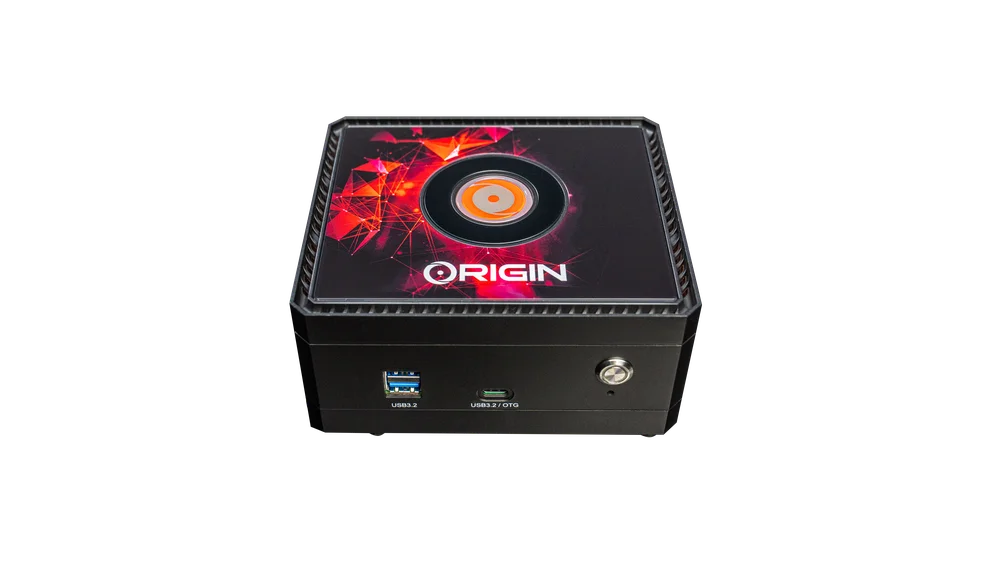
S-CLASS EDGE AI INTRODUCTION
Thank you for purchasing the ORIGIN PC S-CLASS EDGE AI!
ORIGIN PC S-CLASS EDGE AI CONTENTS

ORIGIN PC S-CLASS EDGE AI CONNECTIVITY
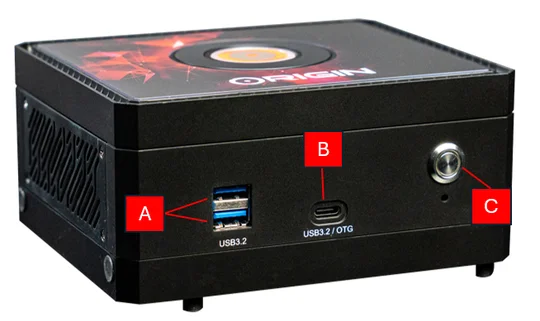
- 2x USB 3.2 TYPE-A
- 1x USB 3.2 TYPE-C
- Power
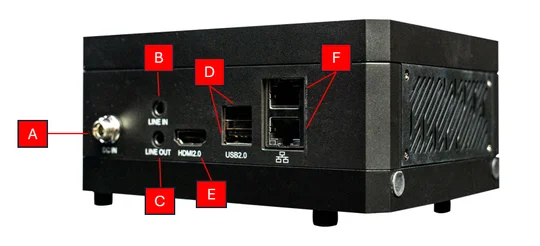
- DC-IN
- Line In
- Line Out
- HDMI 2.0
- 2x USB 2.0 Type-A
- 2x Ethernet Ports (1G)
SETTING UP YOUR ORIGIN PC S-CLASS EDGE AI
UNBOXING THE S-CLASS EDGE AI
The ORIGIN PC S-CLASS EDGE AI is bundled with a power supply power cord that will be installed on the rear side of the desktop. Before powering on, make sure to connect all your devices so they are readily available when the system is powered on.
- Safely remove the S-CLASS EDGE AI from its packaging.
- Remove the top and bottom protective shipping inserts from the S-CLASS EDGE AI.
- Place your S-CLASS EDGE AI on your desk to continue the set-up process. If you prefer to place the S-CLASS EDGE AI on the floor, avoid placing it on shaggy carpets as this can cause heating issues. For the best results, make sure the S-CLASS EDGE AI is elevated off the floor.
CONNECTING THE ORIGIN PC S-CLASS EDGE AI
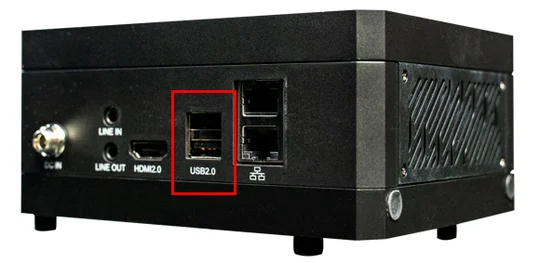
- Connect your mouse and keyboard, as well as any other devices, to the desktop via the USB ports on the rear side of the case.
2. Connect your monitor to the HDMI port using an HDMI cable.
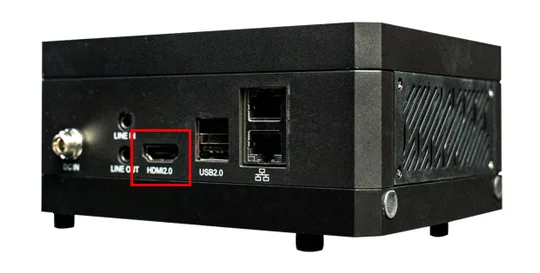
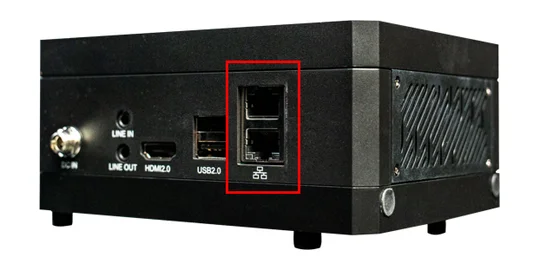
- The S-CLASS EDGE AI has built-in WI-FI and does not require WI-FI antennas. If you prefer to use an Ethernet cable for Internet access, plug in an ethernet cable instead (Use the unshielded RJ45 cable for operation).
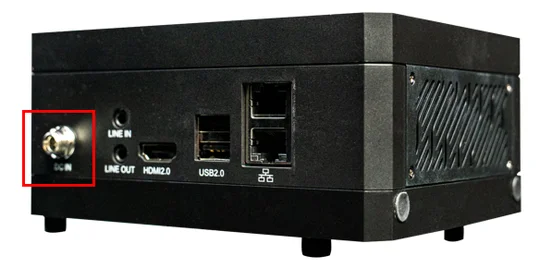
4. Connect the power cable into the DC IN port and then connect the other end of the power cable to the nearest power outlet. If you are using a surge protector, connect the power cable to the surge protector instead.
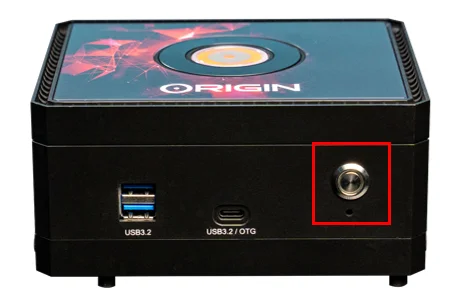
5. To power on the S-CLASS EDGE AI, press the power button located on the front panel.
6. Once the system goes through the initial boot process, it will load the pre-installed Linux operating system.
ORIGIN PC S-CLASS EDGE AI LED INDICATORS
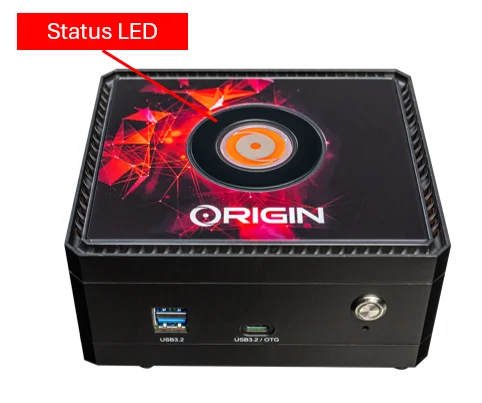
Circling: Powering On, Powering Off, Restarting
Steady On: Working
Breathing: Sleep
Off: Power off
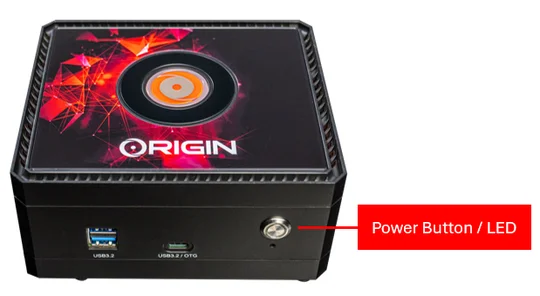
Flashing: Powering On, Powering Off, Restarting
Steady On: Working
Off: Sleep, Power off
FLASHING IMAGE GUIDE
The ORIGIN PC S-CLASS EDGE AI ships with the latest version of Linux for Tegra preinstalled. If you need to update or flash a newer version, please follow the instructions below.
Environment Preparation
- S-Class Edge AI
- Ubuntu 20.04 x86_64 system
- USB cable ( Type A – Type C)
Software Preparation
Image file: Linux_for_Tegra_origin_pc_orin_nx_16g_r3x_x_x_x_x_x.tbz2 (or newer version)
- Copy image file "Linux_for_Tegra_origin_pc_orin_nx_16g_r3x_x_x_x_x_x.tbz2" to directory of ubuntu 20.04 x86_64 system.
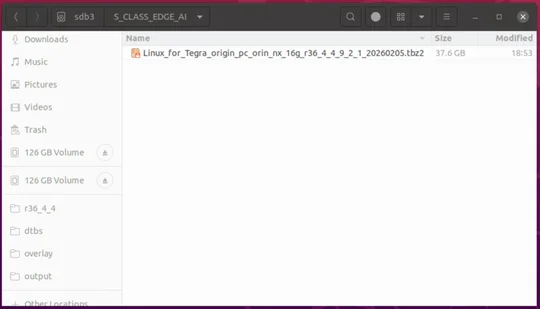
2. Extract file: "Linux_for_Tegra_origin_pc_orin_nx_16g_r3x_x_x_x_x_x.tbz2 ", this might take 30~60 minutes. Then type the following commands:
$ sudo su
$ tar jxvf Linux_for_Tegra_origin_pc_orin_nx_16g_r3x_x_x_x_x_x.tbz2
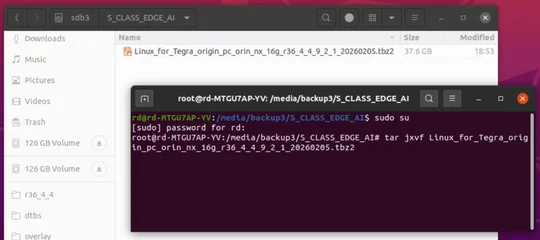
3. Change the current working directory:
$ cd Linux_for_Tegra/originpc_flash/SCLASSEDGEAI
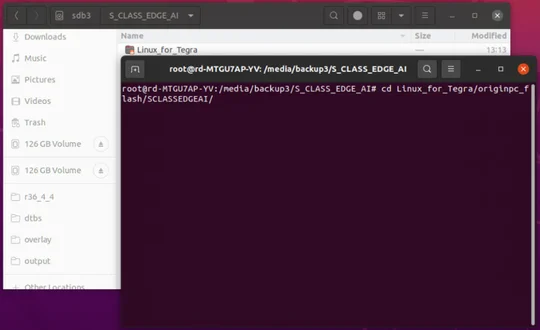
4. Connect USB cable from Ubuntu 20.04 x86_64 system to USB_0 port of S-Class Edge AI.
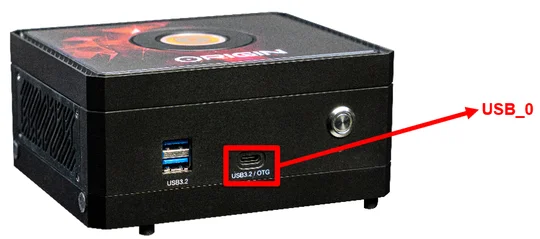
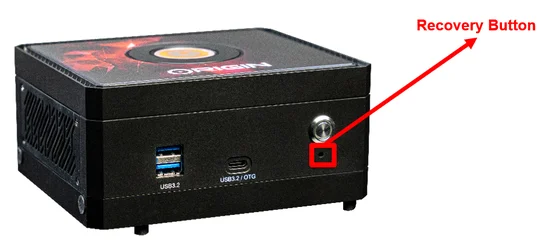
5. Press recovery button before connect the power cable to S-Class Edge AI.
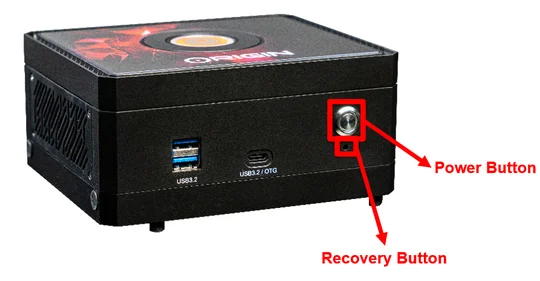
6. Connect power cable to S-Class Edge AI, press the power button on S-Class Edge AI, release recovery button after 7 seconds.
7. Open terminal on Ubuntu 20.04 x86_64 system, use "lsusb" command to check if there is a S-Class Edge AI connected.
Command: $ lsusb
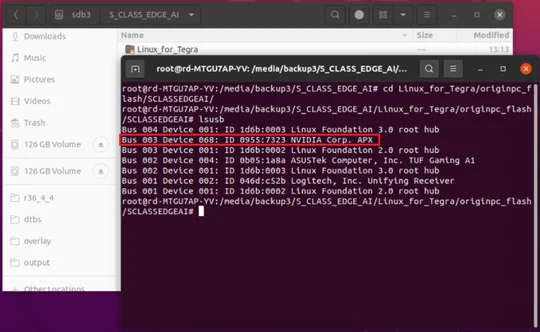
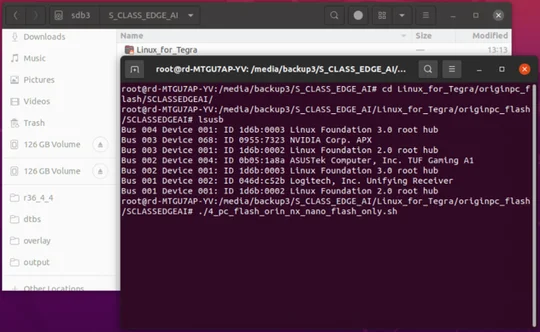
8. Flashing S-Class Edge AI by following command, this might take 30 ~ 60 minutes, please be patient.
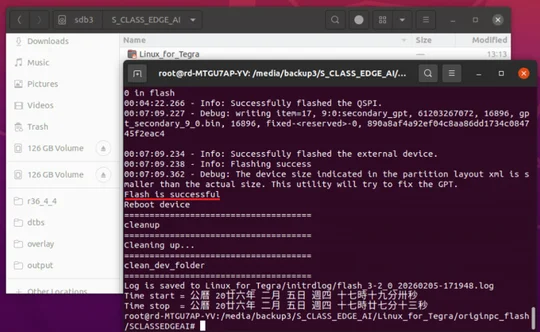
Command: $ ./4_pc_flash_orin_nx_nano_flash_only.sh
9. Reboot S-Class Edge AI after flashing is completed, password is "originpc".
COMPLIANCE STATEMENT
ORIGIN PC is committed to compliance with the laws and regulations in each country in which the company ships our products. ORIGIN PC products are designed and tested to meet the appropriate worldwide standards for Product Safety, Electromagnetic Compatibility, and other compulsory regulatory requirements when used for their intended purpose.
LIMITED PRODUCT WARRANTY
ORIGIN PC provides a non-transferable 2-year warranty to the purchaser of the ORIGIN PC S-CLASS EDGE AI product purchased from an authorized ORIGIN PC reseller. ORIGIN PC warrants that the product will be free from defects in material and workmanship for a specified period commencing on the date the product is received by the purchaser The warranty period will vary by specific product, as identified in your user documentation, on the product package, or as listed in the attached listing of ORIGIN PC Warranty Periods. In the event any of these warranty periods differ, the longest specified warranty period will apply.
Except where prohibited by applicable local law, this warranty is limited to the original purchaser and is non-transferable. To exercise your warranty rights, you must present a sales receipt and provide product serial number information. This warranty provides you with specific legal rights, and you may have additional rights that vary under local laws.
In general, this warranty means your ORIGIN PC hardware product will operate in accordance with published technical specifications, as specified by its data sheet, and in the operating environment for which it was intended for the length of the warranty period.
REMEDIES
ORIGIN PC'S entire liability and your exclusive remedy for any ORIGIN PC product that is not operating in accordance with its published technical specifications is at ORIGIN PC'S discretion: replace the product at ORIGIN PC'S expense. This warranty obligation is conditioned upon the hardware being returned to the original place of purchase, or another place as directed by ORIGIN PC, with the original sales receipt attached. You may be required to pay shipping and handling charges, as well as any applicable tariffs, duties, taxes, or other fees. ORIGIN PC may, at its discretion, provide new or refurbished products.
Any replacement product will be warranted for the remainder of the original warranty period or thirty (30) days, whichever is greater, or for the period of time required by local statute.
OBSOLETE OR DISCONTINUED PRODUCTS
An obsolete or discontinued product will be replaced with the same product if available. If ORIGIN PC is unable to replace your obsolete or discontinued product with the same product, ORIGIN PC will replace the obsolete or discontinued product, in its sole discretion, with a product having similar function and capacity.
EXCLUSIONS
This warranty does not cover problems or damage resulting from, but not limited to, any of the following:
- Wear and tear associated with normal use.
- Any modification, abuse, accident, disassembly, misapplication, or unauthorized repair.
- Missing, altered, or otherwise unreadable serial number label, manufacturer model or part number label.
- Any improper operation, including any use not in accordance with any supplied product instructions.
- Connection to any improper voltage supply.
- Any other cause which does not relate to a product defect in materials or workmanship.
Also excluded from this warranty are counterfeit products; that is, products that ORIGIN PC, at its sole discretion, determines were not manufactured by ORIGIN PC or any of its authorized manufacturing partners.
SAFETY INFORMATION
- Avoid Water and Fire: Keep the device away from water and fire sources.
- Do Not Insert Fingers: Never insert fingers into the device while it's powered on.
- Use Proper Power Supply: Only use the power supply provided by the manufacturer or a compatible one specified in the manual.
- Power Off Before Disassembly: Ensure the device is powered off before attempting any disassembly.
- Avoid Hot Components: Do not touch hot components like SSDs, modules, or heatsinks to prevent burns.
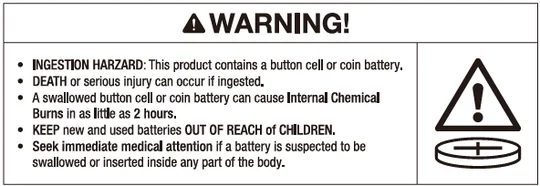
- The product contains non-replaceable batteries.
- The compatible battery type: MS920T FL27E.
- The nominal battery voltage: 3V.
- Remove and immediately recycle or dispose of used batteries according to local regulations and keep away from children. Do NOT dispose of batteries in household trash or incinerate.
- Even used batteries may cause severe injury or death.
- Call a local poison control center for treatment information.
- Non-rechargeable batteries are not to be recharged.
- Do not force discharge, recharge, disassemble, heat above 40°C or incinerate. Doing so may result in injury due to venting, leakage or explosion resulting in chemical burns.
FEDERAL COMMUNICATION COMMISSION INTERFERENCE STATEMENT
This equipment has been tested and found to comply with the limits for a Class B digital device, pursuant to part 15 of the FCC Rules. These limits are designed to provide reasonable protection against harmful interference in a residential installation. This equipment generates, uses and can radiate radio frequency energy and, if not installed and used in accordance with the instructions, may cause harmful interference to radio communications. However, there is no guarantee that interference will not occur in a particular installation. If this equipment does cause harmful interference to radio or television reception, which can be determined by turning the equipment off and on, the user is encouraged to try to correct the interference by one or more of the following measures:
> Reorient or relocate the receiving antenna.
> Increase the separation between the equipment and receiver.
> Connect the equipment into an outlet on a circuit different from that to which the receiver is connected.
> Consult the dealer or an experienced radio/TV technician for help.
This device complies with part 15 of the FCC Rules. Operation is subject to the following two conditions:
(1) This device may not cause harmful interference, and
(2) This device must accept any interference received, including interference that may cause undesired operation.
authority to operate this equipment.
This equipment complies with FCC radiation exposure limits set forth for an uncontrolled environment. This equipment should be installed and operated with a minimum distance of 20 cm between the radiator and a human body.