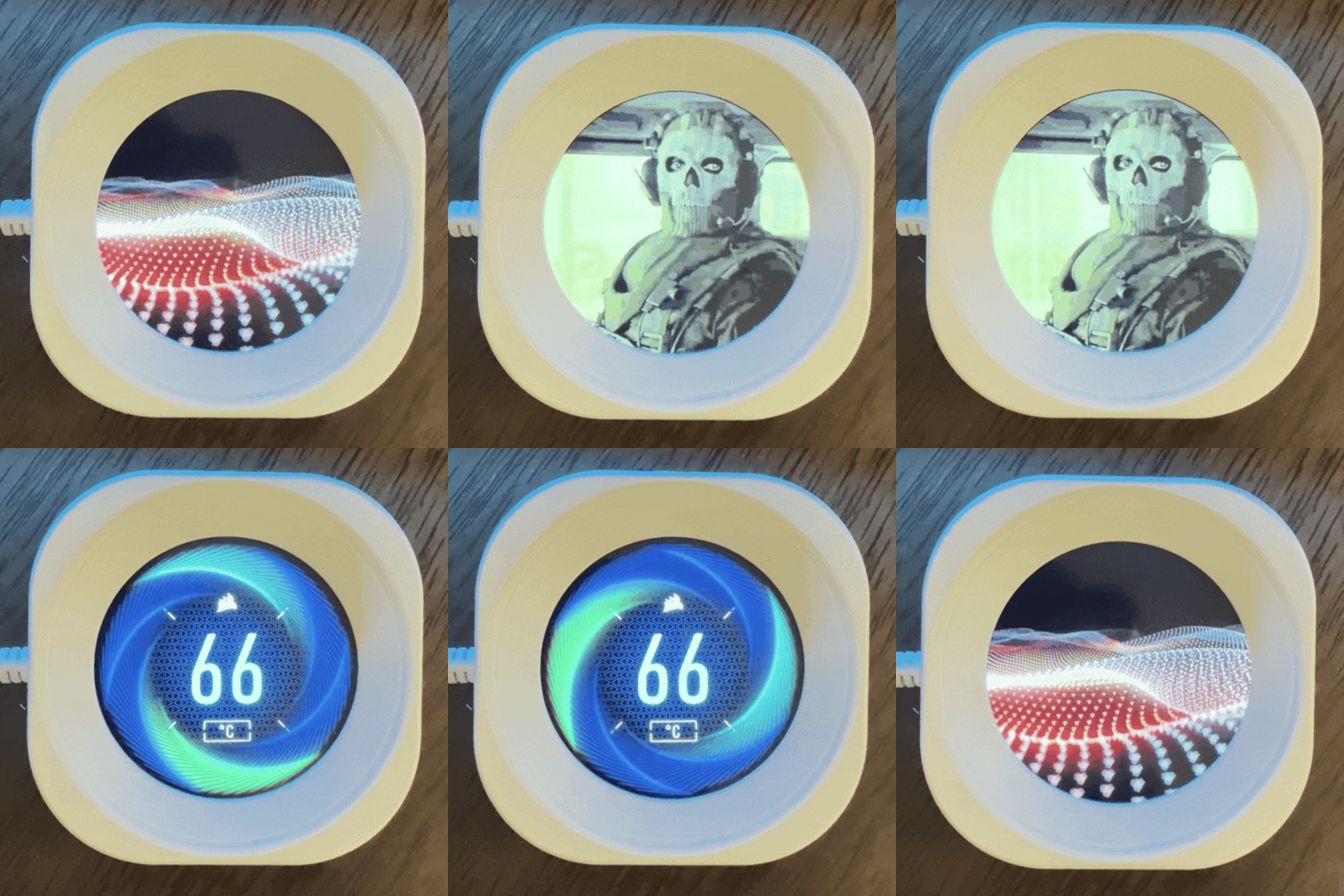
If you have one of our coolers with a LCD, such as the iCUE LINK TITAN RX LCD or NAUTILUS RS LCD, then you have access to our Gallery feature, which allows you to set your own rotation of custom screens. These screens within the gallery can include temperature monitoring, custom images/GIFs, and YouTube videos. The Gallery feature truly sets another depth of customization you can perform with our LCD-equipped coolers.
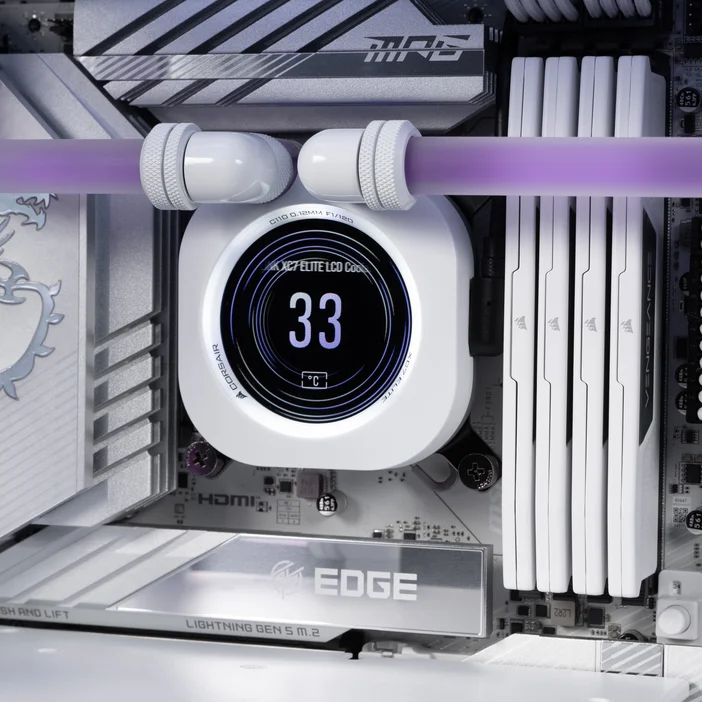
Setup via iCUE
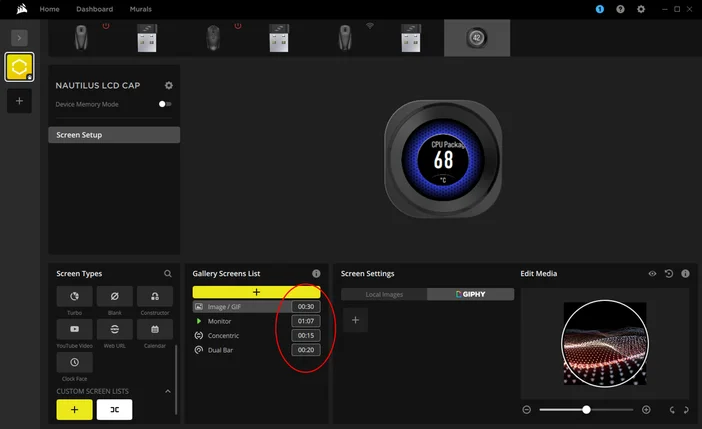
To customize your LCD, you'll firstly need our iCUE software if you don't have it already. You'll also be able to customize the RGB lighting and fan cooling settings via iCUE, so it's an extremely useful tool to have. Once you have iCUE installed and running, you'll want to select your LCD, then scroll down the presets until you see "Custom Screen Lists".
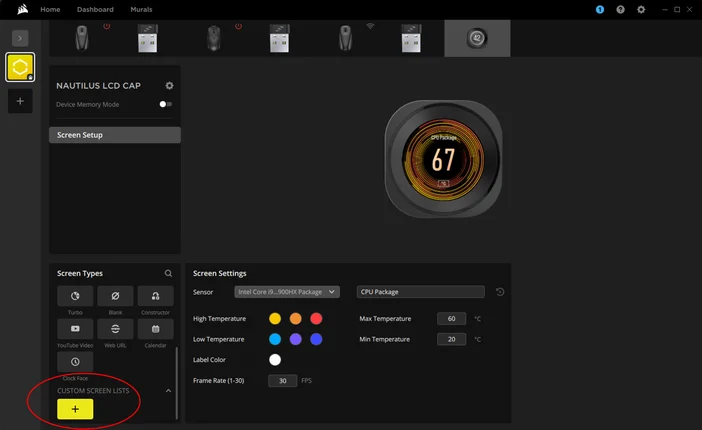
Click on the "+" symbol underneath "Custom Screen Lists". Afterwards, click on the "+" symbol that populates under "Gallery Screens List" - this will open up the different types of screens you can have in your rotating Gallery.
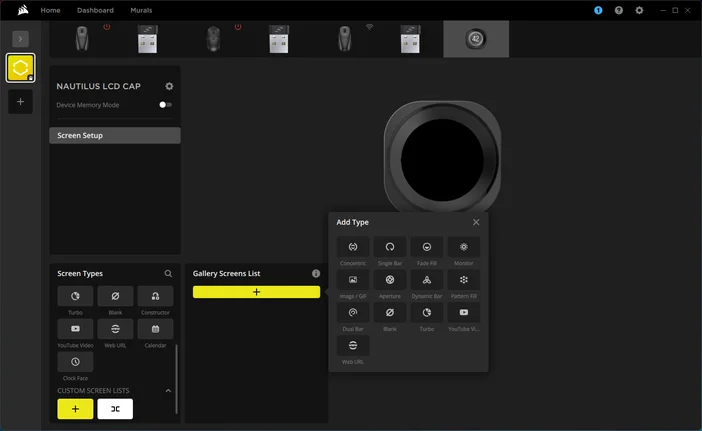
You have a wide array of options available here - from monitoring temperatures and workloads on your components, playing YouTube videos, or custom images/GIFs. In case you don't readily have any GIFs ready, GIPHY is integrated into iCUE for a quick and easy method of finding something you like.
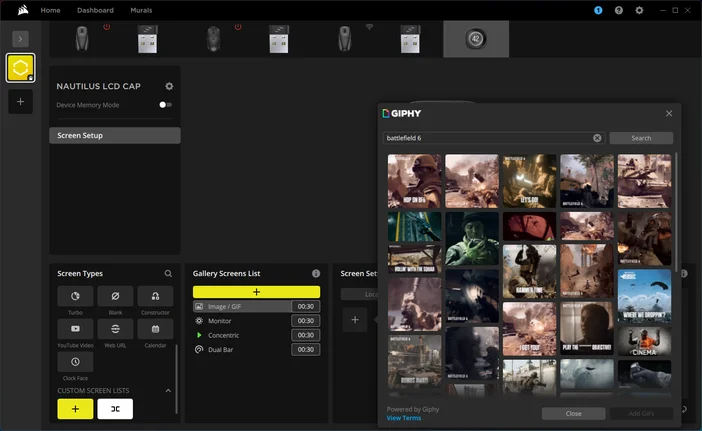
After you've added the screens you've wanted, you can set the timer on each screen to your preference. The default is 30 seconds, but if you'd like the Gallery feature to rotate between screens faster, you can set it as low as a second.
Once you have everything set up, you'll now be able to enjoy your own custom Gallery of screens on your LCD - fully tailored to your liking for monitoring or gaming setup's theme.
PRODUCTS IN ARTICLE
JOIN OUR OFFICIAL CORSAIR COMMUNITIES
Join our official CORSAIR Communities! Whether you're new or old to PC Building, have questions about our products, or want to chat about the latest PC, tech, and gaming trends, our community is the place for you.