The correct answer here is around 90C to 100C or so, which is usually when a GPU will begin to “throttle,” which means it will lower its clock speeds in order to decrease temperatures. This will have a negative impact on performance, so it’s wise to keep an eye on GPU temps if you think your card is getting too hot or you are experiencing unexpected performance when gaming.
Why Do GPUs Get Hot?
Modern GPUs will automatically overclock themselves when running a game or a demanding workload to offer the best possible performance. This allows a GPU to boost its internal clocks as high as possible given the current temperature and available power. As a generic example, this would mean a GPU might start running a game at 2000MHz, and then dial that up to 2200Mhz or higher all on its own, but remember this is a generic example.

The upside to this auto-overclocking behavior is we no longer have to worry about manually overclocking a GPU to extract maximum performance, but the downside is modern GPUs are always operating at the upper limits of their performance envelope, so they can run quite hot depending on the model and specs. In general, most graphics cards these days operate in the 60C to 85C range during gaming.
What Happens if a GPU Overheats?
If a GPU hits its thermal threshold, which is usually around 90C (194F) depending on the card, it will lower its clock speeds to allow the card to cool down a bit. If throttling doesn’t lower the temperatures enough—imagine a scenario where one of the fans stops spinning due to failure or there is a similar hardware malfunction—the card will usually shut down, usually taking your PC with it so you’ll see a spontaneous reboot, or just a black screen typically.
How Do I Find the Maximum Temperature for My GPU?
If you have an Nvidia GPU, it includes this number in the spec sheet, as shown below.
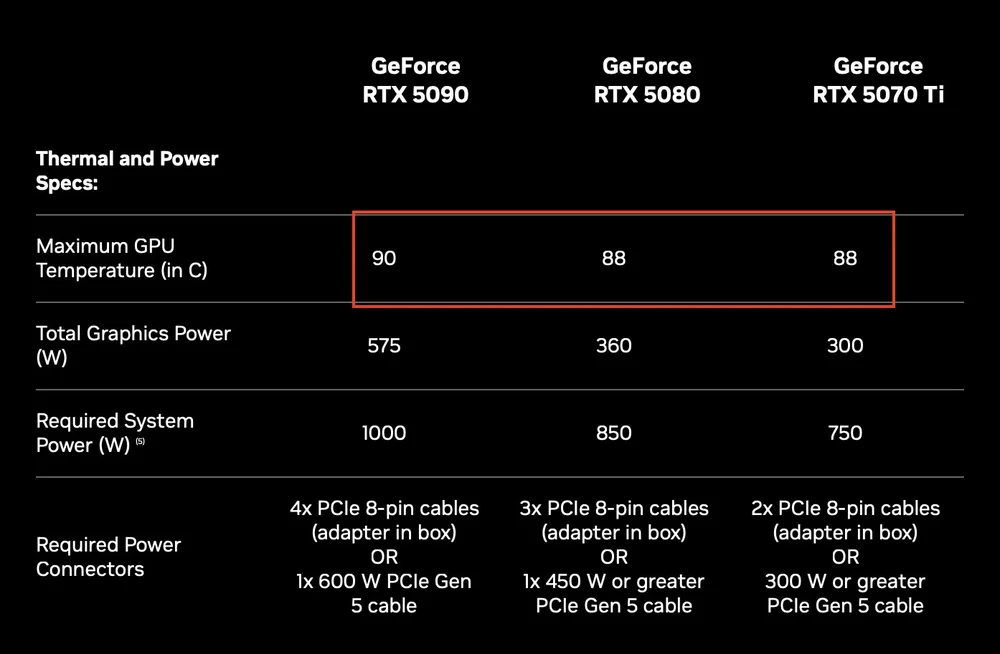
Nvidia lists the maximum temperatures for its GPUs in the spec sheet. When the GPU hits this temperature, it will lower its clocks to let the GPU cool off a bit.
AMD’s and Intel’s numbers are more elusive, sadly. Using Google we found a reference to AMD allowing temperatures on its 9000 series cards up to 110C for the GPU’s “hotspot” and temps of 108C for the onboard VRAM. We can safely say nobody wants their GPU sitting at 108C though, and looking at reviews for a GPU like the Radeon 9070 XT it seems the GPU hits about 83C with memory at 90C. Those are high temps, but not so hot that they’d be cause for immediate concern, but they are right on the border.
For Intel GPUs Google says the maximum temperature is 100C, but since its GPUs are all decidedly midrange temperatures are not a problem. Reviews show even its flagship B570 running at about 60C under load, which is quite cool.
How do I Monitor GPU temperatures?
There are a few ways to monitor your GPU temps, either in real-time via an on-screen overlay or just to check them while running a windowed benchmark. We covered the most popular ways to monitor GPU temps in this in this article. Note the best way to stress test your GPU is by running Furmark, which will make it hotter than any game on the market today so it’s a valuable stress test, but one that is not real-world. You can also use iCUE to monitor temps, as shown below.
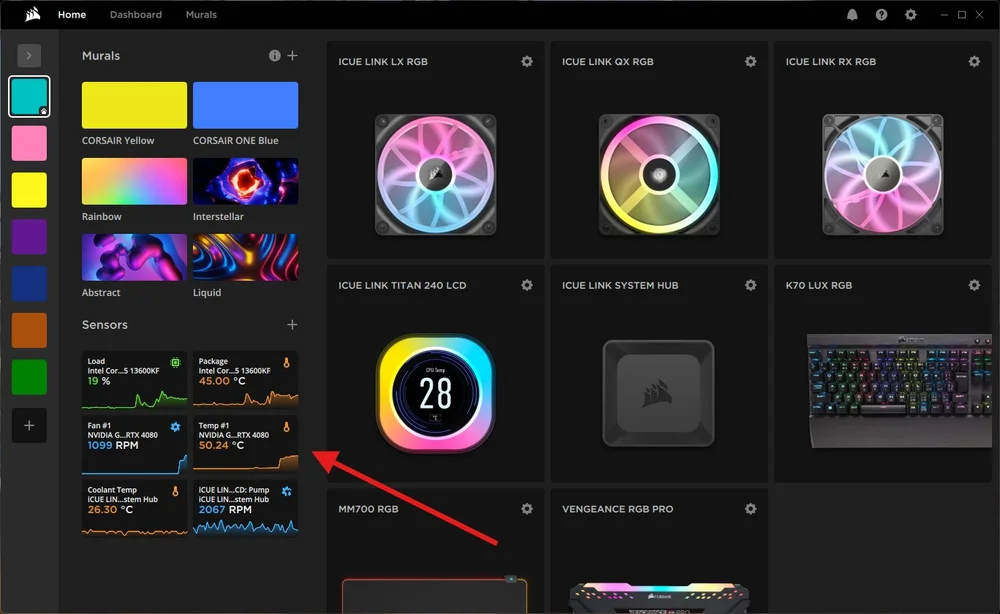
iCUE can display a wide range of temperatures including GPU temp and GPU fan speed.
How Do I prevent overheating?
You really shouldn’t have to do anything to your GPU to control its temperatures, as GPUs are built with massive heatsinks and fans to operate at optimal conditions without any intervention. If you think your temps are too high though, or see they are too high in gaming, you can try a few things
- Increase your case’s intake airflow either by increasing intake fan RPM or with different/better fans that are more effective.
- Use compressed air to clean the GPU and its fans, making sure there is nothing stuck in the fan blades that could impact performance.
- Get a bigger case so there is more room for air to move around near the GPU. If you're using a small form factor case consider getting a mid tower. If you're already using a mid tower, look at adding more fans or exam your airflow to make sure the GPU is being fed a sufficient amount of cool air from outside the case.
Should I Reapply Thermal Paste to my GPU?
If your temps are too high, and you suspect poorly applied thermal paste is the culprit, be very, very careful attempting to reapply thermal paste. You will void your GPU’s warranty by taking it apart, and they are not easy to dismantle as they are not designed to be taken apart by customers. If you feel you can accomplish it despite our warnings, just be extremely careful and methodical. In general, we do not recommend this approach as most companies do a good job of applying thermal past and it should last throughout the lifecycle of the GPU.
PRODUCTS IN ARTICLE
JOIN OUR OFFICIAL CORSAIR COMMUNITIES
Join our official CORSAIR Communities! Whether you're new or old to PC Building, have questions about our products, or want to chat about the latest PC, tech, and gaming trends, our community is the place for you.