RGB lighting can be a lot of fun. You can customize your whole setup into millions of different colors with animations and all sorts of other cool designs. If you do that with CORSAIR products, then iCUE is the program you do it with. Additionally, you can connect iCUE to other software so they can work together and sync up, which can be quite brilliant.
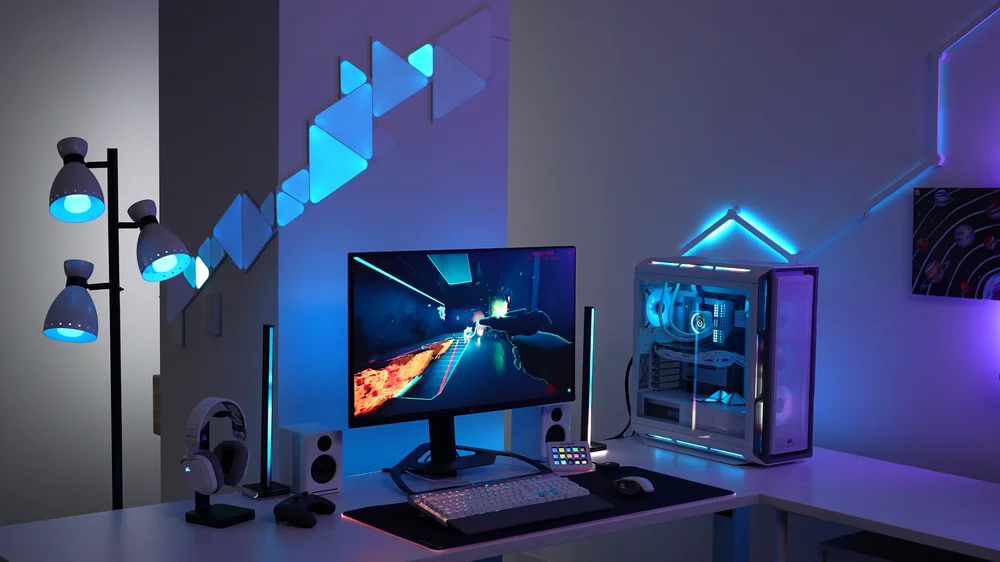
However, some software can be a little overzealous, a little too gung ho, jingoistic even. Videogames are usually the culprit here. On the surface, it’s a nice concept - the game takes control and syncs the lighting of your setup to what’s going on in the game. The idea is immersion, but many of us are plenty immersed without our keyboards flashbanging us into an early grave.
How to Disable Game SDK in iCUE
So, here’s how to switch it off, or to limit it so only certain games and applications can control your lighting.
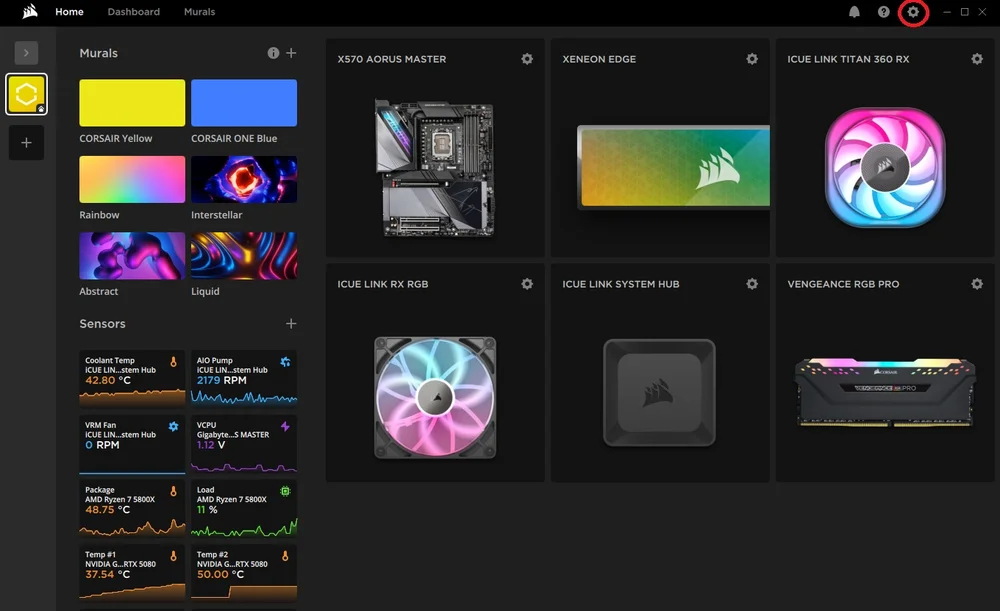
- Open iCUE and click the gear icon near the top right to open the settings menu.
- In the settings menu, click the “SDK” tab and click the slider next to “Game SDK” to switch it off.
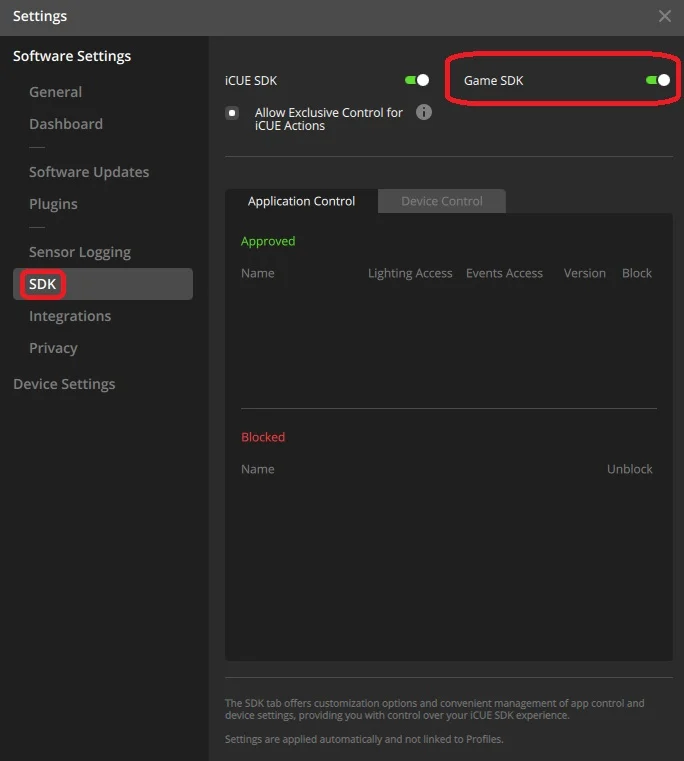
And you’re done. Now you’ve disabled any game from accessing iCUE and controlling the lighting. But what if you enjoy some games integrating themselves with your lighting, but not others. If this is the case, leave the “Game SDK” slider on and simply block the specific application that’s annoying you in the “Application Control” tab below. Unblocked games will continue to influence lighting, but the blocked games will not have access.
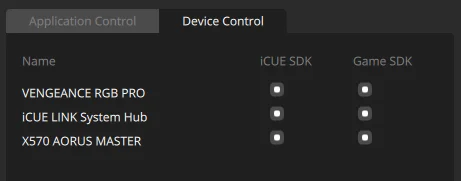
Additionally, for more granularity, go to the “Device Control” tab and you can check and uncheck which specific devices in your setup can be controlled by games and even iCUE itself.
JOIN OUR OFFICIAL CORSAIR COMMUNITIES
Join our official CORSAIR Communities! Whether you're new or old to PC Building, have questions about our products, or want to chat about the latest PC, tech, and gaming trends, our community is the place for you.