Returning to modern-day combat for the first time since Battlefield 4 in 2013, Battlefield 6 has received a strong reception, especially after some disappointment with the futuristic vibes of Battlefield 2042.
With a more grounded setting, players have been shirking their responsibilities to instead pour considerable hours into the multiplayer. So, today we’re going to go over the best settings for Battlefield 6 with a focus on multiplayer performance.
It goes without saying that this guide is written with the PC version of Battlefield 6 in mind, however, some of it can be applied to PS5 and Xbox Series X/S.
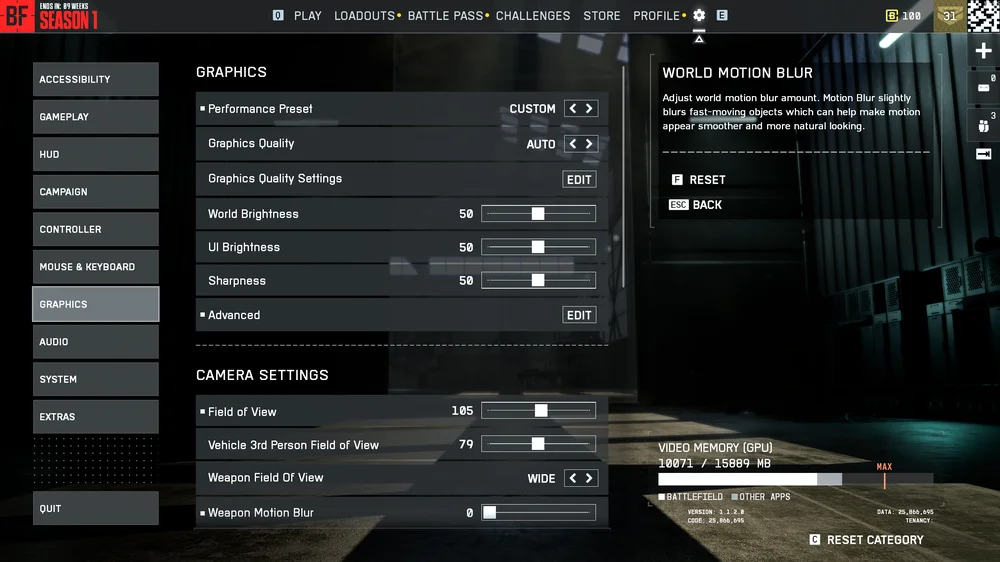
Best Battlefield 6 Competitive Multiplayer Settings
We aren’t going to bother trying to prescribe keybinds and mouse sensitivity settings here as these are almost entirely subjective, and you won’t meaningfully improve your experience by emulating someone else’s keybinds. We’re talking graphics settings and other gameplay options that could make the difference.
Graphics Settings
The easy solution here is to find the “Performance Preset” Option and change it to “AUTO (PERFORMANCE)”. This will turn some of the fancy visual embellishments down and apply a low latency mode. However, it will still try to make Battlefield 6 look good.

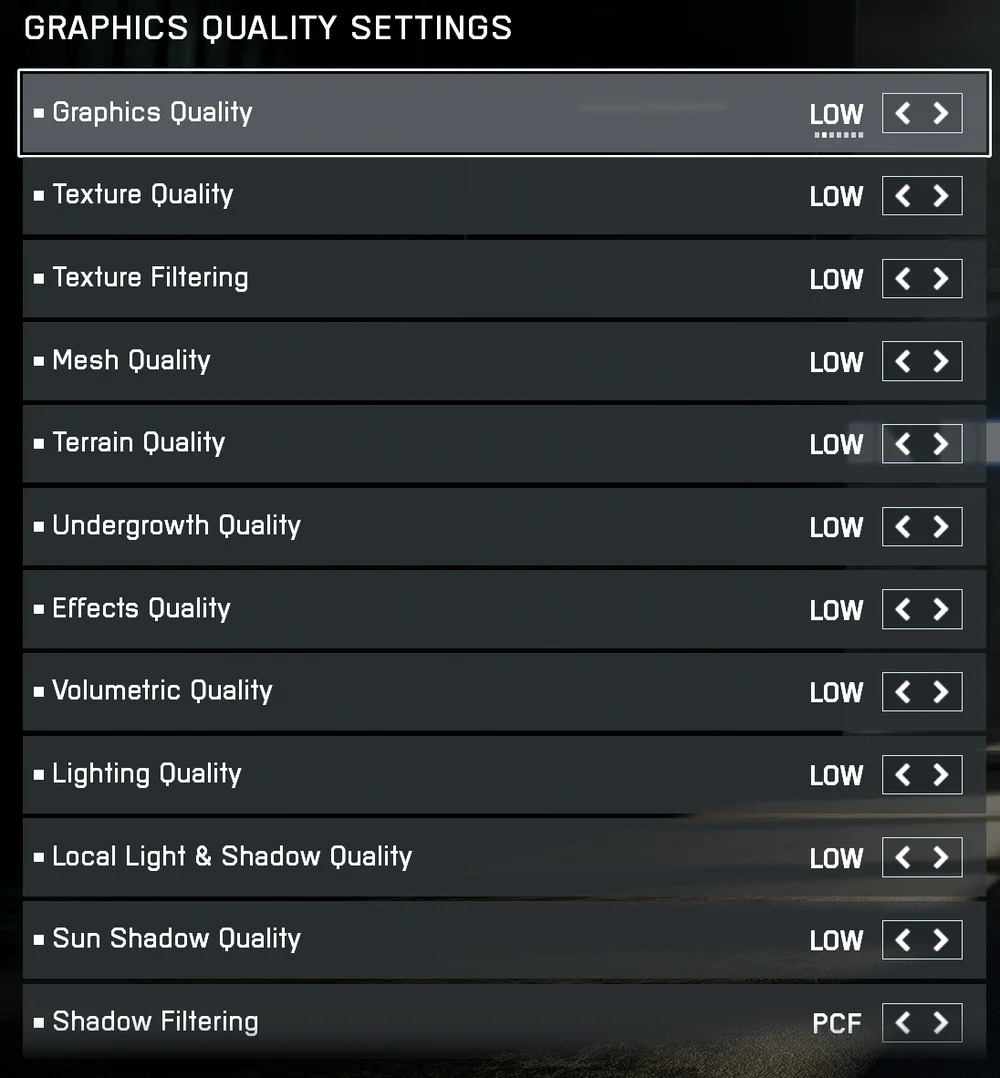
Unfortunately, looking good is the enemy of performance when it comes to competitive FPS games. What you need is maximum FPS and minimum latency. So, to get the highest possible FPS in Battlefield 6, go to “Graphics Quality Settings” and set “Graphics Quality” to “Low”. This will turn all the sub settings below to their lowest value, which will make the game look like it was made for the PS3, but will increase your FPS massively.
It's worth mentioning here that if you’re getting more FPS than your monitor’s refresh rate can handle, those additional frames are wasted. If you want the best competitive performance in Battlefield 6, then you should match your FPS to the refresh rate of the monitor. For example, if your Monitor has a 144Hz refresh rate, then you should aim for 144 FPS in-game.
This means that if your PC is reasonably powerful, you may be able to get those two numbers to match and keep a few of the visual niceties on.
Camera Settings
The camera settings in Battlefield 6 won’t make any difference to performance like the graphics settings, but they can improve clarity for the player, making it easier to spot enemies.
“Field of View” and “Weapon Field Of View” should be set relatively wide, as it basically makes your peripheral vision broader. However, when you set FoV to a very high value it can warp the image near the edges of your screen, which can be a hindrance. Somewhere around 100 is a good spot to start. Going above 150 will make the game look a bit too much like a skateboarding video.
Turn “Weapon Motion Blur” and “World Motion Blur” off. These settings might make the game look a little more realistic, but they will make it harder to see what’s going on.
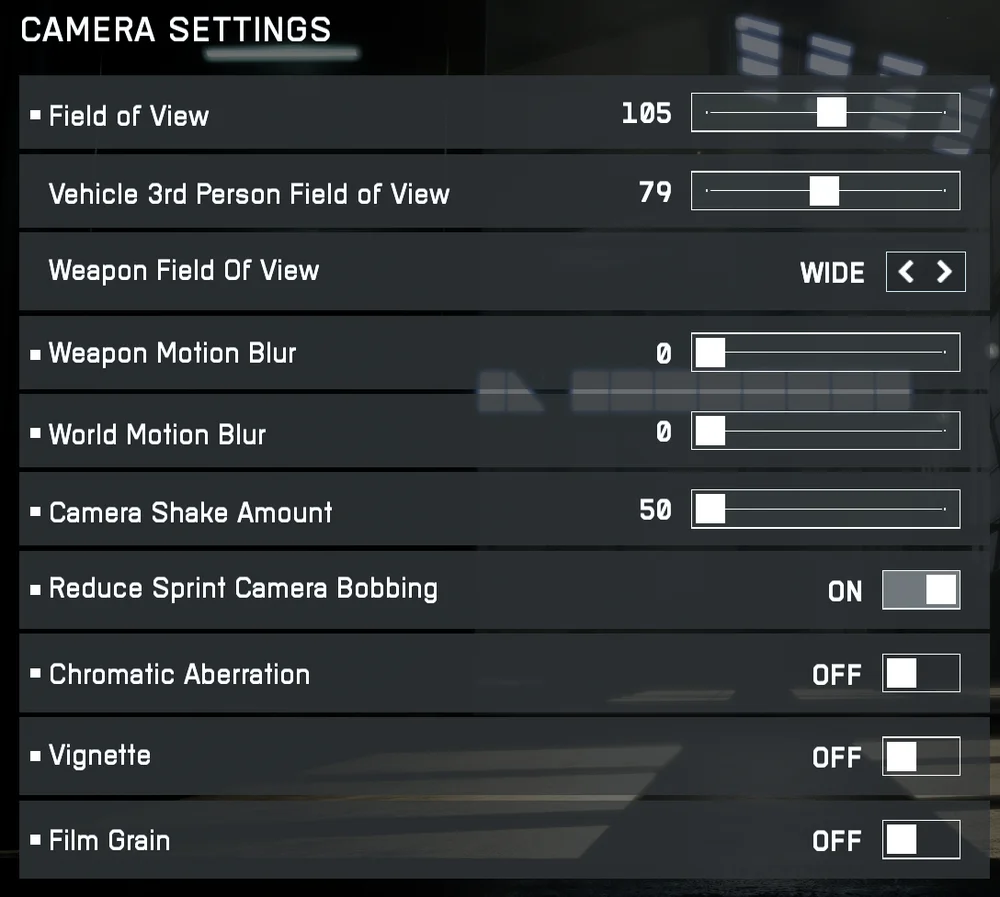
“Camera Shake Amount” should be set to the minimum, and “Reduce Sprint Camera Bobbing” should be switched on. Again, these settings make it more realistic by buffeting your view during an explosion or when you’re running, but they make it harder to see.
“Chromatic Aberration”, “Vignette”, and “Film Grain” should all be switched off. These settings simulate visual artifacts from film cameras. The Saving Private Ryan vibe is great for the single-player campaign, but will reduce clarity in multiplayer.
Display Settings
These settings will mostly be done for you as they aren’t really related to preference or performance, more just the technicalities of your specific monitor. “Fullscreen Mode” can be set to your choice of Borderless, Windowed, or Fullscreen. None of which make a difference to performance.
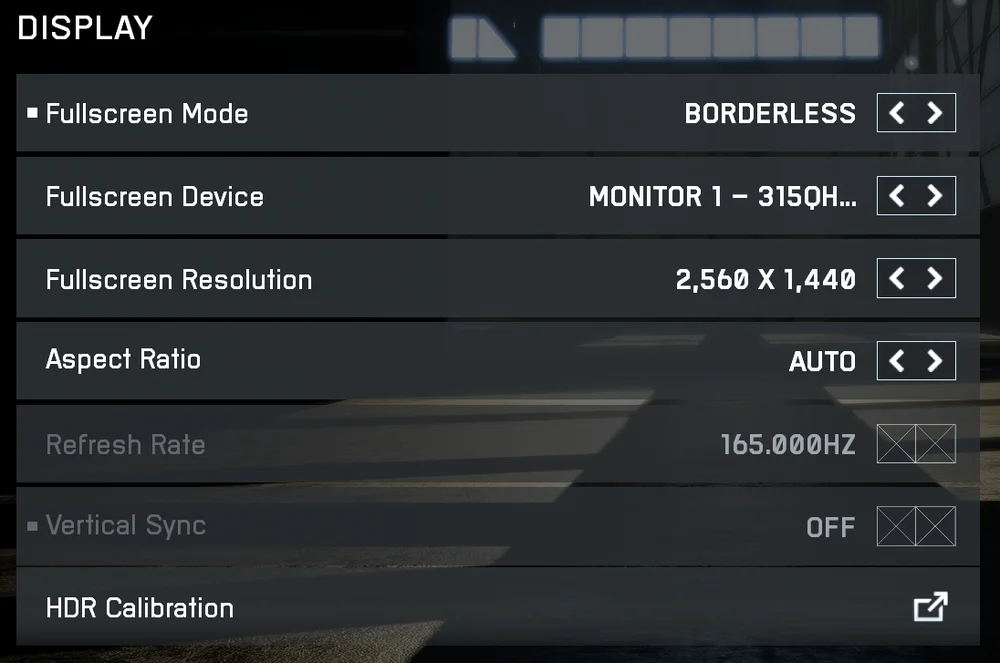
Basically, the only option you want to pay attention to here is “Vertical Sync”, usually known as Vsync. Vsync forces the GPU to slow down its output to match the monitor’s refresh rate, thus preventing screen tearing. Technically, Vsync can result in a small amount of latency, so if you’re the type who is hell-bent on squeezing every gram of performance out of the game, turn it off.
However, we recommend that most people keep it on. Screen tearing is far more detrimental to the gaming experience than the potential for small amounts of latency.
Advanced Settings
Here we find some of the more important settings when it comes to multiplayer performance. “Fixed Resolution Scale” can be ignored as the potential performance gains are quite low especially as compared to the settings we’ve already covered.
The Frame Rate Limiter can be left off if you’re using G-Sync or FreeSync as these technologies are more effective at controlling frame output on their respective GPUs.
“Dynamic Resolution Scale” is worth switching on if you’re struggling with hitching or frame stutter. Otherwise, this setting can be ignored.
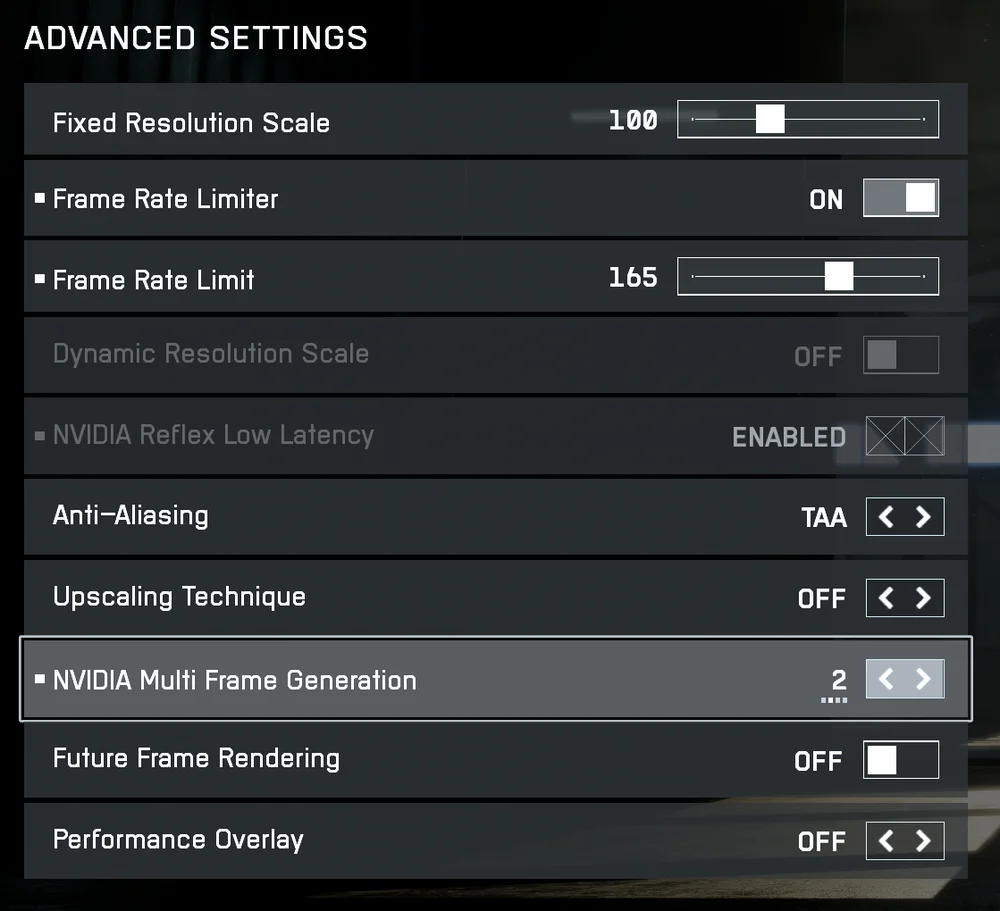
“Anti-Aliasing” reduces hard edges and is one of the more important graphical technologies. We’d recommend leaving it on TAA as this is GPU-agnostic and not particularly harmful to performance.
“Upscaling Technique” should be switched off. It can greatly improve the visual fidelity of Battlefield 6 but won’t help multiplayer performance and can lower your FPS considerably.
“NVIDIA Multi Frame Generation” is a controversial technology. If you’re really struggling to hit high FPS numbers, you can turn it on but stick at 2 if you do. Setting it to 3 and 4 produces very noticeable input lag. "Future Frame Rendering" has the same downsides. Leave this off.
It’s worth mentioning here that you might need to mix and match a lot of these settings to produce the best result for your specific preferences and PC setup. There is no one-size-fits-all solution. Change a few settings and play for a bit, then change some other settings, and play again. Keep doing this until you’ve managed to mould the games performance and visuals into a state that you are personally happy with.
JOIN OUR OFFICIAL CORSAIR COMMUNITIES
Join our official CORSAIR Communities! Whether you're new or old to PC Building, have questions about our products, or want to chat about the latest PC, tech, and gaming trends, our community is the place for you.