MANUAL | QUICK START GUIDE
GALLEON 100 SD
STREAM DECK-INTEGRATED MECHANICAL KEYBOARD
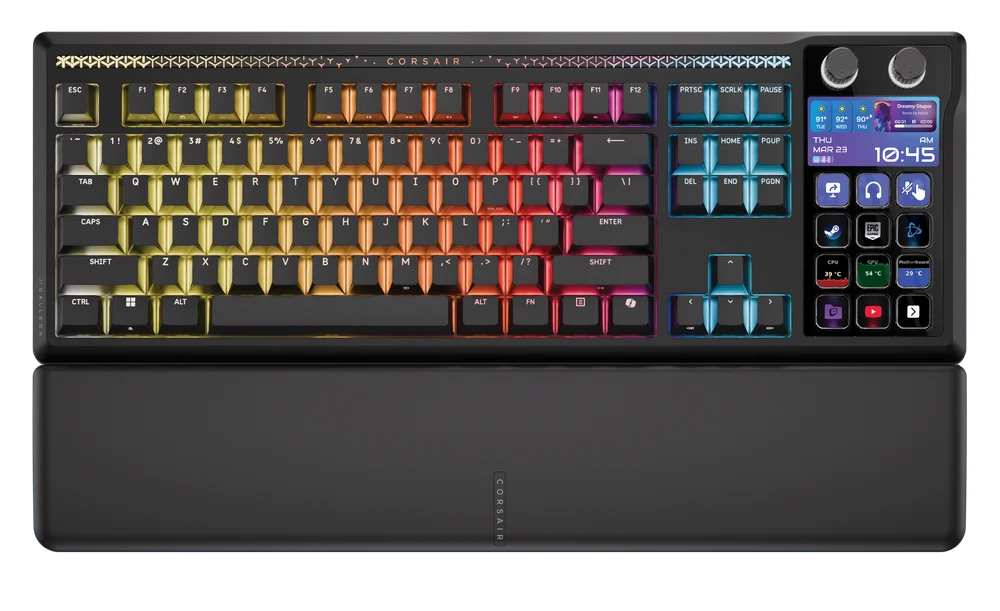
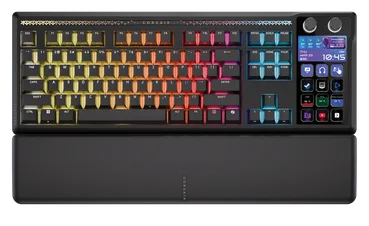
GETTING TO KNOW YOUR KEYBOARD
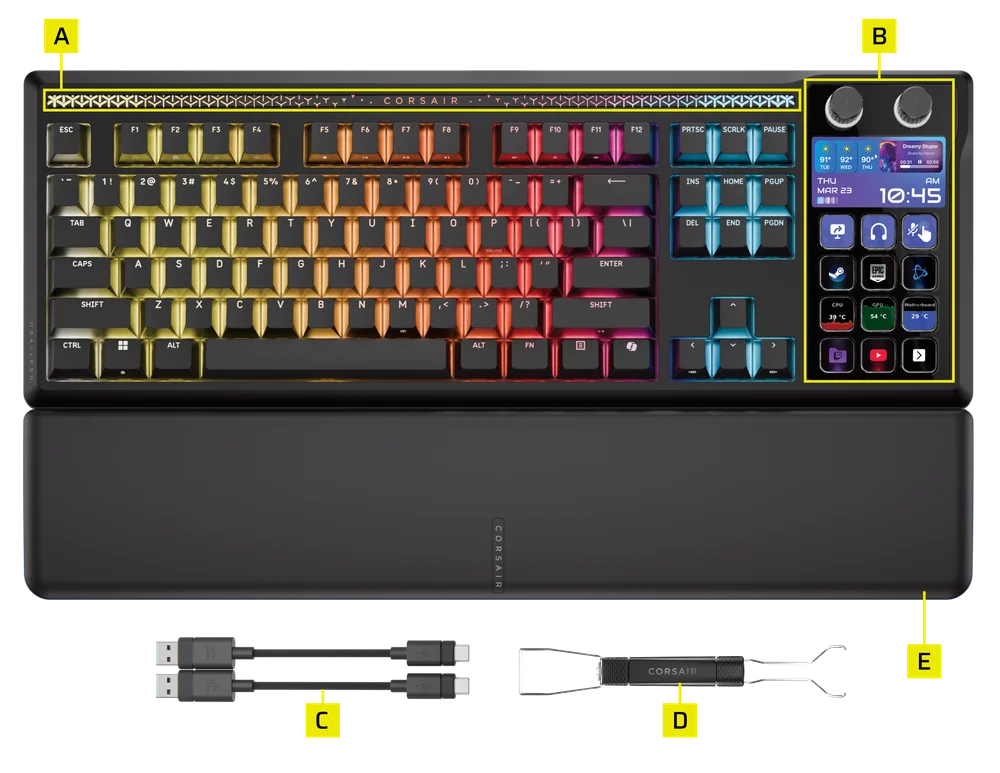
- RGB MOOD BAR
- DYNAMIC LCD SCREEN
- TYPE A TO TYPE C CABLES x 2
- 2 IN 1 KEYCAP & SWITCH PULLER
- MAGNETIC CUSHIONED PALM REST
Please note that this keyboard requires higher power. We recommend using the provided USB cable to ensure optimal performance and avoid potential issues.
SETTING UP YOUR KEYBOARD
Before using the keyboard, please go to the Web Hub’s DEVICE SETTINGS and update the product firmware to the latest version. www.corsair.com/web-hub
If the firmware update fails, follow the steps below:
1. Disconnect the USB cable from the keyboard.
2. Press and hold the B + L keys.
3. While holding the keys, reconnect the USB cable.
4. Wait until the keyboard lights turn on.
5. Run the firmware update again.
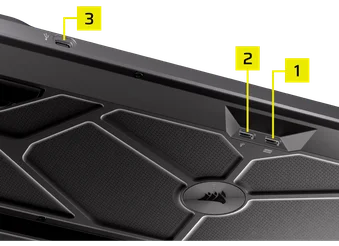
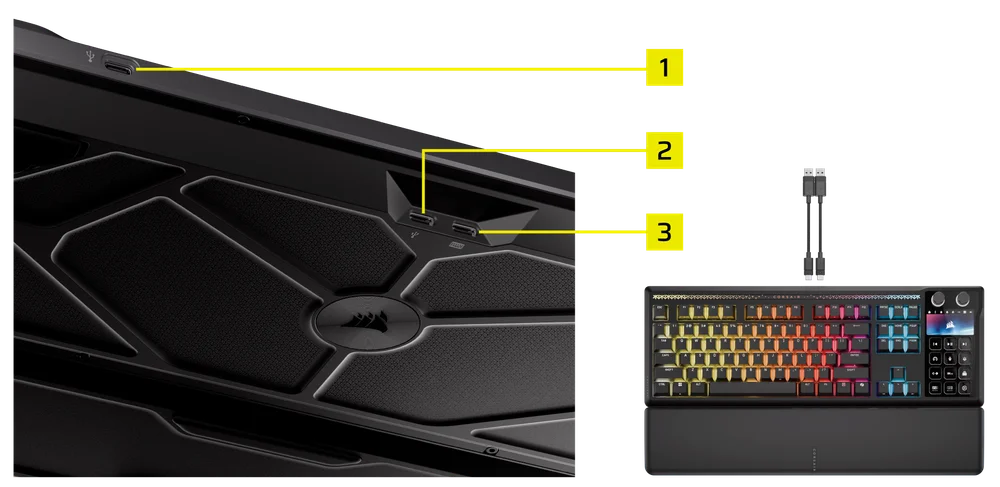
Connect the keyboard via 2 USB cables to an available USB Type-A port. Please refer to the image below.
- USB PASSTHUOUGH PORT (1): Connect external devices.
- UPSTREAM PORT (2): Connect to PC.
- KEYBOARD FUNCTION PORT (3): Connect to PC.
| Windows PC® | Apple Mac® |
Microsoft Xbox One* Microsoft Xbox Series X | S* |
Sony PlayStation 4** Sony PlayStation 5** |
*Keyboard is compatible out of the box, see corsair.com/xbox-support for details.
**See Connecting to Sony PlayStation section.
TECHNICAL SPECIFICATIONS
| FEATURE | DESCRIPTION |
| Form Factor | 87+12(US) / 88+12(UK) / 91+12 (JP) layout |
| Colorways | Black |
| Keycaps | PBT Double shot, ABS Single shot |
| Backlighting | Per key RGB programmable |
| LED Color | RGB, 16.8 million colors |
| Key switches | CORSAIR MLX Pulse linear mechanical pre-lubricated keyswitches, 45g actuation force, 2.0mm actuation distance, 3.6mm total travel, guaranteed for 80 million keystrokes |
| Connectivity | Wired USB (Version 3.0 or above recommended) |
| Matrix | Full key rollover (NKRO) with 100% anti-ghosting |
| USB Report Rate | Up to 8,000Hz hyper-polling with CORSAIR AXON |
| On-Board Profiles | 5 |
| Display | 5" IPS color LCD screen with 12 keys |
| Multi-Function Control | 12 multi-function keys + 2 Rotary dial |
| Brightness Key | FN shortcuts / Rotary dial |
| Windows Lock Key | Yes |
| Adjustable Height | Yes |
| Console Compatibility | Xbox One, Xbox Series X|S, PlayStation 4, 5 |
| Software | Yes (CORSAIR WEB HUB, Stream Deck APP) |
| Cable | 1.8 m / 6 ft, black, detachable, braided USB Type-C to USB Type-A |
| Dimensions |
Keyboard: 448*159*42 mm / 17.64 × 6.26 × 1.65 inches Palm rest: 448*89*21 mm / 17.64 × 3.50 × 0.83 inches |
| Weight |
Keyboard: 1392 g / 49.09 oz Palm rest: 225 g / 7.94 oz |
| Warranty | Two years – Local country regulations are applicable |


AXON HYPER-PROCESSING TECHNOLOGY
CORSAIR AXON delivers a powerful and responsive keyboard experience with:
- Hyper-fast keystroke detection and processing
- Up to 8,000Hz hyper-polling (adjustable in CORSAIR Web Hub device settings)
- Up to 5-layer onboard lighting effects (programmable in CORSAIR WEB HUB per profile)
CONNECTING TO SONY PLAYSTATION
The keyboard also has a special mode to support Sony PlayStation 4 and 5 that can be activated via shortcut.
| SHORTCUT | FUNCTION | INDICATION |
FN+  (Hold for 5 sec) (Hold for 5 sec) |
Switch to PlayStation mode | Blinks white 5 times over 5 seconds |
| FN+ (Hold for 5 sec) |
Switch back to standard mode | Pulses white 2 times |
OPERATING MODES
The keyboard functions in three different operating modes:
1. HARDWARE (HW) MODE
When CORSAIR WEB HUB is not running or the keyboard is connected to a device that does not support CORSAIR WEB HUB, the keyboard operates in hardware mode which uses profiles and settings that have been saved to the onboard storage.
In HARDWARE MODE, the left dial can be used to switch between SHORTCUTS MODE and NUMPAD MODE.
SHORTCUTS MODE
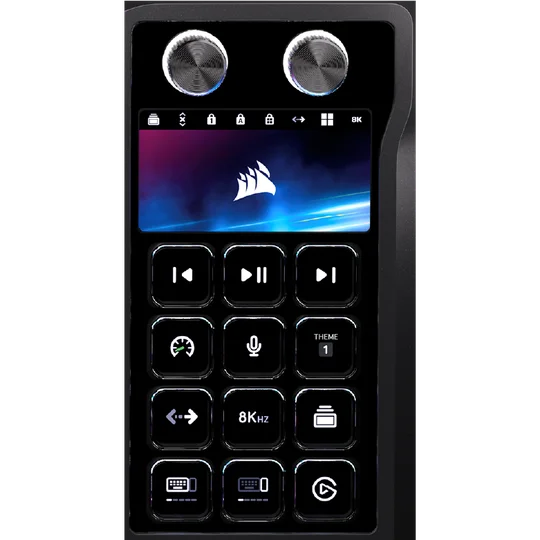
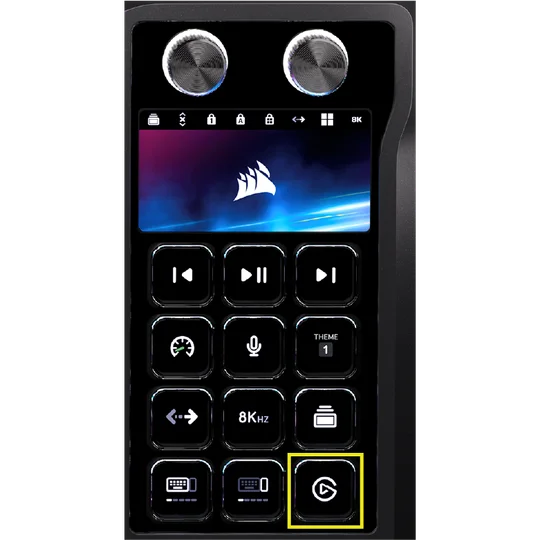
Elgato button
When you press this button, there are two possible scenarios*:
This is targeted to be ready in Q3.
- If the Stream Deck app is already installed: It will automatically launch Stream Deck.
- If the Stream Deck app is not installed: It will direct you to the Stream Deck installation page.
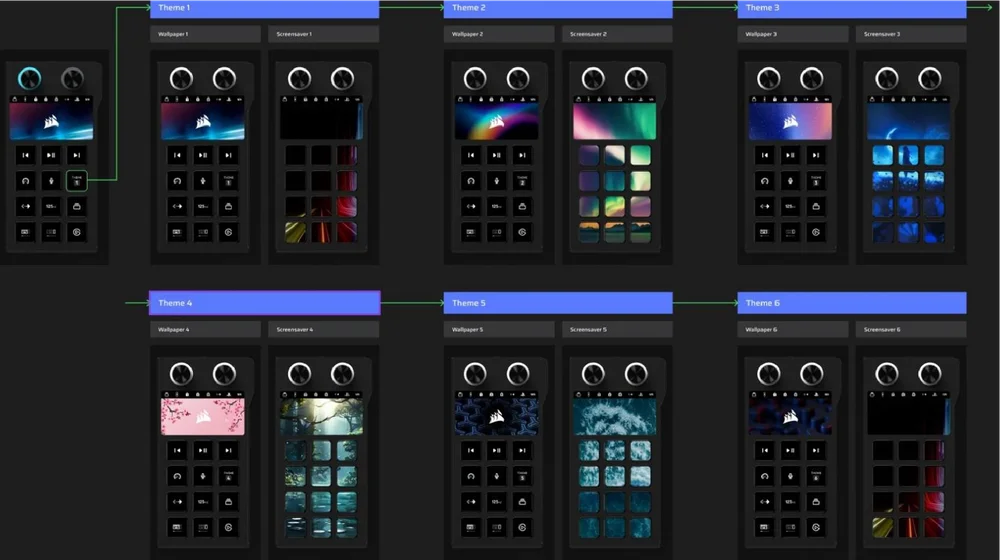
Theme button
Press this button to switch between six available themes. But please note that only switching to personal mode can adjust RGB lighting in Corsair Web Hub
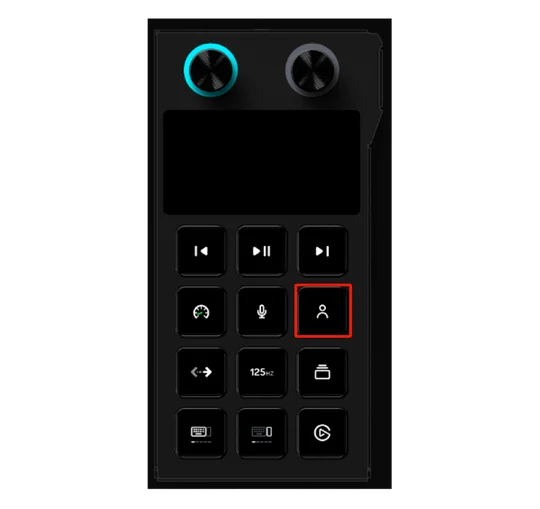
NOTE: To adjust RGB lighting in Hardware Mode or Web Hub, switch the Dynamic LCD screen theme to “Personal Mode” first. Personal Mode allows users to customize their lighting preferences in the web hub once they switch from one of the six preset themes to Personal Mode, as also noted in Rev’s guide.
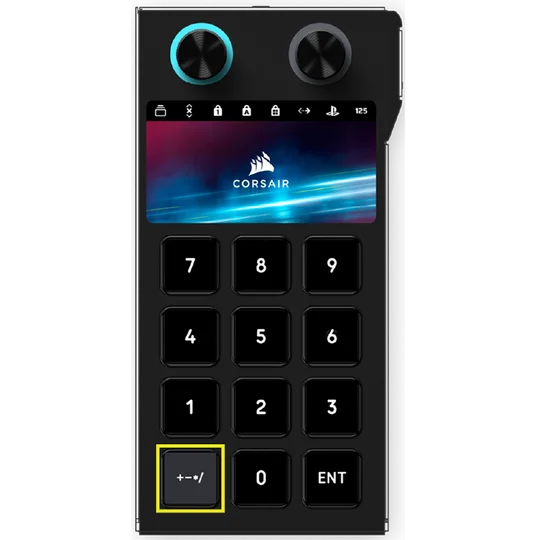
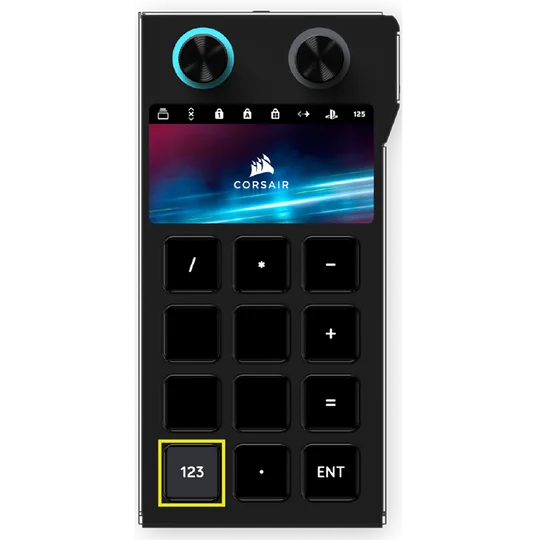
NUMPAD MODE
There are two pages that can be switched using the dedicated buttons marked in yellow, as shown below.
2. WEB-BASED MODE
Go to CORSAIR WEB HUB link https://corsair.com/web-hub, the keyboard left side operates in Web-based mode, allowing for customization of the device, and using profiles and settings saved to onboard storage.
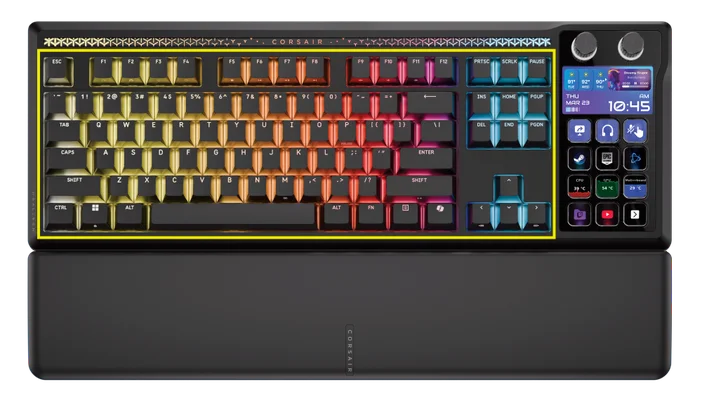
Note: Please bear in mind that certain features and keypress combinations have different effects depending on which mode you’re in, so if your GALLEON 100 SD is not exhibiting the expected behavior, please ensure that you are in the correct mode.
| FUNCTION | HARDWARE MODE | WEB HUB MODE |
| Storage & Profiles | 8 MB for up 5 profiles | 8 MB for up 5 profiles |
| Create New Profiles | N/A | YES |
| Create Lighting Effects | N/A | YES |
| Create Key assignments | YES | YES |
| Maximum Lighting Layers | N/A | 5 |
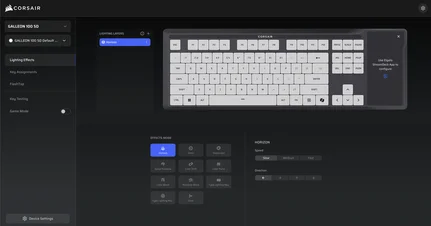
CORSAIR WEB HUB is a user-friendly web utility with an intuitive, seamless interface, accessible via the link: https://corsair.com/web-hub/. No app downloads are required. CORSAIR Web Hub is lightweight, allowing customization of the GALLEON 100 SD and supported peripherals via the web. Easily program macros, assign key mappings, update firmware, customize Game Mode, and more.
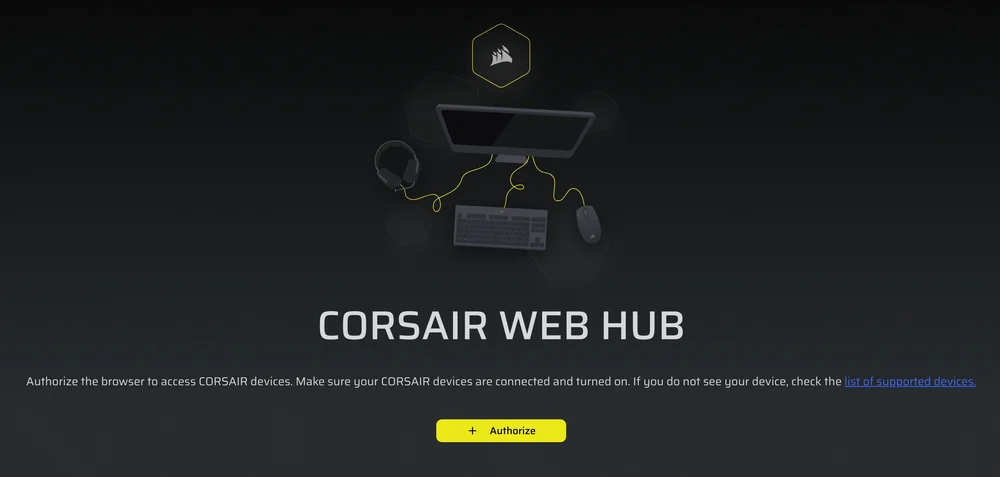
CORSAIR WEB HUB it will present options to start programming for:
- Lighting Effects
- Key Assignments
- Flash Tap
- Game Mode
- Device Setting
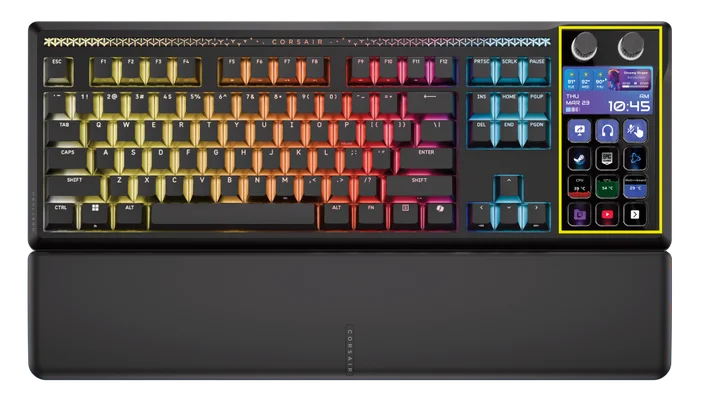
3. ELGATO STREAM DECK MODE
Navigate to the following link to download the software to manage the integrated Stream Deck: https://www.elgato.com/s/downloads. This will allow for all of customization and functionality discussed in the Stream Deck sections of the guide.
GETTING STARTED WITH STREAM DECK
Get the app and log in to Elgato Marketplace
To customize your controls, you’ll need the Stream Deck app. It’s free for PC and Mac, available at www.elgato.com/s/downloads.
For the first-time use, please register and log in to the Elgato Marketplace after downloading the app: https://marketplace.elgato.com.
Default Profile
When you first open the Stream Deck app, you’ll see the default profile with plugins for the following functions:
- Change KB lightings
- Change Polling rate
- Switch profiles
- Game mode turn on/off
- FlashTap turn on/off
Images shown here are for placement only (FPO). Plugins are subject to change based on future Elgato firmware updates.
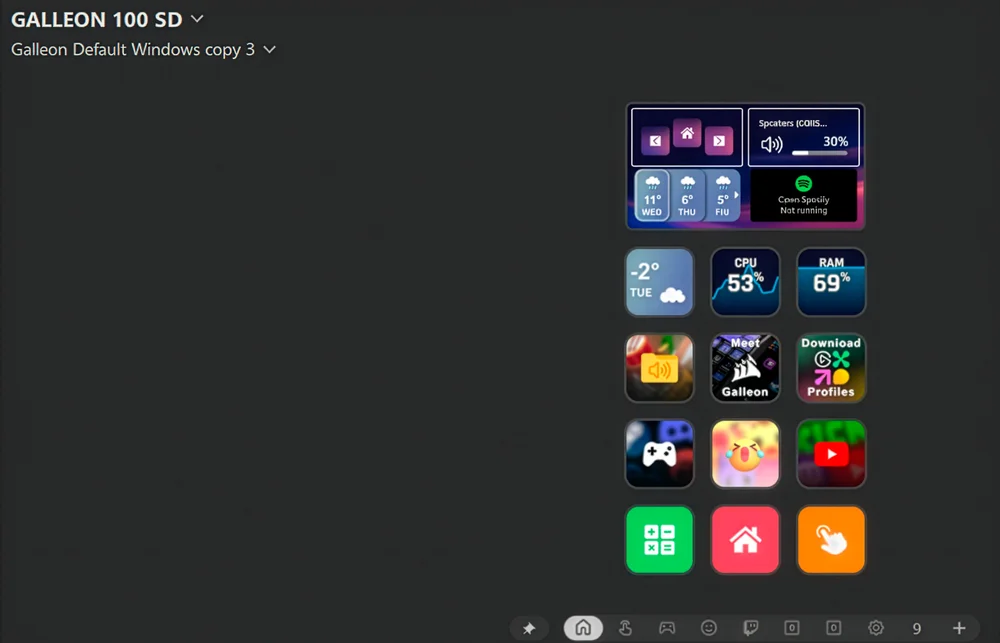
For the gaming feature plugins (such as Game Mode on/off, FlashTap on/off, etc.), please navigate to the later pages to view them.
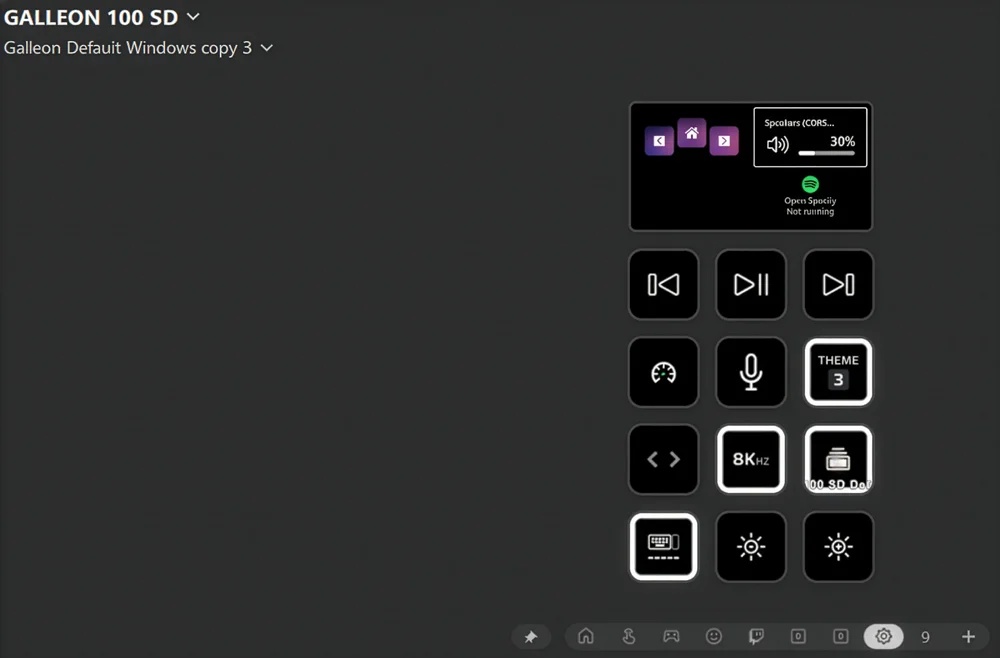
Learn the basics
Available actions appear in the right panel of the Stream Deck app. Drag any action onto an open key or dial, then configure its settings in the area below.
Working with keys
Press a key to instantly perform an assigned action. Use folders and pages to organize your actions for quick access. Multi Actions let you chain multiple commands together and execute them with a single press. With Key Logic, assign different actions to a press, double-press, or press-and-hold.
Working with dials
The two dials control two dial sets, for total control of up to four dial actions. To switch between controlling corresponding the top and bottom dial action, do the following:
- Long press the dial for 3 seconds, then let go
- The dial will switch between controlling the top or bottom action
Dials can execute key actions, for even more control options.
- Action Wheel: Rotate the dial to select an action, then press the dial to perform the action. Think of this like a weapon or item select wheel in a game
- Action Trigger: Individual actions can be assigned to clockwise, counterclockwise and dial press. Now, a single dial can perform three different actions.
To get started with Action Wheel and Action Trigger, drag-and-drop them right the right side onto the dials.
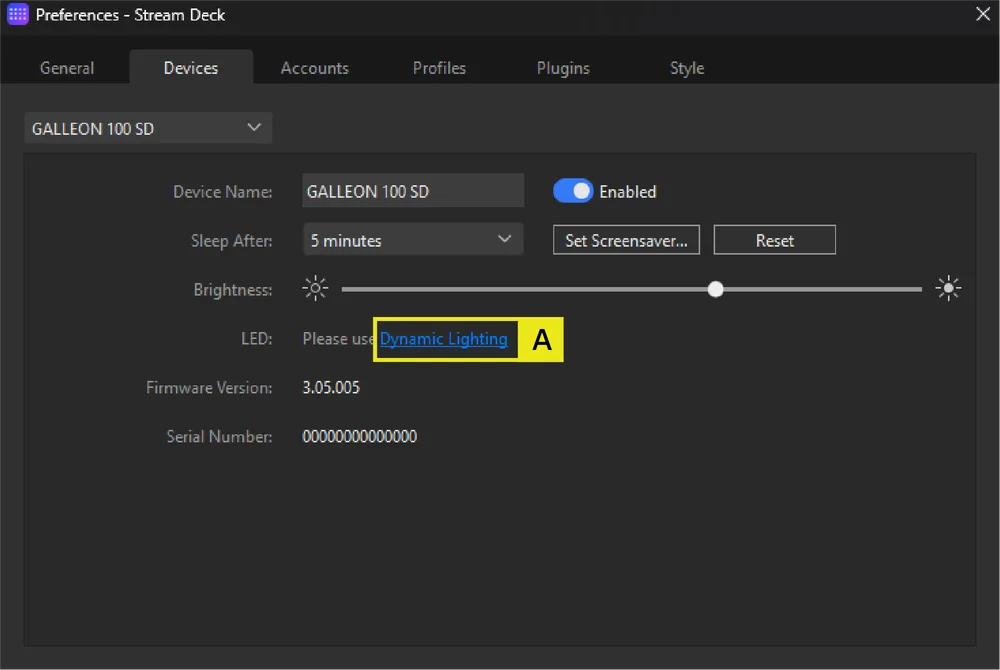
How to Adjust Lighting for the Two Rotary Dials
A. Open the Stream Deck App and go to the devices tab, clicking “Dynamic Lighting” under the LED section.
B. In the Dynamic Lighting page, select the right-hand device panel that represents the right-side full LCD module.
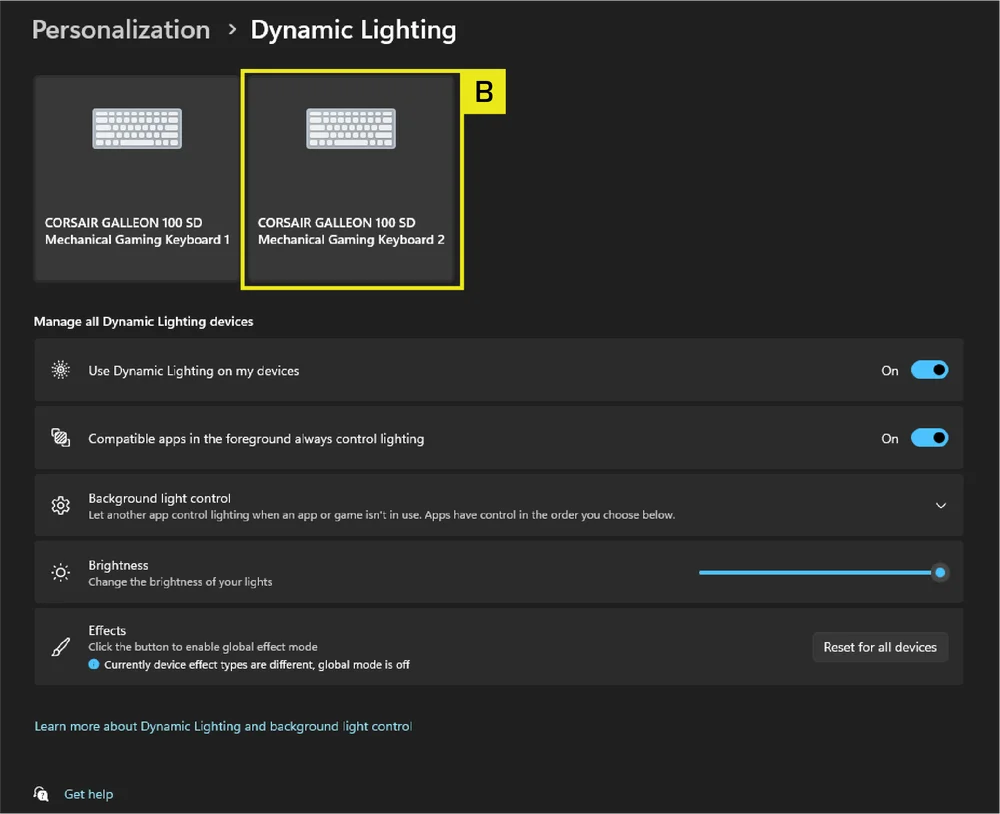
C. In the Effects section, choose the lighting effect you want to apply to the two rotary dials.
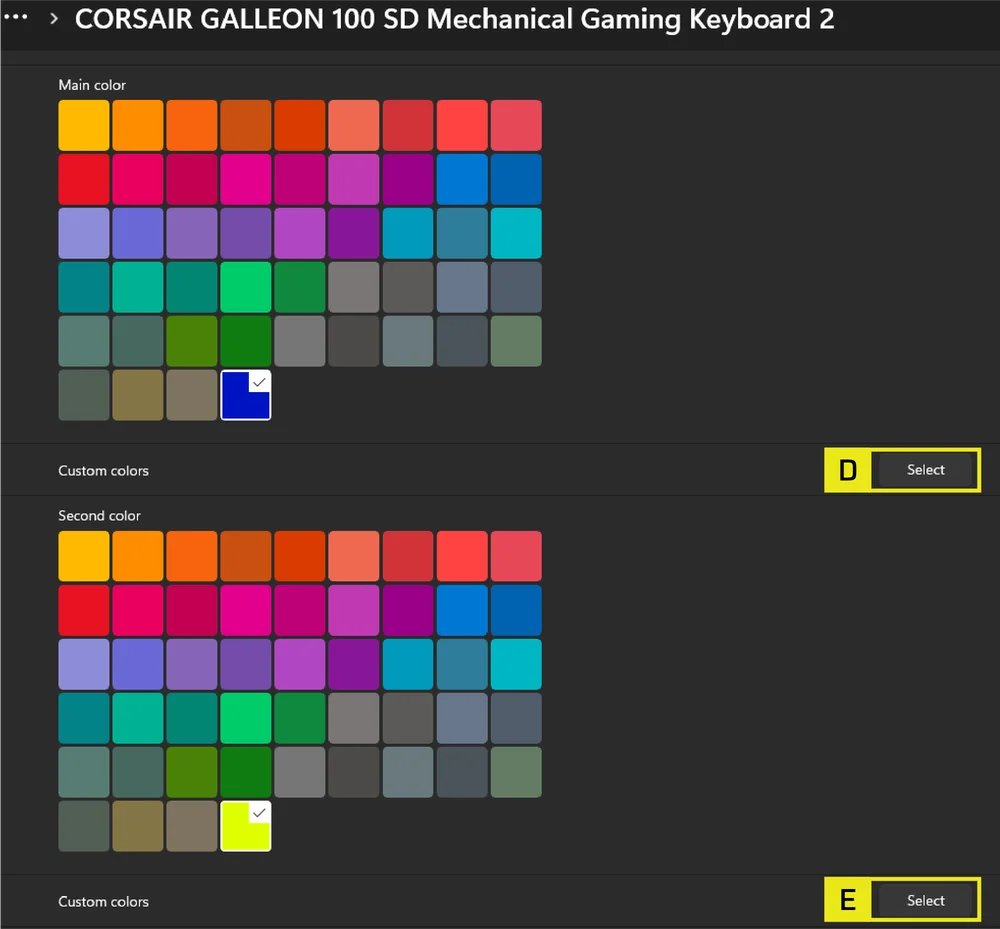
Note: Only the Gradient effect allows you to set different colors for each rotary dial. All other effects apply a single color/effect to both dials.
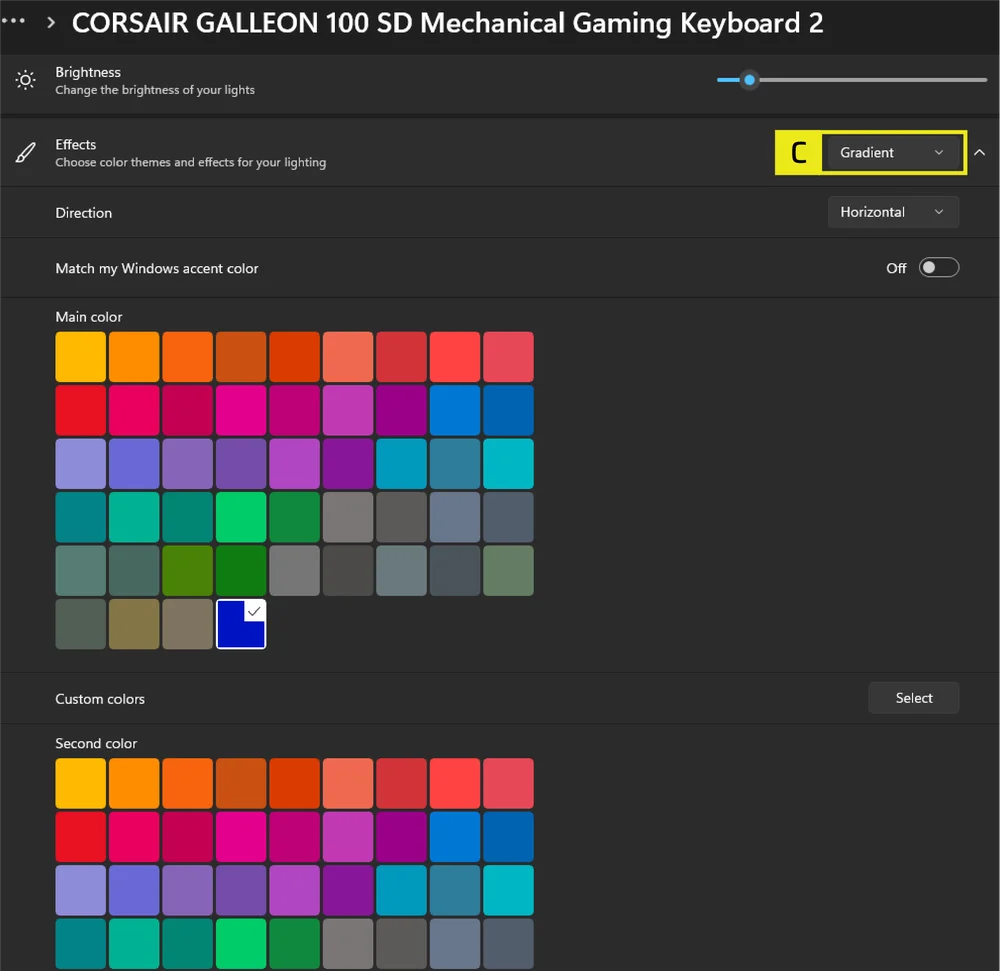
D. When Gradient is selected, the Main Color setting controls the left rotary dial.
E. The Custom Color setting controls the right rotary dial.
Adapt to any task
Profiles are custom layouts for different apps, games, and workflows. Create as many as you need, then switch between them manually or automatically with Smart Profiles.
Expand your abilities
Elgato Marketplace offers hundreds of community-created plugins and profiles, giving you new ways to control your apps, games, and gear. Create a free account at marketplace.elgato.com, then browse and install add-ons directly through the Stream Deck app or on the web. Plugins update automatically when new versions are available, so you're always up to date.
Style how you like
Your Stream Deck's appearance is fully customizable. In the app, right-click on your keyboard’s screen to choose from various background designs. Install entire icon sets from Marketplace, then apply them one-by-one to your keys.
HARDWARE OVERVIEW
FN SHORTCUTS LIGHTING INDICATOR
When pressing the FN key, all lighting will momentarily turn OFF, excluding keys that have secondary functions and macros assigned to them. Those keys will have backlighting turned ON.
- The default color will be WHITE.
- Users can customize the color indication in CORSAIR WEB HUB.
Color indication for profile currently in-use will take priority over FN Shortcuts lighting.
GAME MODE BUTTON FUNCTIONALITY
Enter competition-optimized setting via pressing FN + F1 on Game Mode Button.
NOTE: If activating Game Mode changes the current polling rate of the keyboard, this will create a delay of up to 1 second as the keyboard switches rates. Activating Game Mode BEFORE starting gameplay is recommended to limit the impact on your gameplay experience.
| MODE | FUNCTIONS | HARDWARE | SOFTWARE (CORSAIR WEB HUB) | REMARK |
|
Default Mode (Game Mode off) |
Game mode off:
|
No | No | Factory default |
| Game Mode on |
Game mode on:
|
Yes | Yes | Can be customized in Web Hub. Changing the polling rate will cause the keyboard to restart. |
STANDARD SHORTCUTS
All below functions assume FN key is being held and action is activated upon press unless otherwise noted. Default function shortcut, with printed icons.
| SHORTCUT | FUNCTION |
| FN + F1 | Game Mode on/off |
| FN + F2 | Cycles onboard or software profiles |
| FN + F3 | Backlight Down |
| FN + F4 | Backlight Up |
| FN + F5 | Stop media track |
| FN + F6 | Previous media track |
| FN + F7 | Play / pause media track |
| FN + F8 | Next media track |
| FN + F9 | Mute / unmute |
| FN + F10 | Decreases volume |
| FN + F11 | Increases volume |
| FN + ` | Back to default Lighting Effect |
| FN + 1 ~ 0 | Select onboard lighting effects |
| FN + [ | Rotate Effect Left |
| FN + ] | Rotate Effect Right |
| FN + - | Decrease lighting effect speed |
| FN + = | Increase lighting effect speed |
| FN + Left Arrow / Right Arrow |
Switch between custom wallpapers. These shortcuts will be disabled from theme 1 to theme 6, and enabled in theme 7. |
| FN + M | Macro recording |
| FN + R-Shift | FlashTap on / off |
| FN + Win |
Toggles Win Lock on and off. Hold for 5 seconds will switch between PlayStation mode and standard mode. |
MACRO RECORDING / CLEARING NOTES
- Enters macro recording: Hold FN + M key (Indication: Indicator breathes red )
- Press any series of standard keys to begin recording
- Stops recording: Press FN + M key (Indication: Indicator blinks red)
- Press any key, FN + key or modifier (CTRL/SHIFT/ALT/ALTGR) + key
- If keys were recorded: Pressing that key or combination saves the macro
- If no keys were recorded: Pressing that key or combination clears any macro or function saved
LIGHTING SHORTCUTS
| SHORTCUT | LIGHTING EFFECT |
| FN + ` | Current HW profile lighting |
| FN + 1 | Horizon |
| FN + 2 | Watercolor |
| FN + 3 | Spiral Rainbow |
| FN + 4 | Rainbow Wave |
| FN + 5 | Type Lighting Key (random color) |
| FN + 6 | Type Lighting Ripple (random color) |
| FN + 7 | Color Shift (random color order) |
| FN + 8 | Color Pulse (random color order) |
| FN + 9 | Color Wave (random color order) |
| FN + 0 | Static Color |
| FN + - | Reduce Effect Speed |
| FN + = | Increase Effect Speed |
| FN + [ | Rotate Effect Left |
| FN + ] | Rotate Effect Right |
FACTORY RESET
Hold ESC key for two seconds while device is plugged in to erase onboard memory profiles and restore factory default settings.
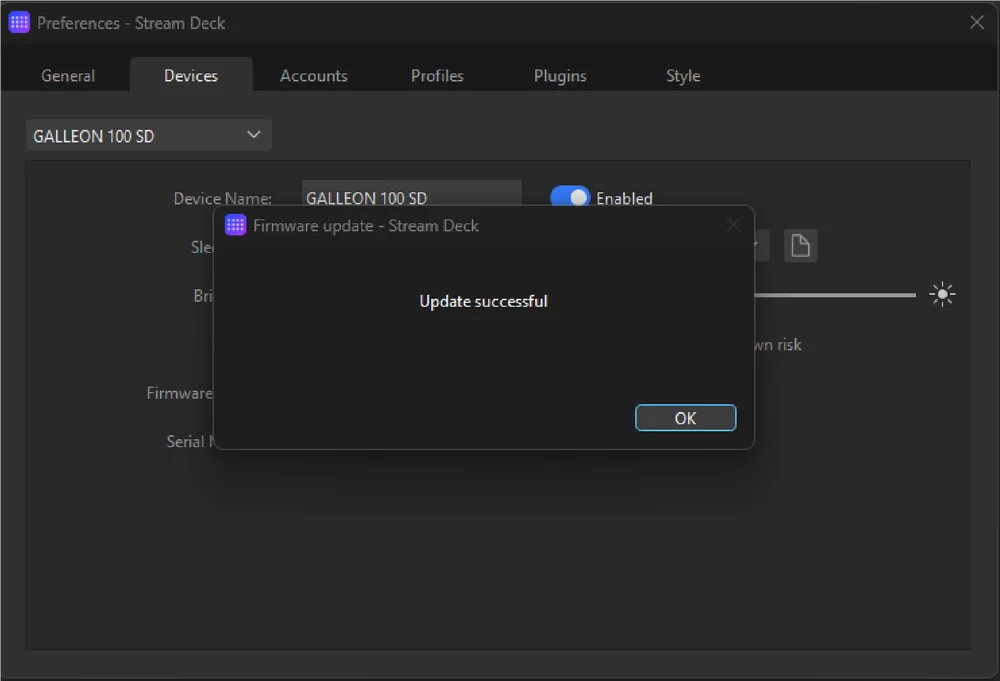
HOW TO DO FIRMWARE UPDATE FOR HARDWARE MODE
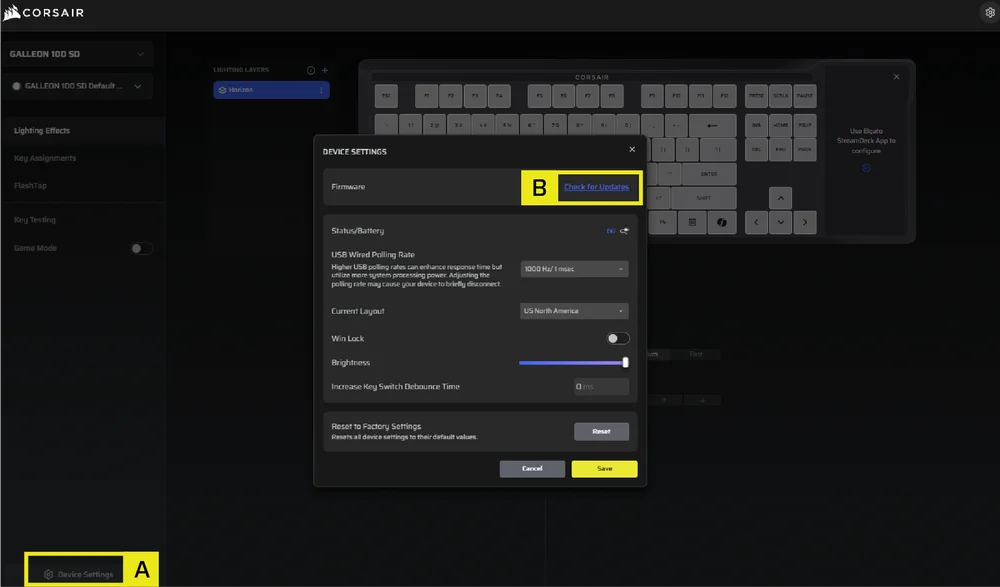
- Go to Corsair Web Hub
- Press “Check for updates” for Firmware
- Go to Device Settings
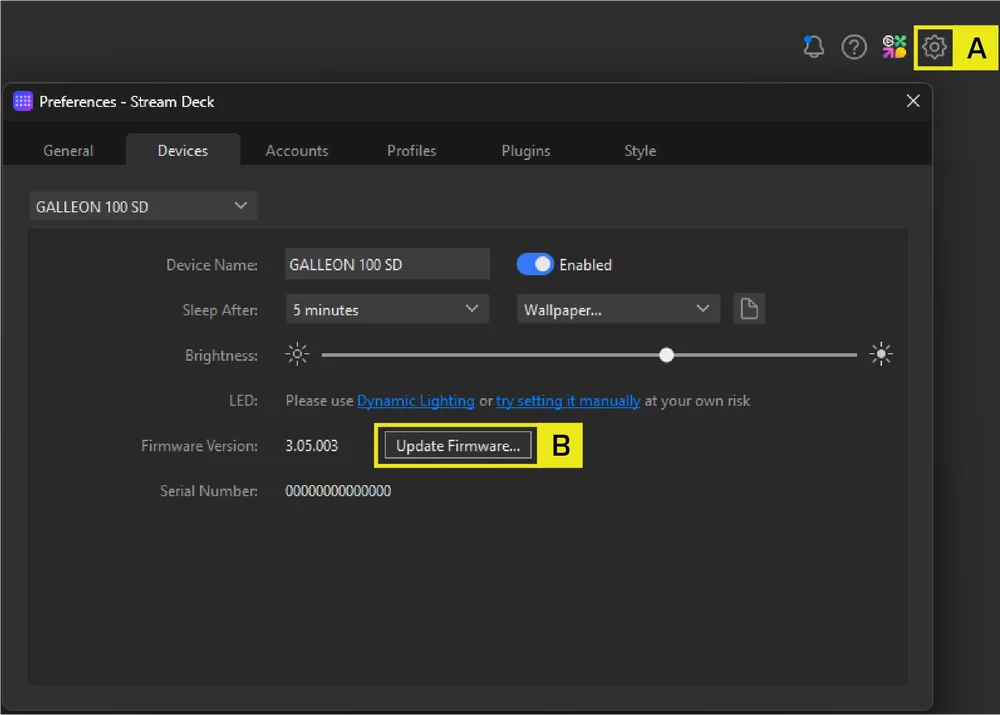
- Go to Stream Deck
- Press the Device Settings icon
- Press “Update Firmware”
COMPATIBILITY MODE
- By holding FN + Windows key for 5 seconds, FW will change to Compatibility mode from standard mode
- To go back to standard mode from Compatibility mode, hold FN + Windows key for 5 seconds
- When entering Compatibility mode, Windows key indicator blinks white 5 times over 5 seconds when switching mode
- When changing to standard mode from Compatibility mode, Windows key indicator breathes white 2 times over 2 seconds when switching mode
In compatibility mode, the output is limited to:
- 13-keys + 7 modifier keys (RCtrl, LAlt, LShift, Windows, AltGr)
- Still output media keys
- The actual polling rate may differ from the setting, due to PS USB interface limitations.
BIOS MODE
- By holding B and S keys while plugging in power via USB, FW will change to BIOS mode
- To get back from BIOS mode to standard mode, hold ESC key while plugging in power via USB (this will clear EEPROM, but does not perform factory reset)
In BIOS mode, the output is limited to:
- 6-keys + 5 modifier keys (RCtrl, LAlt, LShift, Windows, AltGr)
- Fixed at 125Hz polling rate
- No media keys output
COPYRIGHT / LEGAL INFORMATION
©2026 CORSAIR MEMORY, Inc. All rights reserved. CORSAIR and the sails logo are registered trademarks of CORSAIR in the United States and/or other countries. All other trademarks are the property of their respective owners. Product may vary slightly from those pictured.


RELATED CONTENT