GLOSSARY
What is a Command Prompt?
The command prompt is exactly what its name says; a prompt in Windows where you type in commands. It’s a vestige from the early days of computing when we didn’t have a graphical user interface (GUI), so every action taken on a computer had to be written out as a command to the OS. The original DOS, or Disk Operating System, was essentially an entire OS as a command prompt, so this Windows feature has ancient origins.
Microsoft describes the command prompt as a “software program that provides direct communication between you and the operating system or application, providing an environment to automate IT operations.” It's essentially a way for you to interact directly with hardware and software of your PC without a graphical user interface between the two of you, so this is an interface not for newbs, at all.
What Does the Command Prompt Do?
The command prompt lets you execute commands that directly trigger actions within the operating system related to file management, maintenance, diagnostics, and other tasks. The Windows operating system includes a litany of commands that can be run from the command prompt and their uses span a wide array of purposes.
For example, if you’re having an issue booting your PC you can boot from a recovery disk or use the built-in recovery options in Windows to get to a command prompt, navigate to the disk in question, and run the command chkdsk /f to check the disk and fix any errors it finds.
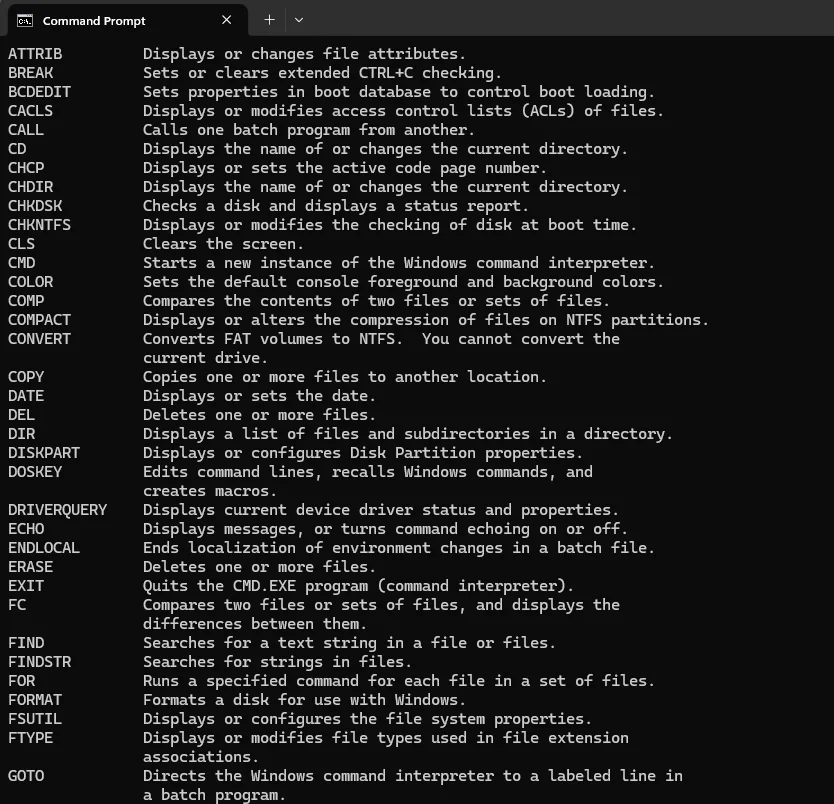
This is just a partial list of some of the commands one can enter into the command prompt for further action on a particular set of files, folders, drives and applications.
Another example of common Command Prompt use is if you wanted to know your computer’s IP address you can open the Command Prompt and type IPCONFIG and it’ll show the IP addresses of all connected devices. This method is a lot faster than trying to navigate through myriad Windows Settings dialogues. You can also use IPCONFIG /release and IPCONFIG /renew commands in sequence to reset your internet connection, which used to be a really popular command for IT help desk types (and it probably still is).
Do People Still Use the Command Prompt?
Yes, it’s why Microsoft offers it as a feature in Windows, and likely always will since so many people rely on it. It’s an invaluable tool for System Administrators who use it to run complex scripts and rely on it for diagnostic tools built into Windows. It’s also very useful for IT experts who see it as a time-saving device.
Although most of us non-pro IT types enjoy using a GUI to accomplish tasks in Windows, certain actions can be accomplished much faster via the Command Prompt than trying to navigate multiple GUI elements to get to a particular area of the OS, and Microsoft has made this more difficult (in our opinion) recently by moving things around as it tries to kill the old fashioned Control Panel. For people who use the Command Prompt on a regular basis, it is a valuable tool for completing complex tasks quickly and managing Windows PCs.
How to Open Command Prompt in Admin Mode
If you want to use the Command Prompt you can do so as a regular user, which is read-only, or in Admin mode, which lets you edit files, so use caution. If you use read-only mode, no files can be changed, and its utility is severely limited by design.
To open the Command Prompt on any Windows PC is to type the letters CMD into the search box, which will bring up a big box on Windows 11 offering you a few options. In this window you can select if you want to run it in read-only mode or as an Administrator with full access.
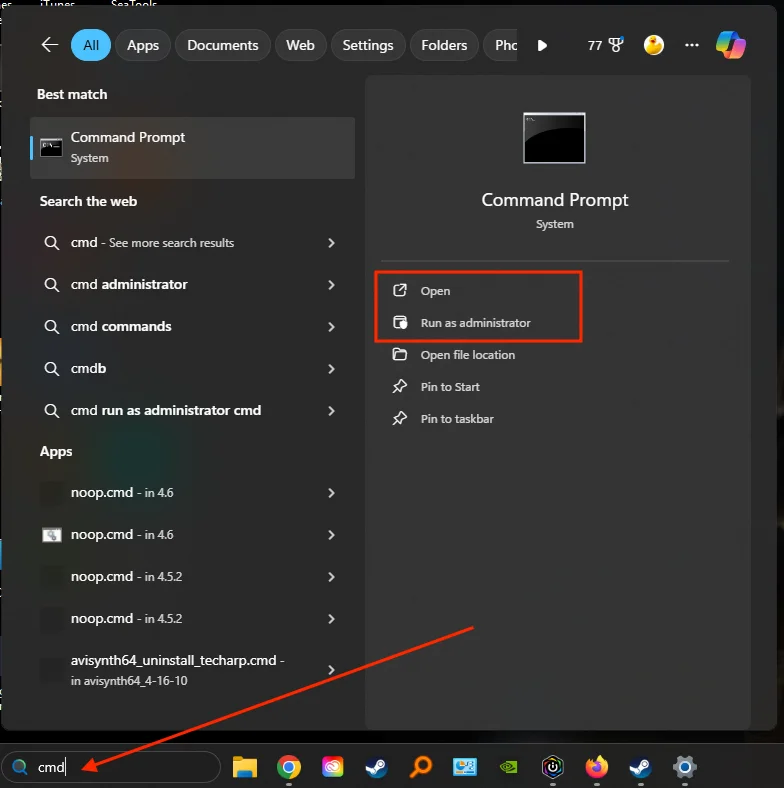
If you type CMD into the search box in Windows you will be presented with options for how you want to run Command Prompt.
If you want something quicker, typing Windows Key + R and type “cmd” will let you run it in read-only mode.
Can I use Command Prompt to make me look busy at work?
Yes, if you just have it open in the corner of your display people will think you are working on something very important, and possibly even hacking. If you want something full screen that looks really impressive go to https://geektyper.com and if you need to take a break from your desk for a bit go to https://fakeupdate.net.