GLOSSARY
What is System32?
System32 is a core Windows folder that holds the operating system’s most important executables, libraries, drivers, and configuration files. It lives inside the Windows directory (typically C:\Windows\System32) and Windows cannot function properly without it. (If you’ve ever heard the prank “just delete System32”......please don’t.)
On modern 64‑bit Windows, System32 actually contains 64‑bit system files; its similarly named sibling, SysWOW64, holds the 32‑bit ones. That naming weirdness exists for compatibility and is handled by Windows’ file‑system redirection
Where do I find System32
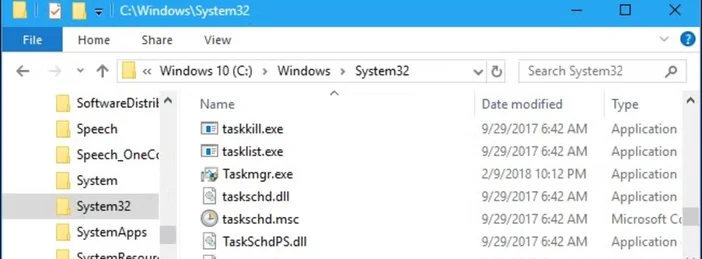
On any Windows PC: open File Explorer and go to C:\Windows\System32. You can also press Windows + R, type %windir%\System32, and press Enter.
What lives inside System32?
A (very) partial tour of what you’ll see:
- Executables (EXE) - core tools like Command Prompt (cmd.exe) and many system utilities.
- Dynamic‑link libraries (DLL) - shared code Windows and apps call into.
- Drivers (*.sys) - the pieces that let Windows talk to hardware.
- Control Panel applets (*.cpl) - components behind classic Control Panel pages.
- Configuration, logs, and language resources - the glue that makes everything work together.
Windows protects many of these files with Windows Resource Protection so apps (and people) can’t casually overwrite them.
Why is it called “System32” on a 64‑bit PC?
History and compatibility. When 64‑bit Windows arrived, Microsoft kept System32 as the “canonical” system folder so older software wouldn’t break. Instead of renaming everything, Windows introduced WOW64 (Windows‑on‑Windows 64) plus a file‑system redirector:
- On 64‑bit Windows, %windir%\System32 is for 64‑bit binaries.
- %windir%\SysWOW64 stores 32‑bit binaries.
- When a 32‑bit app asks for System32, Windows quietly redirects it to SysWOW64 so it loads 32‑bit DLLs.
Neat trick, confusing names
Should I clean up or delete System32?
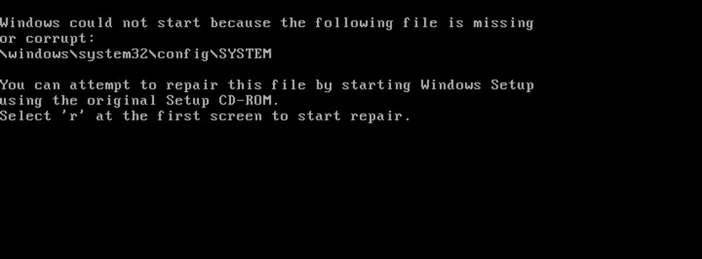
No. Don’t rename it, don’t prune it, don’t “optimize” it. Those files are protected for a reason, and removing or altering them can crash Windows or prevent it from booting. Windows Resource Protection explicitly blocks replacing essential system files and folders.
What if System32 gets corrupted?
If Windows features act strangely or commands in System32 fail to run, use the built‑in repair tools:
- Run System File Checker (SFC)
Open an elevated Command Prompt and run: "sfc /scannow" SFC scans protected system files and repairs them when possible - If SFC can’t fix everything, run DISM In an elevated Command Prompt: "DISM /Online /Cleanup-Image /RestoreHealth"
Then run sfc /scannow again. (DISM repairs the underlying component store SFC relies on.)

Q&A
Is System32 a virus?
No. The folder is part of Windows. Malware can try to hide inside system folders, though, so if you’re worried, run a scan with Windows Security (Microsoft Defender Antivirus), which is included with Windows 10 and 11.
Do I need to touch System32 for everyday use?
Almost never. It’s fine to look, but don’t move, edit, or delete files there unless you’re following official guidance.
I’m seeing SysWOW64. Which one do I use?
You generally don’t choose; Windows routes apps to the right place automatically. On 64‑bit Windows, 64‑bit tools live in System32; 32‑bit ones live in SysWOW64.
How do I check if my Windows is 32‑bit or 64‑bit?
Go to Settings → System → About and look at System type (Windows 10/11). Microsoft’s FAQ covers other ways, too.
Is System32 a virus?
No the folder is part of Windows. Malware can try to hide inside system folders, though, so if you’re worried, run a scan with Windows Security (Microsoft Defender Antivirus), which is included with Windows 10 and 11.
Do I need to touch System32 for everyday use?
Almost never. It’s fine to look, but don’t move, edit, or delete files there unless you’re following official guidance.
I’m seeing SysWOW64. Which one do I use?
You generally don’t choose; Windows routes apps to the right place automatically. On 64‑bit Windows, 64‑bit tools live in System32; 32‑bit ones live in SysWOW64.
How do I check if my Windows is 32‑bit or 64‑bit?
Go to Settings → System → About and look at System type (Windows 10/11). Microsoft’s FAQ covers other ways, too.
Best‑practice tips (so you never have to learn this the hard way)
- Don’t delete or “clean” System32. If disk space is tight, use Storage Sense or uninstall apps avoid the system folders.
- Repair the right way. Use SFC and, if needed, DISM rather than manual file replacement.
- Keep security on. Let Windows Security run real‑time protection and periodic scans.