BLOG
XENEON EDGE Widgets Explained
The XENEON EDGE is more than a small display beside your main monitor. It can act as a customizable dashboard for system stats, media controls, and everyday shortcuts. Widgets are what make that possible.
Widgets let you shape the XENEON EDGE around the information and controls you actually use. You can keep hardware stats in view, manage media playback, or add a clock that fits your setup.
What Are Widgets on the XENEON EDGE?
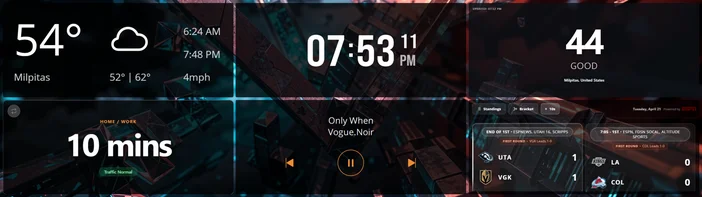
Widgets are compact apps that appear on the XENEON EDGE while iCUE is running. Each one either shows a specific piece of information or gives you quick access to a function, whether that's sensor data, a clock, media controls, or web content. You manage them through iCUE, where you choose which widgets appear, adjust how they look, and arrange them on screen.
Built-In Widgets
These widgets come with iCUE and are ready to use right away.
| Category | Widgets | What they do |
|---|---|---|
| Sensor and System Monitoring | Sensor Chart, 2 Sensors, , Windows Notifications | Shows live hardware data, and mirrors Windows alerts on the XENEON EDGE. |
| Media and Entertainment | Media, YouTube, Twitch Chat, Twitch Live, Volume | Puts playback controls, video embeds, chat, and stream monitoring on the display. Gives quick audio control.. |
| Web and Content | Web URL, iFrame, Image/Video, Slideshow | Displays websites, embedded content, and your own images or videos. |
| Productivity and Utilities | Launch App, Stopwatch, SimHub | Adds app shortcuts, timing tools. |
Pre-Made Configurable Widgets
iCUE also ships with several pre-made widgets you can drop in, tweak to taste, and use right away:
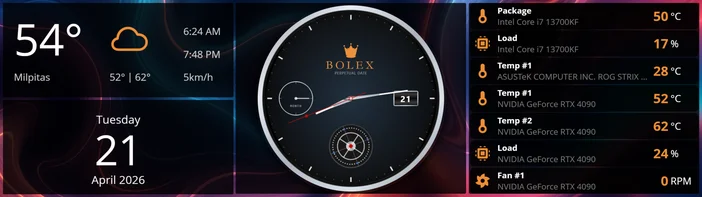
- Clock Face gives you a stylish clock display.
- Weather widget provides current weather conditions for your area.
- Calendar widget keeps your schedule visible.
- Decision Coin widget is a fun coin-flip tool.
- Chronograph Stopwatch is a more visual stopwatch design.
- Air Quality widget shows air quality data for your location.
The Calendar (date only) and Sensor widgets also work across VANGUARD keyboards and LCD pump screens, making them versatile additions to your CORSAIR ecosystem.
Importing and Exporting Custom Widgets
iCUE supports importing and exporting user-created widgets, which means you can share your custom creations with others or download widgets that other users have made. This works with the XENEON EDGE, VANGUARD keyboards (VANGUARD 96, VANGUARD 96 WIRELESS, VANGUARD PRO 96, and VANGUARD AIR 99), and LCD pump screens.
How to Import a Widget
Click the "+" button in the Widgets panel within iCUE. This opens the Import Widget wizard, where you can drag and drop or browse for an .icuewidget file. iCUE verifies the file to make sure it contains valid widget data, and if everything checks out, the widget is added to your widget list for all supported devices.
You can also double-click any .icuewidget file on your system to launch the import wizard directly. iCUE opens automatically if it isn't already running.
One note: only import widget files from sources you trust. iCUE shows a warning about this during the import process, and it's worth paying attention to.
Managing Your Widgets
Imported widgets appear at the top of your widget list and can be adjusted like any other widget through the Widget Settings and Personalization panels. You can import the same widget more than once, and there's no hard limit on how many custom widgets you keep in your library.
To remove a widget, right-click it and choose "Delete Widget." That removes it from every supported device at once, and the action cannot be undone, so export anything you might want to keep first.
Building Your Own Widgets
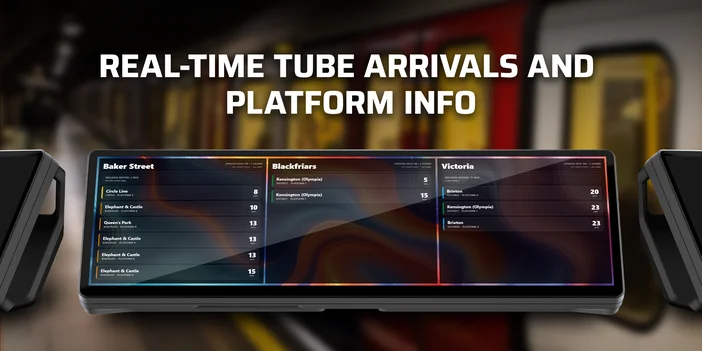
For the more technically inclined, you can build widgets entirely from scratch using HTML, CSS, and JavaScript. Each widget lives in its own folder and needs an index.html file (visual layout and behavior) and a manifest.json file (metadata) at minimum. You can also include translation files for localization and any additional scripts, stylesheets, or image assets the widget requires.
Custom widgets can tap into iCUE's plugin system to access real-time data, including hardware sensor values like temperatures, fan speeds, and voltages through the Sensors plugin, or media playback state through the Media plugin.
The full specification covers the manifest format, supported devices, control types, plugin APIs, and the runtime hooks for connecting to iCUE. It all lives in the official Elgato documentation:
If you would rather not write code by hand, we also offer a WidgetBuilder Kit with a CLI tool for scaffolding and packaging widgets and a Skill file you can hand to an AI assistant like Claude or ChatGPT to generate widgets from a plain-language description. See our companion guide, How to Create a Custom Widget for the XENEON EDGE for details.
Getting the Most Out of Your XENEON EDGE
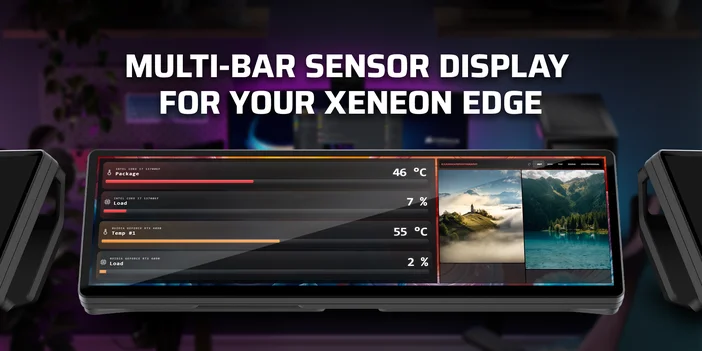
The XENEON EDGE's widget system is flexible by design. Whether you want a quick glance at your system temps, a dedicated media controller, or a custom dashboard you designed yourself, it's all possible. Start with the built-in widgets to get a feel for things, then move on to building your own when you're ready.
The import feature also means there's a growing community of widget creators sharing their designs. It's worth exploring what's out there. You might find exactly what you're looking for, or get inspired to build something even better.
A CIKKBEN SZEREPLŐ TERMÉKEK
JOIN OUR OFFICIAL CORSAIR COMMUNITIES
Join our official CORSAIR Communities! Whether you're new or old to PC Building, have questions about our products, or want to chat about the latest PC, tech, and gaming trends, our community is the place for you.