MANUAL | QUICK START GUIDE
CORSAIR iCUE XC7 RGB ELITE LCD CPU water block
CUSTOM COOLING CPU WATER BLOCK WITH RGB AND LCD SCREEN


BEFORE YOU START
Please download the latest version of iCUE from www.corsair.com/downloads.
PACKAGE CONTENTS

1x XC7 RGB ELITE LCD water block

1x Intel LGA 1851/1700 mounting bracket

1x AMD AM5/AM4 mounting bracket

1x Intel LGA 1851/1700 CPU backplate
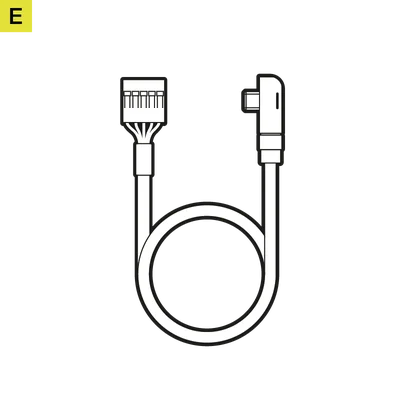
1x USB Type-C 90° cable 600mm

1x AM5/AM4 backplate adhesive
PREREQUISITES (NOT INCLUDED)

Phillips head screwdriver

Internal USB 2.0 header
(motherboard or USB internal hub)

iCUE version 5.5 or higher

Microsoft Windows 10 or higher

INTEL INSTALLATION
1. INSTALL THE INTEL CPU BRACKET
The XC7 RGB ELITE may be installed in any direction, there is no performance penalty for installing the product rotated by 90° or 180°. Please remove the TIM protective cover from the underside of the water block. Avoid touching the thermal interface material.
1a. Install the Intel LGA 1851/1700 bracket by pushing both sides into the slot on the pump until secure (Figure 1).

1b. Remove protective film from the self-adhesive side on (D) Intel LGA 1851/1700 CPU backplate (Figure 2).
1c. Place the backplate with the self-adhesive side behind the motherboard. Align the holes as in the diagram below (Figure 3).

2. INSTALL THE XC7 RGB ELITE LCD
2a. Place the XC7 RGB ELITE LCD onto the motherboard (Figure 1*).
2b. Secure the XC7 RGB ELITE LCD onto the motherboard by tightening the screws by screwdriver until you reach the end of the thread. Tighten the screws evenly, preferably in a cross-pattern (Figure 2*).

AMD AM5/AM4 INSTALLATION
1. INSTALL THE AMD AM5/AM4 MOUNTING BRACKET
Install the AMD AM5/AM4 bracket by pushing both sides into the slot on the pump until secure (Figure 1).
Please remove the TIM protective cover from the underside of the water block. Avoid touching the thermal interface material."

2. PREPARE THE MOTHERBOARD FOR INSTALLATION
Remove the existing AMD AM5/AM4 mounting brackets by unscrewing four (4) Phillips-head screws.
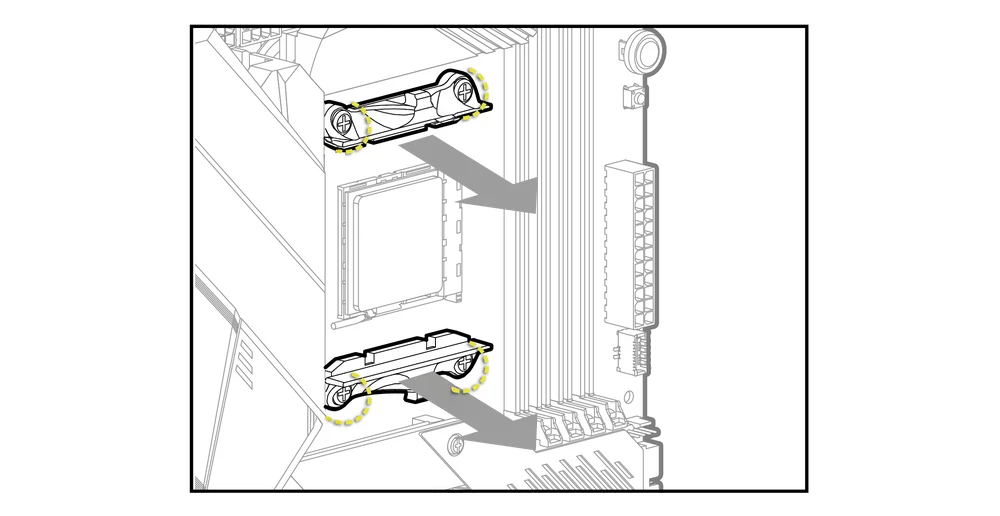
3. INSTALL THE XC7 RGB ELITE LCD

3a. Place the XC7 RGB ELITE LCD with the pre-installed original AMD AM5/AM4 backplate onto the motherboard (Figure 1*).
3b. Secure the XC7 RGB ELITE LCD onto the motherboard by tightening the screws by screwdriver until you reach the end of the thread. Tighten the screws evenly, preferably in a cross-pattern (Figure 2*).

FITTING AND TUBING INSTALLATION
1. INSTALL THE CORSAIR XF G1/4" BSPP FITTINGS
Install the two (2) appropriate CORSAIR XF G1/4" BSPP threaded-type fittings (not included) into the water block ports and tighten them by hand. Note the prescribed INLET and OUTLET as shown on the image below. Note that the INLET is always located nearest the connector on the external surface of the water block.

2. INSTALL THE TUBING
Install the appropriate tubing for your CORSAIR XF fitting type and secure it by locking the ring to finalize installation of the water block to the water-cooling loop. Use the appropriate securing method and tubing when using fittings other than compression fittings. Do not forget to leak test the system.
SYSTEM CONNECTION
CONNECTING AND USING THE INTEGRATED SMART FEATURES
Please download the latest version of iCUE from www.corsair.com/downloads
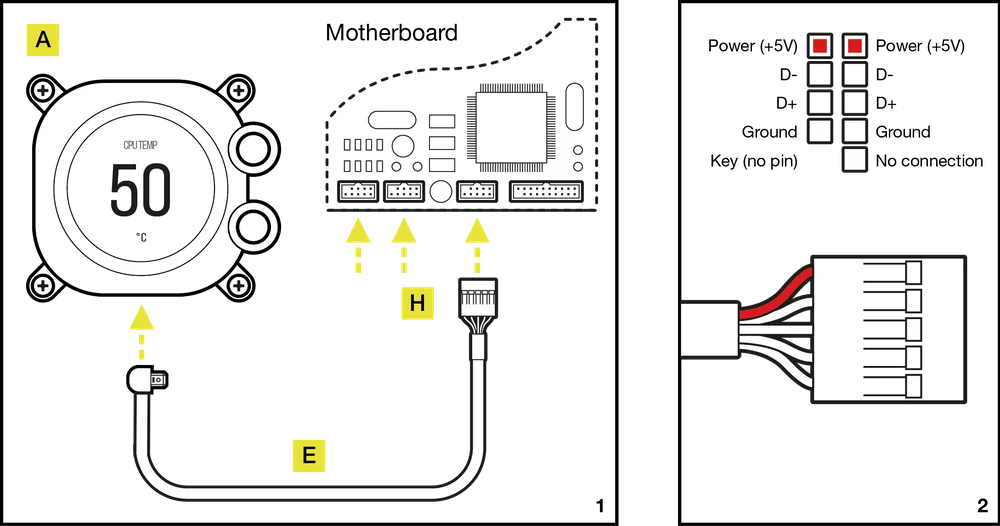
To use the smart features of the XC7 RGB ELITE LCD CPU water block you must connect the included 90 degree USB-C cable from the USB-C port on the water block to a USB 2.0 motherboard internal header. The 5-pin USB header is designed to work on either channel of a motherboard USB 2.0 internal header (Figure 1).
Connect the XC7 RGB ELITE LCD USB 2.0 header cable so that the red wire is aligned with the power pin in the USB 2.0 header on the motherboard (Figure 2).
Can I use the XC7 RGB ELITE LCD as a standalone part?
No, this is a water-cooling cold plate for your CPU which requires a complete custom water-cooling system, including a standalone pump and a radiator. For more information, please visit Hydro X Series page.
Can I use the XC7 RGB ELITE LCD with aluminium water-cooling equipment?
No, you cannot. The cold plate is made from nickel-plated copper and should not be mixed with aluminium.
Is the flow direction important?

Yes, it is. The XC7 RGB ELITE LCD works best with coolant entering via the INLET port. However, the product will operate with reversed flow direction, albeit with reduced cooling performance.
Can I reuse the pre-applied thermal paste on the XC7 RGB ELITE LCD water block for re-installation?
Re-installation of the XC7 RGB ELITE LCD water block will require you clean off the pre-applied thermal paste and apply a new layer of thermal paste. We recommend using CORSAIR XTM70, sold separately.
What thermal paste is used on the XC7 RGB ELITE LCD?
What should I do if I’m experiencing LCD flickering issues?
To fix the issue, follow the steps in the guide linked below:
How To: Fix LCD Flickering issues on your AIO or Custom Cooling Device – Corsair
WARRANTY

HYDRO X Series Core products (CPU and GPU Blocks, Pumps, and Radiators) have a 3-year warranty.
LEGAL
© 2025 CORSAIR MEMORY, Inc. All rights reserved.
CORSAIR, the sails logo, and HYDRO X SERIES are registered trademarks of CORSAIR in the United States and/or other countries. All other trademarks are the property of their respective owners.
Product may vary slightly from those pictured.
RELATED CONTENT


