ΕΓΧΕΙΡΙΔΙΟ | ΟΔΗΓΟΣ ΓΡΗΓΟΡΗΣ ΕΚΚΙΝΗΣΗΣ
HS35 v3 WIRELESS
GAMING HEADSET
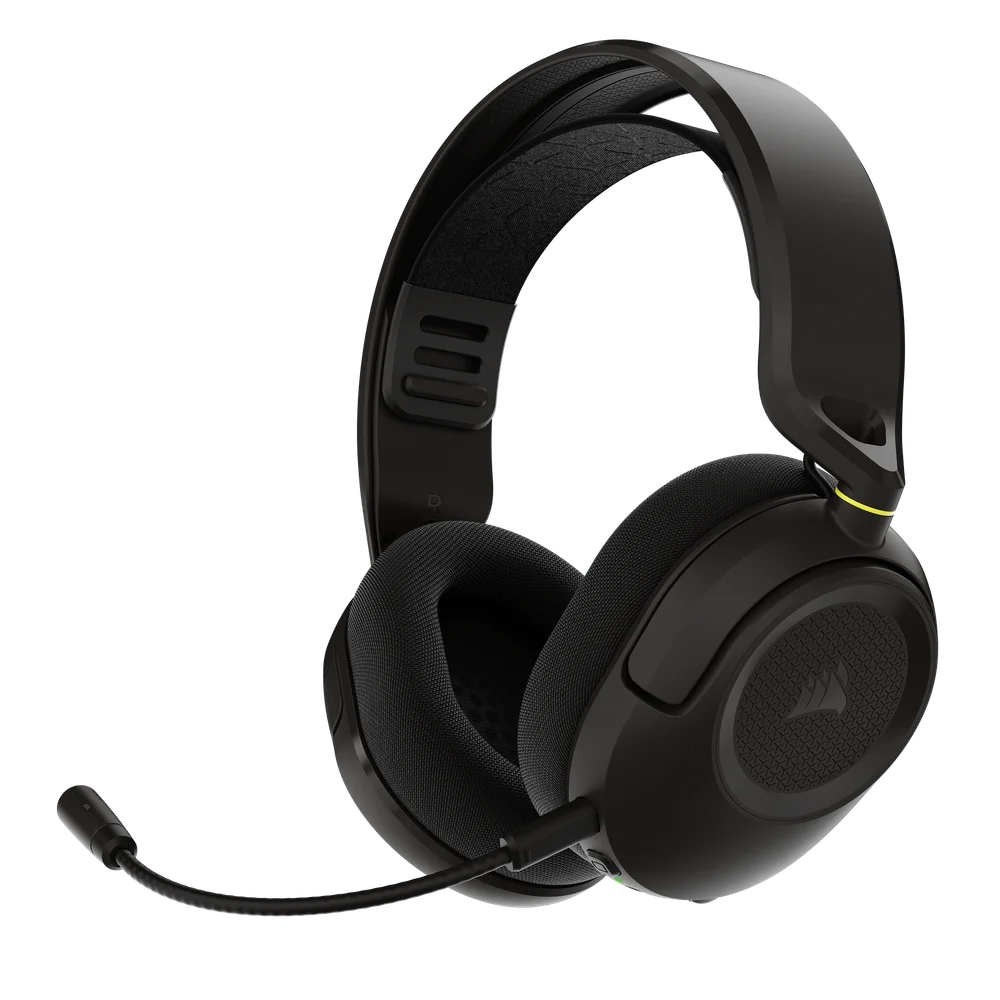
GETTING TO KNOW YOUR HEADSET
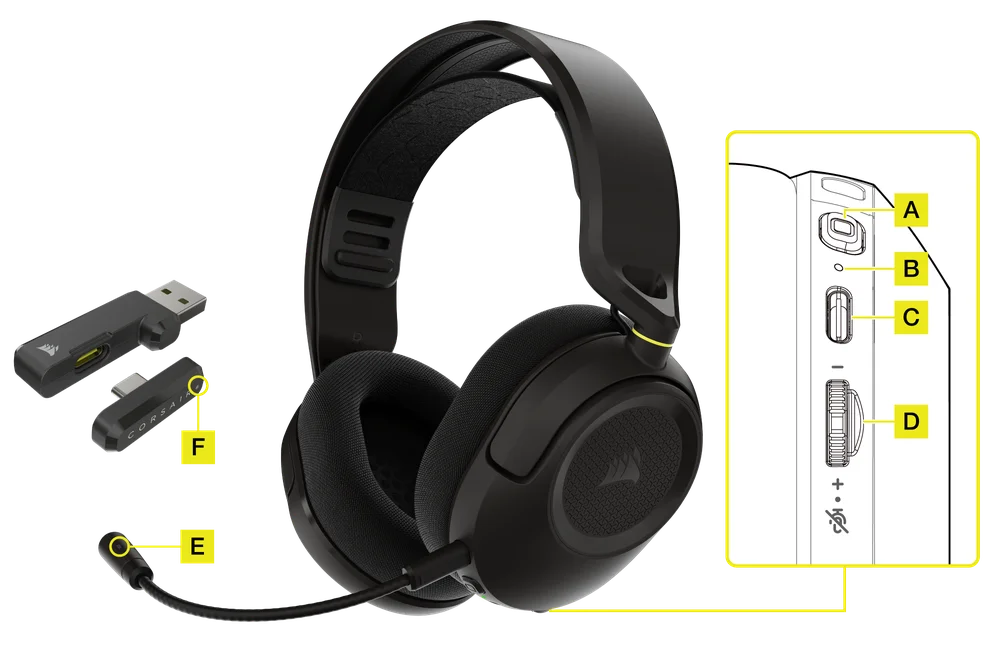
- MULTIFUNCTION BUTTON (MFB)
- HEADSET LED
- USB CHARGING / DATA PORT
- VOLUME WHEEL
- HEADSET MICROPHONE LED
- WIRELESS USB TRANSMITTER LED
| MULTIFUNCTION BUTTON (MFB) |
|
| HEADSET LED |
|
| USB CHARGING / DATA PORT |
|
| VOLUME WHEEL |
|
| HEADSET MICROPHONE LED |
|
| WIRELESS USB TRANSMITTER LED |
|
SETTING UP YOUR HEADSET
2.4GHz MODE (PC / MAC / Nintendo Switch / Mobile / PlayStation)
Connect the wireless USB transmitter to any USB (type-A) or USB (type-C) port on your platform.
- Press the MFB on the headset for 2 seconds to turn on the headset.
- If the headset LED and wireless USB transmitter LED are static green, then you can start to use the headset via 2.4GHz Mode.
- If the headset LED is static blue, it means the headset is in Bluetooth Mode, quickly short press the MFB 2 times to change mode to 2.4GHz Mode. The headset LED and wireless USB transmitter LED will turn to static green, then you can start to use the headset via 2.4GHz Mode.
*When using 2.4GHz Mode via the USB Type-A wireless transmitter, ensure the USB Type-C wireless transmitter is properly connected to the USB Type-A transmitter.
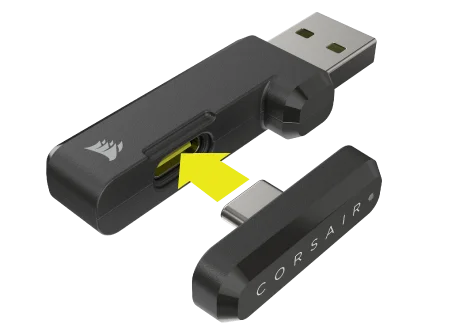
** The headset is designed to operate at a range of up to 60 feet (20m) from the wireless USB transmitter, but other wireless devices, electronics, and obstructions such as walls may impact the connection range.
BLUETOOTH MODE (PC / MAC / Nintendo Switch / Mobile)
Press the MFB on the headset for 2 seconds to turn on the headset.
- If the headset LED is static blue, then you can start to use the headset via Bluetooth Mode.
- If the headset LED is static green, it means the headset is in 2.4GHz Mode, quickly short press the MFB 2 times to change mode to Bluetooth Mode. The headset LED will turn to static blue, then you can start to use the headset via Bluetooth Mode.
*Bluetooth Pairing Mode
- The very first time you turn on your headset and entering the Bluetooth Mode, Bluetooth pairing mode is automatically enabled for you to help you easily connect your Bluetooth device.
- To manually enable pairing mode for your Bluetooth device at a later time, set the headset to Bluetooth Mode, press the volume wheel for 5 seconds until the Headset LED blinks blue. Upon pairing a Bluetooth device to your headset, powering on the headset will now also automatically turn on Bluetooth and connect to the paired device in the background. Powering off the headset will turn off all wireless connections.

USB WIRED MODE (PC / MAC / Nintendo Switch / Mobile / PlayStation)
Connect the headset with the bundled USB cable on your platform. The headset will automatically enter USB wired mode.
- The headset LED will be static white if it is fully charged in USB wired mode. The headset LED will be static red if the headset is charging, and it will turn white when the headset is fully charged.
*Even in 2.4GHz Mode or Bluetooth mode, connecting a USB cable automatically switches audio to the USB-connected device.
NOTE:
- When using the headset in 2.4GHz or Bluetooth mode, please ensure the connected device’s audio output is set to HS35 v3 Wireless.
- When using the headset on PlayStation console, we recommend using the PlayStation UI to set “Output to Headphones” to “All Audio”. Adjust volume control (Headphones) to maximum level. Then adjust volume with the headset volume control.
- For Optimal Wireless Performance
- Place the USB wireless transmitter in an open, unobstructed area.
- Make sure the battery is fully charged before initial use.
- Do not leave the battery fully discharged for long periods. Battery life is maximized by keeping the battery in a partially charged state.
- Keep the headset at room temperature (20-30c or 68-86 F).
- Prolonged listening at high volumes may adversely affect your hearing. Take breaks between sessions and always begin with the volume at a low level before increasing.
LISTENING TO MUSIC
To play a track, short press the MFB. To pause playback, short press the MFB again.
MICROPHONE CONTROL
- Short press volume wheel 1 time for Microphone Mute / Unmute.
- Microphone LED will be a static red when the microphone is muted. The microphone LED is off when the microphone is unmuted.
- The headset will sound when the microphone is muted or unmuted.
UPDATE FIRMWARE
- Connect the headset to PC via USB cable and wireless USB transmitter.
- Go to Corsair Firmware Update Utility website: https://www.corsair.com/firmware-updater/index.html
- Choose ‘HS35 v3 Wireless gaming headset’ and click ‘Connect’ button in the pop-up window.
- The page will automatically go back to Corsair Firmware Update Utility. Click ‘Add device’ button, choose ‘HS35 v3 Wireless’ and click ‘Connect’ button in the pop-up window.
- Check the Firmware version and click the ‘Update firmware’ button to update the firmware.
- There will be a pop-up window showing the firmware is updated successfully, click ‘Done’ button to finish the firmware updating process.
CHARGING
- The headset must be fully charged before its first use.
- Connect the USB charging cable to any working USB port on your PC.
- Connect the USB charging cable to the headset.
LED INDICATORS
| HEADSET LED | MICROPHONE LED | WIRELESS USB TRANSMITTER | |
| Power on | Green light for 1 second | X | X |
| 2.4GHz Mode | Static green |
|
Static green |
| Bluetooth Mode / Bluetooth pairing successfully | Static blue | X | |
| USB wired Mode |
|
X | |
| Low battery reminder | Breathe red when battery is below 20% |
|
|
| Battery charging | Static red | ||
| Low power shutdown | Red light flash 1 time | X | X |
| Bluetooth Pairing Mode | Blinking blue |
DOLBY ATMOS
Manufactured under license from Dolby Laboratories. Dolby, Dolby Atmos® and the double-D symbol are trademarks of Dolby Laboratories Licensing Corporation.
*Dolby Atmos supports on PC via wireless USB transmitter connection only.

FLOATING HEADBAND
The floating headband can be adjusted with the flexible clips on both sides, so you can find the perfect fit.
BATTERY REMOVAL INFORMATION
This product uses a rechargeable battery and safety guidelines must be followed in the event that the product is disabled for the disposal and recycling. To safely remove the battery for disposal and recycling, follow the numbered steps with the below diagrams.
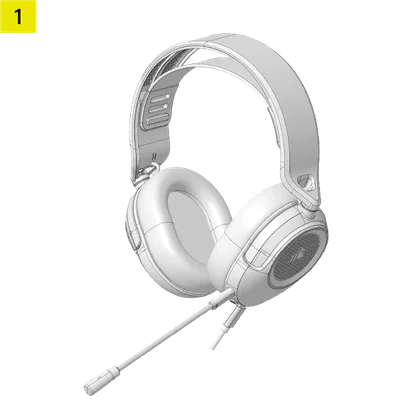
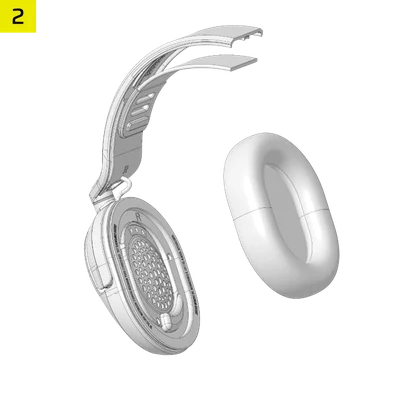
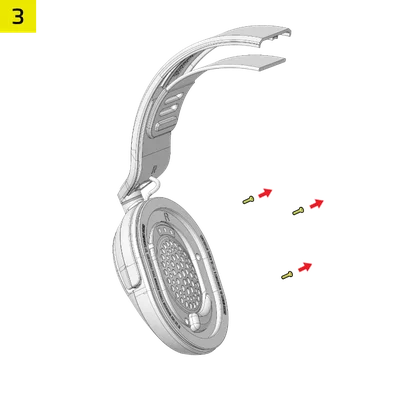
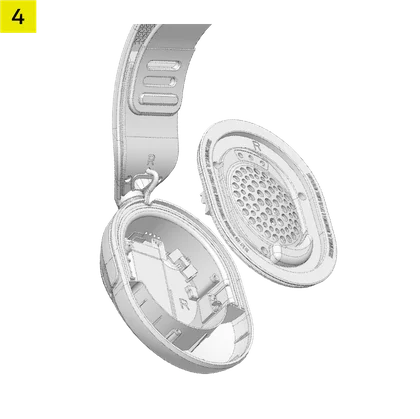
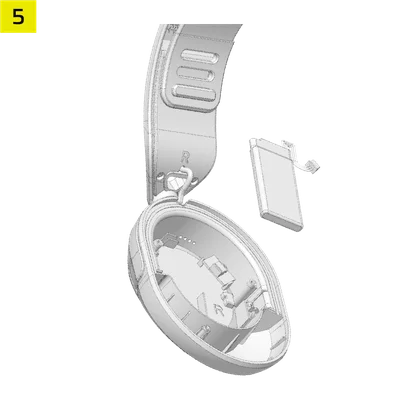
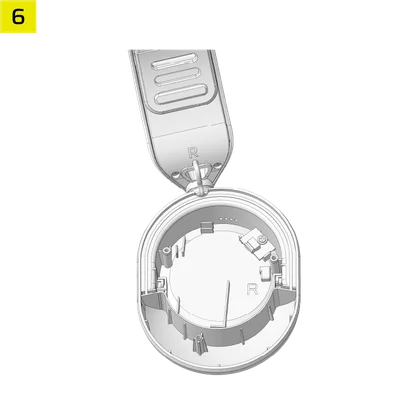
CORSAIR MEMORY, Inc. encourages customers to recycle used electronic hardware and rechargeable batteries in accordance with local laws and regulations.
BATTERY INFORMATION
- M/N (型號): AS502248
- Capacity (電池容量): 3.7V, 500mAh, 1.85Wh
- Scan QR code for battery details

Headset
M/N (型號): RDA0059
Rating (電壓電流): 5V  0.5A
0.5A
Receiver
M/N (型號): RDA0060
Rating (電壓電流): 5V 0.5A
FCC ID (Headset) : 2AAFM-RDA0059
FCC ID (Receiver) : 2AAFM-RDA0060
IC (Headset) : 10954A-RDA0059
IC (Receiver) : 10954A-RDA0060

The power delivered by the charger must be between min 0.3 Watts required by the radio equipment, and max 1.5 Watts in order to achieve the maximum charging speed.
COPYRIGHT / LEGAL INFORMATION
©2026 CORSAIR MEMORY, Inc. All rights reserved. CORSAIR and the sails logo are registered trademarks of CORSAIR in the United States and/or other countries. All other trademarks are the property of their respective owners. Product may vary slightly from those pictured.