Every computer these days has a graphics card that is used to display images you see on your monitor. Most graphics cards have onboard memory, which is known as VRAM or Video Random Access Memory. A graphics card will move whatever data set it’s working on into its memory so it can perform functions on it quickly before sending it to the display for you to see it.
Why Do We Need VRAM?
If a graphics card did not have onboard memory, it would have to use system memory (DDR4 or DDR5 these days) instead, which is physically far away from the graphics card (we’re talking computer measurements here where one inch might as well be a mile), and much slower than onboard GDDR memory.
Since a graphics card uses its onboard memory as a “workspace” of sorts, it can do more work if it has more memory, but adding memory adds cost and complexity to the design of a graphics card.
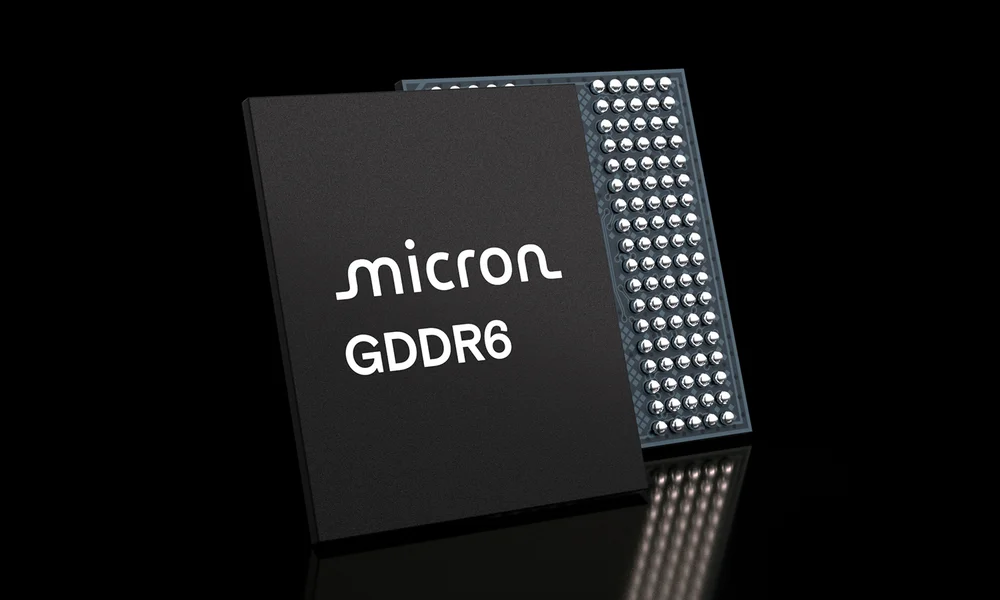
Micron, SK Hynix, and Samsung produce GDDR memory for GPUs.
How Much VRAM Does a Graphics Card Usually Have?
A typical midrange graphics card these days has 4GB, 6GB, or 8GB of memory, while the flagship RTX 5090 has 32GB. Most GPUs fall in between these two numbers depending on their cost and how powerful they are, so it’s good to know how much graphics card memory you have so you can figure out if it’s holding your gaming performance back.
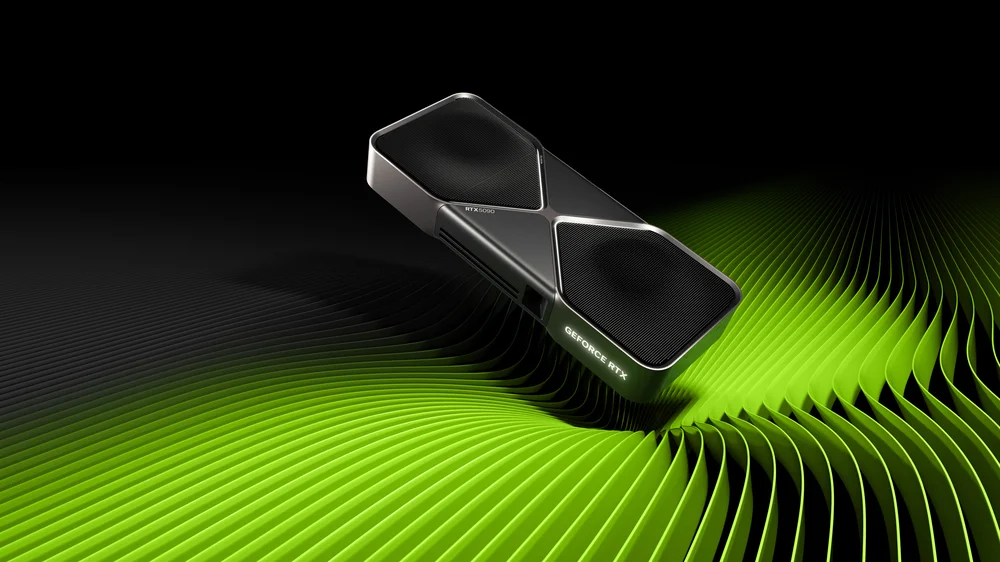
The RTX 5090 has a ludicrous 32GB of memory, which is far beyond modern game requirements.
Why Does VRAM Matter?
One prime example of where graphics card memory plays a big role is the resolution you use for gaming. If you’re playing at 1920 x 1080, which is the most popular resolution for most gamers these days, you can usually get away with an 8GB graphics card since the textures being displayed in a scene can all fit into that 8GB budget.
If you had an 8GB graphics card and wanted to play a game at 2560 x 1440 or 4K resolution though, you would run into issues where there is not enough memory to work on all of those textures at the same time. A scene in 4K has 4x the number of pixels as the same scene rendered at 1080p, so it needs a lot of memory to store those high-res textures and apply rendering effects to them. If you're trying to use ray tracing, 8GB will be easily consumed
Which Types of GPUs Have Onboard Memory, aka VRAM?
There are two types of graphics cards in use these days, and only one of them has onboard memory: a discrete graphics card. Here is a quick breakdown of both types of graphics cards on modern PCs.
Integrated graphics: This is a graphics chip embedded in a CPU, and as you might imagine, they are not very powerful. CPUs with embedded graphics are found in both desktops and laptops but are more common in laptops since space and heat generation tolerance are limited on a mobile device.
These graphics chips are a tiny chip inside the CPU itself and are affected by the heat generated by the CPU, so they aim very modest and provide only basic performance for 2D desktop work and very light gaming. These graphics chips do not have dedicated memory but use system memory instead, so they share the same memory pool as the CPU.
Discrete Graphics: This is a stand-alone graphics card that is separate from the CPU, and one you plug into your computer. These will always have onboard memory and connect to the PCI Express bus in modern desktops and laptops. These are very common on mid-to-high end desktops and pretty rare in laptops, though most gaming laptops will have a discrete GPU.
On a discrete graphics card, the memory is attached to the circuit board in a pattern around the graphics chip itself so it can communicate with the memory easily. If you were to remove the cooler on any modern graphics card, you would see the memory chips encircling the GPU chip like below.
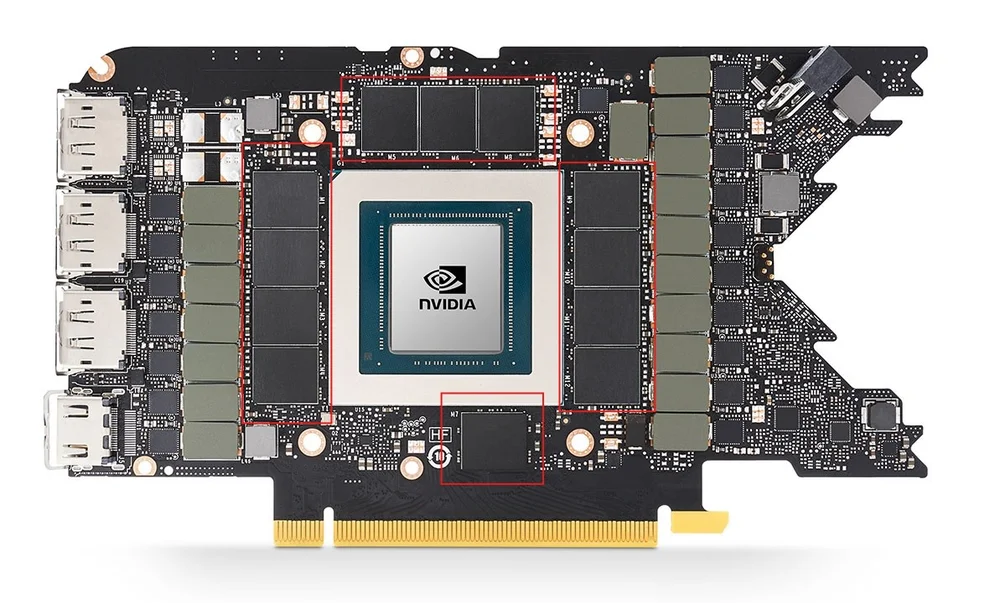
VRAM is placed next to the GPU chip for faster access.
How to Find Out How Much VRAM You Have
There are several ways to figure out how much VRAM your graphics card has that are built right into Windows. Note this investigation only applies to discrete graphics cards made by AMD, Nvidia, and Intel. We will start with the easiest and then end with how to do it using free software.
Task Manager
Right-click your taskbar to open Task Manager. On the left side of the window select Performance, and then the GPU tab, and on that screen it will show Dedicated GPU Memory in a chart at the bottom.
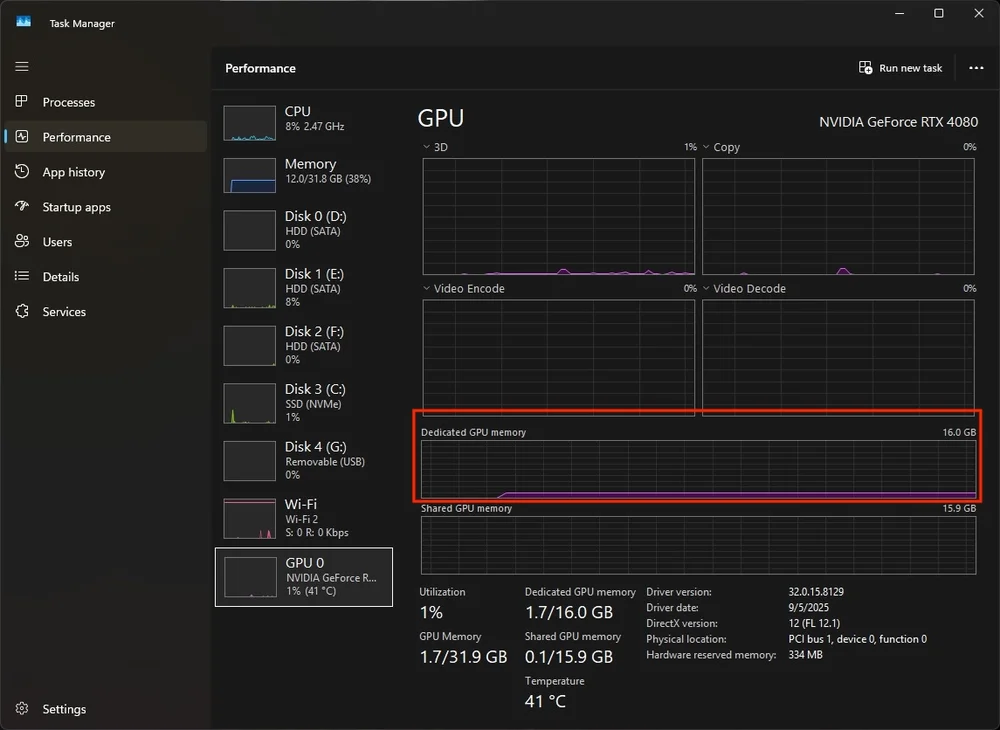
Task Manager is the easiest way to find out how much VRAM you're working with.
DXDIAG Tool
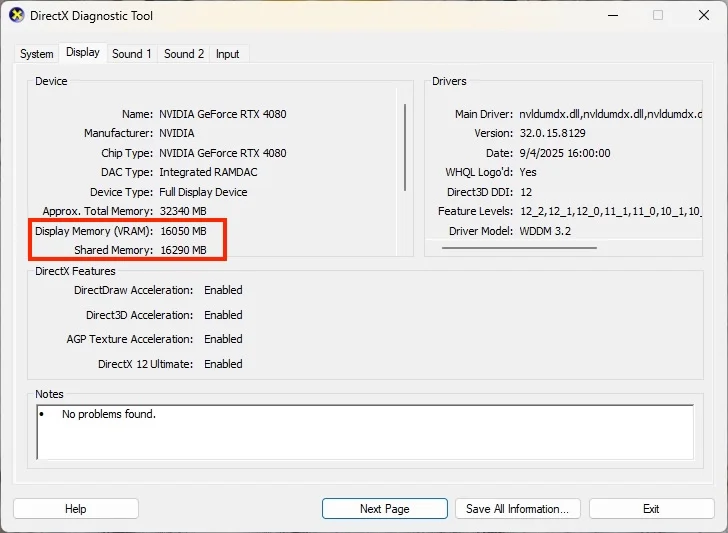
Every modern graphics card uses Microsoft’s DirectX, and there is a utility installed for this application that lets you examine the graphics card in Windows.
- Type “DXDIAG” in the Windows search bar, which should reveal it in the results. This is short for DirectX Diagnostic Tool.
- A warming will pop up asking if you want to verify if your drivers are digitally signed, so click yes or no, it does not matter.
- The first window will show a tab labeled System, so at the top of the box click over to the next tab labeled “Display.”
- In that window you will see specs for your graphics card, including Display Memory (VRAM).
Windows Settings
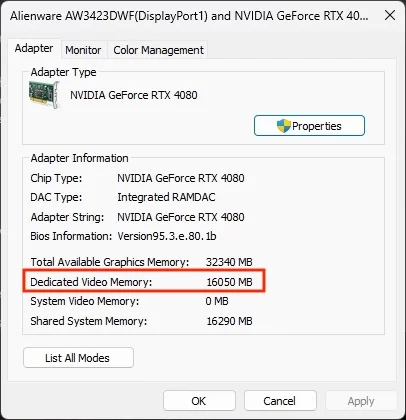
- Right-click anywhere on your desktop and select “Display Settings.”
- In that window click Advanced Display
- Next click Display adapter properties for Display 1
- A little window will appear showing your graphics card properties, including Dedicated Video Memory.
GPU-Z
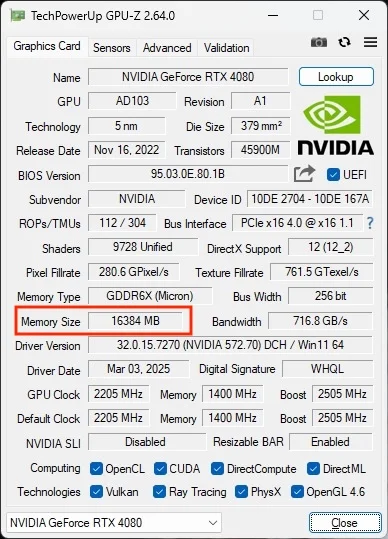
GPU-Z is a handy free utility for looking at your GPU’s specs. All you have to do is open the app and the amount of memory is easy to find.
JOIN OUR OFFICIAL CORSAIR COMMUNITIES
Join our official CORSAIR Communities! Whether you're new or old to PC Building, have questions about our products, or want to chat about the latest PC, tech, and gaming trends, our community is the place for you.