HOW TO
How to Stop XMP or EXPO Disabling Itself
One of the most easily missed steps in building a gaming PC is enabling EXPO (Extended Profiles for Overclocking) or XMP (Extreme Memory Profile). This makes your RAM run at a higher speed and is much more reliable than manually overclocking it.
For these reasons, we consider it to be a non-negotiable part of the PC building process. However, it doesn’t always stick, and if you’ve noticed your PC has suddenly become slower or your game performance has become laggier, then your RAM might have reverted to its default factory speed.
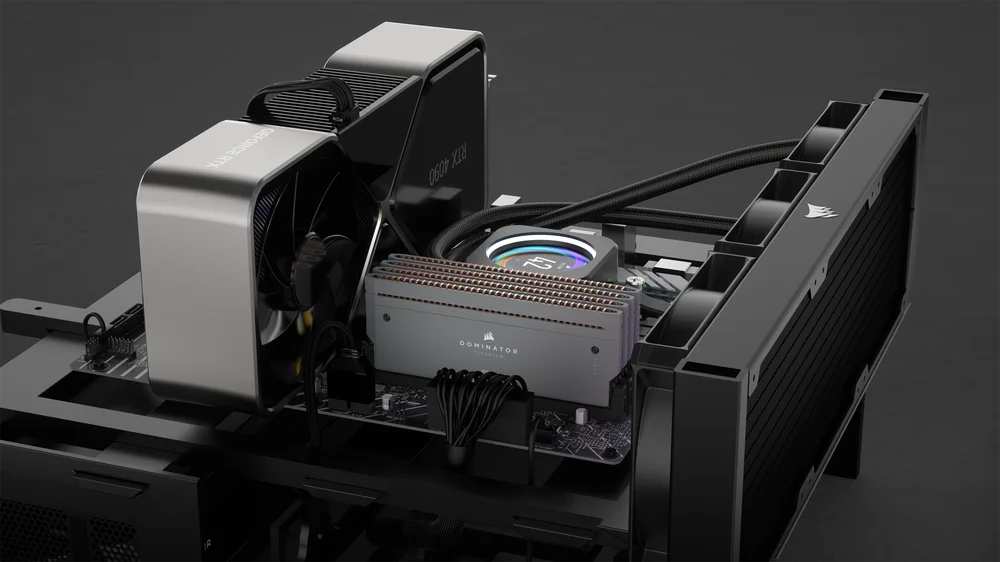
How to Check if XMP/EXPO is enabled
To see if this is the case, you can check your RAM in Windows to verify if it has gone back to running at the default (slower) speed. But what speed will it show? Well, luckily, both DDR4 and DDR5 each have a known speed that they run at before EXPO or XMP is applied. (There’s no EXPO for DDR4, but you get the point.)
- If you have DDR4 RAM, it will have reverted to 2133 MHz
- If you have DDR5 RAM, it will have reverted to 4800 MHz
Additionally, you can check in the BIOS to see if the XMP or EXPO profile has been applied. However, given that you’re on this page, it’s safe to assume that this setting isn't sticking, so in this instance, the BIOS may not be trustworthy.
Now you know how to check if EXPO or XMP has disabled itself. But how do we stop it from doing so in the future?
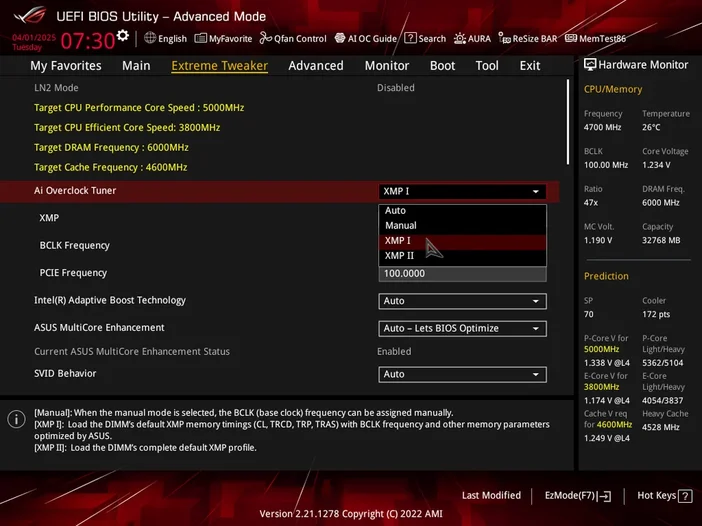
Why EXPO or XMP might be disabling itself
Entering the BIOS to enable EXPO or XMP every time you turn the computer on is a horrid way to live. Luckily there are a few things that might be causing this issue, and therefore a few ways to resolve it.
Update your BIOS
This is a very common reason for XMP / EXPO instability. When your BIOS is out of date, all sorts of weird behaviour can occur, and the longer you leave it outdated, the worse that behaviour can get. If your BIOS is out of date, certain settings, including XMP or EXPO profiles, are prone to being reset. So, your first port of call should be to check if your BIOS is up to date and update it if it isn’t.
To do this, restart your PC and spam the [Delete] key until the BIOS appears. Right on the opening page, it should tell you the BIOS Date or BIOS Version. Compare this to the latest BIOS update you can find on the motherboard manufacturer’s website. If the date or version number doesn't match, your BIOS is out of date.
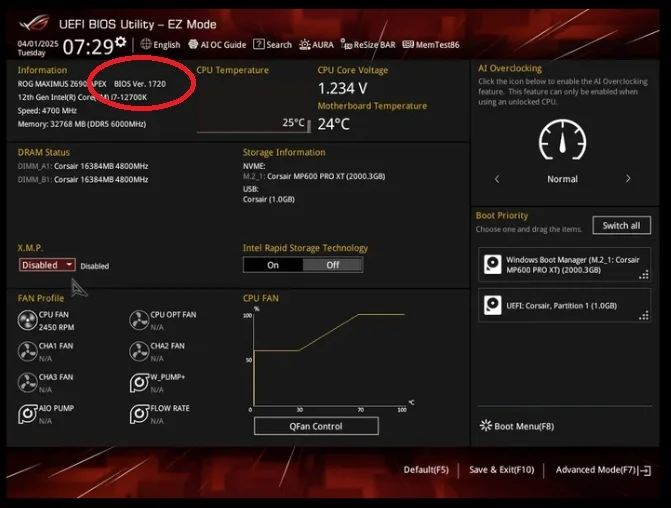
Updating the BIOS varies a little depending on who made your motherboard, but it usually boils down to the following:
- Download the BIOS file from the manufacture’s website and put it on a USB drive
- Turn the PC off and insert the USB drive (Directly into the motherboard, not the USB ports on the front of the case, some motherboards have a specific USB slot just for this process.)
- Turn the PC on and hit [Delete] until the BIOS appears.
- Find the BIOS Update option in the BIOS, select the update file on the USB drive, and hit the Update button.
- The Update will be applied, and your PC will restart. Hit the [Delete] key again and check if the BIOS Date now matches the date on the update file you used.
- Enable XMP / EXPO
We have written guides for a few of the more popular motherboard brands you can read for a more detailed tutorial
- How to Update the BIOS on an ASUS Motherboard
- How to Update the BIOS on an MSI Motherboard
- How to Update the BIOS on a GIGABYTE motherboard
But what if your BIOS is fully up to date and you still can’t get the EXPO / XMP profile to stick? Well, it might be that two different programs are trying to take control.
Disable Programs that have XMP or EXPO Control
Depending on who makes your RAM, there may be a program that controls both the lighting and the speed of the RAM. This program might allow you to enable EXPO or XMP without going into the BIOS. Sometimes, the BIOS and this program can fight for control of the RAM and neither wins, with the result being an unstable EXPO or XMP profile, which usually ends up with it being disabled.
To prevent this from happening, check your RGB and/or motherboard software if you have it installed. If the app has an option to enable EXPO or XMP for the RAM, disable it. Better to leave this business to the BIOS only.
Once you’ve disabled this capability, restart the PC and go into the BIOS to enable XMP / EXPO the way god intended. With only the BIOS in control, the profile is far more likely to remain stable without outside influence from do-gooder programs.
Check RAM and Motherboard Compatibility
If your RAM still won’t keep it’s XMP or EXPO profile running, it might be that your RAM just doesn’t play nice with your motherboard. This is a particularly irritating result because it means you might have to get new RAM.
This is one of the reasons it’s very important to check your motherboard’s QVL (Qualified Vendor List). This is basically a massive list of memory that has actually been verified as compatible with the motherboard. Choosing your memory from the QVL of your motherboard makes life far easier and ensures full compatibility, including successful EXPO and XMP functionality.
To find the QVL for your motherboard, first use our guide to find out what motherboard you have, then find the product page for that specific model on the manufacturer’s website. There you’ll find a link to another page, or sometimes a PDF download. Look through this list for your exact RAM SKU.
If it’s not there, then you might have bought memory that is not technically compatible with the motherboard, and this might be the reason that EXPO / XMP keeps turning itself off.
Check if your RAM is in the Correct Slots
Another reason why XMP or EXPO might be unstable is that your RAM might be in the wrong slots on the motherboard. Most RAM kits are sold in pairs, meaning that you have two sticks (or modules) of RAM. This makes them idea for dual-channel configurations you'll find supported by most consumer CPUs.
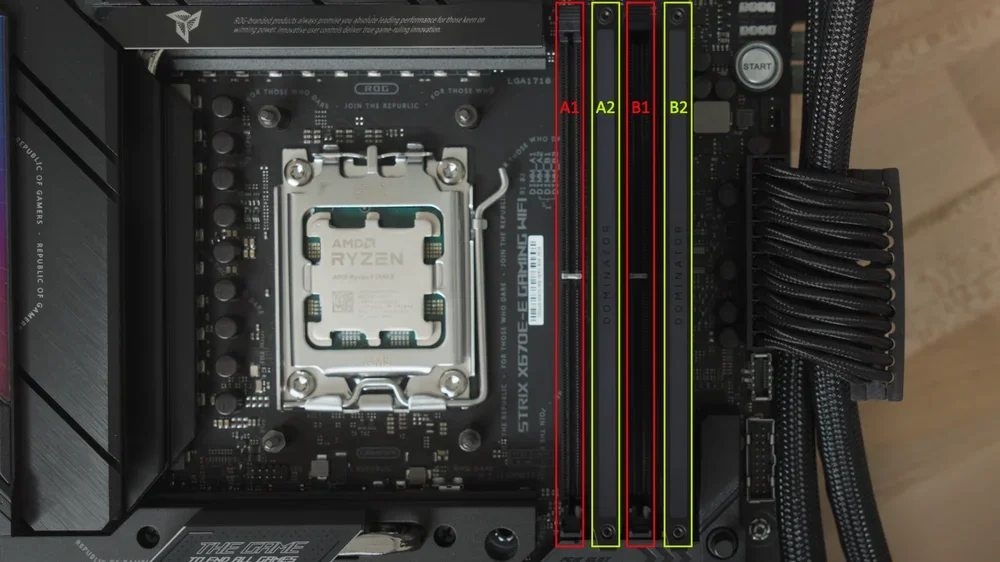
However, most motherboards have four RAM slots, so it’s really easy to put them in the wrong place. If you do this, the RAM won’t function optimally. This can lead to lower performance and issues with XMP or EXPO.
If you have two sticks of RAM, and a motherboard with four slots, in most cases, you need to use the second and fourth slots (usually designated as A2 and B2). Some motherboards might have a different layout, though, so check the manual for your motherboard and/or read our guide on which RAM slots to use.
ПРОДУКТИ В СТАТИЯ
JOIN OUR OFFICIAL CORSAIR COMMUNITIES
Join our official CORSAIR Communities! Whether you're new or old to PC Building, have questions about our products, or want to chat the latest PC, tech, and gaming trends, our community is the place for you.