HOW TO
What RAM do I Have in my PC?
For those who work with PCs regularly, such as in PC building, gaming, content creation, or professional work, I am sure there comes a time when you wonder about your PC's RAM specs, like its type, speed, or capacity. While PC builders who put together their systems often know these details well, many users who buy pre-built PCs occasionally double-check their RAM to know exactly what they have.

Understanding your PC's RAM specifications is really helpful. If you're looking to boost your system's performance and efficiency, upgrading your DRAM is a great first step. It's the main hardware that temporarily holds data and instructions the CPU needs to access quickly. By knowing what kind of RAM your PC has, you can make smarter choices when upgrading your memory, which can make applications run more smoothly and reduce loading times. Plus, knowing your DRAM details like speed and latency helps you pick compatible DRAM kits that match your system's needs, making upgrades easier and more effective.
There are different ways to find out what type of RAM you have in your build. Let's check out each method.
BIOS or Basic Input/Output System
The most effective and probably the most accurate way to check your RAM in your PC is by using the system's BIOS or UEFI settings, as it provides direct access to your system's complete specifications, including CPU, GPU, motherboard, storage, and DRAM. Under RAM information, you will see the make and model, along with detailed specs like speed, capacity, timings, and more. Plus, BIOS is where you can enable the RAM's XMP or EXPO profiles to run them at their advertised speeds.

To access your BIOS, press the delete key during the boot process (the stage where the PC loads the operating system), which is usually displayed during startup. Once you’ve entered the BIOS/UEFI interface, locate the memory settings section, where you will see detailed information about the installed DRAM modules.
Windows OS
The most convenient way to check your PC's DRAM is by using Windows tools. It’s quick and doesn't require restarting your computer. You can check the type of DRAM through two main methods in Windows: Task Manager and System Information. Both allow you to view details such as total RAM, usage, speed, and the number of slots used. This helps you determine if your system has enough memory for your current tasks, troubleshoot performance issues, or verify that new RAM is properly recognized. There's also a third method in Windows, via Command Prompt. We’ll discuss that option next.
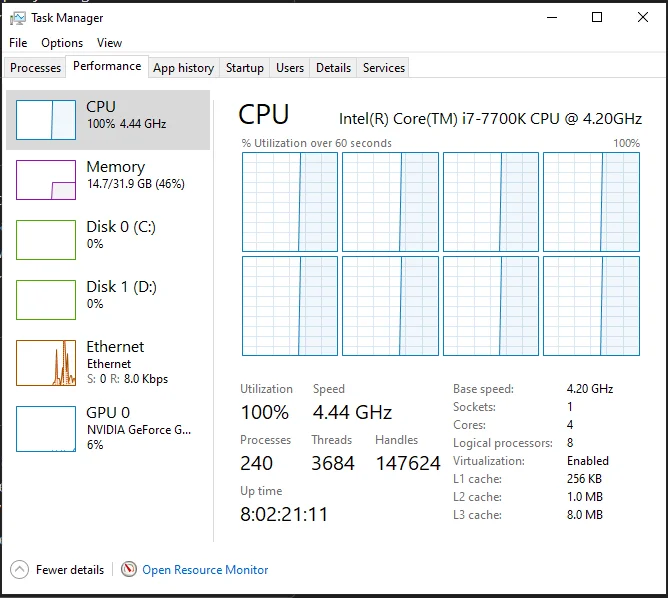
Task Manager – To access this option, right-click on the taskbar and choose "Task Manager." Then, navigate to the "Performance" tab and click on "Memory." This section shows an overview of the total installed DRAM, its current usage, and the speed of the memory modules.
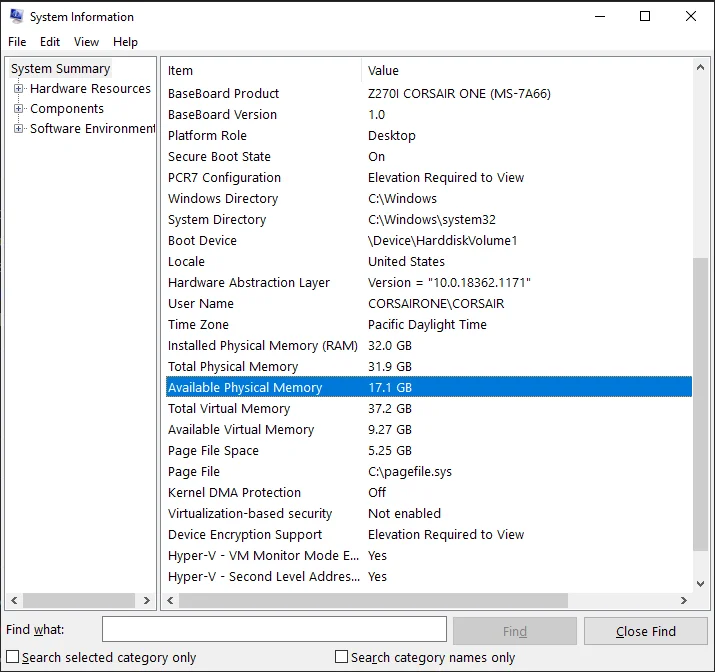
System Information – To access this option, press Windows key + R, then type “msinfo32”, and press Enter. Go to System Summary and look for “Installed Physical Memory” (RAM). Note that this option only shows the amount of memory; it doesn't include details like speed, latency, or type—just RAM capacity.
Command Prompt
Another option is to use command-line tools, which are preferred by many advanced users who are comfortable with terminal commands. Using Command Prompt, you can quickly obtain detailed information about your PC's installed memory without relying on third-party applications. You will be able to view technical details of the DRAM, such as the manufacturer name, module size, DIMM slot location, and speed. This method is quite common in the IT industry or among PC technicians who need a lightweight, scriptable way to gather hardware data remotely or across multiple systems.
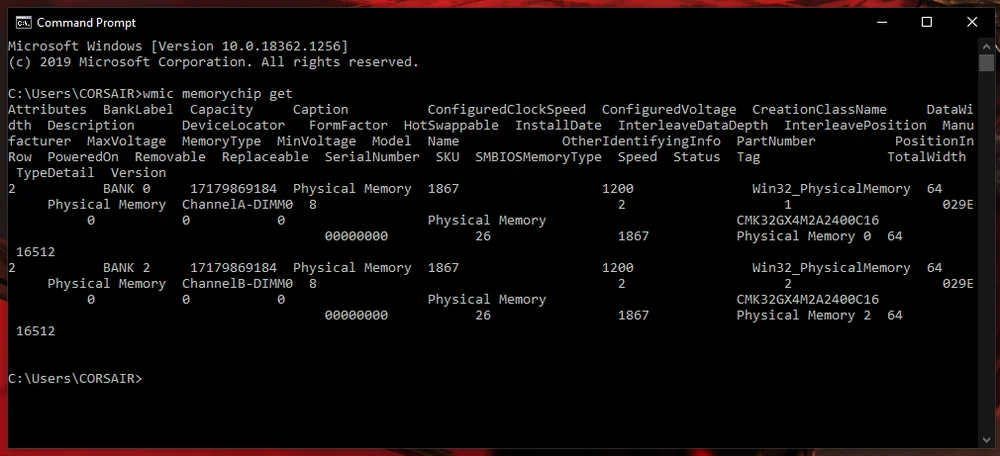
To access Command Prompt, type “cmd” or “Command Prompt” in the search bar. Once in the Command Prompt window, run the "wmic memorychip get" command, which retrieves detailed information about each installed memory module.
Third Party Application
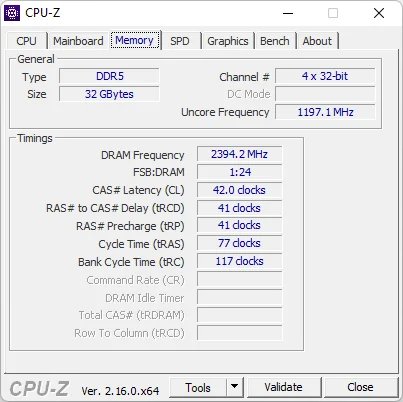
With the growing number of independent coders and programmers today, various software tools for Windows are more accessible than ever. Third-party applications can be used to gather detailed information about your computer hardware, including DRAM specifications. Programs like CPU-Z or HWinfo offer comprehensive insights into memory modules, including their manufacturer, SKU number, latency, and voltage. These tools not only show the current memory setup but also let users monitor performance metrics and system stability in real-time. In fact, some of them provide more than just monitoring features; they also include system diagnostics, benchmarking, stress testing, and additional functions. Below are some of the most popular tools in the PC industry available online.
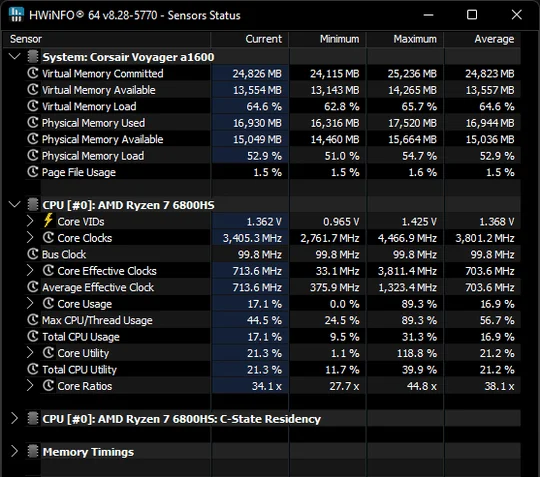
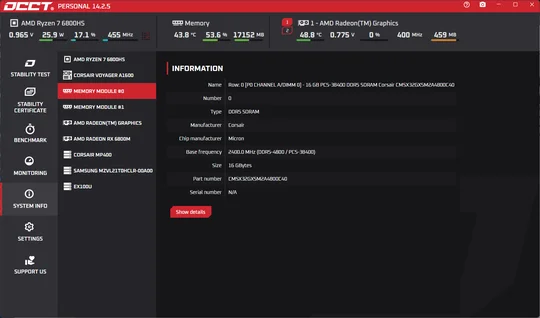
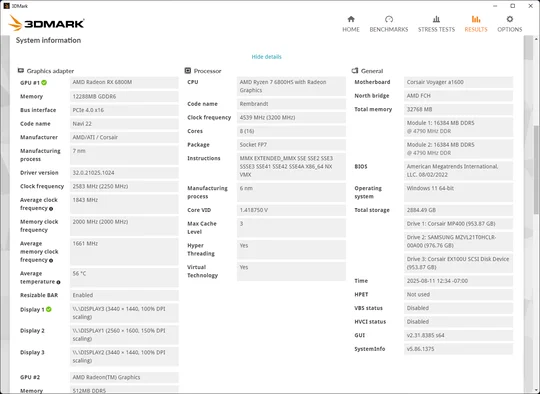
DRAM manufacturers like CORSAIR also offer a proprietary application called iCUE that allows users to manage and customize their Corsair gaming devices and PC components, including DRAM, fans, AIO liquid CPU coolers, and other gaming accessories. You can download CORSAIR iCUE here. To learn more about CORSAIR PC Memory, check out their website. If you want to know more about iCUE software and all its features, you can find it here.
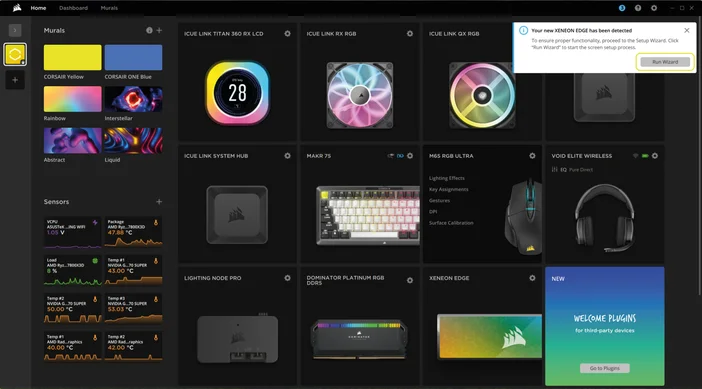
Physical Check
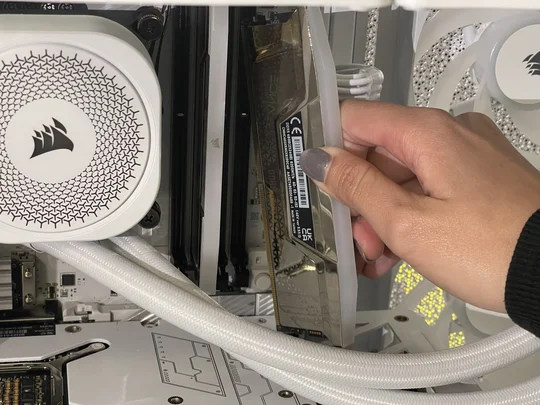
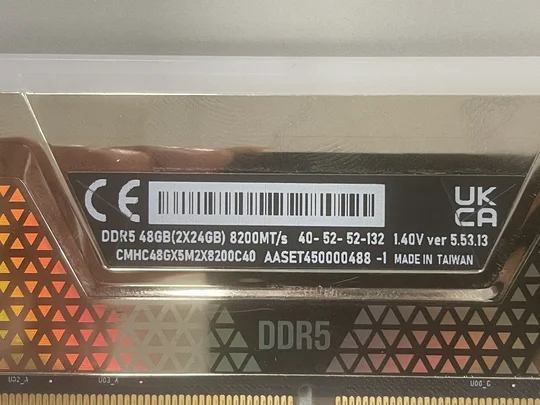
Besides the methods we've talked about earlier, you might find it helpful to check the DRAM by taking a look at the physical memory modules inside your PC. Just open up the case and gently inspect the RAM sticks. Usually, each one has a label with details like capacity, speed, and manufacturer. Although this approach needs careful handling and a bit of understanding of your system's internals, it can be a really handy way for those who like to get hands-on and confirm their memory components directly.
Knowing different ways to check your system’s DRAM is one of those fundamental skills every PC user should know because it helps them become familiar with their PC. Suppose you understand detailed information about the DRAM installed in your PC. In that case, you can make informed decisions on whether you need to upgrade or if you encounter system slowdowns when running specific programs. This proactive approach also helps maintain a responsive computing experience, enabling you to complete tasks without frustrating delays.
ПРОДУКТИ В СТАТИЯ
JOIN OUR OFFICIAL CORSAIR COMMUNITIES
Join our official CORSAIR Communities! Whether you're new or old to PC Building, have questions about our products, or want to chat about the latest PC, tech, and gaming trends, our community is the place for you.