HOW TO
What to Do if iCUE Can't Detect RAM
For a PC build mainly made up of CORSAIR components, with gaming peripherals also from CORSAIR, it’s likely that iCUE software is installed on your PC. This software manages all iCUE-compatible devices, both inside and outside the computer. CORSAIR iCUE is a powerful and user-friendly tool that helps you enhance your experience with all your CORSAIR PC parts and gaming gear. It allows you to personalize RGB lighting, create macros, and set up profiles for various devices like PSUs, keyboards, mice, and RAM.
However, sometimes iCUE can go wrong, and one possible issue is that iCUE can fail to recognise new or existing memory modules, or RAM. Here's a few fixes to try.
Restart your PC
This is basically the first port of call for all issues on a PC. Sometimes things just aren't working correctly and these issues are quickly and miraculously solved by simply turning the PC off and on again. Make sure to fully shut down the computer, too, instead of just putting into standby mode.
Make sure iCUE is up to date
iCUE will notify you when there's a new version of the software and if there's new firmware for any iCUE-compatible Devices. To update iCUE just click the button in the notification bubble that pops up. If this bubble does not pop up, or you got rid of it, follow these steps:
- Click the gear icon in the top right
- Open the "Software Updates" tab
- Click "Check for Updates"
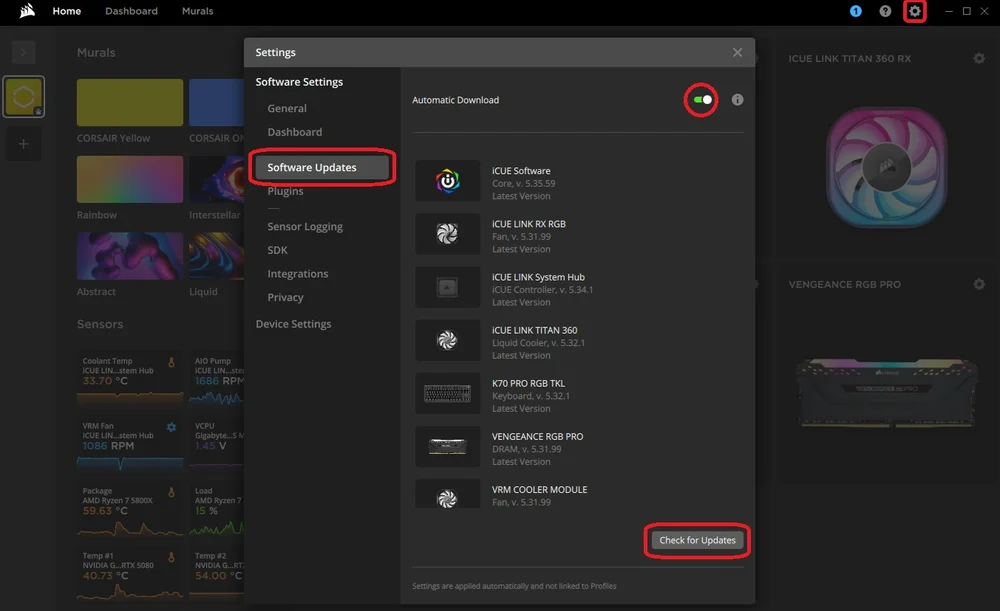
You can also enable "Automatic Download" which will download updates as and when they're deployed so you don't need to do it manually.
Restarting the iCUE Service
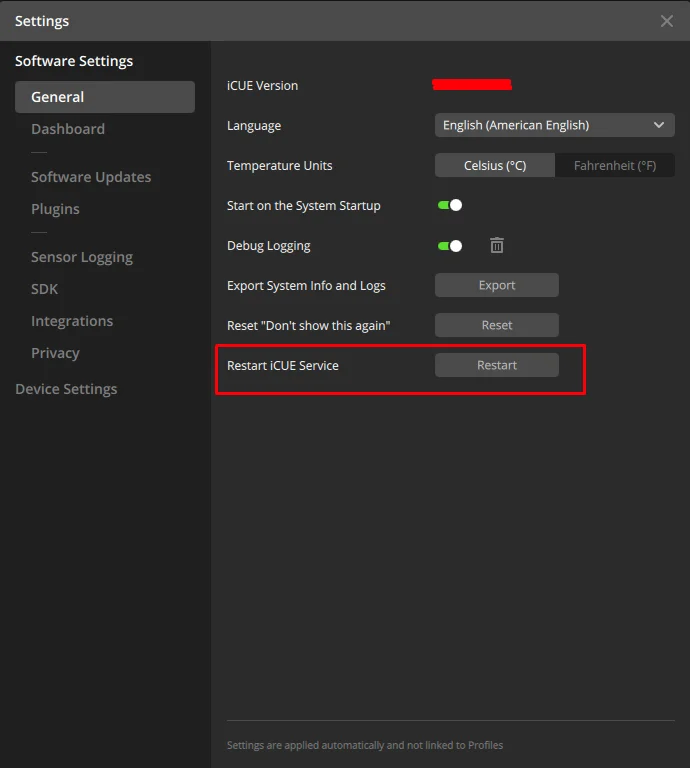
You can also try manually reactivating the driver in iCUE software after restarting your PC. To do this:
- Open iCUE.
- Click the iCUE Settings icon.
- Click the Restart button next to Restart iCUE Service.
Reinstalling iCUE
Reinstalling iCUE is a broadly effective way to fix the issue and get your RAM to properly show up. It can be a lengthy process depending on how comprehensive you want the reinstallation to be. So, check out our guide on performing a clean reinstallation of iCUE for a step-by-step tutorial.
Conflicting Software
It’s quite common to see many different software options from various PC manufacturers installed on a system and sometimes, these programs don’t always play nicely together, which can lead to issues such as problems with DRAM detection. But don’t worry - we’re here to help you find a solution and get everything sorted out.
Which software conflicts with CORSAIR hardware control?
The following software have been known to cause stability issues with CORSAIR hardware control:
- EVGA Precision XOC
- MSI Center/Mystic Light
- ASUS RGB Software
- Razer RGB Software
- Logitech RGB Software
- Thaiphoon Burner
- Gigabyte RGB Fusion
- NZXT CAM
- Wallpaper Engine
Any other RGB control software installed (even if it doesn’t include memory control) may interfere with proper communication between iCUE and the DIMMs. If you have any software like this, try closing it or uninstalling each software one-by-one, and this could fix the problem.
BIOS Issues
- First, check if your motherboard has an SPD Write option and ensure it's enabled in the BIOS. If it's not turned on, iCUE won't be able to communicate with your RAM. Usually, most motherboards come with SPD Write enabled by default, but some, like the ASUS Z690, might need you to turn it on manually.
- If you need help verifying the location of this option in BIOS, reach out to your motherboard manufacturer.
- Second, ensure that your BIOS is updated to the latest version available on the manufacturer’s website, as many of these detection issues have been resolved in recent updates. Keeping it current can help improve your experience and ensure everything runs smoothly.
Re-seating the RAM
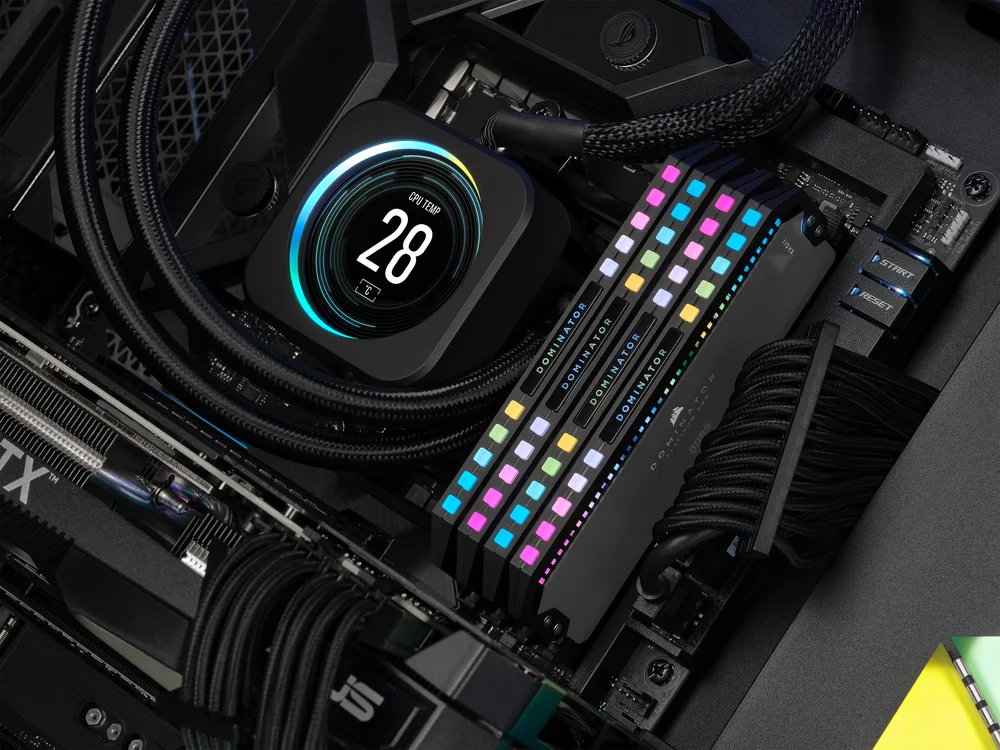
Another option is to carefully reseat all the memory sticks in the motherboard’s DIMM slots. This helps make sure they’re securely and correctly installed.
If you continue to experience issues, don't hesitate to get in touch with the CORSAIR Customer Support team for further assistance.
ПРОДУКТИ В СТАТИЯ
JOIN OUR OFFICIAL CORSAIR COMMUNITIES
Join our official CORSAIR Communities! Whether you're new or old to PC Building, have questions about our products, or want to chat about the latest PC, tech, and gaming trends, our community is the place for you.