HOW TO
How to Transfer Files from PC to PC
There are a few too many ways to transfer files to cover in one article, but we will go over some of the most common ways.
These include external drives, cloud storage, direct connections, and/or Wi-Fi.
External Drive
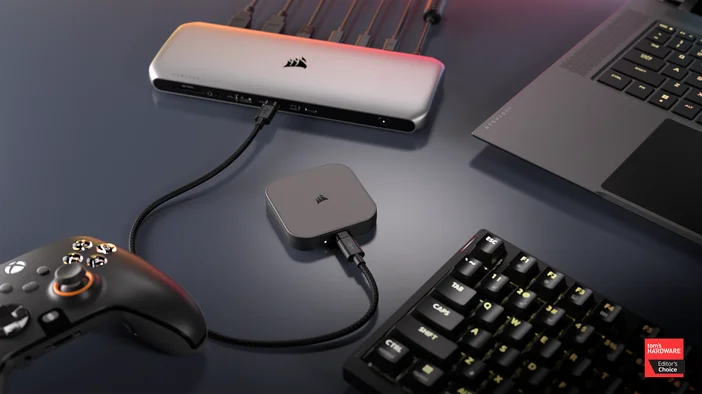
- You will want to have a flash drive/hard drive that fits the specifications (storage space) that you desire.
- Plug that into the computer you want to copy files from then download the data you want into the drive.
- You now have a loaded flash drive!
- Then you will plug it into the new PC and download what you need from the first PC.
Cloud Transfer
- You must sign into your account on any of these.
- For OneDrive especially, you should be able to find your files within your OneDrive folder on your File Explorer app (on windows).
- For Mac, you can simply use your iCloud as well to sync your files and folders across multiple devices.
- Otherwise, some like Google Drive may require you to manually download files into the app itself so you can recover them after signing in on another device.
Direct Connection
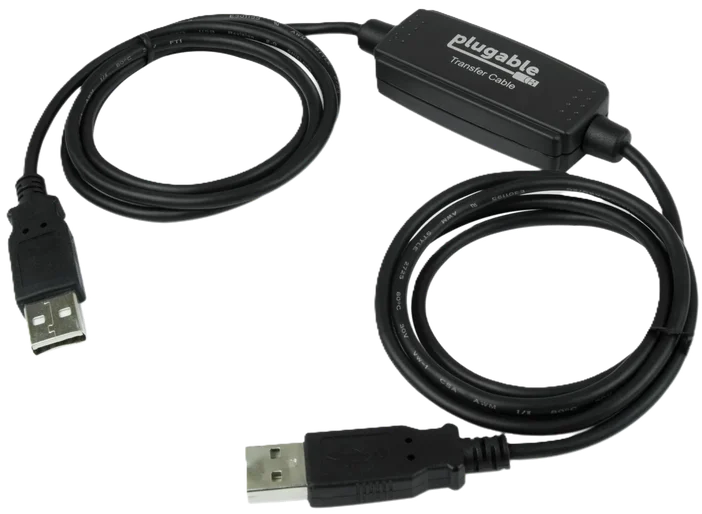
Data Transfer Cable
- Connect the two PCs physically by using a USB-to-USB Data Transfer cable.
- Install the software that comes with it.
- Launch the application.
- Choose what files you want to transfer over to your receiving PC.
Wi-Fi Transfer
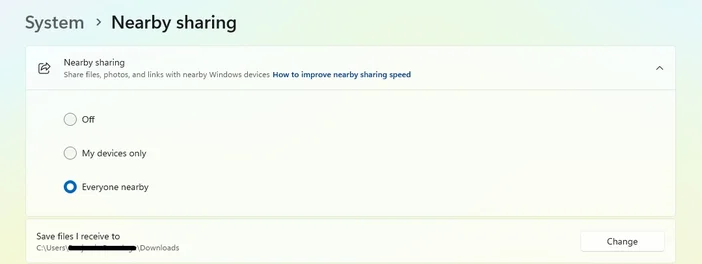
- Go to Settings > System > Nearby sharing
- Turn on ‘Everyone nearby’ sharing for all PCs in your area to find it, or ‘My devices only' for PCs connected to your Microsoft account.
- Choose your location for your downloaded files to be placed in with the ‘Change’ option.
- Then send the files from your old PC build to your new one!
In this day and age, it’s easy to transfer files from PC to PC, so you need not fear data loss when moving to a new PC.
ПРОДУКТИ В СТАТИЯ
JOIN OUR OFFICIAL CORSAIR COMMUNITIES
Join our official CORSAIR Communities! Whether you're new or old to PC Building, have questions about our products, or want to chat the latest PC, tech, and gaming trends, our community is the place for you.