iCUE is software that is used to manage CORSAIR hardware such as case fans, CPU coolers, peripherals, and more. If you encounter an issue where files used by iCUE become corrupted or the software is not acting as expected, performing a clean installation can help, although it is not always a guaranteed fix. This process involves uninstalling the software, deleting any remaining local files, and reinstalling iCUE. Let’s get started.
Consider a Repair Install First
Before you uninstall and reinstall, consider trying to repair the software first. Run the installer EXE file. It will detect the existing installation and ask if you want to repair it. This replaces any corrupted files and takes only a few minutes. If this does not solve your issue and you want to perform a clean reinstall, proceed to the next step.
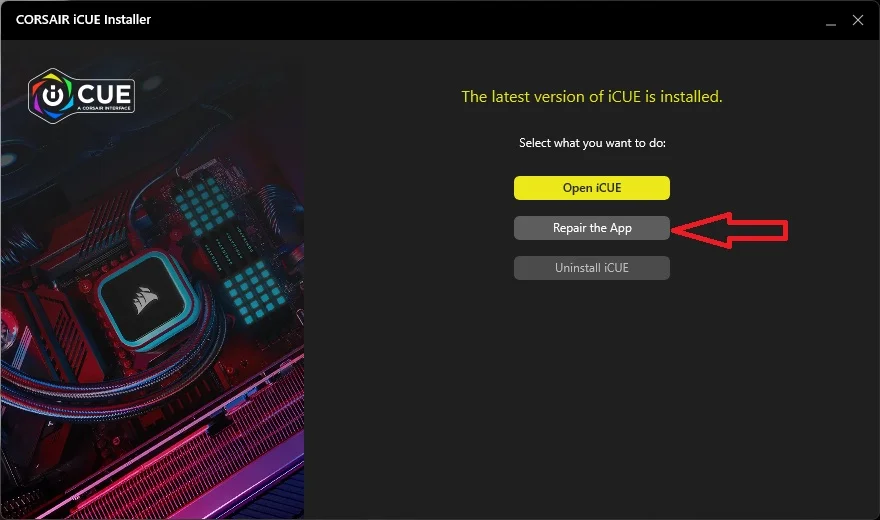
A Repair Install should always be considered before moving ahead.
Before You Get Started, Backup iCUE Profiles
Performing a clean reinstall will delete your saved iCUE profiles, so back them up first so you can quickly restore them. You can easily export and import profiles in iCUE.
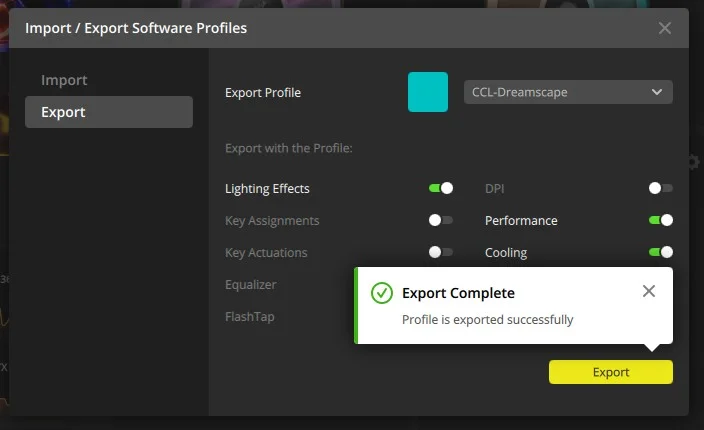
Export any saved lighting profiles before you proceed.
Uninstall iCUE
In Windows 11, right-click the Start button and select Installed Apps at the top of the pop-up. Scroll down to Corsair iCUE and select Uninstall.
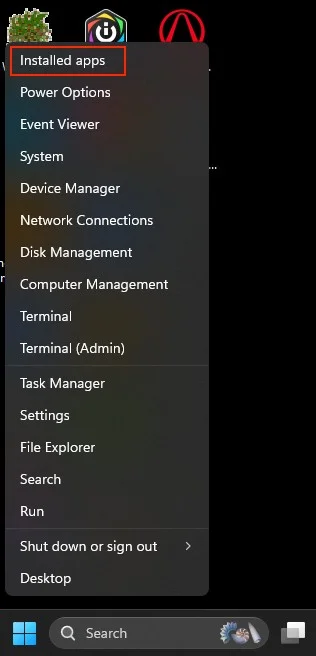
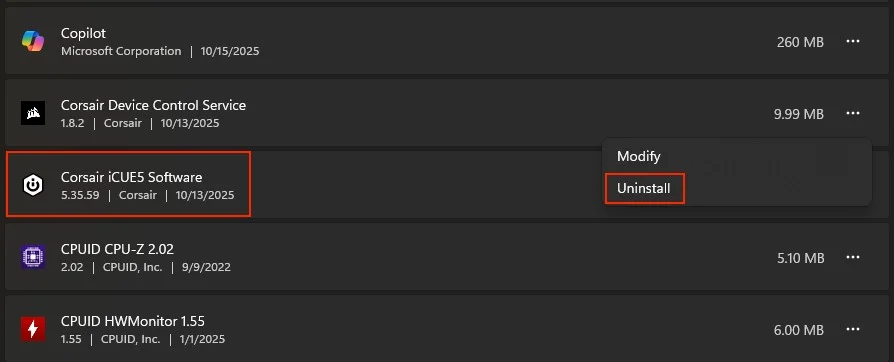
Click the three dots on the right and choose Uninstall.
Delete Existing User Profiles
Check the boxes labeled Delete Settings for All Users and Delete iCUE Backups since this is a clean installation. Complete the uninstallation process.
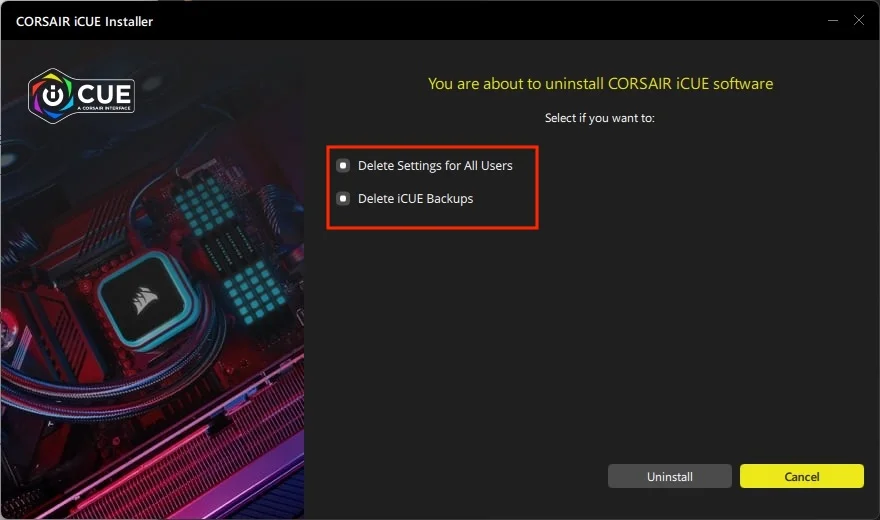
Delete all user data to do a clean reinstall.
Remove Leftover Files
Once the uninstall is complete, delete any leftover files so that the new installation starts fresh:
- Press Windows Key + R, type %appdata% and click OK. Delete the Corsair folder in that directory.
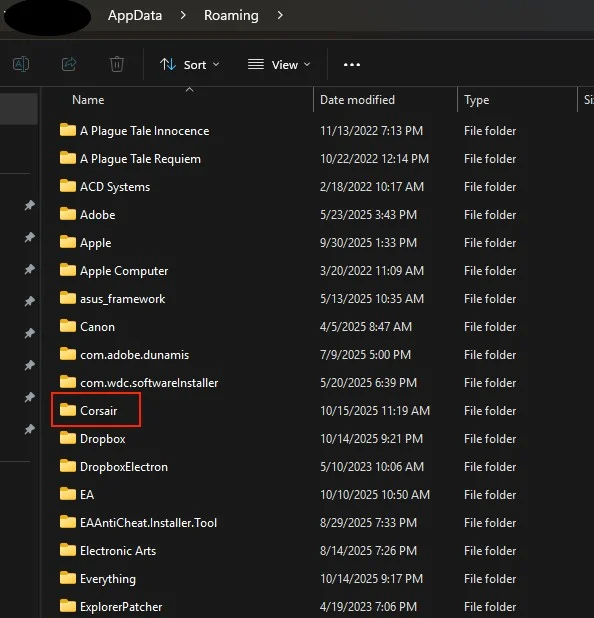
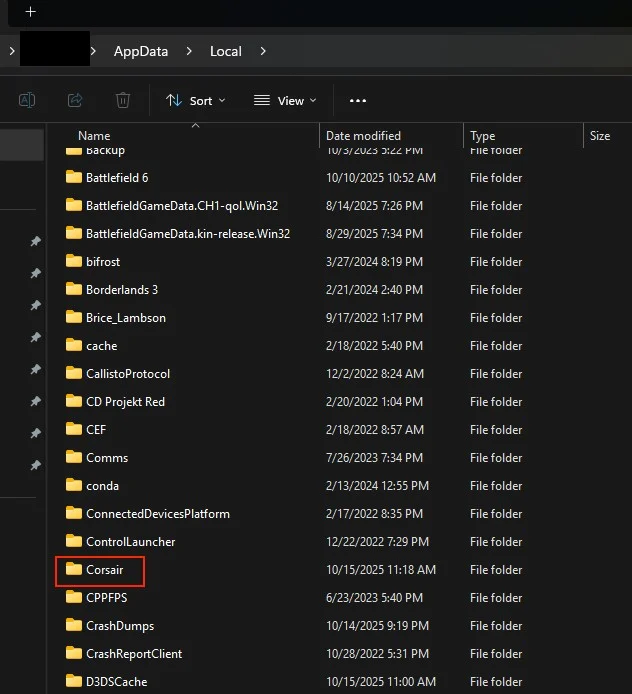
2. Open the Run command again, type %localappdata%, and click OK. Delete any Corsair folders that appear.
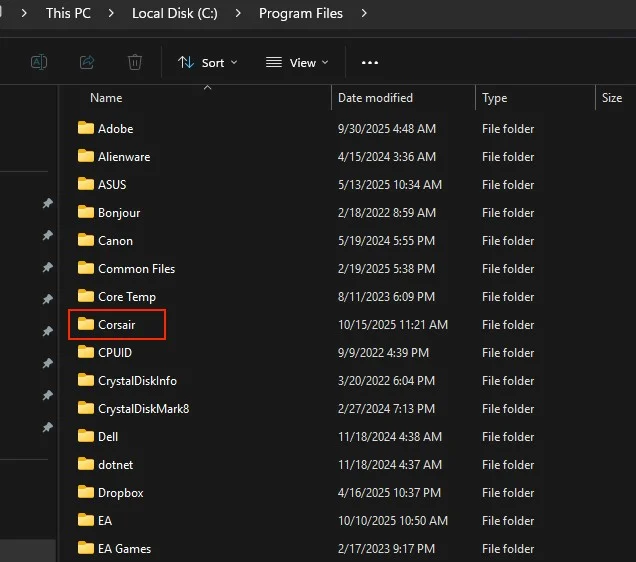
3. Open File Explorer and navigate to C:\Program Files (x86)\ for iCUE 3, or C:\Program Files\ for iCUE 4 or 5. Delete any Corsair folders in this directory.
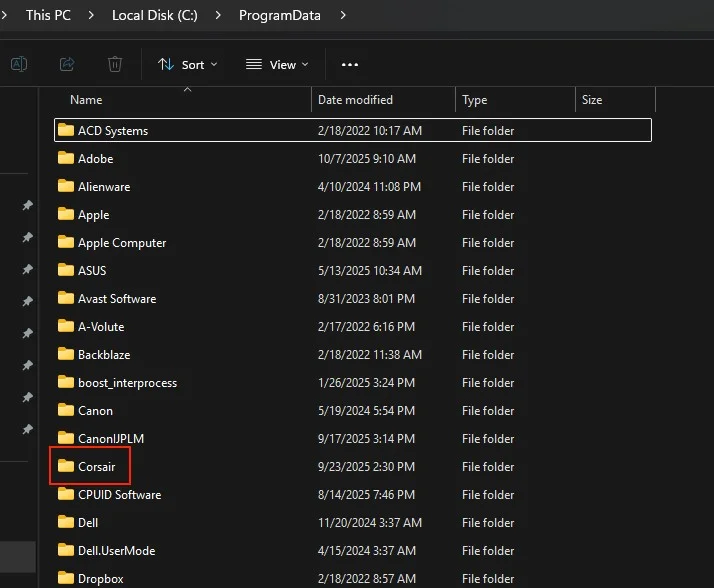
4. Open the Run command again, type %programdata%, and click OK. Delete any Corsair folders, and then reboot your PC.
As a final step, you can download a trial of Revo Uninstaller to find and delete any remaining files.
Reinstall iCUE
After your PC reboots download the latest version of iCUE (up to version 5.35.59 as of October 2025). Run the installer until it completes, and you should have a clean version of iCUE.
JOIN OUR OFFICIAL CORSAIR COMMUNITIES
Join our official CORSAIR Communities! Whether you're new or old to PC Building, have questions about our products, or want to chat about the latest PC, tech, and gaming trends, our community is the place for you.