HOW TO
How to Zip a File
In these days of huge storage capacities, where even SSDs are hitting up to 8TB, it’s easy to forget how much space our files and data can consume. Most PCs today come with at least 1TB of storage, and 2TB is becoming increasingly common. If you’re working with less than that, it might be time to upgrade to a new M.2 SSD. The 2TB MP600 ELITE is a solid option, offering plenty of space and impressive speed.
But what if you want to make better use of the space you already have? Or maybe you need to move files to a device with limited storage, like a smartphone or USB drive. You might also want to attach files to an email or upload them over a metered connection. In these situations, file size matters. Compressing your files helps reduce their footprint and makes them easier to manage.
Before Windows XP, compressing files required third-party software like WinZip or WinRAR. These tools are still available and useful in certain cases, but for most users, Windows now includes everything needed to zip files. It’s built in and very easy to use.

How to Zip files in Windows 11
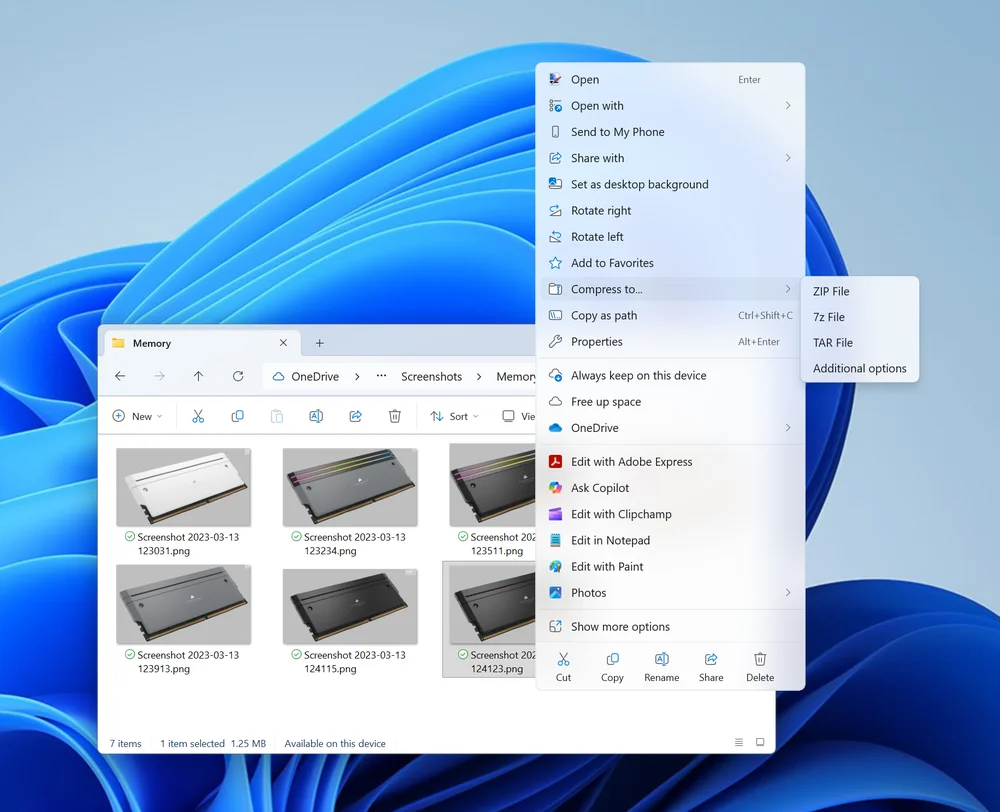
Windows supports file compression directly in File Explorer. When you right-click a file or group of files, you’ll see a Compress to… option in the context menu. This lets you choose the type of archive to create: ZIP, 7z, or TAR. ZIP is the most widely supported format, so it’s usually the best choice.
After selecting the format, Windows creates a new archive with a folder icon and a zipper across it. Give it a name that you’ll recognize later. Windows will compress the file or files quickly, and the archive will be ready to use like any other file.
You can compress folders too. This is especially useful when moving a batch of photos or documents. Just right-click the folder and choose the same Compress to… option.
How to Unzip a File in Windows 11
To unzip a file, double-click it to open, then drag the contents to your desired location. You can also use the Extract all option in the ribbon at the top of the window to extract everything to a specific folder.
Does Zipping a File Reduce its Quality?
No. ZIP compression is lossless, which means it doesn’t affect the quality of your files. Some formats, like JPEG for images or MP4 for video, use lossy compression, but ZIP preserves the original data.
Can I Add Files to an Existing ZIP file?
Yes. Just open the ZIP file and drag new files into it. Windows will add them to the archive automatically.
Why Don’t My ZIP Files Compress Much?
Some file types, such as JPEGs, MP4s, and PDFs, are already compressed. This means they can’t be compressed much beyond that. Even so, ZIP files are useful for bundling multiple files into one package.
ΠΡΟΪΟΝΤΑ ΣΕ ΑΡΘΡΟ
JOIN OUR OFFICIAL CORSAIR COMMUNITIES
Join our official CORSAIR Communities! Whether you're new or old to PC Building, have questions about our products, or want to chat the latest PC, tech, and gaming trends, our community is the place for you.