HOW TO
How to Set Up a Local LLM on Your System
Running a large language model (LLM) on your own PC sounds intimidating, but it’s surprisingly approachable. A “local LLM” simply means the AI runs on your hardware no cloud, no account, and your data stays with you. Think private brainstorming, code help, and document Q&A, all without sending anything online. If that sounds good, let’s get you from zero to first prompt.
What Tools Are We Using?
The most beginner‑friendly option right now is Ollama, a free app that downloads and runs a wide catalog of open models with one‑line commands (it now ships a Windows & macOS desktop app, so you don’t have to live in a terminal).
If you prefer a more visual, all‑in‑one experience, LM Studio (also free) is another great choice for discovering, running, and managing local models. Open WebUI is a lightweight, self‑hosted chat interface that can sit on top of Ollama. Pick one or mix and match.


What You’ll Need (Hardware & OS)
- Operating system: Windows 10/11, macOS, or Linux (we’ll show Windows examples below).
- Memory & storage: 16–32GB RAM is comfortable for 7–13B‑parameter models; more RAM helps with bigger contexts. Keep tens of GBs free on an SSD for models and caches.
- GPU (optional but helpful): A modern GPU speeds things up and lets you run larger models. On Windows, Ollama supports GPU acceleration and publishes AMD‑optimized builds
- Note on AMD integrated graphics (APUs): New Ryzen AI Max+ systems can share system memory as “variable graphics memory,” exposing up to 96GB of VRAM to the iGPU with the right configuration—useful for bigger models at home.
Quick Start (Windows): The Fastest Path to Your First Prompt
- Install Ollama
- Download the Windows installer from Ollama, or install via Winget: "winget install --id Ollama.Ollama"
After install, you’ll have both the Ollama app (GUI) and the command‑line tool

- Launch and verify
- Open the Ollama desktop app and sign in if prompted (no cloud required for local use).
- Or verify the CLI: "ollama --version". (You’ll see a version number.)
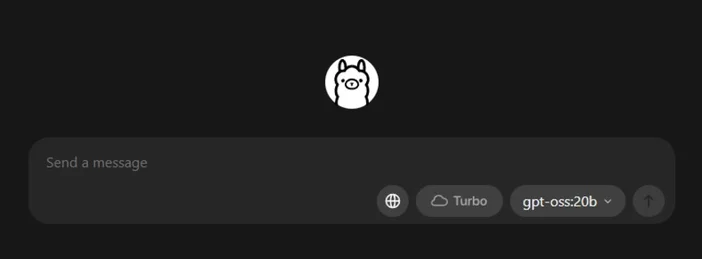
- Pull a starter model
- In the app, browse and download a model. Or in a terminal: "ollama run llama3:8b
- "This will download the model and drop you into a prompt—type a question and go. You can browse many models (Gemma, Llama, Qwen, OLMo, and more) in the Ollama Library.
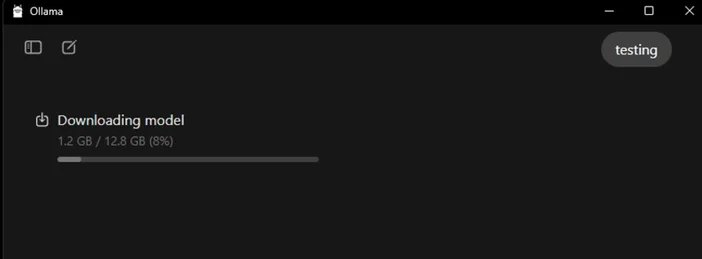
- (Optional) Enable GPU acceleration
- Keep your graphics drivers current. Ollama provides Windows builds with AMD acceleration, and AMD documents DirectML/ROCm paths for LLMs on Radeon. In the Ollama app, confirm that the GPU is detected (or watch GPU usage in Task Manager while generating).
Which Model Should You Try First?
- “Small & snappy”: gemma3:1b or llama3:8b good for quick replies and low‑end hardware.
- “Balanced”: 7B–13B models (e.g., olmo2:7b, llama3:8b instruct) solid for general use.
- “Bigger brains”: 20B+ models (e.g., gpt-oss:20b, larger Llama variants) need more RAM/VRAM and patience, but shine on tougher tasks. You can pull any of these directly in the app or via ollama run <model>.
Tips for optimizing your local LLM
- Context length: Bigger isn’t always better. Huge contexts (e.g., 32k-64k tokens) can slow generation dramatically. Start with 4k–8k, and bump up only when needed.
- Quantization: Most app‑supplied models are already quantized for you handy for fitting bigger models into limited VRAM.
- Storage: Keep models on an SSD; HDDs will feel sluggish.
- Drivers: Update GPU drivers and the app regularly local AI is evolving fast.
Using the CORSAIR AI WORKSTATION 300
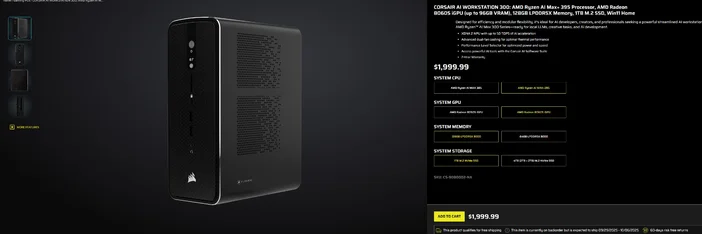
If you’d rather skip the piecemeal build and want a compact, quiet desktop that’s ready for local LLMs out of the box, the CORSAIR AI WORKSTATION 300 checks a lot of boxes for creators and developers:
- CPU/GPU/NPU: AMD Ryzen™ AI Max+ 395, Radeon™ 8060S iGPU (up to 96GB VRAM), XDNA 2 NPU up to 50 TOPS
- Memory & Storage: 128GB LPDDR5X‑8000, 4TB NVMe (2TB+2TB)
- OS: Windows 11 Home
- Design: 4.4L small‑form‑factor chassis with dual‑fan cooling and a Performance Level Selector
That “up to 96GB VRAM” on the Radeon iGPU pairs especially well with Windows tooling that can allocate large shared memory to the GPU handy for bigger local models and longer contexts when you need them. It’s a clean, compact path into local AI development without compromising capacity
FAQ
Do I need a dedicated GPU to run a local LLM?
No. You can run smaller models on CPU‑only systems, though responses will be slower. A modern GPU or an advanced APU with large shared memory improves speed and lets you step up in model size.
Is this private?
Yes. With local tools like Ollama or LM Studio, prompts and data stay on your machine by default. (Integrations you add may behave differently always check settings.)
Where do I find models?
The Ollama Library lists popular, up‑to‑date options (Llama, Gemma, Qwen, OLMo, and more). Each model page shows sizes and example commands.
Can the CORSAIR AI WORKSTATION 300 handle large models?
It’s designed for local LLMs, with 128GB memory and an iGPU that can access up to 96GB VRAM excellent headroom for advanced local workloads and long contexts, especially as AMD’s Windows drivers expand support for large allocations. Actual throughput depends on model size, quantization, and settings.
ΠΡΟΪΟΝΤΑ ΣΕ ΑΡΘΡΟ
JOIN OUR OFFICIAL CORSAIR COMMUNITIES
Join our official CORSAIR Communities! Whether you're new or old to PC Building, have questions about our products, or want to chat the latest PC, tech, and gaming trends, our community is the place for you.