If you're handing off your PC to someone, or experiencing some irreparable issues, then a factory reset of your Windows installation would be suggested. Thankfully, doing so is a relatively simple process.

Preparation
If you're planning to do a complete wipe of your files for a 100% clean Windows reset, then you'll want to make sure you back up any personal files you may want to keep such as photos, videos, or music. A 100% clean Windows reset is especially the preferred route if you are giving your PC to a third party, or attempting to fix some operational issues you're encountering.
If you're just planning to reset Windows but want to keep your personal files, no preliminary preparation is essentially required aside from saving your video game files in case you don't want to wait for them/waste bandwidth to redownload.
Reset via within Windows OS
The simplest way to access the reset option is via either of the following methods:
- Press the Windows, then type "reset". This will bring up the "Reset this PC" option.
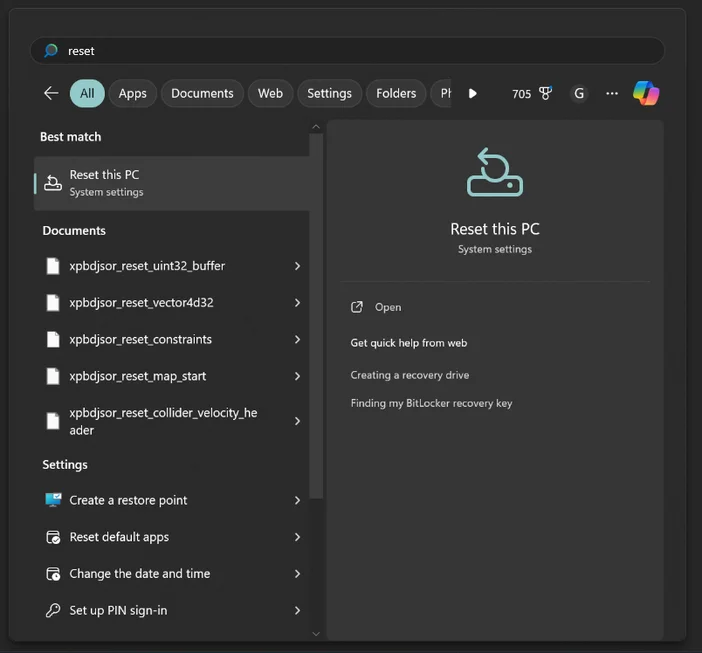
The other method of accessing the Reset option is via Settings>Recovery>Reset this PC; visually shown in the video below.
Reset via Windows USB Media Installer
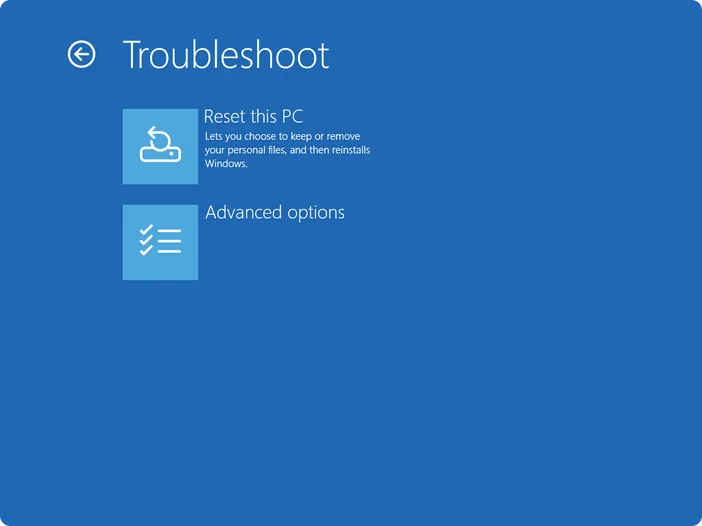
If you've created a Windows USB Media Creation Tool, this is also another avenue for resetting your PC. This may be the ideal route in case your Windows OS is experiencing instability where you're unable to complete the previous method.
JOIN OUR OFFICIAL CORSAIR COMMUNITIES
Join our official CORSAIR Communities! Whether you're new or old to PC Building, have questions about our products, or want to chat about the latest PC, tech, and gaming trends, our community is the place for you.