Pulling a USB drive straight out of your computer feels harmless. After all, the files you copied look like they’re already there. But operating systems don’t always finish their behind-the-scenes work the moment your progress bar disappears. That’s why the little “Eject” option exists, and why ignoring it could sometimes put your data at risk. So, do you really need to eject a USB drive every time? Let’s break it down.
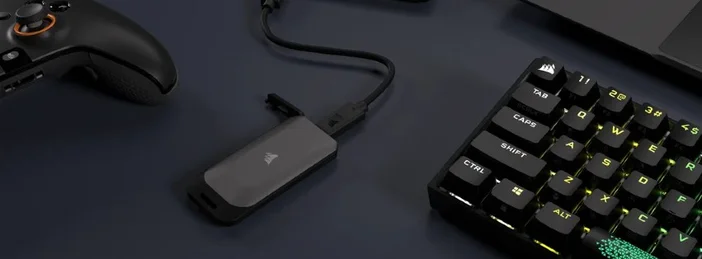
What Does “Eject” Actually Do?
When you hit Eject (or Safely Remove Hardware), your OS:
- Flushes any pending writes (emptying caches so data lands on the drive).
- Closes open file handles so no app is still using the drive.
- Unmounts the filesystem so it’s cleanly detached.
- Sometimes even powers the device down (for example, Linux’s udisksctl power-off).
Why This Matters (even when the copy dialog is gone)
Modern operating systems and apps can keep writing metadata, thumbnails, or indexing information in the background seconds after a progress bar finishes. Pulling the plug mid‑write risks silent corruption. Ejecting makes the OS finish that housekeeping first.
Note: Filesystem journaling primarily protects metadata (directory structure), not your actual file contents. So journaling reduces, but doesn’t eliminate, corruption risk from sudden removal.
When You Can Skip Ejecting (risk is lower)
Windows 10/11 with default Quick removal and no writes in progress. Microsoft’s Quick removal disables write caching on external drives so you can remove the device without the tray icon performance is a bit slower, safety is higher. Still, if you just saved/edited files, click Eject to be certain.
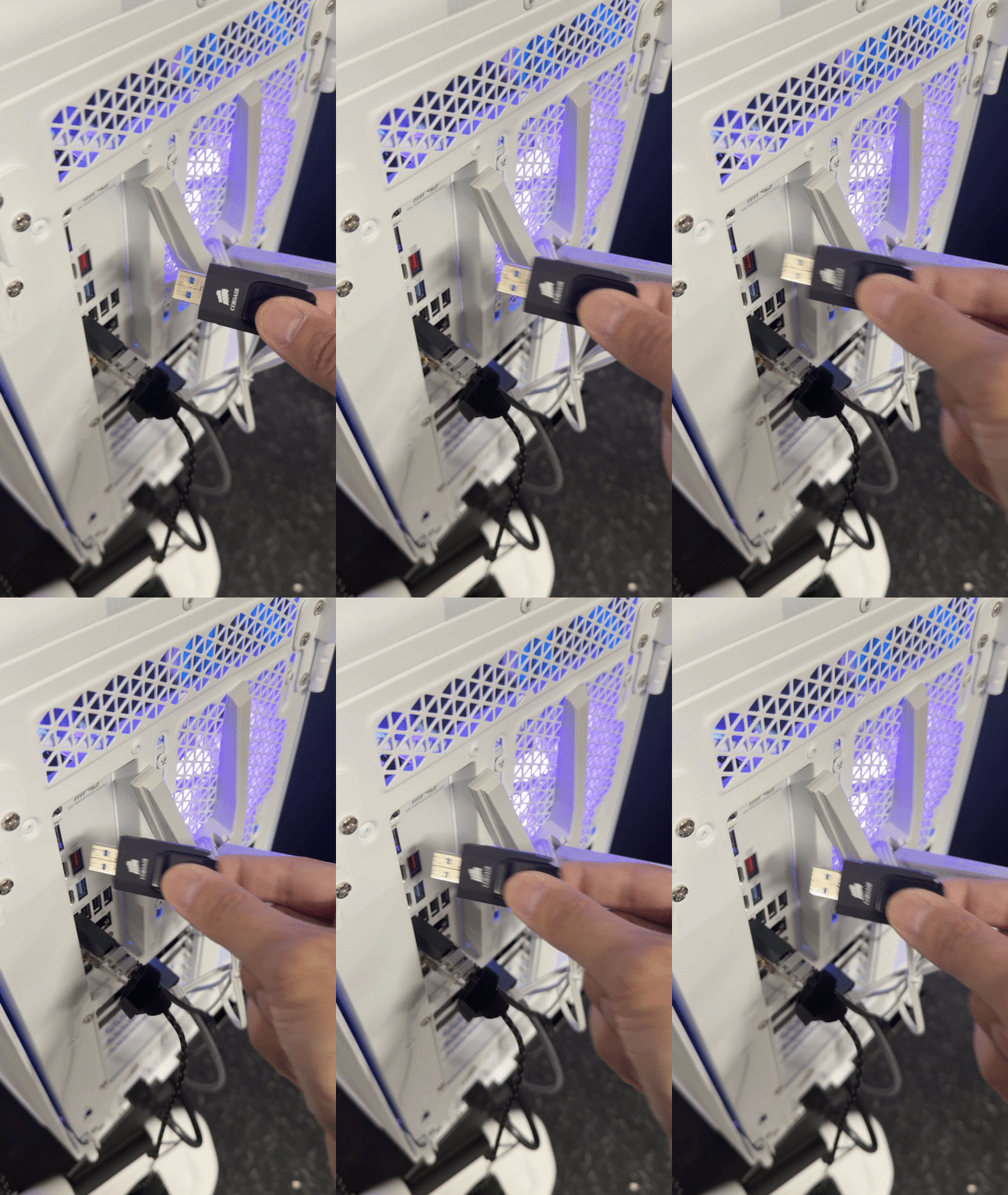
When You Absolutely Should Eject
- Any time you’ve written or edited files on the drive on any OS.
- If Windows drive policy is set to “Better performance” (write caching on). In that mode, you must use Safely Remove.
- On macOS, Linux, and ChromeOS that’s the expected workflow.
- For external HDDs/SSDs that can buffer writes internally eject ensures caches are flushed. (Linux’s udisksctl power-off explicitly handles this.)
How to Eject on Each OS
Windows 10/11
- Click the Safely Remove Hardware and Eject Media icon in the system tray, or right‑click the drive in File Explorer → Eject.
- If you often unplug without writes and your device is on Quick removal, it’s usually fine but eject is still recommended after saves.
macOS
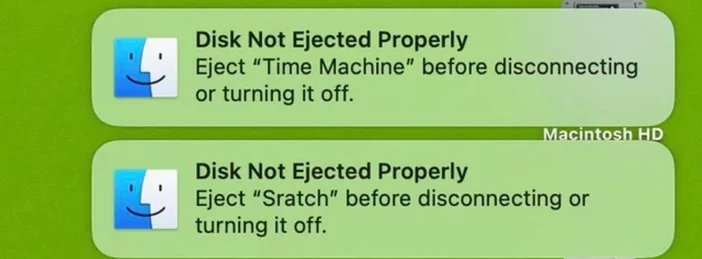
- In Finder, click the eject icon next to the drive (or select the drive and press Command–E).
- If macOS says the disk is in use, close apps or log out/restart, then try again. Disk Utility → Unmount is another route.
Linux (GNOME desktop & command line)
- In the Files app (Nautilus), click the eject icon next to the drive.
- Terminal: udisksctl unmount -b /dev/sdXN then udisksctl power-off -b /dev/sdX to flush caches and power the device down.
ChromeOS (Chromebooks)
- Open the Files app, find your USB drive in the left sidebar, click the eject icon. It disappears from the list—then unplug. (Many OEM guides describe the same steps.)
Troubleshooting: “The drive won’t eject”
- Windows: A program is probably still using a file. Close apps, wait a moment, then try Safely Remove again.
- macOS: Spotlight indexing or another process can hold the disk. Quit apps, exclude the drive from Spotlight if needed, log out/restart, or use Disk Utility to unmount.
- Linux: Make sure no terminal’s working directory is on the drive; then unmount with umount or use udisksctl … power-off
Is Eject the same as Unmount?
Conceptually, yes both detach the filesystem and ensure pending writes are completed. “Safely Remove” on Windows and “Eject” in GUIs add friendly checks and (on some platforms) power‑down steps.
Does Eject cut power to the USB port?
Not always. It logically disconnects the filesystem. Linux’s udisksctl power-off also powers the device down. Many USB drives turn off their activity LED once unmounted.
Do modern filesystems/journaling make ejecting unnecessary?
No. Journaling mainly protects metadata; it can’t guarantee user data was fully written at the instant you pulled the plug.
What about “I only viewed files”?
Reading only (no edits) lowers risk, especially on Windows with Quick removal, but eject is still a good habit background tasks can touch the drive.
PRODUCTS IN ARTICLE
JOIN OUR OFFICIAL CORSAIR COMMUNITIES
Join our official CORSAIR Communities! Whether you're new or old to PC Building, have questions about our products, or want to chat about the latest PC, tech, and gaming trends, our community is the place for you.