If you’re a gamer and a dedicated fan of action-adventure games, you’ve likely been eyeing Crimson Desert. Developed by Pearl Abyss, the same creator of the popular MMORPG Black Desert Online, this open-world, action RPG game is set in a stunning fantasy world.
To get the most out of the game, you’ll want to play it on a capable PC with the right in-game settings, which really enhance the whole gaming experience. If that’s what you’re aiming for, then we’ve got you covered here.
At first glance, the game seems to demand top-tier hardware to play in its full glory, perhaps because of its visual presentation. however, the Crimson Desert system requirements aren't painfully taxing.
Best Graphics Settings for Crimson Desert
Lighting Quality is one of the most demanding settings in the game, especially in an open-world, action game like Crimson Desert. High-quality lighting significantly enhances gameplay mechanics by improving visibility and spatial awareness. In action or horror games, such as Resident Evil or Silent Hill, strategic use of lighting can build tension and suspense, creating a more realistic atmosphere.
Setting the in-game Lighting Quality to either “Ultra” or “Cinematic” would be the move. Choosing the “Max” setting at times does more harm than good due to a performance drop, and causes occasional visual noise and flickering for no reason.
Lighting Quality in Cinematic
Lighting Quality in Max
Upscaling and DLSS are great features that can really improve your gaming experience. They help boost frame rates, making gameplay feel much smoother, especially in demanding games like Crimson Desert. DLSS lets you enjoy high-quality visuals even when rendering at lower resolutions, so you can benefit from high-resolution graphics without top-tier hardware, making it accessible to a wide range of gamers, no matter your setup.
While playing the game, we found it runs best with DLSS 4.0 rather than DLSS 4.5 or 4.5L versions. It feels like the game is more stable, with less visual noise and shimmering.
As for Upscale Resolution, setting it to “Quality” will give you better frames with minimal blur.
Ray Tracing is definitely worth keeping on all the time. Since its introduction in 2019, it has been one of the most groundbreaking technologies, transforming how we experience video games by greatly advancing graphics quality on all fronts. So, be sure to leave it ON. Plus, the game’s BlackSpace Engine is specially designed to work with it seamlessly.
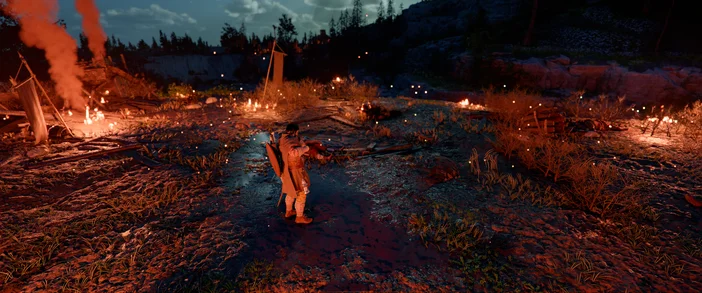
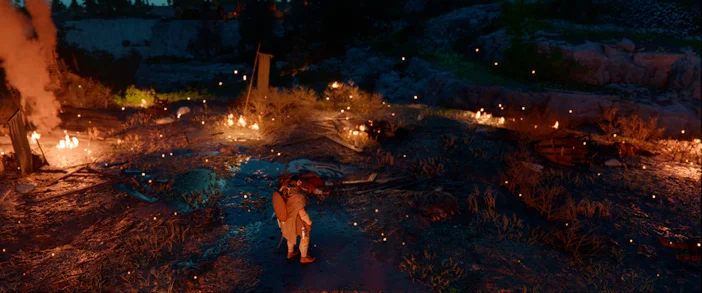
Turning it off can sometimes result in flatter, lower-quality lighting, and in many cases, it doesn’t improve performance. In fact, it might even make it a little worse.
Model Quality has little to no impact on in-game FPS. We found that setting it to “Low” or “Medium” is best without compromising the game’s visual detail, since it only affects distant geometry and terrain displacement.
Texture Quality. We put this on High. After putting in a good number of hours into the game, we didn’t notice any significant difference between High and Cinematic settings. That said, we occasionally ran into sudden game stutter when set to Cinematic, so we chose the High setting as the better option. As long as your graphics card has at least 8GB of VRAM, it can handle the game’s visuals without any issues.
Ray Reconstruction is a feature that can significantly reduce lighting noise and improve image quality in most in-game scenes. But having it ON does impact how you experience the game because, once enabled, it really puts your GPU to work, and if you have a lower-end GPU, the performance drop is apparent, especially in your frame rates. Our advice is, if you have a high-end GPU, like an RTX 4080/5080 or better, have it on. Otherwise, keep it off
Ray Construction ON
Ray Construction OFF
Low Impact Settings
We noticed that these settings have little to no impact on performance, so it’s perfectly fine to keep them set to HIGH, even on PCs with mid-range hardware.
- Water Quality: I noted no difference in FPS. I would recommended at High or Cinematic.
- Foliage Density: Has very minor linear impact - High is the safe “middle ground”.
- Volumetric Fog: Scaling is minimal, so leave it on High rather than Cinematic to save a few frames.
- Simulation Quality: This mainly affects the CPU. I’ve got this set to Ultra/Cinematic unless you are experiencing CPU bottlenecks.
Stay up to date with CORSAIR. Get our latest News, Guides, and Product Updates in your Google feeds.
Add CORSAIR as a preferred sourceWas this article helpful?
Feedback received
Thanks for helping us improve this article.
JOIN OUR OFFICIAL CORSAIR COMMUNITIES
Join our official CORSAIR Communities! Whether you're new or old to PC Building, have questions about our products, or want to chat about the latest PC, tech, and gaming trends, our community is the place for you.