MANUAL | QUICK START GUIDE
VANGUARD AIR 99 WIRELESS
OPTICAL-MECHANICAL GAMING KEYBOARD
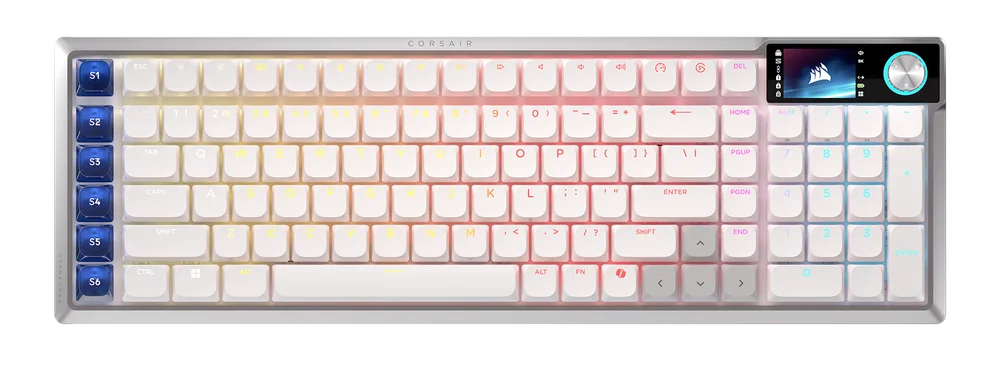
GETTING TO KNOW YOUR KEYBOARD
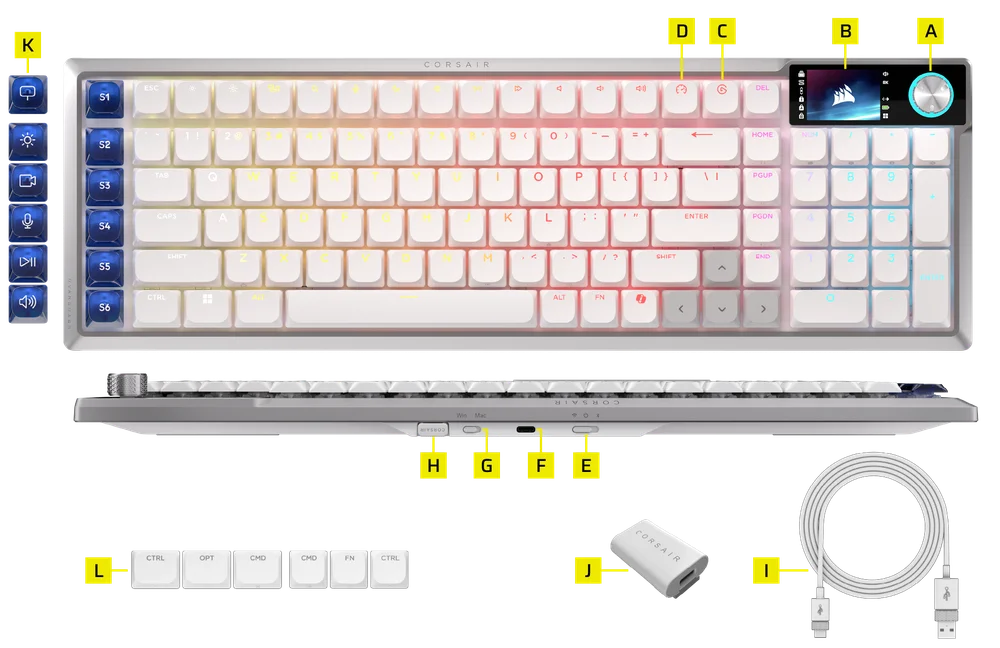
- ROTARY DIAL
- COLOR LCD SCREEN
- ELGATO KEY
- GAME MODE BUTTON
- 3-WAY MODE SWITCH
- USB TYPE-C PORT
- WIN MAC MODE SWITCH
- WIRELESS RECEIVER
- USB TYPE-C TO TYPE-A CABLE
- USB TYPE-C TO A ADAPTER
- STREAM DECK STUDIO CONTROL ICON KEYCAP SET
- MAC KEYCAP SET
TECHNICAL SPECIFICATIONS
| FEATURE | DESCRIPTION |
| Form Factor | Compact full-size |
| Top Cover | Aluminium plate |
| Bottom | Plastic |
| Mounting Style | Gasket mount |
| Sound absorbing foam (Top to Bottom) |
5 layers
|
| Colorway | Black / White |
| Screen | 1.9-inch IPS full color LCD Screen
Picture Uploaded Specs:
|
| Keycaps (NA layout & UK) | PBT Double shot |
| Keycaps (Other layout) | ABS Single shot |
| Backlighting | Individually LED lit and per-key programmable |
| LED Color | RGB |
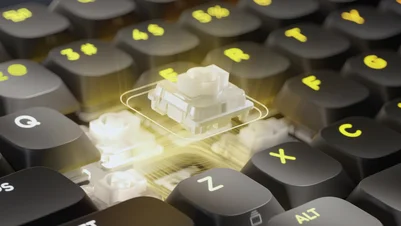
| Keyswitches | CORSAIR OPX Low Profile keyswitches, 45g actuation force, 1.5mm actuation point, 2.5mm total travel, guaranteed for 80 million keystrokes |
| Connectivity | 2.4GHz Slipstream wireless / BT / 1 x USB Type-A |
| Battery Life |
|
| Battery Type & Chemistry | Rechargeable Polymer Lithium-ion battery |
| Battery Charging |
|
| Battery Configuration | 1S1P |
| Number of batteries | 1 |
| Cells per battery | 1 |
| Battery Model# | 2670155 |
| Battery Capacity | 4170 mAh |
| Battery Weight | 71 g |
| Battery Voltage | 3.7 V |
| Battery Watt Hours | 15.429 Wh |
| Lithium Content | 3% |
| Battery Dimensions | 159.0(L) x 70.3(W) x 3.5(H) mm |
| Battery Dimensions (with cable) | 309.0(L) x 70.3(W) x 3.5(H) mm |
| Hazmat UN# | UN3480 |
| Matrix | Full key rollover (NKRO) with 100% anti-ghosting |
| USB Report Rate |
Wired: AXON 8,000Hz Wireless: True 8,000Hz |
| On-Board Profiles | 5 (1 On-board, 4 on Web Hub) |
| Media Control | FN shortcuts / Rotary dial |
| Game Mode | Hotkey x1 |
| Stream Deck launch | Hotkey x1 |
| Multi-Function Control | Rotary dial x1 |
| SD Keys | 6 dedicated hotkeys |
| Brightness Control | FN shortcuts / Rotary dial |
| Adjustable Height | Yes |
| Plug and Play Operation | Yes |
| Console Compatibility | Xbox One, Xbox Series X|S, PlayStation 4, 5 |
| Cable | 1.8 m / 6 ft, USB Type-C to Type-A, detachable, tangle-free rubber |
| Bundle of Keycap sets |
|
| Dimensions | 425.63 (L) x 137.63 (W) x 26.27 (H) mm |
| Weight | 915 g |
| Warranty | Two years – Local country regulations are applicable |

AXON HYPER-PROCESSING TECHNOLOGY
CORSAIR AXON delivers a powerful and responsive keyboard experience with:
- Hyper-fast keystroke detection and processing
- Up to 8,000Hz hyper-polling (adjustable in CORSAIR WEB HUB device settings)
SETTING UP YOUR KEYBOARD
Connecting the keyboard via USB cable to an available USB Type-A port or better on a compatible device including:
| Windows PC® | Apple Mac® |
Microsoft Xbox One* Microsoft Xbox Series X | S* |
Sony PlayStation 4** Sony PlayStation 5** |
*Keyboard is compatible out of the box, see corsair.com/xbox-support for details.
**See Connecting to Sony PlayStation section.
CONNECTING TO SONY PLAYSTATION
| SHORTCUT | FUNCTION | INDICATION |
FN+  (Hold for 5 sec) (Hold for 5 sec) |
Switch to PlayStation mode | Blinks white 5 times over 5 seconds |
| FN+ (Hold for 5 sec) |
Switch back to standard mode | Pulses white 2 times |
CONNECTING VIA WIRELESS MODE
- When the USB cable is plugged in, the device automatically switches to USB mode.
- When the USB cable is unplugged, switch the 3-way mode to BT or 2.4GHz to enable wireless mode.
- When the 3-way switch is set to BT mode, the device can be added directly via Bluetooth.
| MODE | SHORTCUT | FUNCTION | INDICATIOR KEY | LCD SCREEN |
| Wired | N/A | Automatically switches to USB mode when the cable is plugged in | N/A | Visualized icon |
| SLIPSTREAM Wireless | FN + Del | Hold the shortcuts for 2 seconds to enable 2.4GHz mode pairing |
Del key:
|
Visualized icon: Always be on as long as in 2.4GHz mode if enabled |
| Bluetooth 1 | FN + Home |
|
Home key:
|
Visualized icon: Always be on as long as in BT mode if enabled |
| Bluetooth 2 | FN + PgUp | PgUp key:
|
||
| Bluetooth 3 | FN + PgDN | PgDN key:
|
CHARGING & BATTERY LIFE

NOTE: Device will be turned off automatically when the battery level is below 5%.
The battery indicator color on the LCD screen represents the current battery level:
- Full Green (≥98%): Fully charged
- Green (51–97%): High battery level
- Yellow (31–50%): Medium battery level
- Red (0–30%): Low to critical battery level
OPERATING MODES
The keyboard features two operating modes:
- Hardware Mode - When CORSAIR Web Hub is not running or the keyboard is connected to a device that does not support CORSAIR Web Hub, the keyboard operates in hardware mode which uses profiles and settings saved to the onboard storage.
- Web-based mode - Go to CORSAIR Web Hub link http://corsair.com/web-hub keyboard operates in Web-based mode, using profiles and settings saved to onboard storage.
- Elgato Stream Deck Mode - Navigate to the link below to download the software to manage the Stream Deck integration for the six SD-keys: https://www.elgato.com/tw/zh/s/downloads


| FUNCTION | HARDWARE MODE | WEB-BASED MODE |
| Storage & Profiles | 8MB for up 5 profiles | 5 profiles |
| Create New Profiles | N/A | Create in CORSAIR Web Hub |
| Create Lighting Effects | N/A | Create in CORSAIR Web Hub |
| Create Key assignments | N/A | Create in CORSAIR Web Hub |
| Maximum Lighting Layers | 20 | 5 |
HARDWARE OVERVIEW
FN SHORTCUTS LIGHTING INDICATOR
When pressing FN key, all lighting will momentarily turn OFF except for keys that have secondary functions and macros assigned to them will have backlighting turned ON.
- The default color will be WHITE
- Users can customize the color indication in CORSAIR Web Hub
Color indication for profile currently in-use will take priority over FN Shortcuts lighting.
GAME MODE FUNCTION
Instantly activate competition-optimized settings with the GAME MODE BUTTON (D).
| MODE | FUNCTIONS | REMARKS | SCREEN DISPLAY |
| Default mode (Game Mode Off) |
|
Factory default | Visualized icon |
| Game Mode On |
|
Can be customizable in CORSAIR Web Hub |
STREAM DECK LAUNCH FUNCTION
Action Bar (1)
When you first plug in the keyboard with Stream Deck App running, the Action Bar will appear on the left side of your screen.
- The Action Bar displays the six actions assigned to the six SD keys.
- The icon shown below the six actions indicate which action is assigned to the Elgato key.
Please note: These seven actions on this bar are for visual reference only — they can not be clicked or triggered using your mouse. All of them must be activated using the physical SD keys on the keyboard.
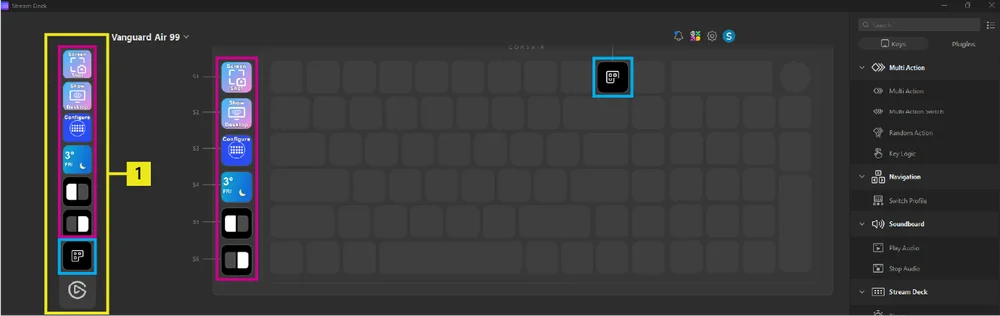
The bottom action is always for opening the Stream Deck App. Pressing this button will launch the Stream Deck App.
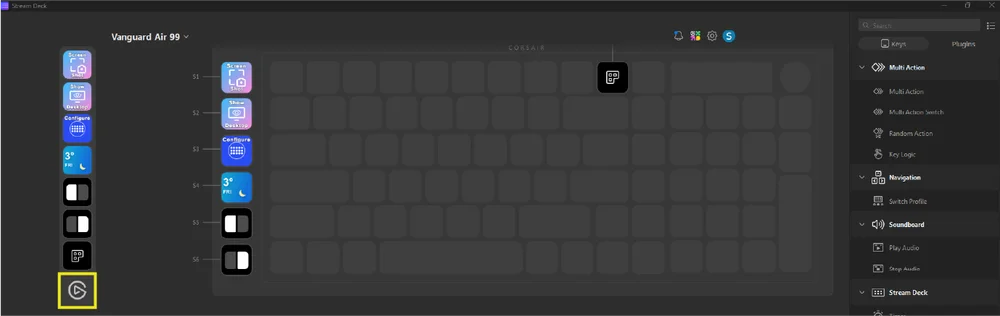
How to Turn the Action Bar On or Off
- Locate the Stream Deck App icon in the Windows taskbar
- Right-click the icon to display the device name (Vanguard Air 99)
- Hover over the device name
- Select:
- Show Action Bar (if it is currently hidden), or
- Hide Action Bar (if it is currently visible).

Elgato Key (C)
Current behavior:
- Default setting: Launch Virtual Stream Deck
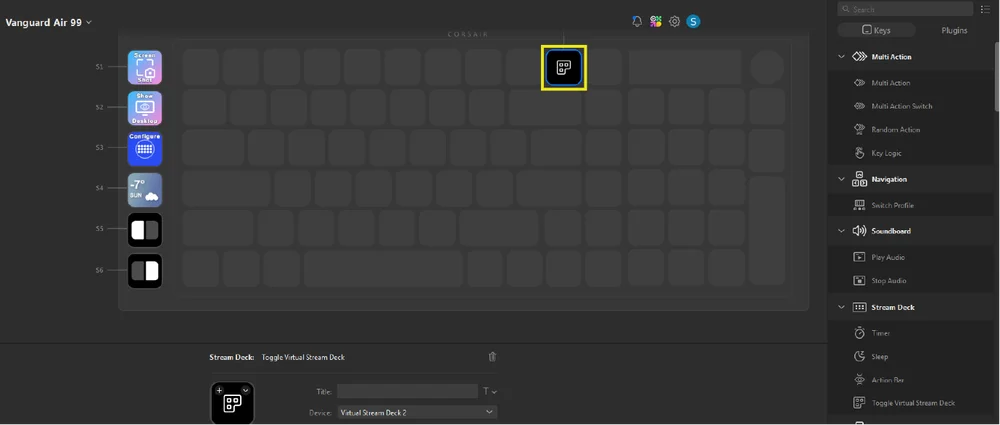
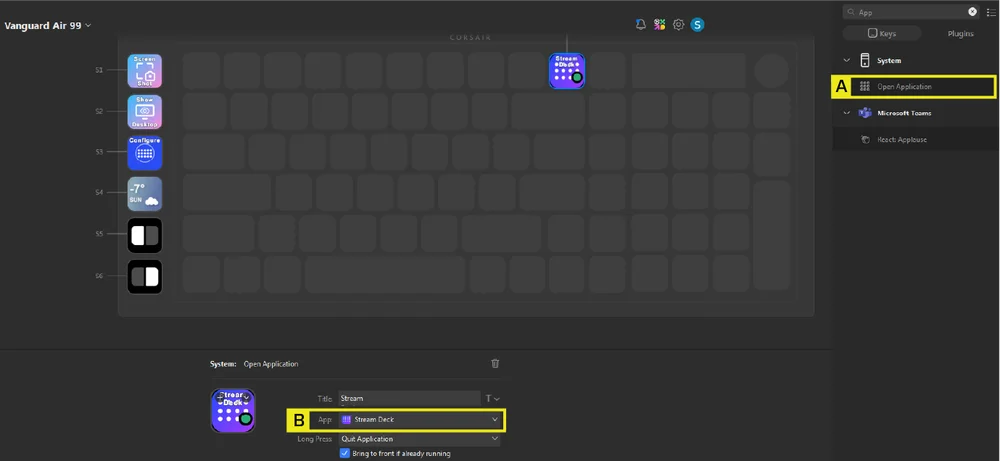
- Customized setting: Drag and drop any key from the right-hand panel onto this key. Example: Set this key to launch the Stream Deck App
-
- Drag the “Open Application” key and drop it onto this key
- Select “Stream Deck” from the App drop down list
Future behavior (Aiming to be ready in Q2):
- If the Stream Deck app is already installed but not running: Pressing the key will automatically launch Stream Deck App.
- If the Stream Deck app is already installed and running: Pressing the key will automatically launch Virtual Stream Deck.
- If the Stream Deck app is not installed: Pressing the key will direct the users to the Stream Deck App installation page.
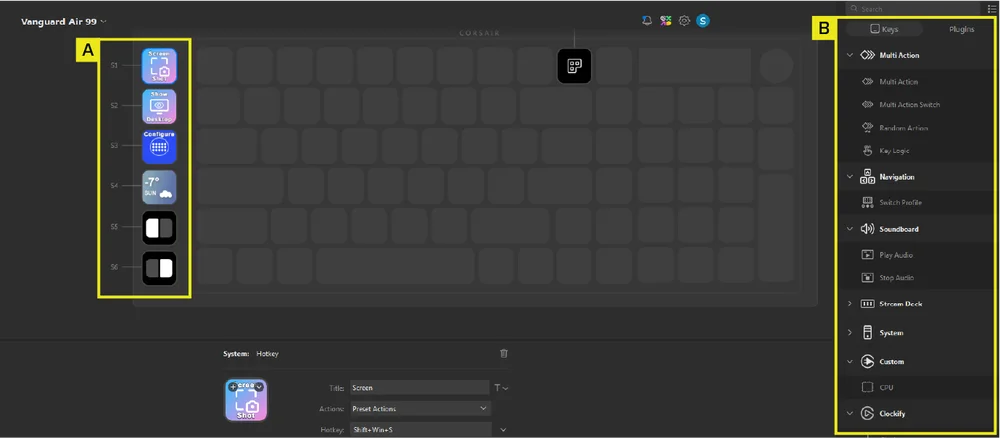
Stream Deck Integration for 6 SD Keys
There are six default actions assigned to the six SD keys (A). You can customize these at any time by dragging and dropping keys from the right-hand panel (B) onto any SD key to suit your preferences.
ROTARY DIAL FUNCTION
| MODE | SHORTCUT | FUNCTION | INDICATIOR KEY | SCREEN DISPLAY |
| Volume Control (Default) | FN+ NUM / |
|
NUM / Solid White |
Visualized icon |
| Scroll Control (Vertical) | FN+ NUM * |
|
NUM* Solid Green |
|
| Scroll Control (Horizontal) | FN+ NUM * |
|
NUM* Solid Yellow |
|
| Backlight Control | FN+ NUM |
|
NUM Solid Red |
|
| Zoom Control | FN+ NUM- |
|
NUM - Solid Blue |
|
| Macro Recording | Hold FN+M for 2 seconds | Begin macro recording, and treat the dial press as the other regular switch |
M Solid Amber |
3-WAY MODE SWITCH FUNCTION
| FUNCTION | REMARKS |
|
On - 2.4GHz |
|
|
Off |
|
|
On - BT |
STANDARD SHORTCUTS
Shortcut functions are activated using FN key combinations.
F1-F12 (Mac mode has a specific definition, as outlined in the Mac function definition section), FN+ /?, FN+ O, FN+ .>, FN+ P only work in Windows mode, while others also work on MacOS
| SHORTCUT | FUNCTION | DESCRIPTION | INDICATION | SCREEN DISPLAY | REMARKS |
| FN + F1 | Brightness down | Reduce the screen’s brightness | N/A |
Icon: visualized icon Text: Brightness down |
Cycle through brightness levels in descending order with the latest OS definition. |
| FN + F2 | Brightness up | Increase the screen’s brightness | N/A |
Icon: visualized icon Text: Brightness up |
|
| FN + F3 | Task view | Toggle task view for Windows | N/A |
Icon: visualized icon Text: Task view |
|
| FN + F4 | Search | Search for something in PC mode | N/A |
Icon: visualized icon Text: Search |
|
| FN + F5 | Mic Mute / Unmute | Mute or Unmute your Mic | N/A |
Icon: visualized icon Text: Mute / Unmute Mic |
|
| FN + F6 | Sleep | System enters sleep mode | N/A |
Icon: visualized icon Text: Sleep |
|
| FN + F7 | Last | Last track command | N/A |
Icon: visualized icon Text: Last track |
|
| FN + F8 | Play / Pause | Play / Pause command | N/A |
Icon: visualized icon Text: Play / Pause |
|
| FN + F9 | Next | Next track command | N/A |
Icon: visualized icon Text: Next track |
|
| FN + F10 | Mute | Mute / Unmute | N/A |
Icon: visualized icon Text: Mute |
|
| FN + F11 | Volume Down | Volume Down | N/A |
Icon: visualized icon Text: Volume Down |
Decreases volume by 2% intervals down to 0 |
| FN + F12 | Volume Up | Volume Up | N/A |
Icon: visualized icon Text: Volume Up |
Increases volume by 2% intervals up to 100 |
| FN + I | INS | Insert key | N/A | N/A | Can not work in Mac |
| FN + Z | Profile | Cycle onboard 5profiles | Z key | Indication | |
| FN + /? | PRTSC | Print screen key | N/A | N/A | Can not work in Mac |
| FN + O | SCRLK | Toggles Scroll Lock on and off | N/A |
Icon: visualized icon Text: Scroll Lock [On / Off] |
Can not work in Mac |
| FN + .> | APP | Open menu | N/A | N/A | Can not work in Mac |
| FN + P | Pause | Pause | N/A | N/A | Can not work in Mac |
| FN + L | Win Lock | Win Lock | N/A |
Icon: visualized icon Text: Win Lock [On / Off] |
System Lock in Mac |
| FN + Right SHIFT | FlashTap (SOCD) | Activate FlashTap | SOCD enabled keys |
Icon: visualized icon Text: FlashTap [On / Off] |
|
| FN + Left/Right | Screen controls | Switch between widgets | N/A | N/A | |
| FN + Enter | Selection | N/A | N/A |
MAC FUNCTION DEFINITION
These are the Function supported by MacOS when Mac Mode is turned on.
In order to access the standard F key functions such as F5 for page refresh, you will need to use the FN key.
F1 is mapped to FN+F1, F2 is mapped to FN+F2, and so on, for the entire row of F keys. Pressing the F1–F12 keys by themselves will perform the functions listed below.
| KEY | FUNCTION | SCREEN DISPLAY | REMARKS / ALT |
| F1 | Reduce the screen’s brightness |
Icon: visualized icon Text: Brightness down |
Cycle through brightness levels in descending order with the latest OS definition. |
| F2 | Increase the screen’s brightness |
Icon: visualized icon Text: Brightness up |
|
| F3 | Press  to view what’s running on your iMac, including all your spaces and open windows. to view what’s running on your iMac, including all your spaces and open windows. |
Icon: visualized icon Text: Mission Control |
|
| F4 | Press  to open Spotlight and search for something on your iMac. to open Spotlight and search for something on your iMac. |
Icon: visualized icon Text: Search |
|
| F5 | Press  to activate dictation—you can dictate text wherever you can type (for example, in Messages, Mail, Pages, and other apps). Press and hold to activate Siri, then immediately speak your request. to activate dictation—you can dictate text wherever you can type (for example, in Messages, Mail, Pages, and other apps). Press and hold to activate Siri, then immediately speak your request. |
Icon: visualized icon Text: Dictation |
|
| F6 | Press  to turn Do Not Disturb on or off. When Do Not Disturb is on, you won’t see or hear notifications on iMac, but you can view them in Notification Center. to turn Do Not Disturb on or off. When Do Not Disturb is on, you won’t see or hear notifications on iMac, but you can view them in Notification Center. |
Icon: visualized icon Text: Do not disturb |
|
| F7 | Last track command |
Icon: visualized icon Text: Last track |
|
| F8 | Pause / Play command |
Icon: visualized icon Text: Play / Pause |
|
| F9 | Next track command |
Icon: visualized icon Text: Next track |
|
| F10 | Mute |
Icon: visualized icon Text: Mute |
|
| F11 | Volume Down |
Icon: visualized icon Text: Volume Down |
|
| F12 | Volume Up |
Icon: visualized icon Text: Volume Up |
|
| Win | Option key in Mac OS |
Icon: visualized icon Text: Option |
|
| ALT | Command key in Mac OS | N/A | Both left Alt and right Alt |
| Copilot | Right Ctrl in Mac OS | N/A | Ctrl |
ONBOARD LIGHTING
| SHORTCUT | LIGHTING EFFECT | REMARKS | SCREEN DISPLAY |
| FN + ` | Current HW profile lighting | Can be customized in Corsair Web Hub |
Icon: visualized icon Text: [Lighting Effect Name or Speed effect] |
| FN + 1 | Horizon | ||
| FN + 2 | Water Color | ||
| FN + 3 | Spiral Rainbow | ||
| FN + 4 | Rainbow Wave | ||
| FN + 5 | Type Lighting Key (random color) | ||
| FN + 6 | Type Lighting Ripple (random color) | ||
| FN + 7 | Color Shift (random color order) | ||
| FN + 8 | Color Pulse (random color order) | ||
| FN + 9 | Color Wave (random color order) | ||
| FN + 0 | Static Color | Press to cycle though in order: red, green, blue, yellow, capri, purple, amber, white | |
| FN + - | Reduce Effect Speed | ||
| FN + = | Increase Effect Speed | ||
| FN + [ | Rotate Effect Left | ||
| FN + ] | Rotate Effect Right |
MACRO RECORDING
- Enter macro recording mode
- Hold FN + M key for 2 seconds or press rotary dial in macro recording mode (LED color showing red)
- Indicator M key will breathe red
- Screen will play the macro recording indications
- Press any series of standard keys to begin recording
- This includes shortcuts such as FN + key commands as possible (based on firmware/software limitations) for example FN + O is recorded as Scroll lock
- Only standard keyboard functions can be recorded and not specialty or onboard functions like
- Mouse cursor
- Profile
- Backlighting effects
- Brightness
- Media
- Volume
- Win Lock
- Only standard keyboard functions can be recorded and not specialty or onboard functions like
- Delays are also recorded
- Indication: Screen will play the macro recording indications
- This includes shortcuts such as FN + key commands as possible (based on firmware/software limitations) for example FN + O is recorded as Scroll lock
- Press FN + M key or press rotary dial to stop recording and prepare macro to be saved or cleared
- Pressing this more than once has no added function
- Indication: Screen will play the macro recording indications
- Press any key, FN + key
- If keys were recorded: Pressing that key or combination saves the macro
- If no keys were recorded: Pressing that key or combination clears any macro or function saved
- If there is a firmware shortcut normally bound to that combination, it is restored
- Except cannot record over these keys or key combinations:
- FN
- FN + M
- FN + Windows
- Indication: Key combination that the macro has been assigned to rapidly blinks red
- NOTE: Red indication color is default, user can change.
FLASHTAP (SOCD)
FlashTap is a revolutionary technology that puts the player in complete control of their movement keys, left and right in particular, optimizing SOCD behavior across every game and genre.
FlashTap will be disabled by default both in HW mode and Corsair Web Hub.
HW mode behavior
- Enable via shortcuts: FN + Right SHIFT
- Supports key A + D, last priority only
- Indication: A & D stay solid amber when FlashTap is on (overrides existing lighting)
Corsair Web Hub behavior (Please refer more details to Corsair Web Hub section)
- Supports advanced feature such as mode selection and key remapping
- Can be configured with profile
- Mode selection details
| LAST PRIORITY (default when on) |
Always output last direction and bypass the other one |
| NEUTRAL | No output when both directions are triggered at the same time |
| FIRST PRIORITY | Always output first direction and bypass the other one |
SOFTWARE OVERVIEW
CORSAIR WEB HUB
CORSAIR Web Hub is the lightweight, web-based utility to customize your VANGUARD AIR 99 keyboard. It’s powerful, easy-to- use, and doesn’t require any additional software installation. Try it here: https://corsair.com/web-hub
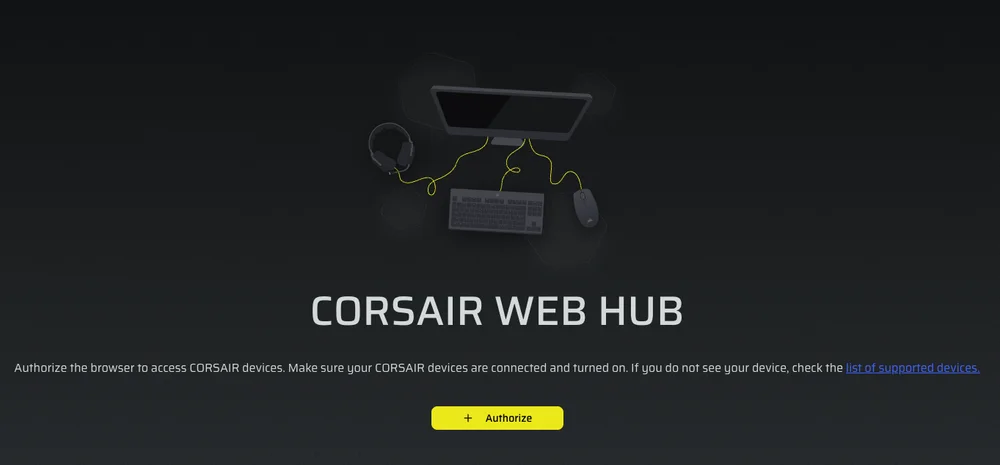
-
Lighting Effects
-
Key Assignments
-
Rotary Dial
-
FlashTap
-
Screen
-
Game Mode
LIGHTING EFFECTS
This tab allows you to customize lighting effects for your keyboard. You can configure up to 5 lighting layers.
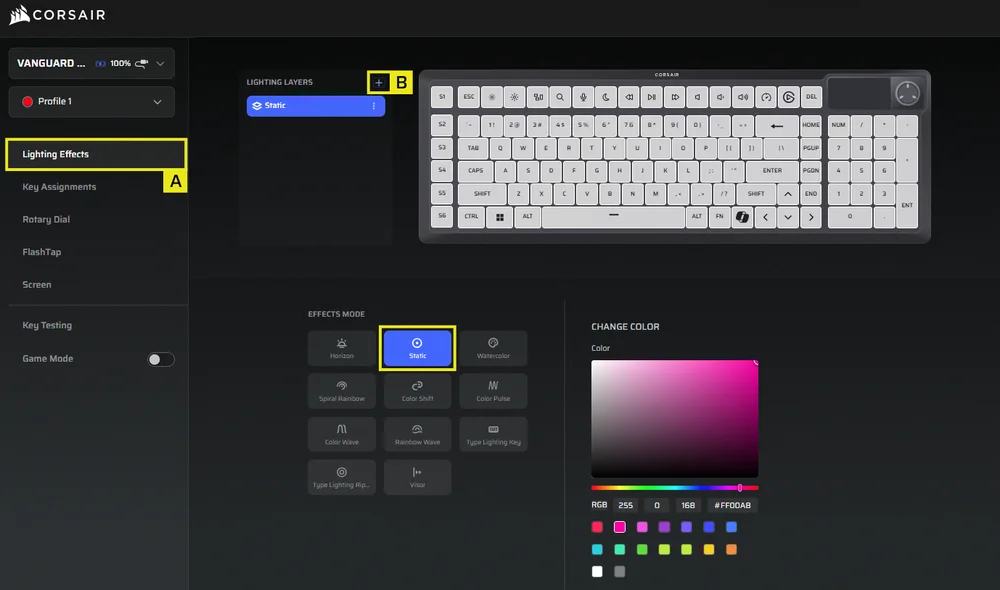
- Choose Lighting Effects tab
- Click + to set lighting layers to your liking
KEY ASSIGNMENTS
The Key Assignments tab allows you to easily remap keys or assign new functions to keys.
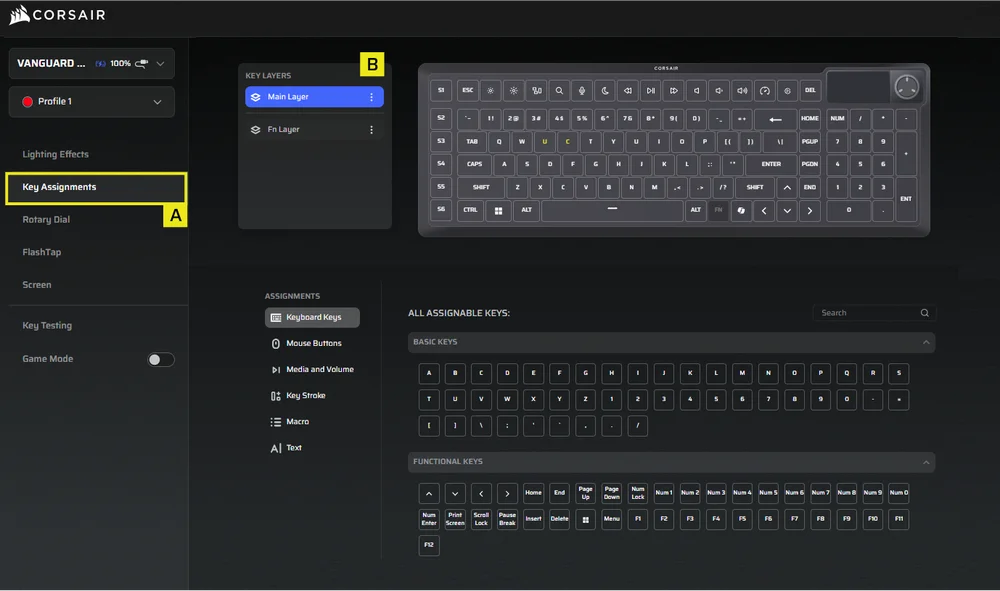
- Choose Key Assignments tab
- Select the keys in either the Main layer or the FN layer, and assign them to any function listed in the menu
ROTARY DIAL
The Rotary Dial tab allows you to choose which modes you want to have available for quick access on the rotary dial. Default setting is for all modes to be turned on.
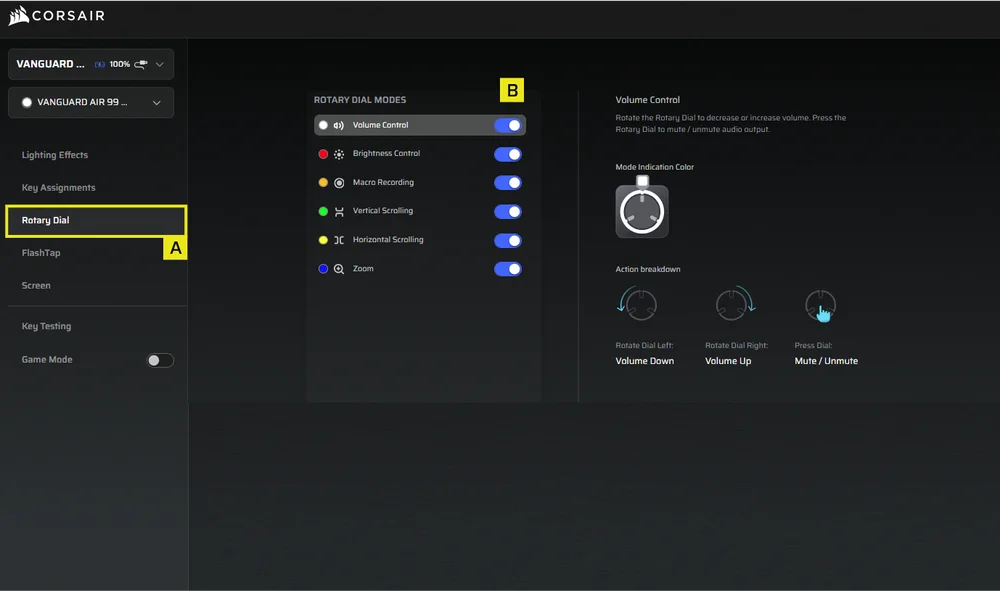
- Choose Rotary Dial tab
- Pick the dial mode
FLASHTAP
The FlashTap (SOCD) tab allows you to choose between three different settings and assign specific key pairs to support FlashTap.
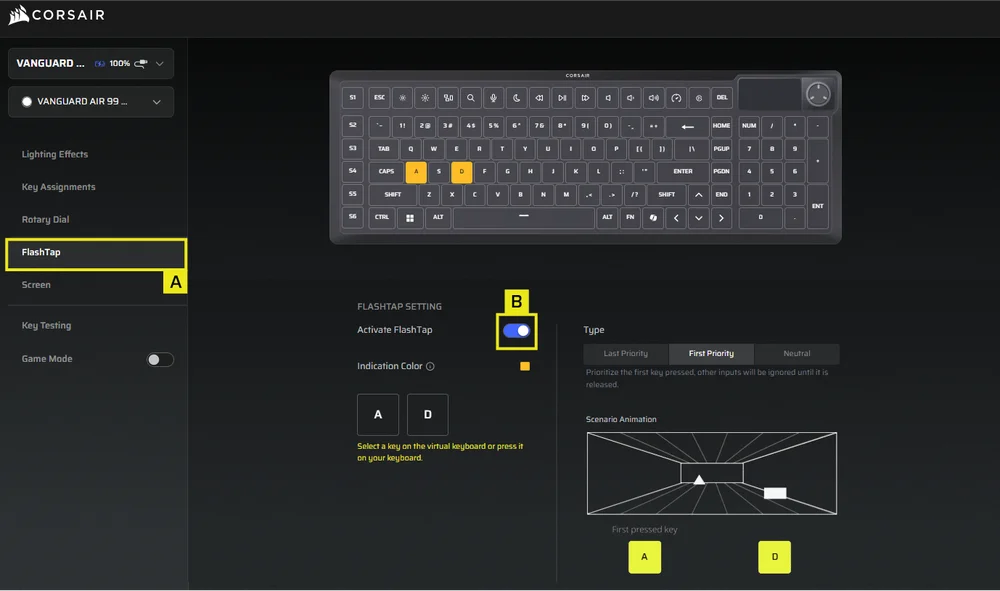
- Choose FlashTap tab
- Toggle FlashTap on (Default is off), then choose your preferred setting and assign the two keys as desired
SCREEN
The Screen tab allows you display a personalized image on the screen.
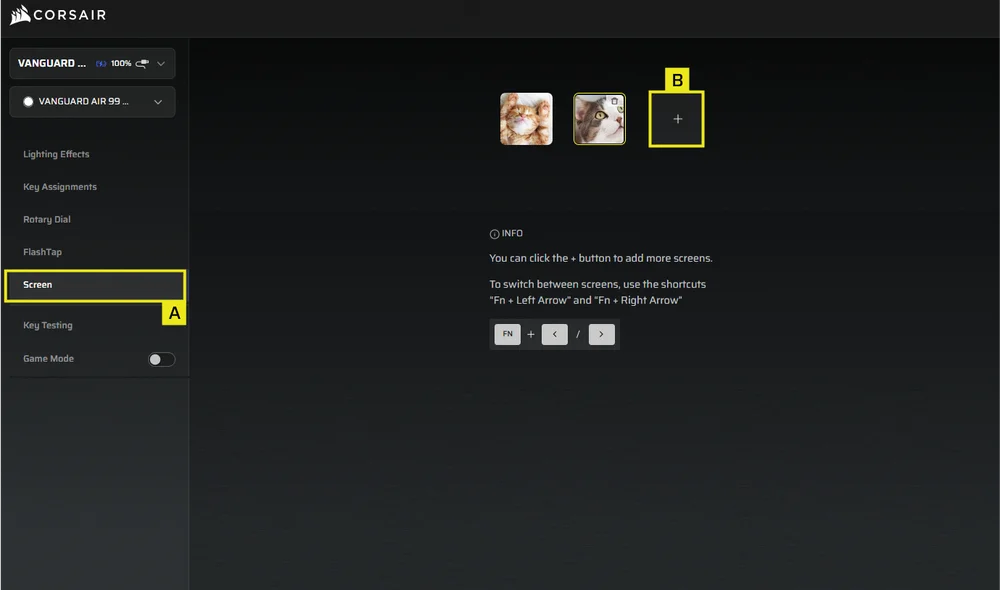
- Choose Screen tab
- Click + to upload your custom images*
- Use “FN+ Left Arrow” or “FN+ Right Arrow” to navigate between images
GAME MODE
The Game Mode tab allows you to enable competition-optimized settings.
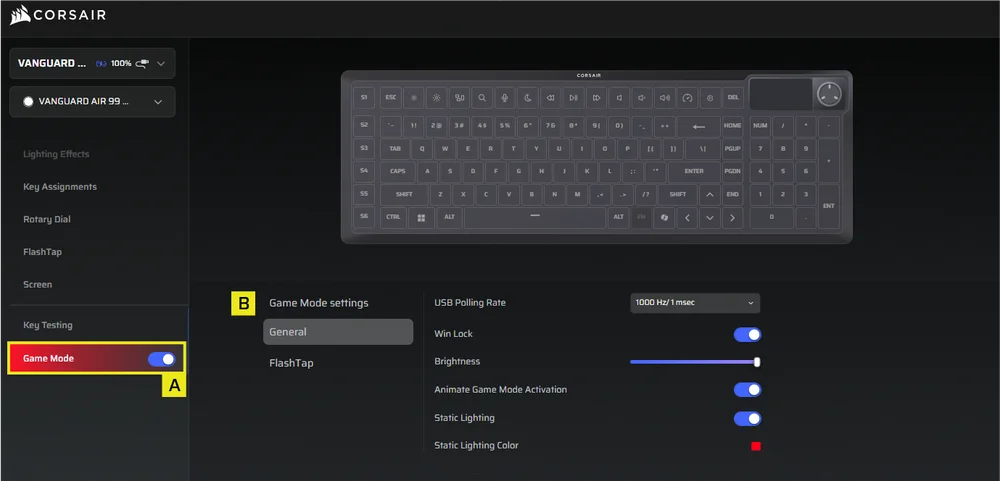
- Choose the Game Mode tab and toggle the switch to turn Game Mode on (Default it off)
- Customize your Game Mode settings, including USB Polling rate, Win Lock, brightness, static lighting color and whether to animate Game Mode activation
MACRO RECORDING
Set up convenient macros that you can use to streamline in-game actions or complex tasks.
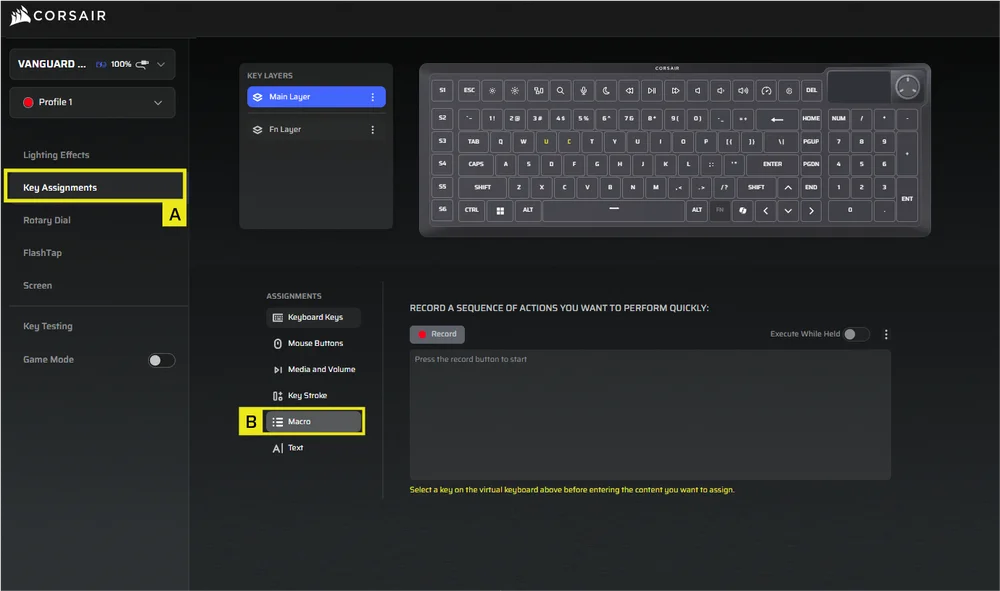
- Choose Key Assignments tab
- Click assignment type Macro, starting Macro recording after remapping keys
DEVICE SETTINGS
Update firmware, adjust USB Wired Polling Rate, layout, Win Lock, brightness, perform a factory reset and more in this area.
NOTE: For the Polling rate adjustment, the default polling rate is 1000Hz. Changing the polling rate will trigger a reboot (as shown on screen). Please wait for the reboot to finish before use.
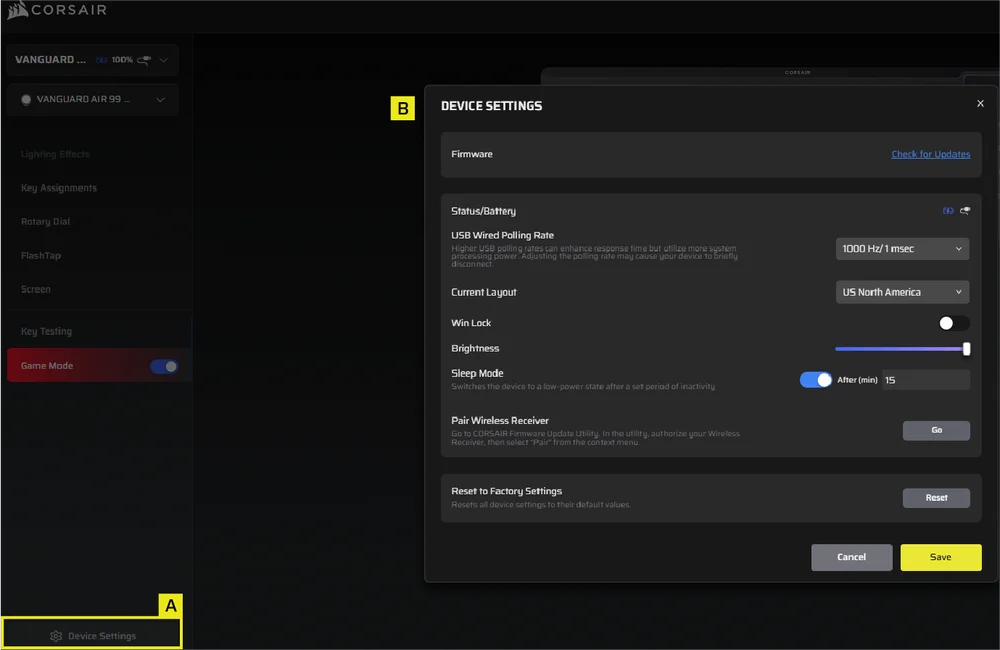
- Click the Device Settings tab
- Change the advanced settings (Polling rate, brightness…etc)
iCUE HOME AND DEVICE SCREEN*
* iCUE ready by early Q2 2026
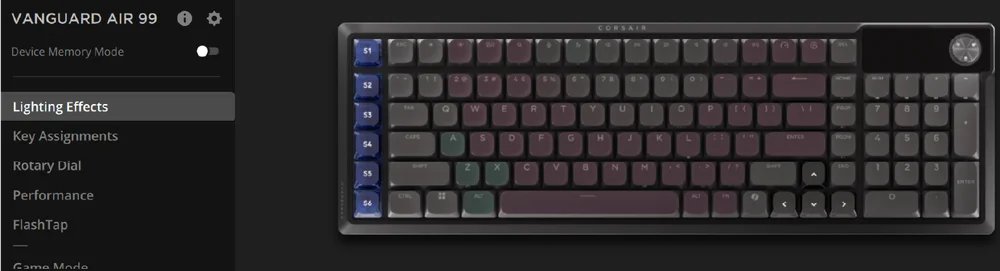
When you first open iCUE, you will see a new device tile for VANGUARD AIR 99. Clicking the device tile will present options to start programming for:
- Lighting Effects
- Key Assignments
- Rotary Dial
- Performance
- FlashTap
- Game Mode
- Screen
If you see an update notification in the iCUE window, please click to update firmware to the latest version.
DEVICE MEMORY MODE
Before you start programming, note that every iCUE system profile has two sets of settings - Software and Device Memory Mode
The Device Memory mode menu allows you to assign functions which can be saved to the KB’s onboard memory and plays when in hardware mode.
| FUNCTION | DEVICE MEMORY MODE |
SOFTWARE MODE |
| Storage & Profiles | 1MB for up 5 profiles | Unlimited |
| Features |
|
|
| How to Save | Manual Save |
Automatically |
| Maximum Lighting Layers | 20 | Unlimited |
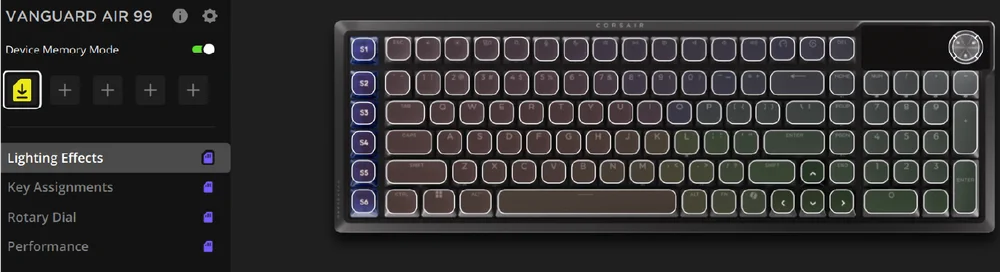
LIGHTING EFFECTS
This tab allows you to customize lighting effects for your keyboard. You can configure up to 5 lighting layers.
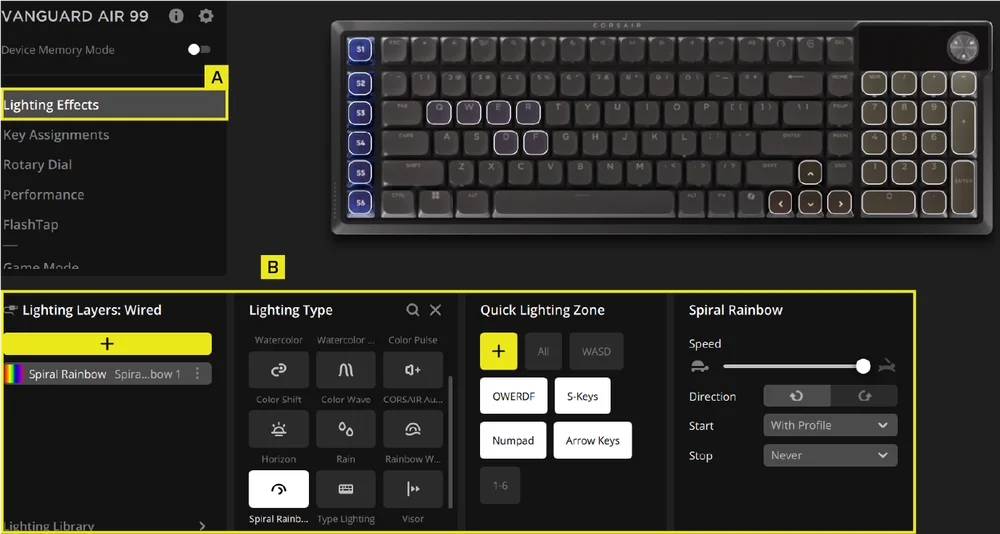
- Choose Lighting Effects tab
- Under lighting layers click [ + ] to set lighting to your liking
KEY ASSIGNMENTS
The Key Assignments tab allows you to easily remap keys or assign new functions to keys.
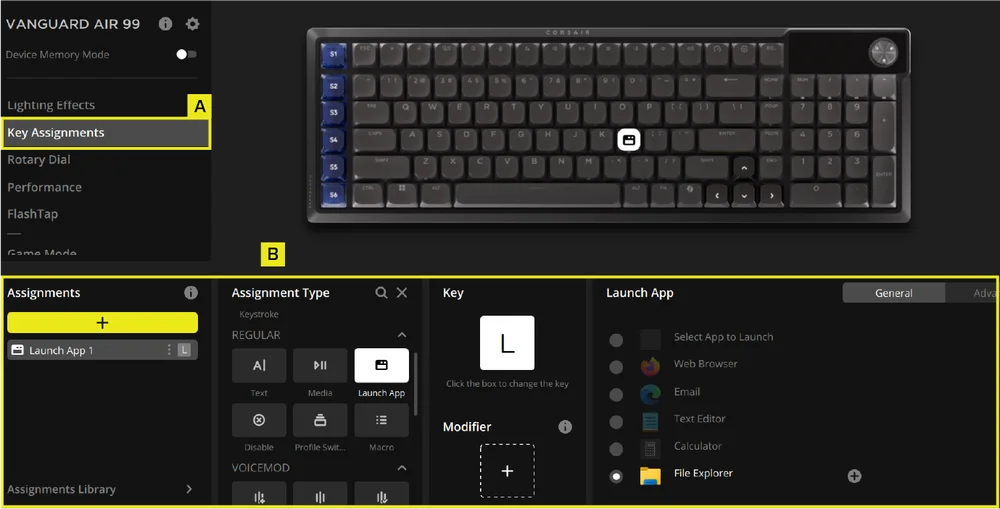
- Choose Key Assignments tab
- Under Assignments click [ + ] to remap keys or assign new functions
ROTARY DIAL
The Rotary Dial tab allows you to choose which modes you want to have available for quick access on the rotary dial.
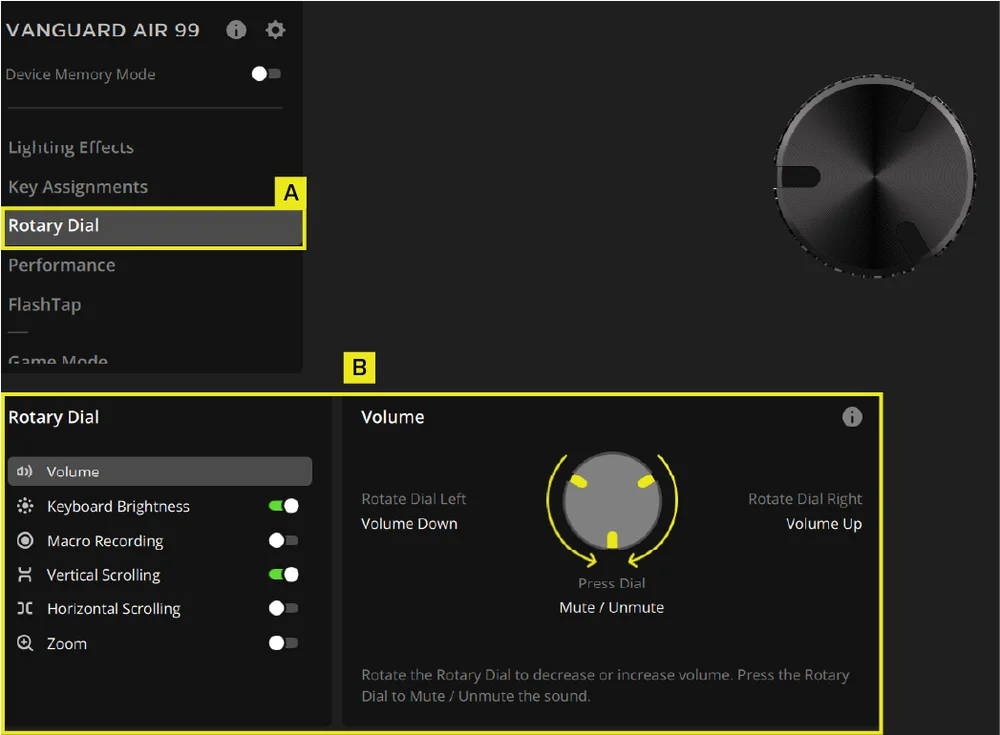
- Choose Rotary Dial tab
- Pick the dial mode
PERFORMANCE
The Performance tab allows you to enable/disable shortcuts and customize indicator colors.
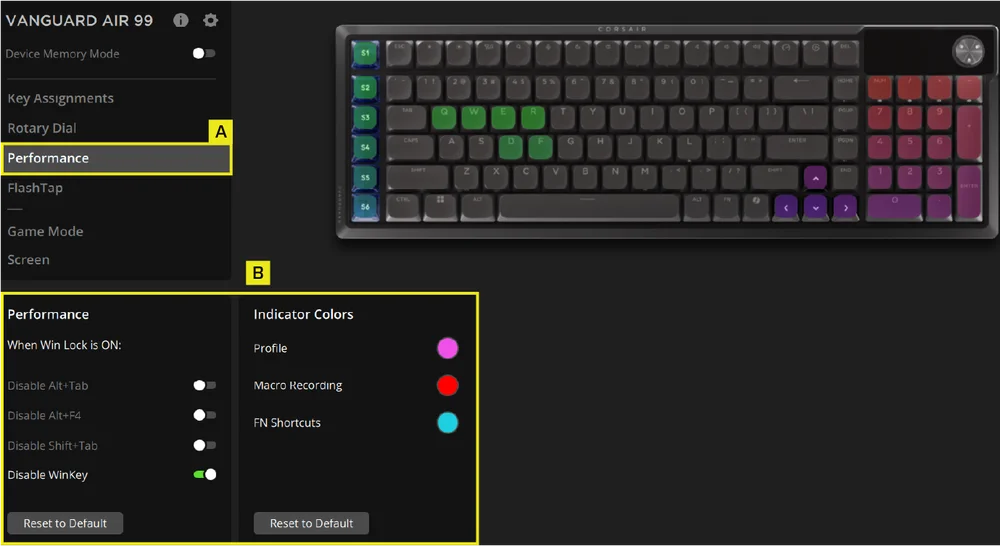
- Choose Performance tab
- Enable/disable shortcuts or customize indicator colors to your liking
FLASHTAP
The FlashTap (SOCD) tab allows you to choose between three different settings and assign specific key pairs to support FlashTap.
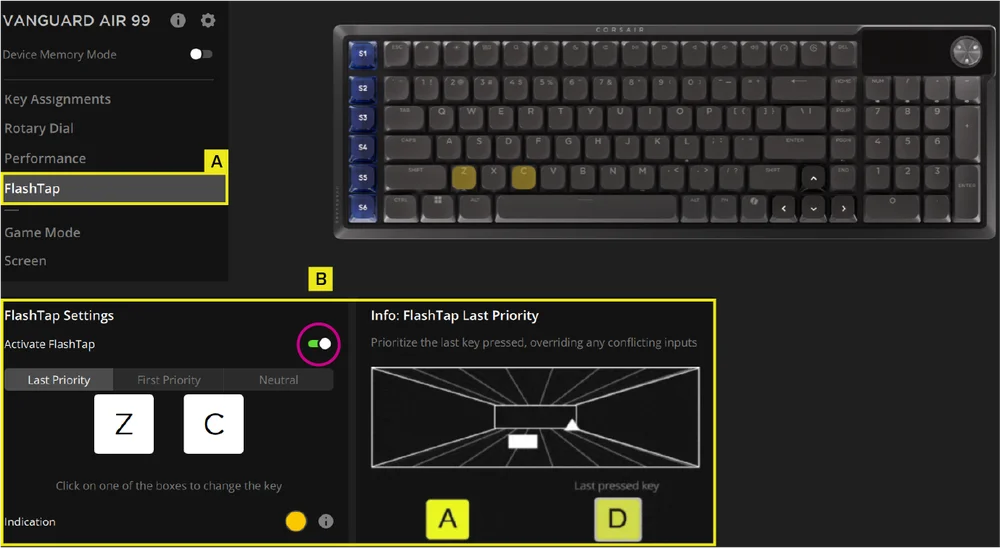
- Choose FlashTap tab
- Toggle FlashTap on (Default is off), then choose your preferred setting and assign the two keys as desired.
GAME MODE
The Game Mode tab allows you to enable competition-optimized settings.
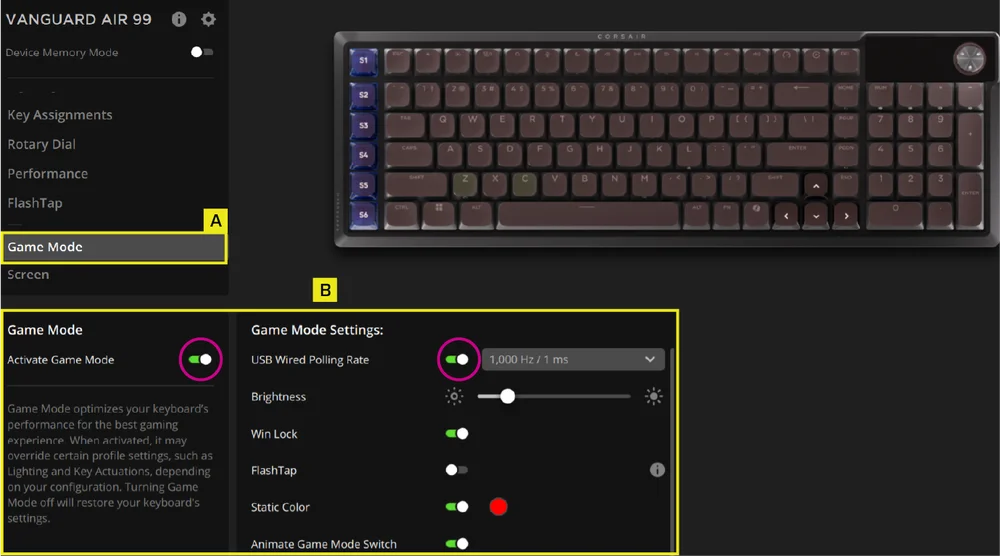
- Choose the Game Mode tab and toggle the switch to turn Game Mode on (Default it off).
- Customize your Game Mode settings, including USB Polling rate, Win Lock, FlashTap, brightness, static lighting color and whether to animate Game Mode activation.
SCREEN
The Screen tab allows you display a personalized image on the screen.
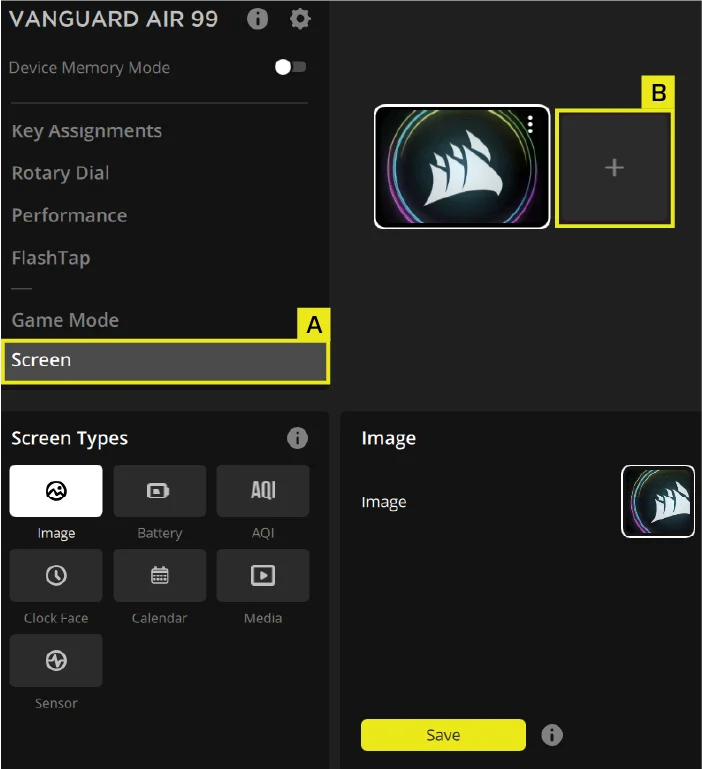
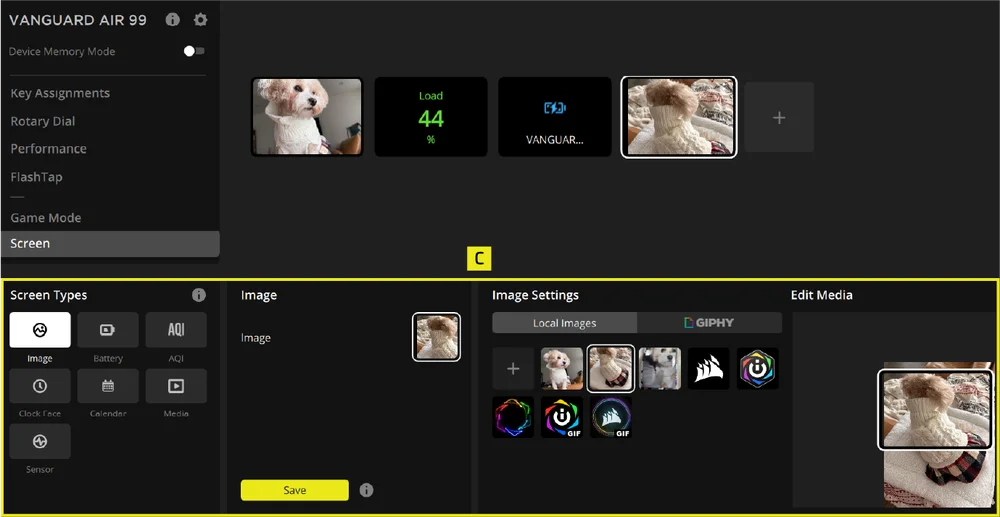
- Choose the Screen tab
- Click + to open screen types menu
- Upload and load any custom images to the screen, and click save button
The Screen tab also allows you to choose and load sensor setting to the LCD.
DEVICE SETTINGS
Update firmware, adjust USB Wired Polling Rate, layout, brightness, perform a factory reset and more in this area.
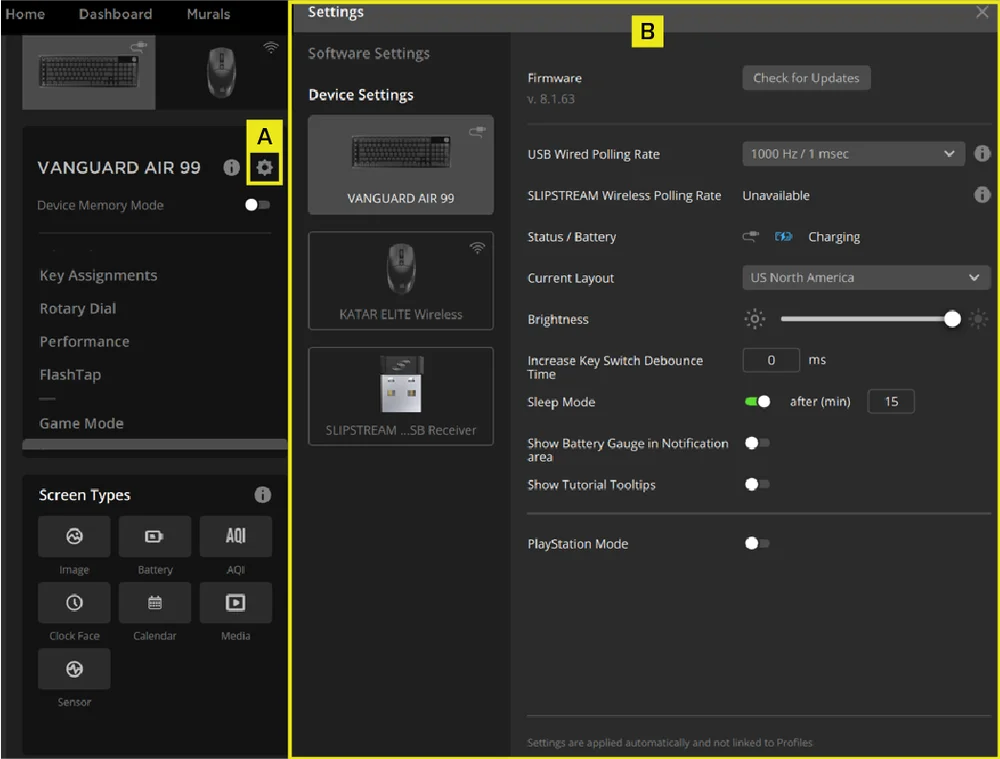
- Click the setting icon
- Change the advanced settings (Polling rate, brightness…etc)
FACTORY RESET
Hold the ESC key while plugging in the device. Unplug and replug the USB cable until you see the startup animation, which indicates the reset process is complete.
BATTERY REMOVAL INFORMATION
This product uses a rechargeable battery and safety guidelines must be followed in the event that the product is disabled for disposal and recycling. To safely remove the battery for disposal and recycling, follow the numbered steps with the below diagrams.
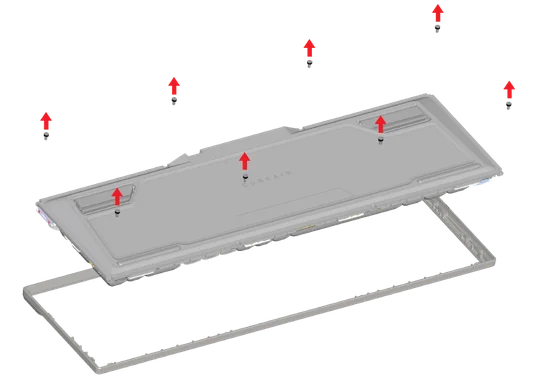
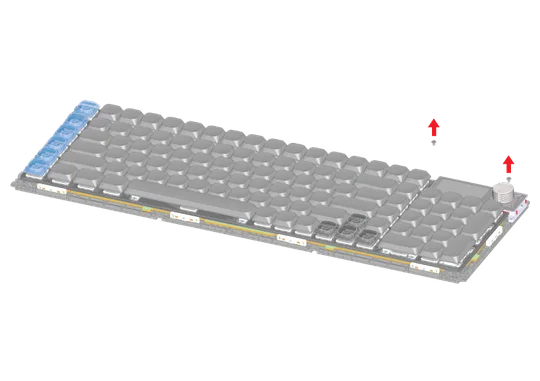
1. Remove the eight screws and separate the top cover.
2. Remove the two screws securing the LCD module.
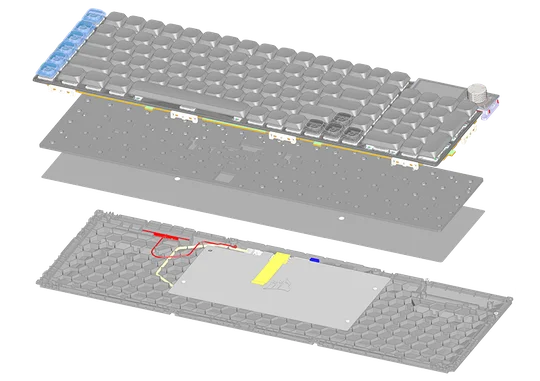
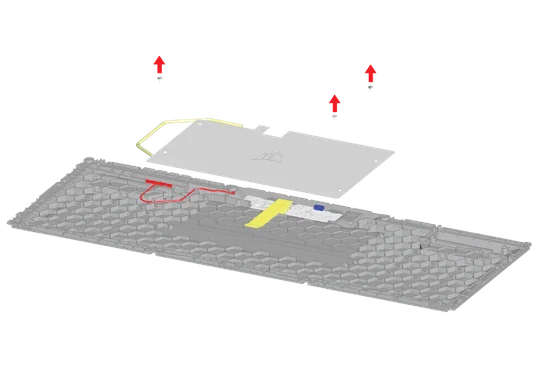
3. Remove the PCBA module. Disconnect the FPC cable and antenna from the PCBA module and remove the foam and bottom pad.
4. Remove the three screws, then take out the support metal plate and the battery.
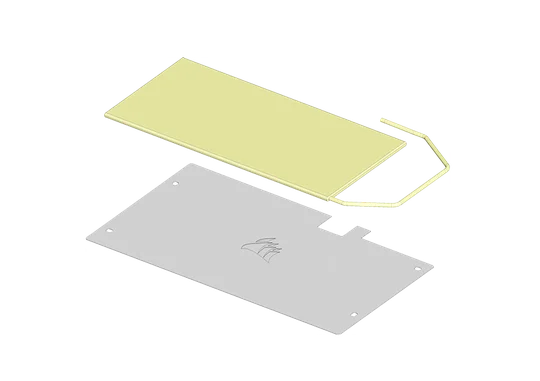

5. Detach the battery from the metal plate (the battery is adhered to the metal plate with double-sided tape) and dispose of the battery properly for recycling.
CORSAIR MEMORY, Inc. encourages customers to recycle used electronic hardware and rechargeable batteries in accordance with local laws and regulations.
BATTERY INFORMATION
- M/N (型號): 2670155
- Capacity (電池容量): 3.7V, 4170mAh, 15.43Wh
- Scan QR code for battery details:

Keyboard
M/N (型號): RGP0181
Rating (電壓電流): 5V  1.5A
1.5A
Receiver
M/N (型號): RGP0177
Rating (電壓電流): 5V 0.1A
FCC ID (Keyboard): 2AAFM-RGP0181
FCC ID (Receiver): 2AAFMRGP0177
IC (Keyboard): 10954A-RGP0181
IC (Receiver): 10954A-RGP0177
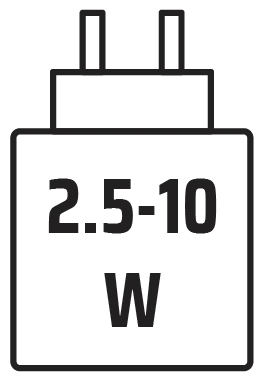
The power delivered by the charger must be between min 2.5 Watts required by the radio equipment, and max 10 Watts in order to achieve the maximum charging speed.
COPYRIGHT / LEGAL INFORMATION
©2026 CORSAIR MEMORY, Inc. All rights reserved. CORSAIR and the sails logo are registered trademarks of CORSAIR in the United States and/or other countries. All other trademarks are the property of their respective owners. Product may vary slightly from those pictured.



RELATED CONTENT