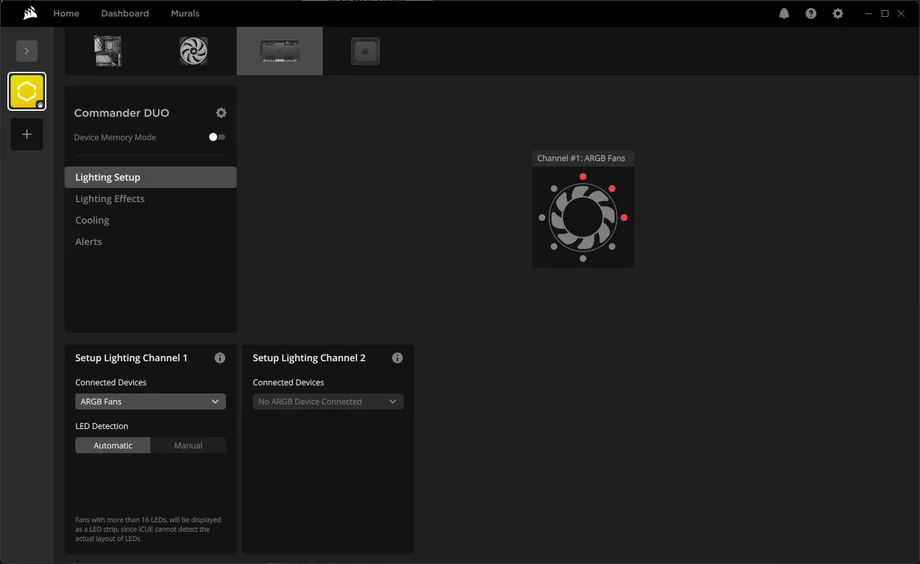
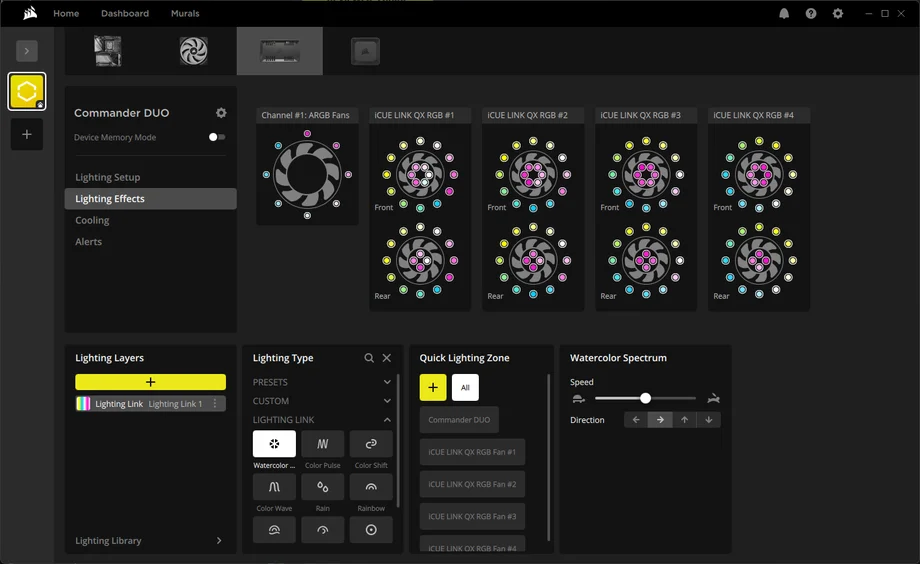
The CORSAIR COMMANDER DUO is a handy addition to our iCUE LINK system, allowing you to take any PWM or ARGB fan and control it within iCUE. This can either be as part of an existing iCUE LINK setup, or you can run it solo and still enjoy the benefits of controlling your fans via iCUE. So, let's look into how you do this.
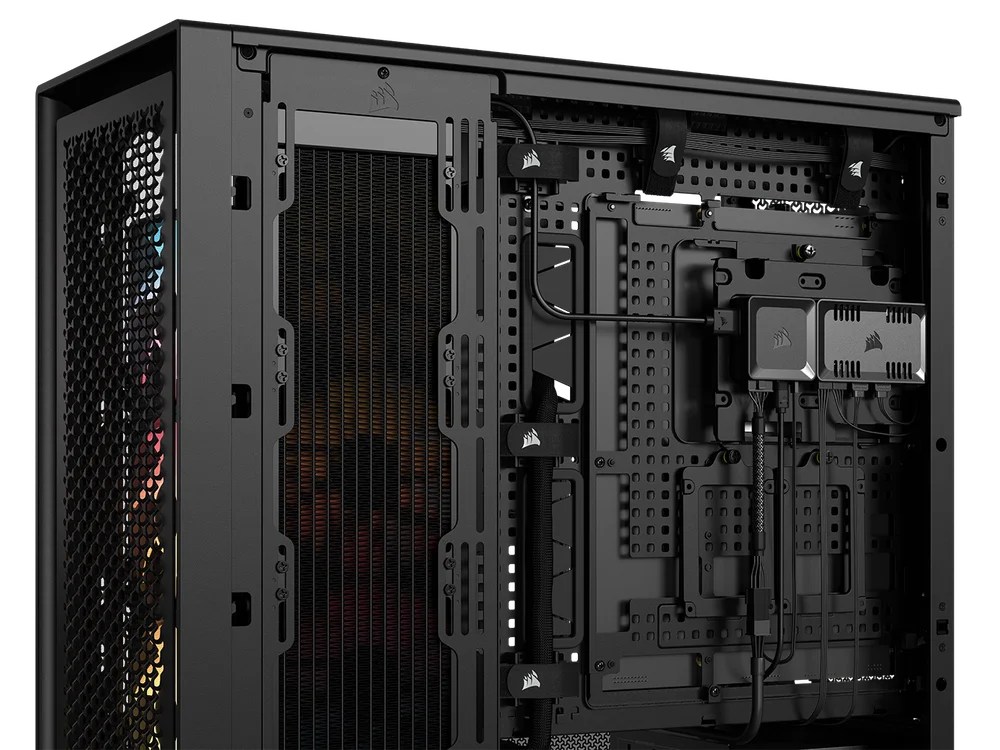
There's two ways to install your COMMANDER DUO, and this will depend on your system.
Firstly, power down your system. Then, if you already have an iCUE LINK System Hub, move the switch on the side to "LINK" mode so you can then connect it to your existing iCUE LINK System Hub using the included connector and you will not need to add the USB or SATA cables, keeping everything neat and tidy.
The alternative way is to put the hub into "ARGB" mode using the switch on the side of the controller. This does need the USB and SATA, so it can communicate with the PC and get power, just like the COMMANDER CORE XT.
The COMMANDER DUO allows you to control up to 12 PWM fans across its two channels and up to 100 LEDs over the two ARGB headers, so six fans and 50 LEDs per channel.
This is going to cover most setups and for example, if you use the CORSAIR RS120 or RS140 ARGB fans, the daisy chained cables help reduce the potential cable clutter.
Additionally, you get two thermal probes. These can be used to help control the fan curve or just provide useful information, for example you could have one near the intake to monitor the temperature there, and around the exhaust to monitor the exhaust temps. It's worth mentioning that they are not designed to be in direct contact with hot components such as GPUs or motherboard VRMs.
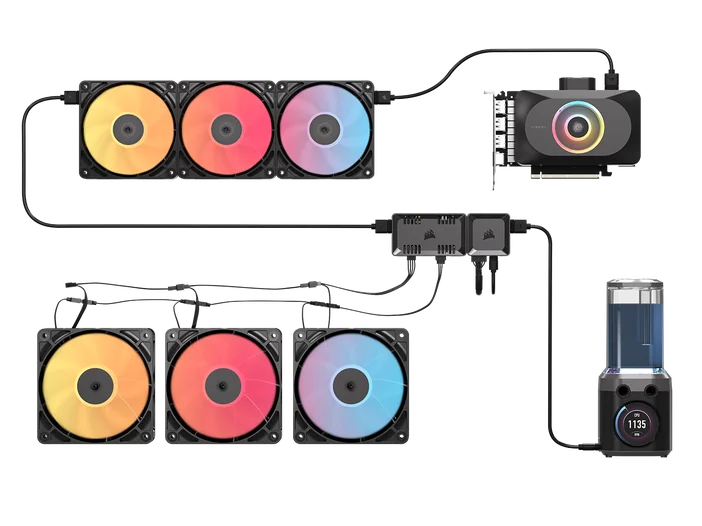
Once you have connected the COMMANDER DUO using either an iCUE LINK System Hub connector or a SATA and USB connector. you can go ahead and connect your fans and ARGB devices.
Now the COMMANDER DUO is connected up with all the fans, let's get started with iCUE.
The fan channel names are Channel #1 and Channel #2 but they can be renamed by hovering your mouse over and clicking the three dot menu which appears. The same goes for the thermal probes which by default are called Temp #1 and Temp #2.
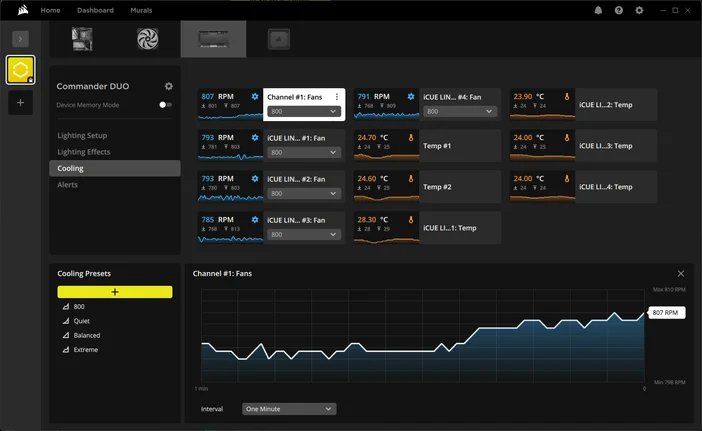
ARGB settings work in a very similar way:
As with our iCUE devices it also supports DMM (Device memory mode,) allowing you to create a profile that runs when iCUE is not active. Meaning you need not have iCUE running to retain your settings.
TUOTTEET ARTIKLASSA
JOIN OUR OFFICIAL CORSAIR COMMUNITIES
Join our official CORSAIR Communities! Whether you're new or old to PC Building, have questions about our products, or want to chat about the latest PC, tech, and gaming trends, our community is the place for you.