Given the hype around the gameplay reveal and the return to modern warfa- uhhh, present-day conflict that was well-received during the open beta, it’s no surprise that people are clamoring for Battlefield 6. If you need to make sure your PC can handle it, check out our article that goes over the Battlefield 6 System Requirements.
If you've tried to launch that game, you might have been hit by an error code that reads "SecureBoot is not enabled. Learn how to use SecureBoot at [go.ea.com/SecureBoot] (111)"
If you're going akimbo this fall with Battlefield AND Call of Duty, check out our guide on enabling Secure Boot for Black Ops 7, as this game needs it for anticheat reasons, too.
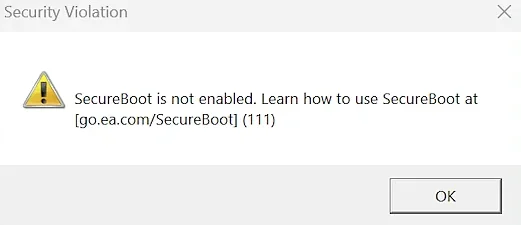
Battlefield 6 SecureBoot is not enabled Error Message, AKA the first thing blocking you from trying out that tactical sledgehammer from the trailer.
To make sure you’re ready to play Battlefield 6, you might need to enable a few settings, some of which require you to enter the BIOS. So, we’ve put together this page to explain how to enable Secure Boot, TPM 2.0, Memory Integrity (HVCI), and VBS for Battlefield 6. (So far it seems that you only need to enable Secure Boot and have a TPM 2.0. Memory Integrity and VBS do not appear to be mandatory.)
- Pro tip: Find this page on your phone now as you'll need it there to follow along once you're in the BIOS.
How to enable Secure Boot for Battlefield 6
If you're just making sure you're ready to go when you get access, but have been spooked by talk of Secure Boot Errors, then you should check as it Secure Boot might already be enabled.
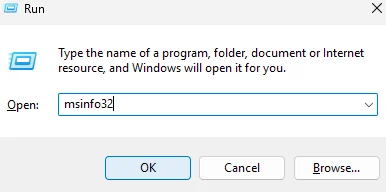
- Hit Windows Key + R. this will open the “Run” window.
- In here, type in “msinfo32” and hit enter. This will open the System Information window.
- If Secure Boot is enabled, you’ll see that the line “Secure Boot State” will say “On”.
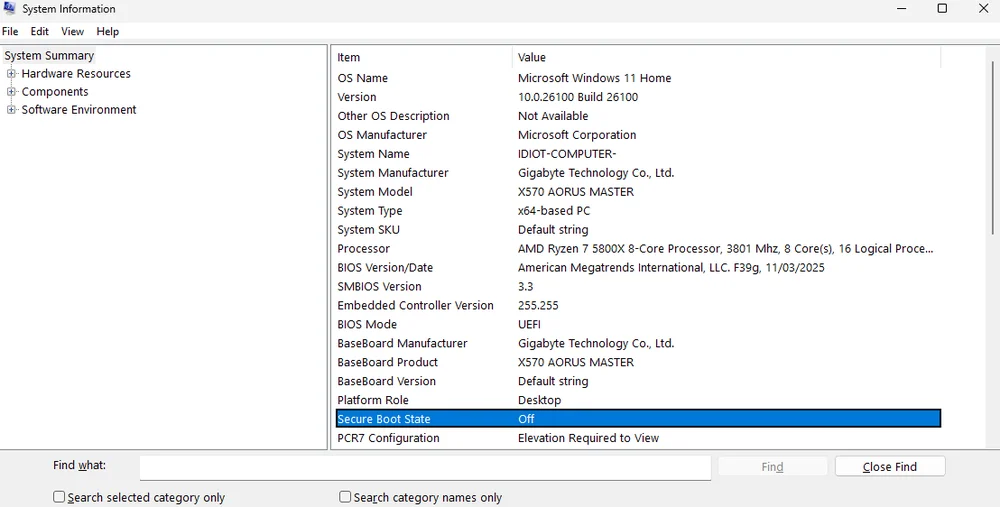
In our case, Secure Boot was "Off"
If this is not the case, then follow the steps below to enable Secure Boot for Battlefield 6. (This process was done on a GIGABYTE AORUS motherboard, but the steps are basically identical on all motherboards, but the names might be slightly different.)
- You can also watch the video below from BobDuckNWeave.
@corsair If you are planning to drop in on the #Battlefield6 beta this weekend, you may be hit with this error message. #corsair #corsairgaming #securebooterror ♬ original sound - corsair
- Restart your PC.
- During the first boot screen, spam F2 or Delete until your BIOS appears.
- Click the option for “Advanced Mode” or hit F2.
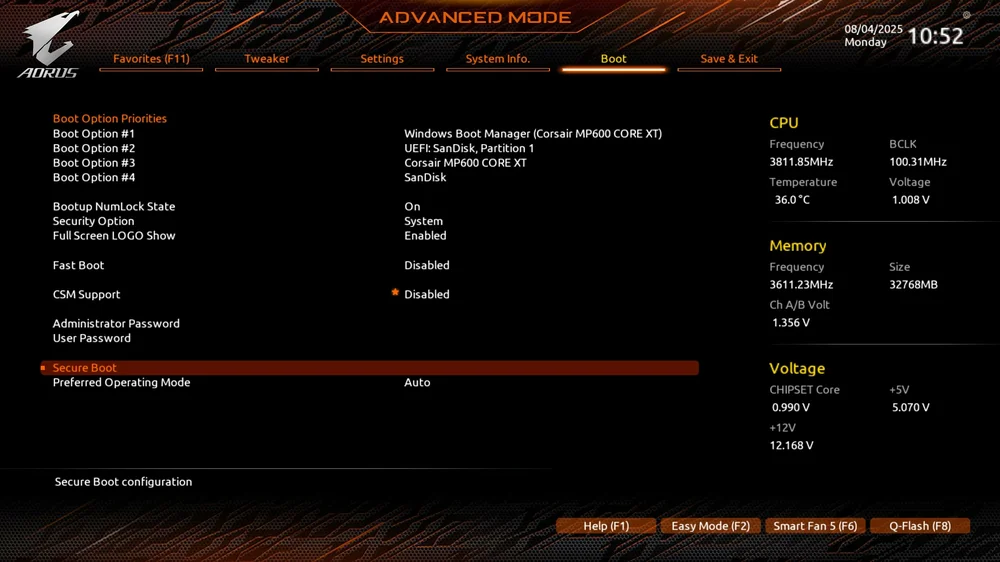
- Go into the “Boot” tab.
- Click on the “Secure Boot” option.
- Enable “Secure Boot”.
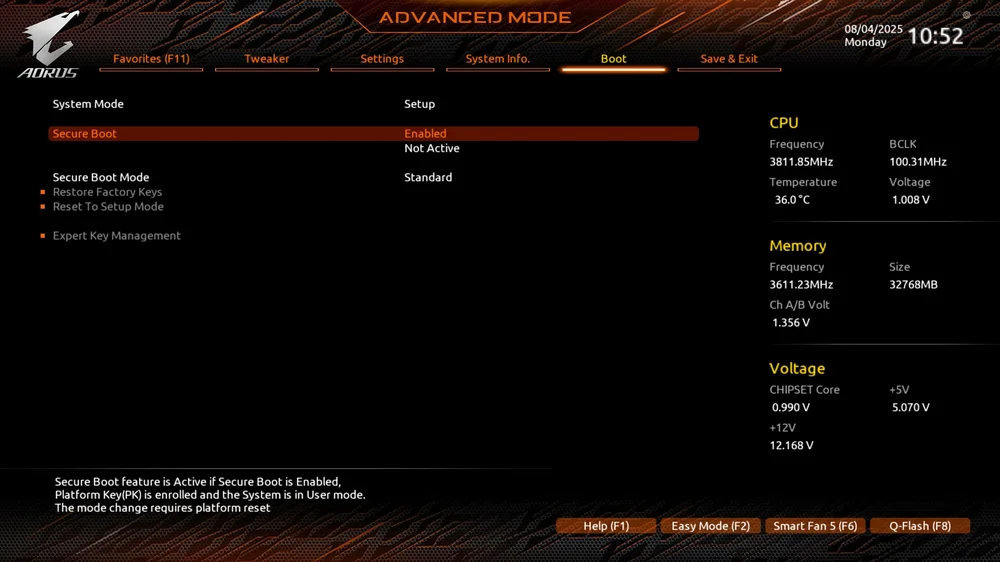
It might say both “Enabled” and “Not Active” which is confusing but will resolve itself as it requires a restart after enabling secure boot to then make it “active”
Now, enter the "msinfo32" command in the "Run" window again. It should now say "On"
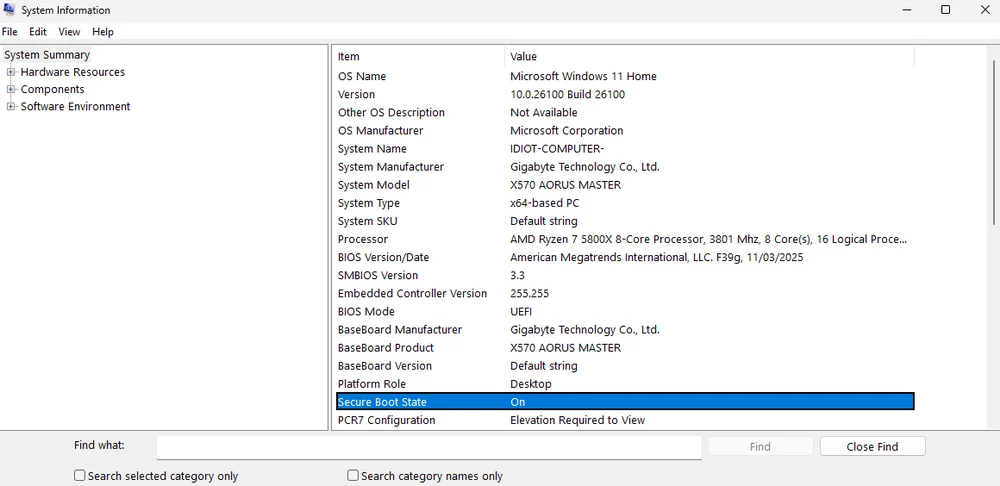
Secure Boot State "On"
How to Enable TPM 2.0 for Battlefield 6
If you've been able to enable Secure Boot Battlefield 6, chances are that TPM 2.0 is already enabled, so here’s how to check to make sure
- Hit Windows Key + R. this will open the “Run” window.
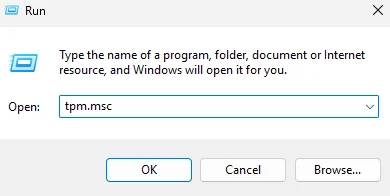
- In here, type in “tpm.msc” and hit enter. This will open the TMP Management window.
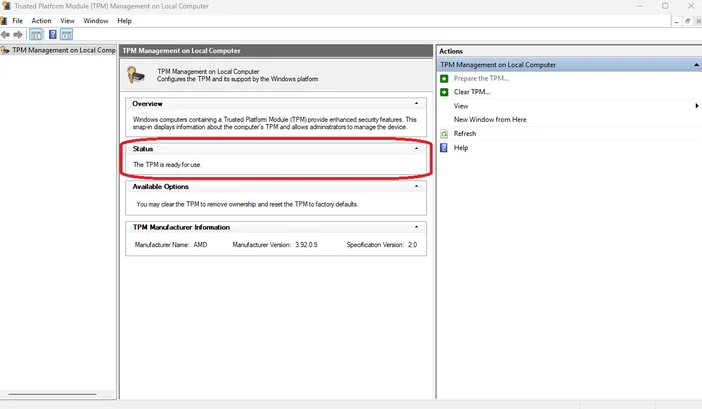
If TPM 2.0 is already enabled, then you’ll see “The TPM is ready for use.” In the “Status” tab.
If you do not see this, then TPM 2.0 is not enabled. If this is the case, here’s how to enable TPM 2.0 for Battlefield 6. You’re going to have to get into the BIOS for this, which luckily, is a far less confusing place than it used to be. Here’s how.
- Restart your PC.
- During the first boot screen, spam F2 or Delete until your BIOS appears.
- The settings might not be shown in “EZ Mode” on some motherboards. Generally, the relevant settings will be located under a tab labeled “Advanced”, “Security”, or “Trusted Computing.”
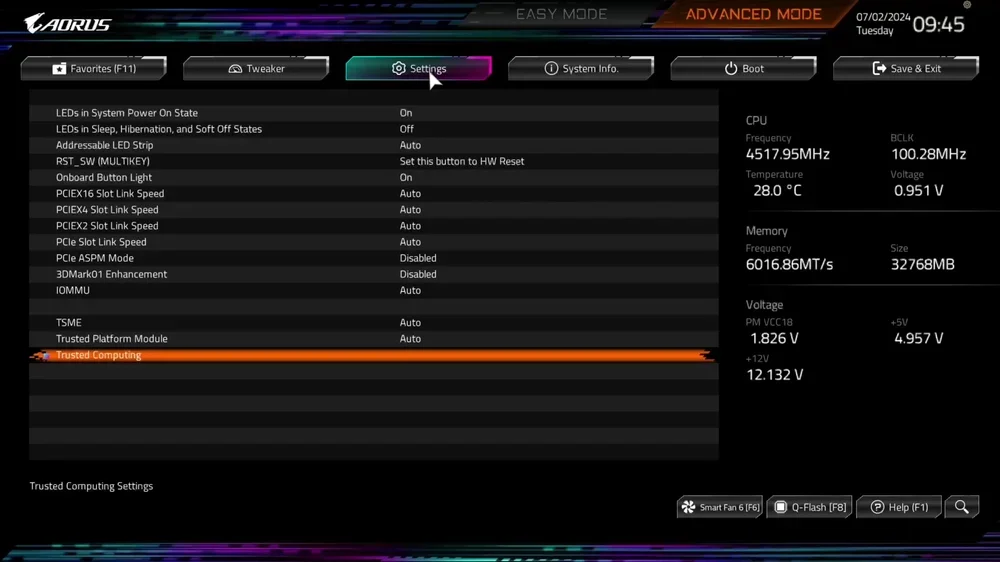
- The setting itself can also be labeled as number of different things, such as “Security Device”, “Security Device Support”, “TPM State”, “AMD fTPM switch”, “AMD PSP fTPM”, “Intel PTT”, or “Intel Platform Trust Technology.” Regardless of what it's called, enable it.
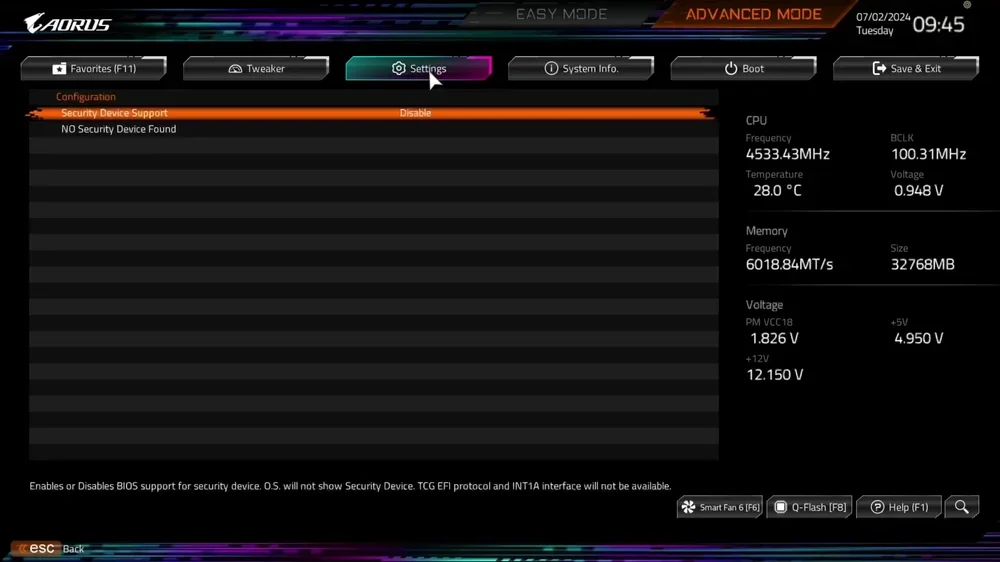
- Once you’ve done all that, save the changes and restart the PC.
Now repeat the steps above to verify that TPM 2.0 is enabled. If your PC does not have a TPM 2.0, then unfortunately you are out of luck, as this is not something you can download or add in to the PC. You’ll have to get a new system, or at the very least, a new motherboard.
- Save changes and exit.
- After doing this, repeat the steps above to check if Secure Boot Is enabled.
Now that TPM 2.0 and Secure Boot are enabled, congratulations, you’re ready to play Battlefield 6. VBS and Memory Integrity (HVCI) may need to be enabled, too. So, if you’re still having issues, here’s how to do that.
How to enable Memory Integrity (HVCI) for Battlefield 6
Luckily, this setting can be enabled via Windows, so you won’t necessarily need to get into the BIOS again. Here’s how to enable Memory Integrity.
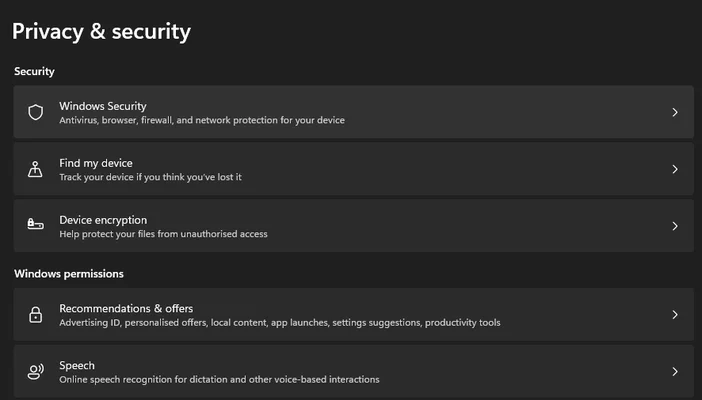
- Open Windows settings by right clicking the windows icon and selecting “Settings”.
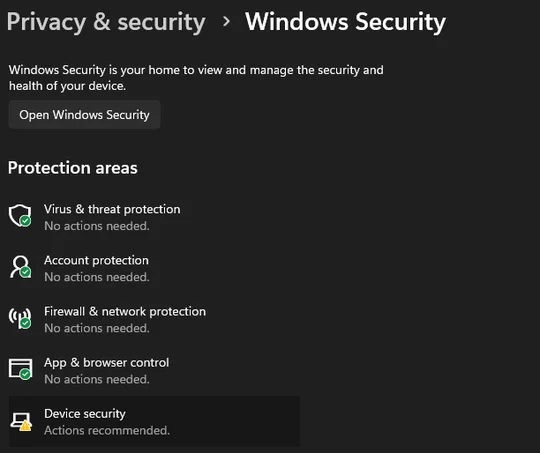
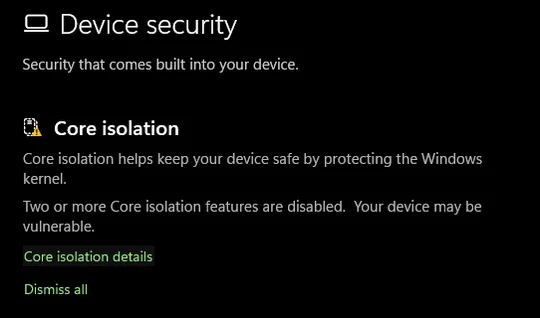
Click “Privacy & Security” then “Windows Security” then “Device Security”.
This will open a new window, and you’ll see a section called “Core isolation”, click “Core isolation details”.
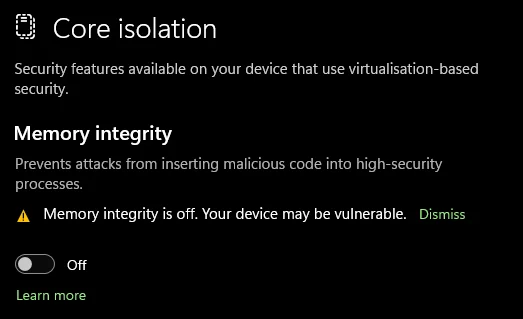
- Here you’ll see a toggle for “Memory Integrity” If it’s already on, then you’re good to go and can ignore the rest of this guide.
- If it’s set to “Off” click the toggle to turn it on. You’ll be asked for permission to change this setting. Click “Yes”. You’ll then have to restart your PC.
No Memory Integrity setting?
But what if you don’t see the “Memory Integrity” setting? Well then, you’ll need to enable VBS, the fourth horseman of the Battlefield 6 anti-cheat apocalypse. This one, unfortunately, requires a return to the BIOS.
It’s worth mentioning that the specific terminology for this setting can vary depending on your motherboard brand, even more so than other settings. We did all this on a GIGABYTE AORUS motherboard, and the setting we needed to enable was called "SVM Mode".
But you might have to rummage around in your BIOS a bit or google for your specific motherboard. In any case, you can’t make any changes to your BIOS without saving and restarting, so it’s hard to accidentally enable or disable something.
How to enable VBS (SVM) for Battlefield 6
- Restart the PC, spam Delete until you hit the now-familiar BIOS Screen.
- Go into the “Settings” tab, or in our case “Tweaker”.
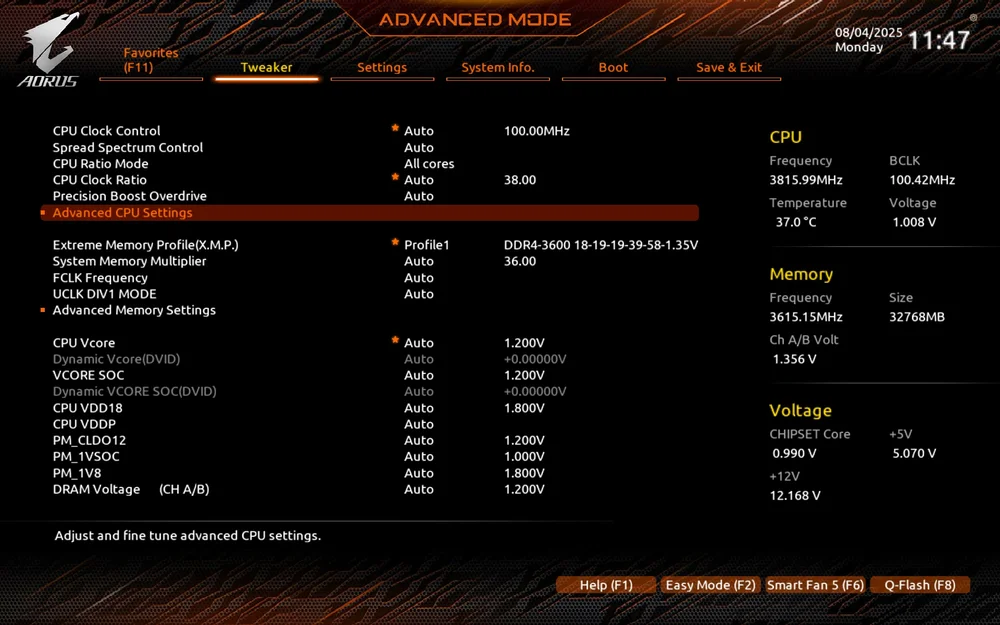
- Click “Advanced CPU” settings.
- Find “SVM Mode” and enable it. (This might be called “Intel Virtualization Tech” or similar for Intel systems.)
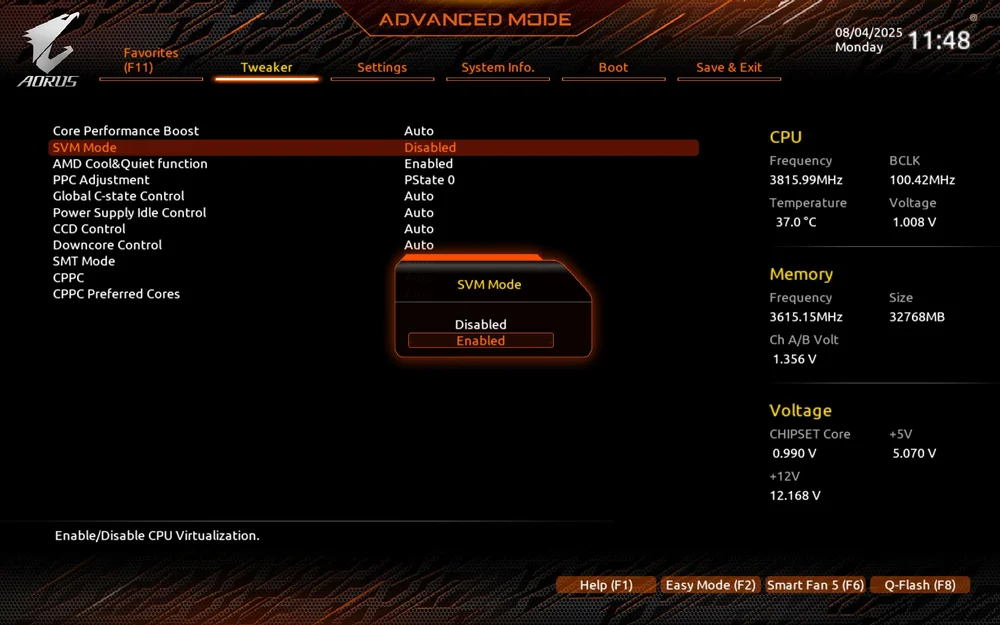
- Save and Exit.
Now return to the section above and follow the steps to enable Memory Integrity. It should now show up front-and-center in the “Core isolation” menu. Switch it to “On” follow the permission prompts, and when it asks you to restart, do that.
Congratulations! Now, after a not-insignificant amount of messing around, you’re good to go with Battlefield 6, which launches on October 10.
Why Does Battlefield 6 need all this?
If you haven’t figured it out yet, all these are technically separate settings but connected up in pairs, as you cannot enable Secure Boot without TPM 2.0. Likewise, you need to enable VBS to turn on HVCI (memory integrity.) Basically, Battlefield 6, along with many other games such as Valorant require some or all of these settings to be enabled, so that their Anti-Cheat systems are more effective.
In this case, EA’s anti-cheat system, known as EA Javelin Anticheat needs secure boot to be enabled, so that it can run at the kernel level to ensure it can work effectively. Moreover, Secure Boot makes it so only programs approved by the OEM (i.e. the motherboard brand) can run. Various cheating applications are obviously not approved, and Secure Boot makes it mostly impossible for these cheating programs to function. VBS and HVCI are also helpful in this regard and required to play Battlefield 6.
“Mostly” is doing some heavy lifting here as there are clearly ways around this, as even in games with these requirements, cheaters can still be encountered. This just makes it less likely, plus provides some bonus security for your system.
JOIN OUR OFFICIAL CORSAIR COMMUNITIES
Join our official CORSAIR Communities! Whether you're new or old to PC Building, have questions about our products, or want to chat about the latest PC, tech, and gaming trends, our community is the place for you.