HOW TO
How to Check your Monitor Refresh Rate
A monitor’s refresh rate, measured in hertz (Hz), tells you how many times per second the screen redraws the image. A 60 Hz panel updates 60 times each second, while a 144 Hz display refreshes 144 times, delivering smoother motion and less perceived blur.
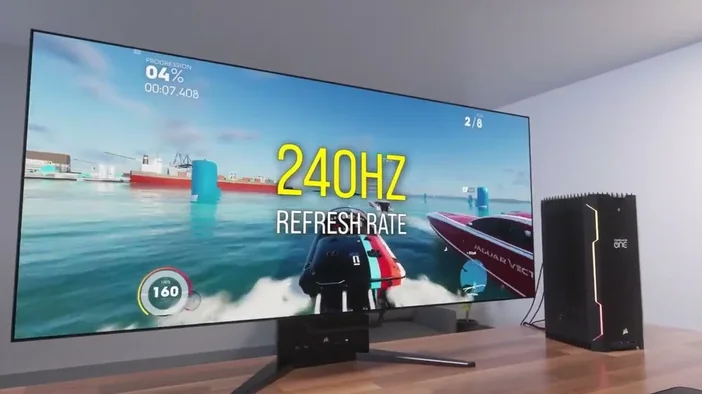
Why does refresh rate matter?
- Smooth gameplay - Faster refresh rates keep fast‑moving games looking fluid.
- Reduced eye strain - Less flicker means a more comfortable viewing experience.
- Better responsiveness - Higher rates lower input lag, giving you a quicker reaction window.
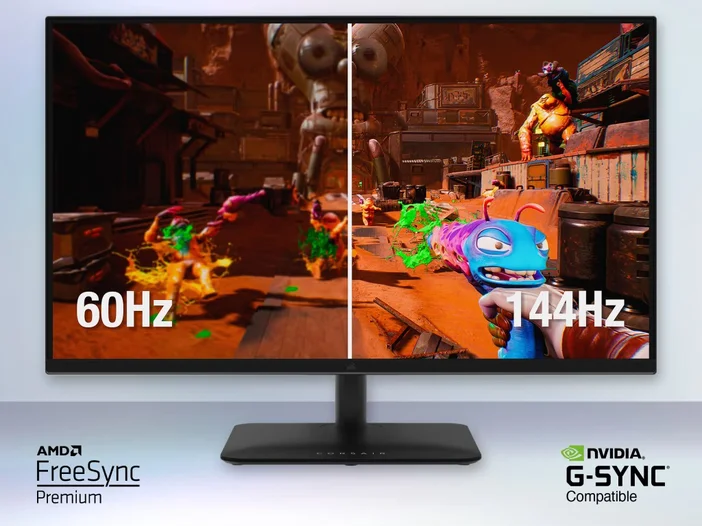
Quick ways to check your monitor’s refresh rate
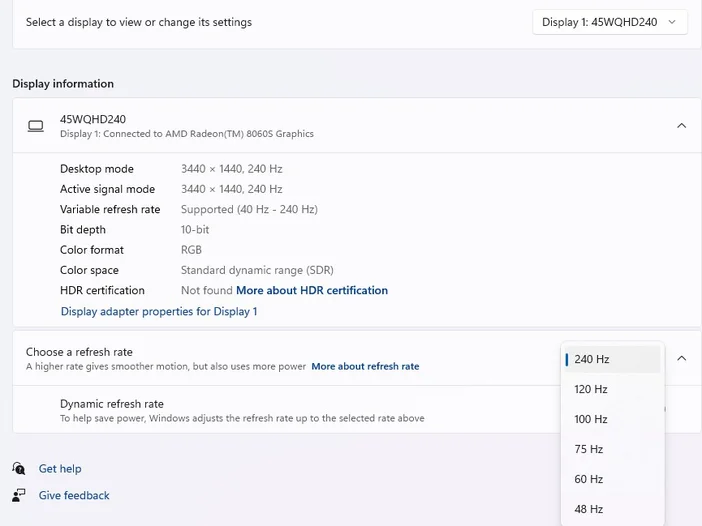
Windows 10/11 – Settings
- Right‑click the desktop and pick Display settings.
- Scroll down and click Advanced display settings.
- Under Refresh rate (Hz) you’ll see the current value.
Tip: If you have multiple monitors, select the one you want to inspect from the “Select a display” dropdown first.
Windows - Graphics Control Panel
- NVIDIA: Right‑click the desktop → NVIDIA Control Panel → Change resolution → look for Refresh rate.
- AMD: Right‑click → AMD Radeon Settings → Display → Refresh Rate.
- Intel: Right‑click → Graphics Properties → Display → Refresh Rate.
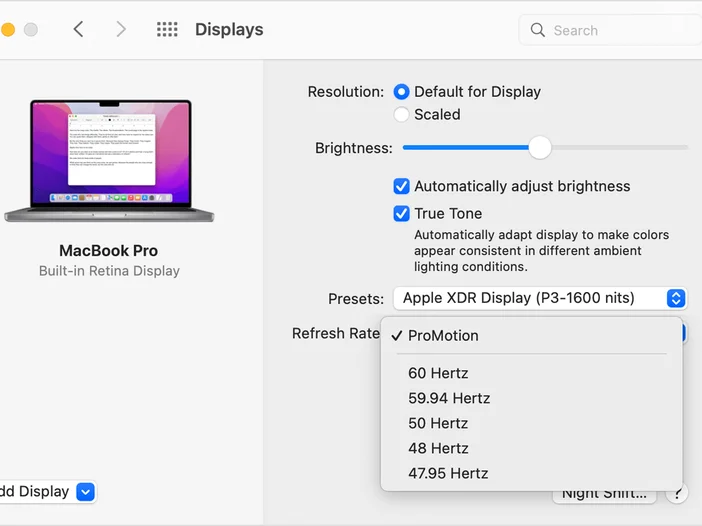
macOS
- Open System Settings (or System Preferences on older macOS).
- Go to Displays → click Advanced (or hold Option and click Scaled).
- Choose the desired refresh rate from the Refresh Rate dropdown.
Using the monitor’s built‑in OSD (On‑Screen Display)
Most modern panels let you view the current rate directly:
- Press the Menu button on the monitor.
- Navigate to a section usually labelled Info, Status, or Settings.
- The refresh rate is displayed alongside resolution and input source.
If you can’t find it, consult the user manual - the OSD layout varies by brand.
Common refresh‑rate tiers
| Tier | Typical Use‑Case | Examples |
|---|---|---|
| 60 Hz | General productivity, video playback | Most office monitors, budget TVs |
| 75 Hz | Light gaming, smoother scrolling | Mid‑range 1080p panels |
| 120 Hz / 144 Hz | Competitive gaming, high‑action titles | Gaming‑focused IPS/TN panels |
| 165 Hz – 240 Hz | eSports, ultra‑smooth motion | Premium esports monitors |
| 300 Hz+ | Niche competitive setups (e.g., CS:GO) | Specialized esports rigs |
Things to watch out for
- Cable limits - HDMI 1.4 tops out at 120 Hz at 1080p, while HDMI 2.0 and DisplayPort 1.2+ support 144 Hz and higher.
- GPU capability - Your graphics card must be able to output the chosen refresh rate at the selected resolution.
- Windows “Default” mode - If you see “60 Hz (Default)”, you may need to manually select a higher rate in the settings panel.
TUOTTEET ARTIKLASSA
JOIN OUR OFFICIAL CORSAIR COMMUNITIES
Join our official CORSAIR Communities! Whether you're new or old to PC Building, have questions about our products, or want to chat about the latest PC, tech, and gaming trends, our community is the place for you.