HOW TO
CORSAIR VANGUARD 96: How to use the Elgato Virtual Stream Deck feature
The Elgato Virtual Stream Deck integration is one of the most exciting features of the new CORSAIR VANGUARD 96 keyboard. It transforms your keyboard into a powerful command center for streaming, content creation, and productivity. No separate Stream Deck device required. By pairing your VANGUARD 96 with Elgato’s Virtual Stream Deck feature, you can trigger OBS scenes, toggle overlays, launch apps, or control media with a single key press. Whether you’re streaming live, editing videos, or optimizing your workflow, the VANGUARD 96 lets you keep essential controls at your fingertips without breaking focus.
The VANGUARD 96 is a performance-grade mechanical keyboard featuring a compact 96 % layout, six programmable G-keys, a rotary dial, and a dedicated Stream Deck Launch Button. When using Elgato’s Virtual Stream Deck, it merges versatility with dynamic digital control to give you a seamless, all-in-one setup for gaming and streaming.
Pre-Setup Checklist
Before you start, make sure you have everything ready:
- Connect your keyboard - Plug in the VANGUARD 96 via the included USB-C cable or wireless adapter.
- Install Elgato’s Virtual Stream Deck software - Download the latest version (7.0 or later) from Elgato’s official site.
- Update VANGUARD firmware - Ensure the best experience for your VANGUARD series keyboard with the latest firmware update. Visit the CORSAIR FIRMWARE UPDATE UTILITY to easily update your device.
- Check compatibility - Make sure your operating system (Windows or macOS) recognizes both the keyboard and Stream Deck software.
Step-by-Step Setup Guide
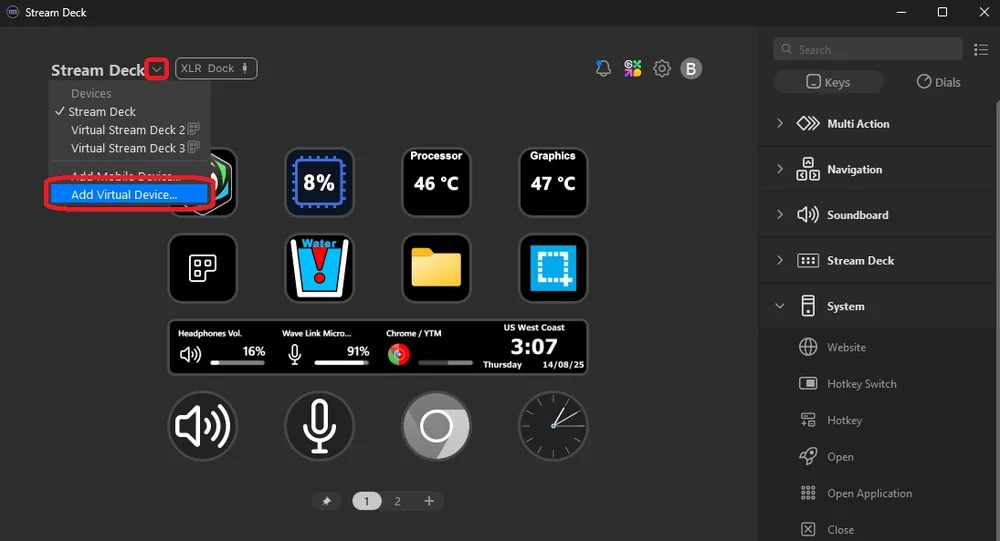
Step 1: Launch the Virtual Stream Deck App and create a new Virtual Stream Deck.
Open the Stream Deck software on your desktop. Select the Devices dropdown and choose Add Virtual Device. You’ll be presented with a new setup screen, and a new Virtual Stream Deck will appear on screen! You can easily drag and drop the functions from the side of the screen to wherever you choose on your Virtual Stream Deck.
Step 2: Create a new Virtual Stream Deck and launch it!
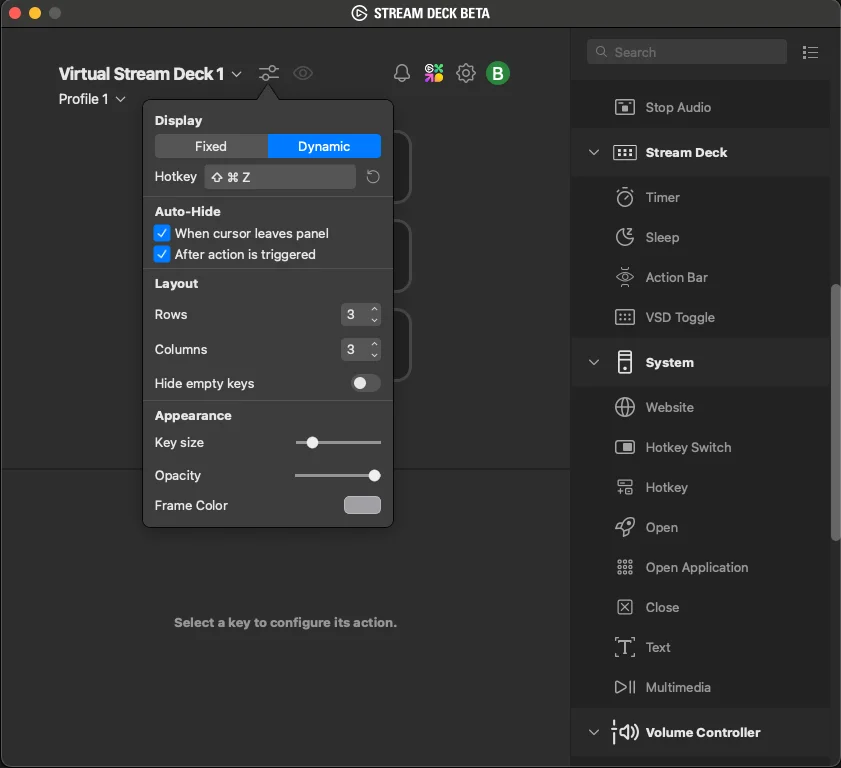
The VANGUARD 96 series includes a Stream Deck Launch Button that instantly brings up your virtual deck. In the Interface settings, click on the Hotkey option and then press the Stream Deck Launch button on your keyboard. Once set, pressing it will display your on-screen deck overlay instantly. Choosing between Fixed and Dynamic locations can elevate how you’re Virtual Stream Deck assists you.
Step 3: Configure the Six Programmable G-Keys
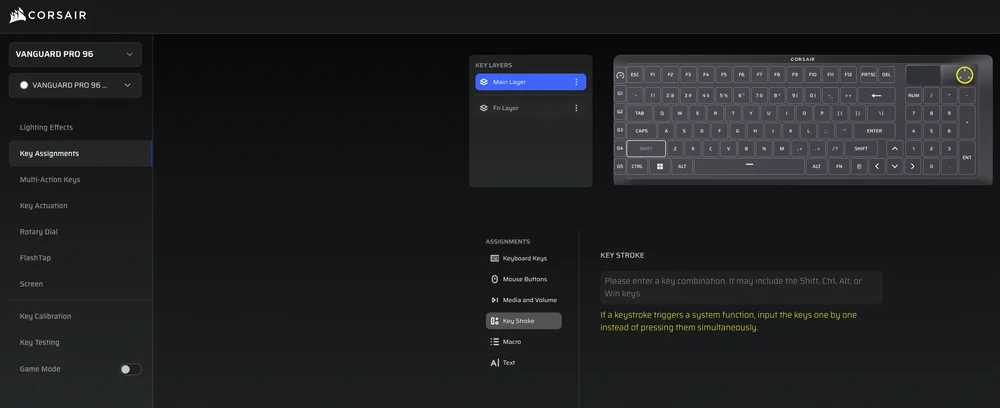
Along the left edge of the VANGUARD 96 are six programmable G-keys. Using Web Hub, you can assign each G-key a hotkey to launch Virtual Stream Deck. With six assigned G-key hotkey combinations, you can launch 6 different Virtual Stream Decks!
In Web Hub, assign a hotkey combination to the G-key of your choosing.
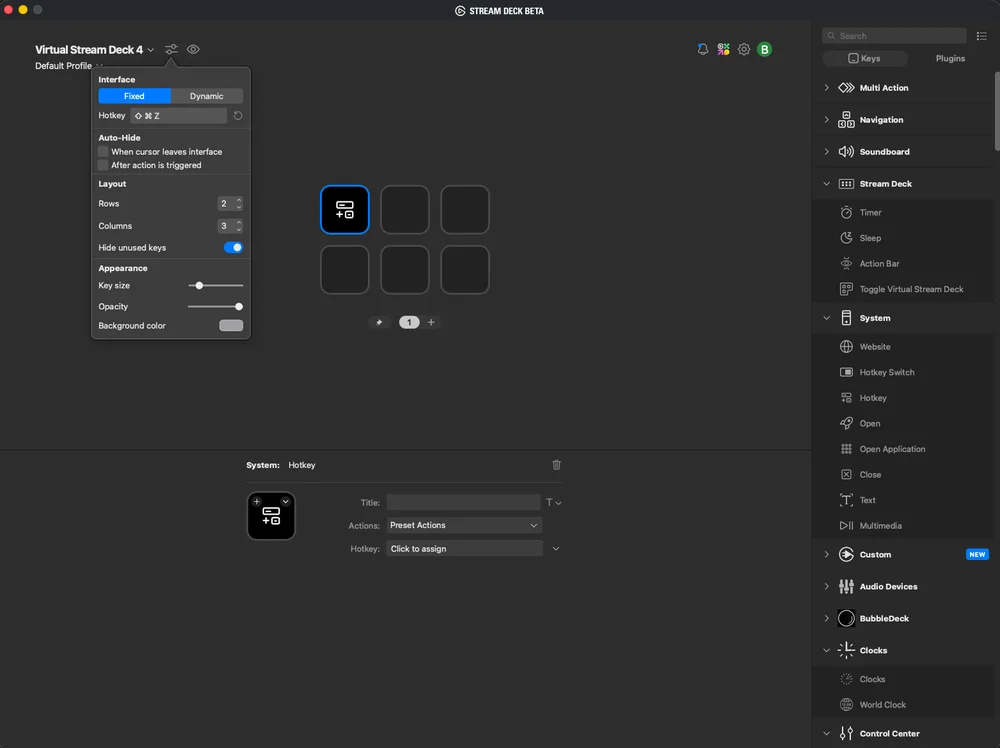
Then, in the Stream Deck software, assign the same hotkey combination for your Virtual Stream Deck. Now, pressing the G-key will launch that Virtual Stream Deck!
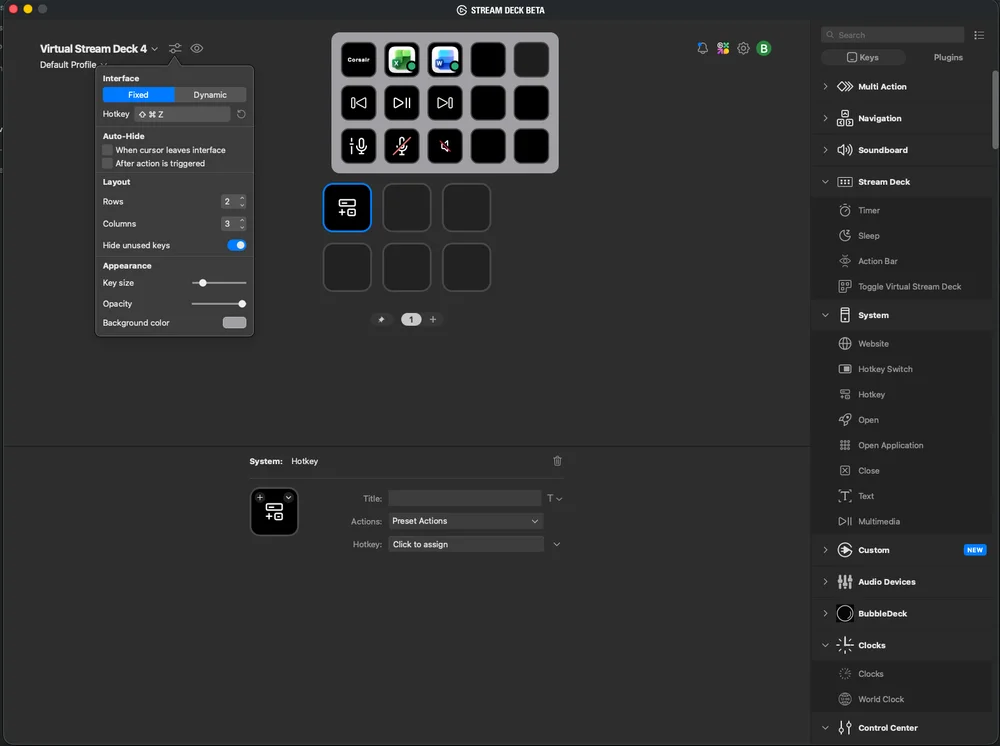
Step 4: Customize Your Virtual Deck Layout
Inside the Stream Deck software, personalize the layout and button arrangement. Adjust button size, position, and icon themes to match your workflow. You can even set the deck to appear only when summoned by the launch key or pinned to a screen corner for quick access.
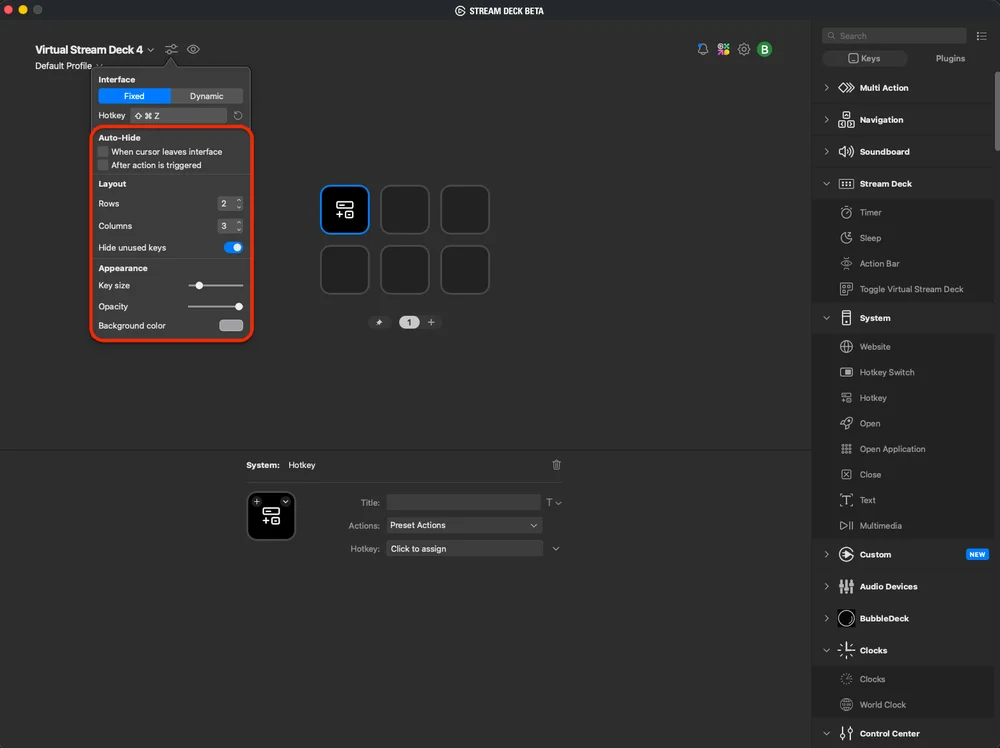
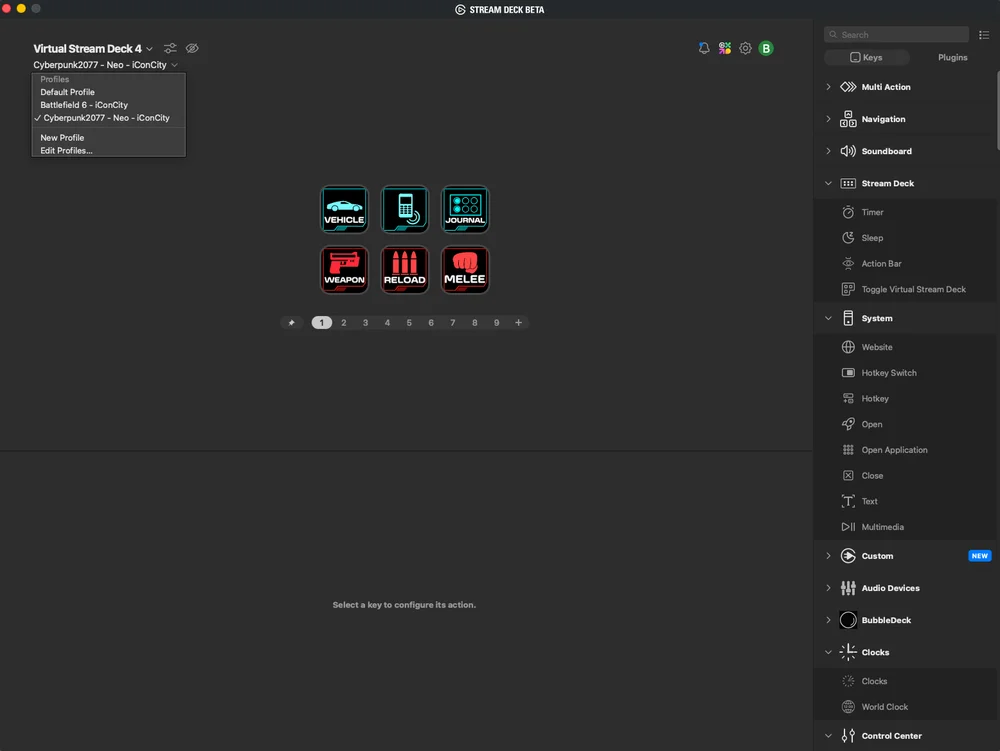
Step 5: Create Profiles for Different Workflows
Build separate Virtual Stream Decks with separate profiles for your favorite use cases:
- Streaming Profile – Scene switching, chat commands, audio mixing.
- Editing Profile – Cut, paste, render, timeline navigation.
- Gaming Profile – In-game macros, gear swaps, system monitoring.
Profiles can auto-switch based on which application is active, a huge time-saver for multitasking creators.
Tips and Best Practices
- Use clear icons and short labels for faster recognition.
- Group related controls (OBS, audio, chat) near each other or into folders.
- Test buttons before going live to avoid conflicts.
- Pin your deck smartly – dynamic allows the Virtual Stream Deck to show up where your mouse is.
- Update regularly - keep both your keyboard firmware and Stream Deck software current for best performance.
- Leverage profiles - dedicate one to each major app or task.
Why VANGUARD 96 and Virtual Stream Deck Are a Perfect Pair
Integrating Elgato’s Virtual Stream Deck with the CORSAIR VANGUARD 96 turns a world-class keyboard into a full-featured control center. Instead of cluttering your desk with separate macro pads or stream controllers, you can handle everything from switching scenes to managing audio with the same device you already type on. It’s fast, efficient, and elegantly integrated.
For streamers, creators, and professionals alike, this combo delivers a streamlined, hands-on workflow that keeps you focused and creative.
Ready to go live?
Install Elgato Stream Deck, configure your Virtual Stream Deck, and build profiles that fit your workflow. Within minutes, your keyboard becomes the ultimate command center for streaming and creation powered by Corsair precision and Elgato innovation.
A CIKKBEN SZEREPLŐ TERMÉKEK
JOIN OUR OFFICIAL CORSAIR COMMUNITIES
Join our official CORSAIR Communities! Whether you're new or old to PC Building, have questions about our products, or want to chat the latest PC, tech, and gaming trends, our community is the place for you.