Those who have fond memories of the first two Dead Space games will have been enticed by Pragmata, as its third-person gameplay, isolated sci-fi setting, and conspiracy-laden plot will be ringing a lot of bells.
If you’ve bought Pragmata already, then you might be curious about the best settings, as the menus in Pragmata are numerous and don’t always explain the effect a setting will have on the game. So, here’s our take on the best settings for Pragmata so you can balance fidelity and performance. And we’ll cover a few of the more subjective settings, too.
Controller vs Mouse and Keyboard
We mentioned this in our Pragmata system requirements page, but the short version is that you should really play this game with a controller. Due to the unique gameplay feature where you must shoot and hack at the same time as you control Hugh and Diana simultaneously, using a mouse and keyboard is not recommended.
The game itself says as much, with Steam opening a window when you start the game for the first time that tells you to grab “any kind of controller-looking device that can connect to your PC.”
Luckily, our friends over at SCUF just so happen to make controller-looking devices. So, if you’re keen to play Pragmata, consider grabbing a REFLEX FPS, a VALOR PRO, or an ENVISION PRO. Any of which will give you the perfect Pragmata experience. OK, onto the settings.
Best Graphics Settings for Pragmata
Pragmata is a single-player, story-based, third-person shooter, so you won’t be in need of top-tier precision. This means that you can stand to lose a few frames per second in favor of greater visual fidelity. Handily, the settings menu tells you how much of your VRAM your currently suggested settings will consume, in addition to an imprecise and vaguely named “Processing Load.”
First up, the two graphics settings that will have the largest effect on the experience are Ray Tracing and Effects Quality. Due to the shiny nature of the sci-fi settings, there are a lot of lighting sources and reflective surfaces, and ray tracing will make these interact in a more realistic way.
"Effects Quality” is less descriptive but it basically chooses how detailed explosions and other particle-effect type things are. This game contains a lot of that stuff, so you’re doing yourself a disservice if you turn this all the way down.
If you have a very powerful PC, then Path Tracing is recommended, but it really does drop the FPS a lot. If your system can power through or you’re ok with lower frame rates, this setting does make things look a lot more realistic, but the performance hit is significant.
We’d also recommend enabling V-Sync. Yes, it can introduce a little input lag, but it’s not usually detectable. You’d only consider turning V-Sync off if you’re playing Counter Strike 2, Valorant or similar games where any amount of input lag is considered unacceptable.
Anti-aliasing is an area where this game does seem to struggle, with all three options having trouble smoothing out hard edges. You can see the comparison of these options below. Notice the jaggy lines of the guy ropes down the right side of the tower. The staircase effect is generally not so obvious, but can be very apparent here and there.
Anti-aliasing off
TAA on
FXAA and TAA on
Artistic Settings
If you’re playing at a high resolution, we’d also recommend that you turn Subsurface scattering on. Subsurface scattering emulates how light acts in translucent materials, which in the case of games is usually skin. Turning this setting on makes human characters look more realistic. It doesn’t appear to have much effect on the frame rate so far as we can tell.
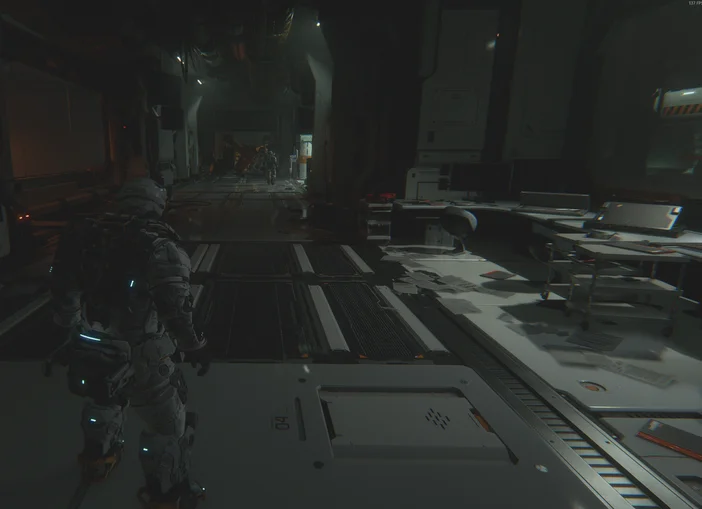
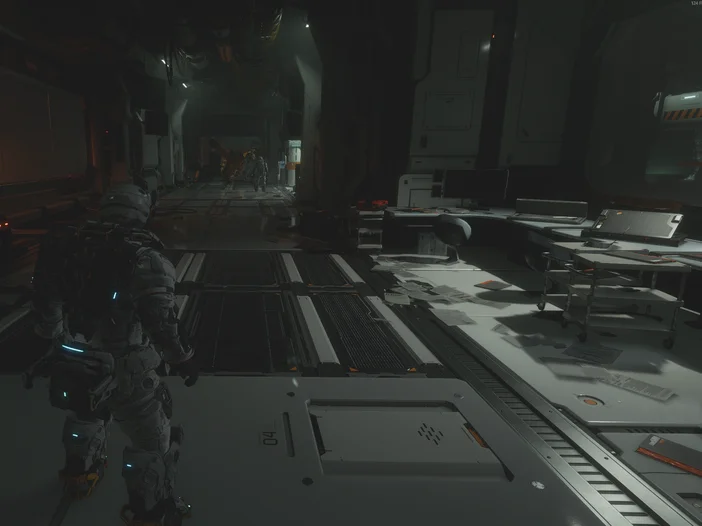
There is also a smattering of more subjective artistic settings: Chromatic Aberration, Motion Blur, Lens Flare, Lens Distortion, Depth of Field, Bloom, and even “Hair Quality.” The last one sounds silly, but your companion character is a child with long hair and the differences in this setting between low, medium, and high are very noticeable. The others aren’t related to visual quality per se, more just your own sensibilities. One thing to note is that the other settings all serve to make the game look more “cinematic” for want of a better word.
Near camera
Medium camera
Far camera
Additionally, there’s an option called Video Quality, which just changes the resolution of the cutscenes. Might as well put this to 4K because it has no effect on the gameplay whatsoever. You should also test out the Camera Distance setting. The near setting puts the camera super close like Gears of War or the recent God of War games, so medium and far are recommended as you gain some additional peripheral vision, which is helpful when you’re getting flanked by murderous robots.
Should You Enable Nvidia DLSS / AMD FSR for Pragmata?
As with many modern games, Pragmata has options for the various upscaling methods used by Nvidia and AMD. The main one people will be considering is Frame Generation. Both brands have versions of this, and as Pragmata does not require pixel-perfect precision, the mistakes and inaccuracies that frame generation can cause are of less concern.
Conversely, for the same reasons, you don’t really need 240Hz in a game like this. So, using frame generation should be a last resort if your game doesn’t run well, or if you just can’t handle the idea of not maxing out your gaming monitor. In any case, we only experienced small visual oddities with frame generation, mostly with very fast-moving things like the exhaust on the jetpack and a slight “smearing” when you change direction super quickly. These issues became more noticeable the higher the frame generation settings. How noticeable the artifacts that result from frame generation are varies a lot from person to person so you should just flip through the settings and play around to see which, if any frame generation setting suits you.
Stay up to date with CORSAIR. Get our latest News, Guides, and Product Updates in your Google feeds.
Add CORSAIR as a preferred sourceWas this article helpful?
Feedback received
Thanks for helping us improve this article.
JOIN OUR OFFICIAL CORSAIR COMMUNITIES
Join our official CORSAIR Communities! Whether you're new or old to PC Building, have questions about our products, or want to chat about the latest PC, tech, and gaming trends, our community is the place for you.