КРАТКОЕ РУКОВОДСТВО ПОЛЬЗОВАТЕЛЯ
K55 CORE TKL
RGB GAMING KEYBOARD
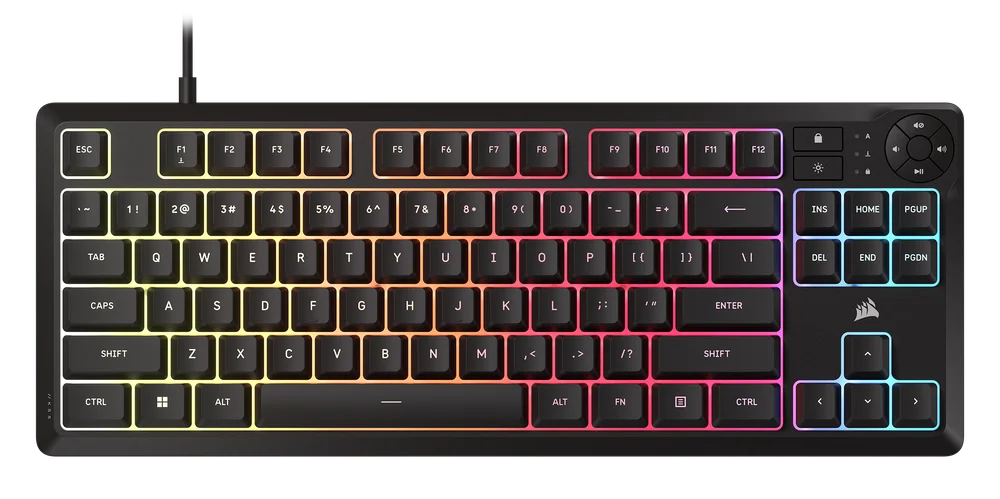
GETTING TO KNOW YOUR KEYBOARD
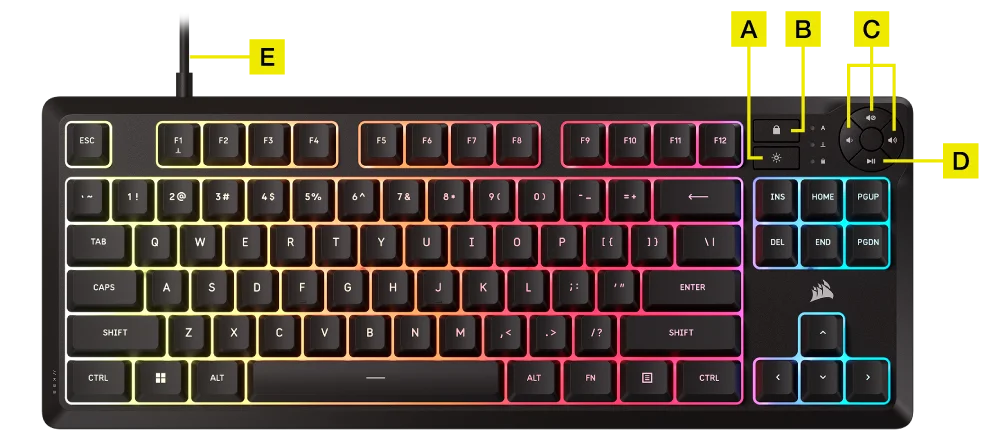
- BRIGHTNESS BUTTON
- WINDOWS LOCK BUTTON
- VOLUME ADJUSTMENT
- PLAY/PAUSE
- USB KEYBOARD CONNECTOR
SETTING UP YOUR KEYBOARD
Connect the keyboard USB connector (E) to an available USB 2.0 or better Type-A port on a compatible device including:
| Windows® PC | Apple Mac® |
Microsoft Xbox One* Microsoft Xbox Series X | S* |
Sony PlayStation 4** Sony PlayStation 5** |
**See CONNECTING TO SONY PLAYSTATION section.
FACTORY RESET
Hold ESC key for two seconds while device is plugged in to erase onboard memory profiles and restore factory default settings.
CONNECTING TO SONY PLAYSTATION
The keyboard also has a special mode to support Sony PlayStation 4 and 5 that can be activated via shortcut.
| SHORTCUT | FUNCTION | INDICATION |
FN+  (Hold for 5 seconds) (Hold for 5 seconds) |
Switch to PlayStation mode |  Blinks white 5 times Blinks white 5 times |
| FN+ (Hold for 5 seconds) |
Switch back to standard mode | Blinks white 10 times rapidly |
NOTE: Available functions may be limited depending on gaming console support and application.
SOFTWARE MODE
When iCUE is running the keyboard operates in software mode and is controlled by iCUE.
Download iCUE from corsair.com/downloads and install on a Windows PC or Apple Mac to connect all of your CORSAIR iCUE compatible products together in a single interface, giving you complete control of everything from lighting to powerful macros.

HARDWARE MODE
When iCUE is not running or the keyboard is connected to a device that does not support iCUE, the keyboard operates in hardware mode which uses profiles and settings saved to the onboard storage.
ONBOARD LIGHTING
| SHORTCUT | LIGHTING EFFECT | REMARKS |
| FN + ` | Back to current HW profile lighting |
Can be customized under iCUE. If no hardware playback, set to default: Watercolor spectrum |
| FN + 1 | Rainbow Wave | |
| FN + 2 | Color Shift (random color order) | |
| FN + 3 | Color Pulse (random color order) | |
| FN + 4 | Color Wave (random color order) | |
| FN + 5 | Static Color | Press to cycle though in order: red, green, blue, yellow, capri, purple, amber, white |
| FN + - | Decrease effect speed | |
| FN + = | Increase effect speed | |
| FN + [ | Rotate effect left | |
| FN + ] | Rotate effect right |
MACRO RECORDING
Macros can be recorded in iCUE software.
SOFTWARE OVERVIEW
iCUE HOME AND DEVICE SCREEN
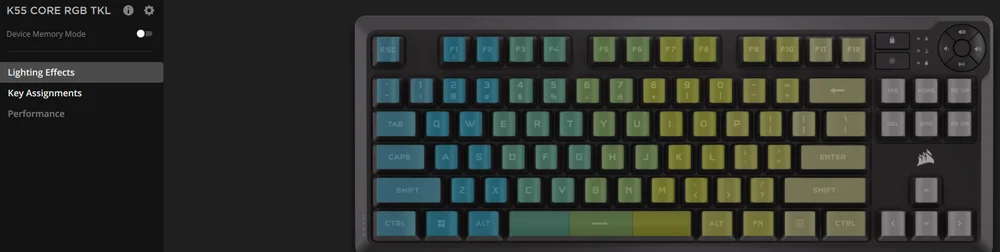
When you first open iCUE, you will see a new device tile for K55 CORE TKL. Clicking the device tile will present options to start programming for:
- Lighting Effects
- Key Assignments
- Performance
If you see an update notification in the iCUE window, please click to update firmware to the latest version.
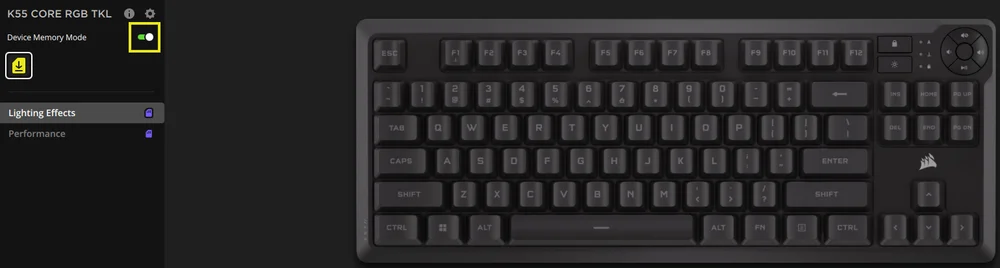
DEVICE MEMORY MODE
Before you start programming, note that every iCUE system profile has two sets of settings—Software and Device Memory Mode.
The Device Memory mode menu allows you to assign functions which can be saved to the keyboard’s onboard memory and plays when in hardware mode.
| FUNCTION |
DEVICE MEMORY MODE
|
SOFTWARE MODE
|
| Storage & Profiles | 1 default profile | Unlimited |
| Features |
|
|
| How to Save |
Manual Save
|
Automatically |


LIGHTING EFFECTS
The Lighting Effects tab allows you to program lighting.
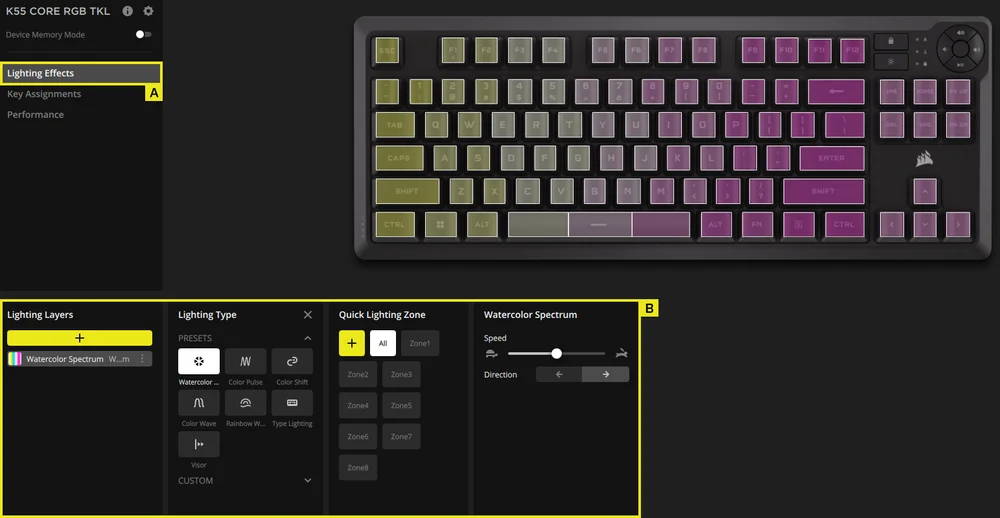
A. Choose Lighting Effects tab
B. Under lighting layers click [ + ] to set lighting to your liking
KEY ASSIGNMENTS
The Key Assignments tab allows you to easily remap keys or assign new functions to keys.
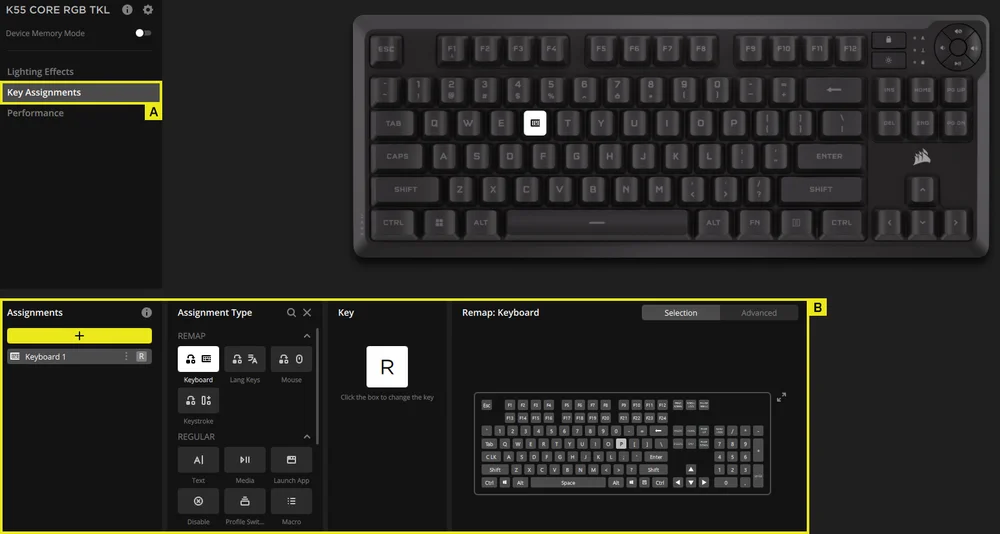
A. Choose Key Assignments tab
B. Under key assignments click [ + ] to remap keys or assign new functions
MACRO RECORDING
You can easily record and program powerful macros in iCUE.
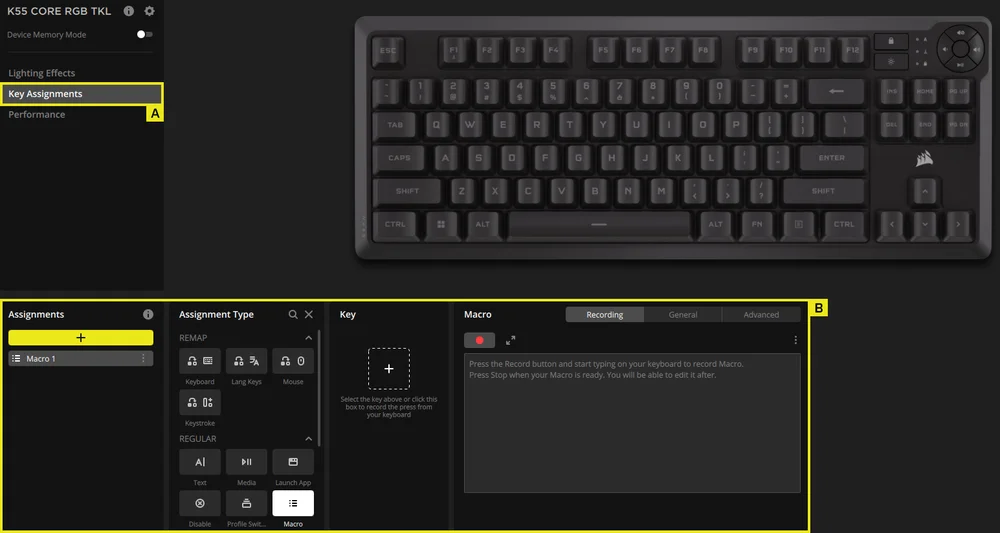
A. Choose Key Assignments tab
B. Under Assignments click [ + ] to click assignment type Macro, starting Macro recording after remapping keys
PERFORMANCE
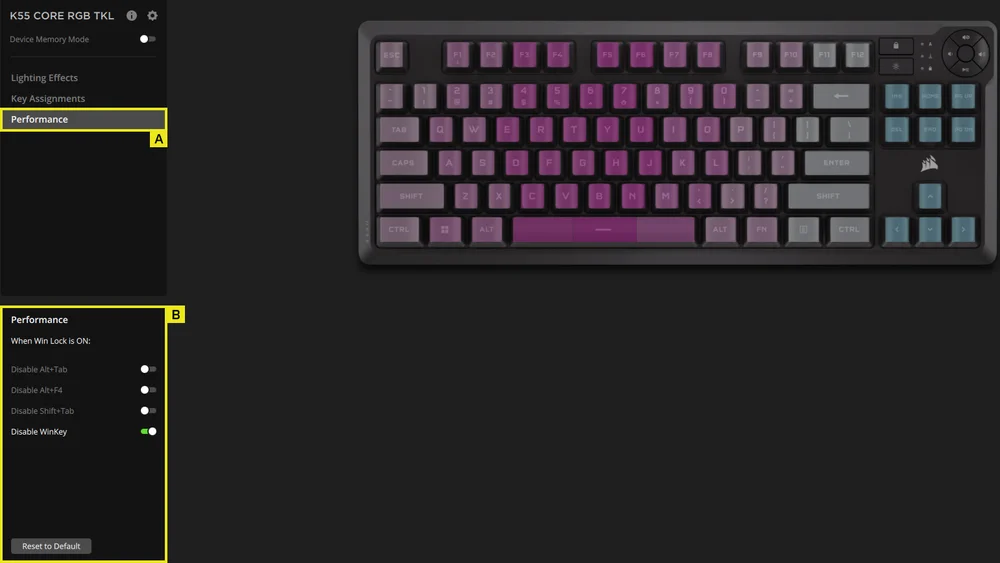
A. Choose Performance tab
B. Enable/disable shortcuts
DEVICE SETTINGS
The Device Settings tab allows you to change advanced settings, adjust the polling rate, and update the firmware.
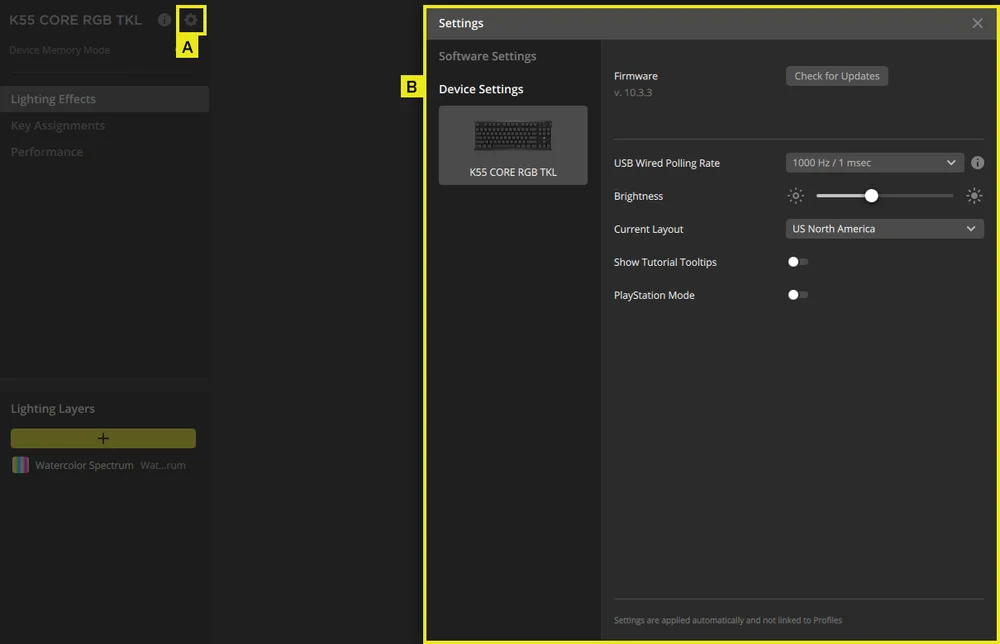
A. Click the setting icon
B. Change the advanced settings
COPYRIGHT / LEGAL INFORMATION
© 2025 CORSAIR MEMORY, Inc. All rights reserved. CORSAIR and the sails logo are registered trademarks of CORSAIR in the United States and/or other countries. All other trademarks are the property of their respective owners. Product may vary slightly from those pictured.

СОПУТСТВУЮЩИЙ КОНТЕНТ