快速入門指南
VANGUARD 96 WIRELESS
機械遊戲鍵盤
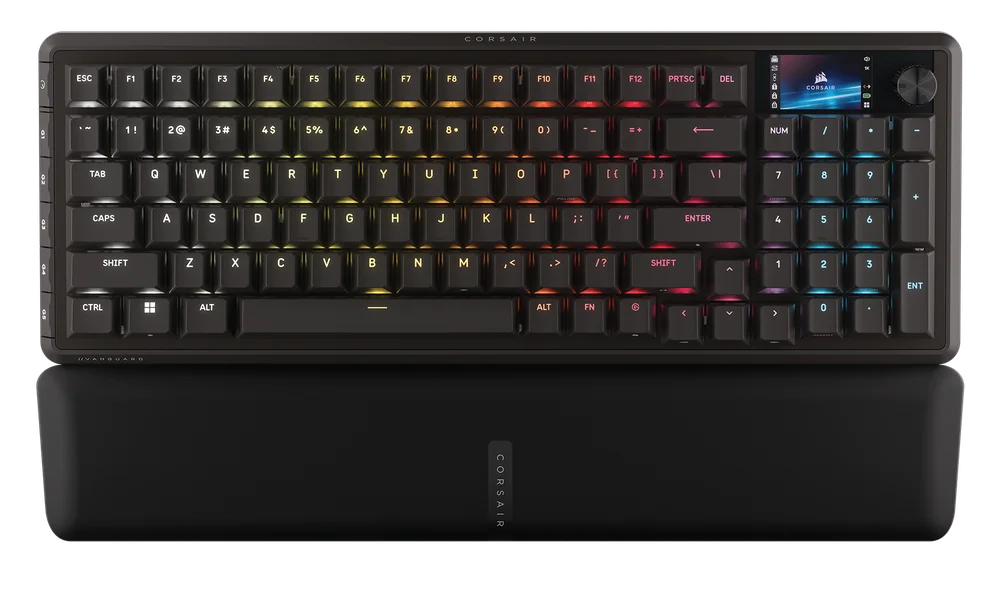
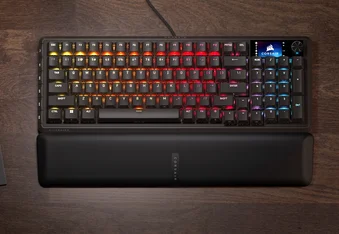
瞭解您的鍵盤
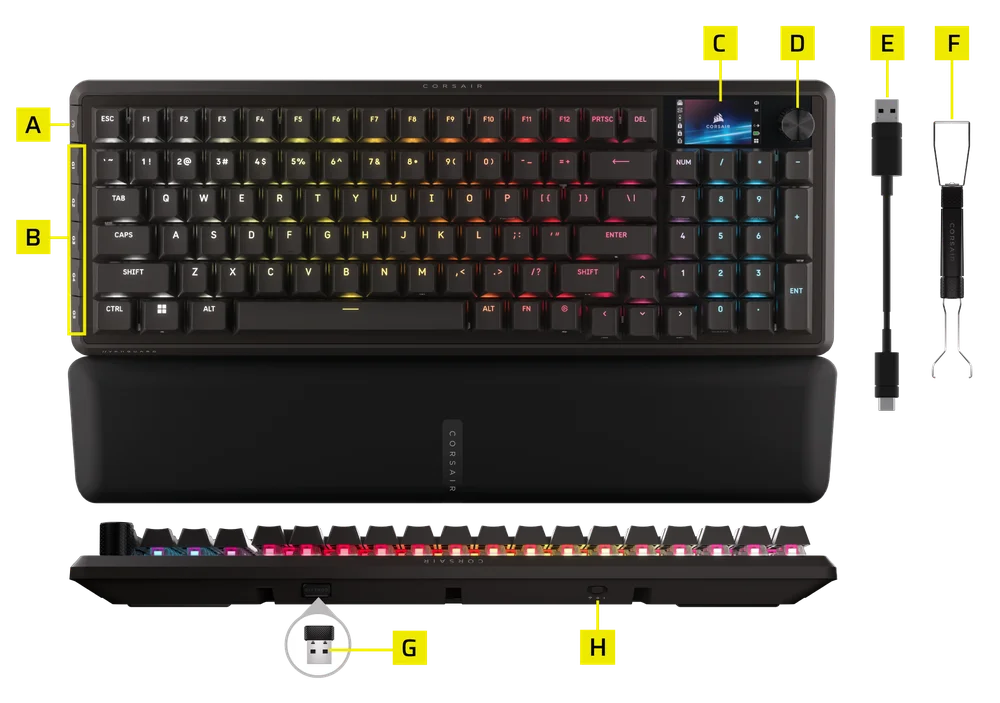
- 遊戲模式按鈕
- G 鍵
- 彩色液晶螢幕
- 旋鈕
- 可拆式編織 Type-C 轉 Type-A 傳輸線
- 二合一拔軸拔鍵器
- DONGLE
- 連線切換器
技術規格
| 特點 | 說明 |
| 外型規格 | 96% |
| 頂蓋 | 鋁板 |
| 液晶螢幕 | 1.9 吋 320x170 IPS |
| 底部 | 塑料 |
| 吸音海綿 | PORON |
| 機殼海綿 | 矽酮 |
| 掌托 | 磁性氣墊掌托 |
| 配色 | 黑色 |
| 鍵帽 | PBT 雙色注塑(BR、SP、ES 佈局為 ABS 漆面) |
| 背光 | 個別 LED 亮光與全按鈕自定義設定 |
| LED 色彩 | RGB |
| 鍵盤軸體 | CORSAIR MLX Plasma 機械式預潤滑鍵軸 |
| 連接能力 | RF 2.4 Slipstream V2 / 藍牙 / 有線 |
| 矩陣圖 | 全鍵無衝 (NKRO),100% 防鬼鍵 |
| USB 讀取速度 | 最高 8,000Hz 超輪詢,含 CORSAIR AXON |
| 板載設定檔 | 在 Web Hub 上新增設定檔 (最多 5 個設定檔) |
| 媒體控制 | FN 快捷鍵 / 旋轉撥盤 |
| 遊戲模式 | 熱鍵*1 |
| 亮度控制 | FN 快速鍵/旋鈕 |
| 可調整高度 | 是 |
| 隨插即用操作 | 是 |
| 遊戲主機相容性 | Xbox One、Xbox Series X|S、PlayStation 4、5 |
| 纜線 | 1.8 公尺 / 6 英尺,可拆卸編織 Type-C 對 Type-A 連接線 |
| 尺寸 | 388(長)x 141(寬)x 43(高)毫米 |
| 重量 | 1.167 公斤 |
| 保固 | 兩年:適用當地國家/地區法規 |


AXON 超處理技術
CORSAIR AXON 透過下列內容,提供強大且反應靈敏的鍵盤體驗:
- 超快速擊鍵偵測和處理
- 高達 8,000Hz 的超高輪詢率 (可在 Web Hub 裝置設定中調整)
- 最多可設定 5 層板載燈光效果 (可在 Web Hub 中依設定檔程式化)
設定您的鍵盤
透過有線或無線模式將鍵盤連接至相容裝置上,包括:
| Windows PC | Apple Mac |
Microsoft Xbox One* Microsoft Xbox Series X | S* |
Sony PlayStation 4** Sony PlayStation 5** |
*鍵盤開箱即用,請參閱 corsair.com/xbox-support了解詳情。
**請參閱連接到 Sony PlayStation 部分。
連接至 SONY PLAYSTATION
| 快速鍵 | 功能 | 指示 |
FN+  (按住 5 秒) (按住 5 秒) |
切換至 PlayStation 模式 | 閃爍白燈 5 次超過 5 秒 |
| FN+ (按住 5 秒) |
切換回標準模式 | 閃爍白燈 2 次 |
操作模式
鍵盤具備兩種操作模式:
- 硬體模式 – 當 CORSAIR WEB HUB 未執行,或鍵盤連接到不支援 CORSAIR WEB HUB 的裝置時,鍵盤將以硬體模式運作,使用儲存在內建記憶體中的設定檔與設定。
- 網頁模式 – 前往 CORSAIR 網頁中樞連結 https://corsair.com/web-hub,鍵盤將以網頁模式運作,使用儲存在內建記憶體中的設定檔與設定。
| 功能 | 硬體模式 | 網頁模式 |
| 儲存&個人資料 | 8MB 可儲存最多 5 個設定檔 | 8MB 可儲存最多 5 個設定檔 |
| 建立新設定檔 | 不適用 | 是 |
| 建立 RGB 效果 | 不適用 | 是 |
| 建立按鈕指派 | 是 | 是 |
| 燈光層數上限 | 不適用 | 5 |
* 請確認檔案格式為 GIF、JPG 或 BMP,且檔案大小不超過 500KB

硬體概觀
FN 快速鍵燈光指示燈
當按下 FN 鍵時,所有燈光會暫時關閉,但具有次要功能或已指派巨集的按鍵除外。這些按鍵的背光將會開啟。
- 預設顏色將為白色
- 使用者可以在 CORSAIR WEB HUB 中自訂顏色指示
目前使用中的設定檔色彩指示燈將優先於 FN 快速鍵燈光。
遊戲模式按鈕 (A) 功能
只要按一下「遊戲模式按鈕」,即可進入遊戲最佳化設定。
| 模式 | 功能 | 備註 |
|
預設模式 (遊戲模式關閉) |
遊戲模式關閉:
|
原廠預設值 |
| 遊戲模式開啟 |
遊戲模式開啟:
|
可在 Web Hub 中自訂 |
ELGATO STREAM DECK
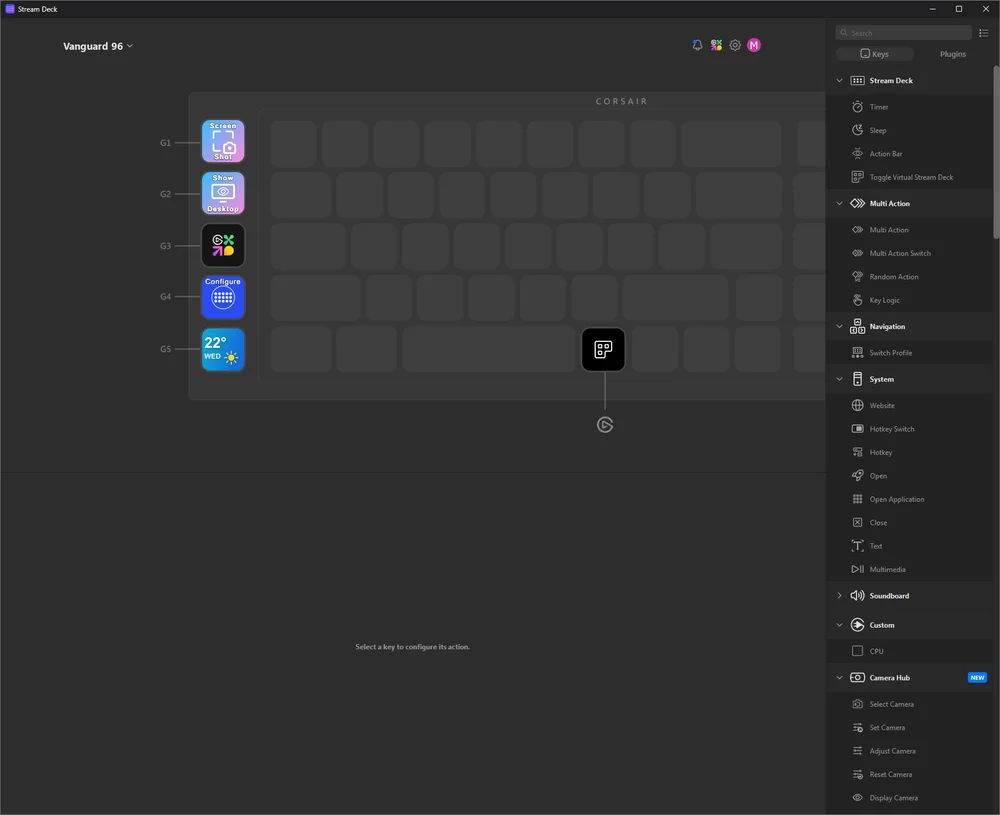
在電腦上安裝並啟動 Elgato 軟體後,其會自動連線至鍵盤並啟動 VSD,並啟用與鍵盤關聯的五個 G 鍵和 Elgato 鍵,且所有按鍵皆具有對應的預設功能。
若系統未自動啟動此功能,您可以從左上角的下拉式選單中選擇您的裝置。
前往以下連結下載用於管理整合式 Stream Deck 的軟體:https://www.elgato.com/s/downloads
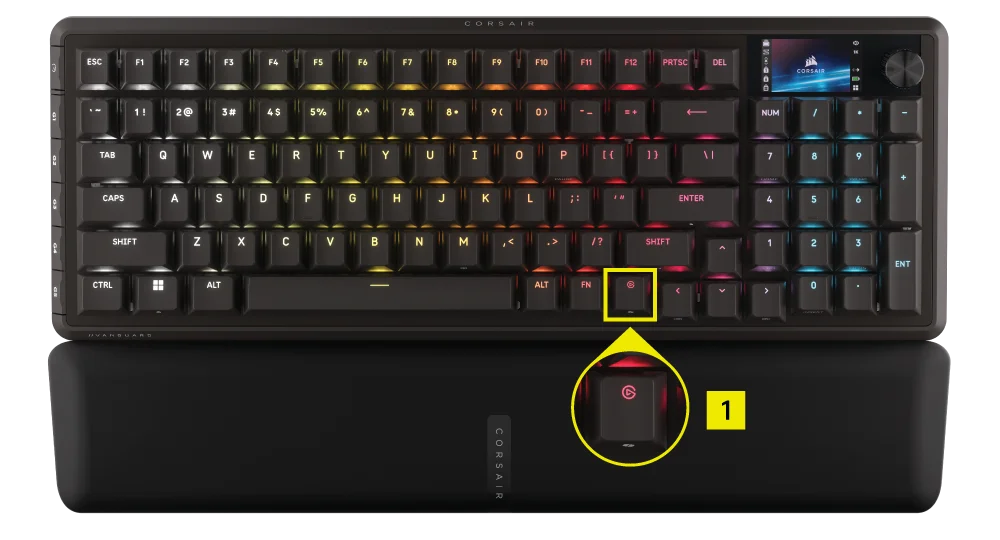
虛擬串流媒體平台按鈕 (1)
標準快速鍵
以下所有功能均假設按住 FN 鍵,並在按下時啟動動作,除非另有說明。
預設功能快捷鍵,帶有印刷圖示。
| 快速鍵 | 功能 | 說明 |
| FN + F1 | 捲動鎖定 | 按下 & 鍵可切換 Scroll Lock 的開啟與關閉 |
| FN + F2 | 設定檔 |
HW 模式:循環切換內建設定檔 SW 模式:循環 iCUE 設定檔 |
| FN + F3 | 減少亮度 | 按下可循環亮度 (降低) |
| FN + F4 | 增加亮度 | 按下可循環亮度 (增加) |
| FN + F5 | 停止音軌 | 停止目前播放的媒體 |
| FN + F6 | 上一首曲目 | 跳回播放清單中上次播放的曲目 |
| FN + F7 | 播放 / 暫停 | 切換播放和暫停媒體 |
| FN + F8 | 下一個曲目 | 向前跳至播放清單中的下一個曲目 |
| FN + F12 | 飛梭旋鈕模式 | 循環飛梭旋鈕模式 |
| FN + M | 進入巨集錄製模式 | 進入巨集錄製模式 |
| FN + Enter | 螢幕動作 | 在小工具中選擇動作 |
| FN + 左 | 螢幕左側 | 切換至上一個小工具 |
| FN + 右 | 螢幕右側 | 切換至下一個小工具 |
| FN + Win | Win 鎖定 | 切換 Win 鎖定開啟與關閉 |
| FN + Win 5 秒。 | PS 模式 | 進入 / 退出 PS 模式 |
| FN + 右側 Shift | FlashTap | 啟用 / 停用 FlashTap |
| FN + F9 | 靜音 | 將系統靜音 |
| FN + F10 | 音量降低 | 音量降低 |
| FN + F11 | 音量提高 | 音量提高 |
| FN + P | 暫停 | 暫停 |
| FN + 7(數字鍵盤) | 首頁 | 首頁 |
| FN + 1(數字鍵盤) | 結束 | 結束 |
| FN + 9(數字鍵盤) | 上一頁 | 上一頁 |
| FN + 3(數字鍵盤) | 下一頁 | 下一頁 |
| FN + 0(數字鍵盤) | 插入 | 插入 |
| FN + Elgato 鍵 | Copilot 鍵 | 在 Windows 中啟動 Copilot |
| FN + - (數字鍵盤) | BT1 | 切換至藍牙裝置 1 (按住按鍵 2 秒鐘進入配對模式) |
| FN + + (數字鍵盤) | BT2 | 切換至藍牙裝置 2 (按住按鍵 2 秒鐘進入配對模式) |
| FN + Enter (數字鍵盤) | BT3 | 切換至藍牙裝置 3 (按住按鍵 2 秒鐘進入配對模式) |
| FN + Del | 射頻配對 | 按住 FN + Delete 鍵 2 秒以啟用配對模式 |
巨集錄製/清除註釋
- 進入巨集錄製:按住 FN + M 鍵 - 或在 MR 模式下按下撥號盤(指示:指示燈呈紅色閃爍)
- 按下任何一系列標準按鈕開始錄音
- 停止錄製巨集:按 FN + M 鍵 -或- 按撥號盤(指示:指示燈閃爍紅色)
燈光快速鍵
| 快速鍵 | 燈光效果 |
| FN + ` | 目前的硬體設定檔燈光 |
| FN + 1 | 水平線 |
| FN + 2 | 水彩 |
| FN + 3 | 螺旋彩虹 |
| FN + 4 | 彩虹波浪 |
| FN + 5 | 燈光類型按鈕ˋ (隨機顏色) |
| FN + 6 | 燈光類型波紋 (隨機顏色) |
| FN + 7 | 顏色變換 (隨機顏色順序) |
| FN + 8 | 顏色閃動 (隨機顏色順序) |
| FN + 9 | 顏色波動 (隨機顏色順序) |
| FN + 0 | 靜態色彩 |
| FN + - | 降低效果速度 |
| FN + = | 增加效果速度 |
| FN + [ | 向左旋轉效果 |
| FN + ] | 向右旋轉效果 |
原廠重設
在插入裝置時按住 ESC 鍵兩秒,以抹除板載記憶體設定檔並還原原廠預設設定。
PLAYSTATION 模式
- 按住 FN + Windows 鍵 5 秒鐘,FW 將從標準模式切換到 PlayStation 模式
- 若要從 PlayStation 模式切換到標準模式,請按住 FN + Windows 鍵 5 秒鐘
- 進入 PlayStation 模式時,切換模式時 Windows 鍵指示燈在 5 秒內閃爍白色 5 次
- 從 PlayStation 模式切換到標準模式時,Windows 鍵指示燈會在 2 秒內閃爍白色 2 次
在 PlayStation 模式下,輸出僅限於:
- 13 個鍵 + 7 個輔助鍵(RCtrl、LAlt、LShift、Windows、AltGr)
- 媒體鍵
實際輪詢率可能會依 PS USB 介面限制而有所差異。
BIOS 模式
- 透過 USB 插入電源時按住 B 和 S 鍵,FW 將切換到 BIOS 模式
- 若要從 BIOS 模式返回標準模式,請在透過 USB 插入電源時按住 ESC 鍵(這將清除 EEPROM,但不會執行原廠重設)
在 BIOS 模式下,輸出僅限於:
- 6 個鍵 + 5 個輔助鍵(RCtrl、LAlt、LShift、Windows、AltGr)
- 固定為 125Hz 輪詢率
- 沒有媒體鍵輸出
電池拆卸資訊
本產品使用可充電電池,因棄置和回收而停用產品時,必須遵守安全指導原則。如要安全拆卸電池以便棄置和回收,請遵照以下圖表的編號步驟。
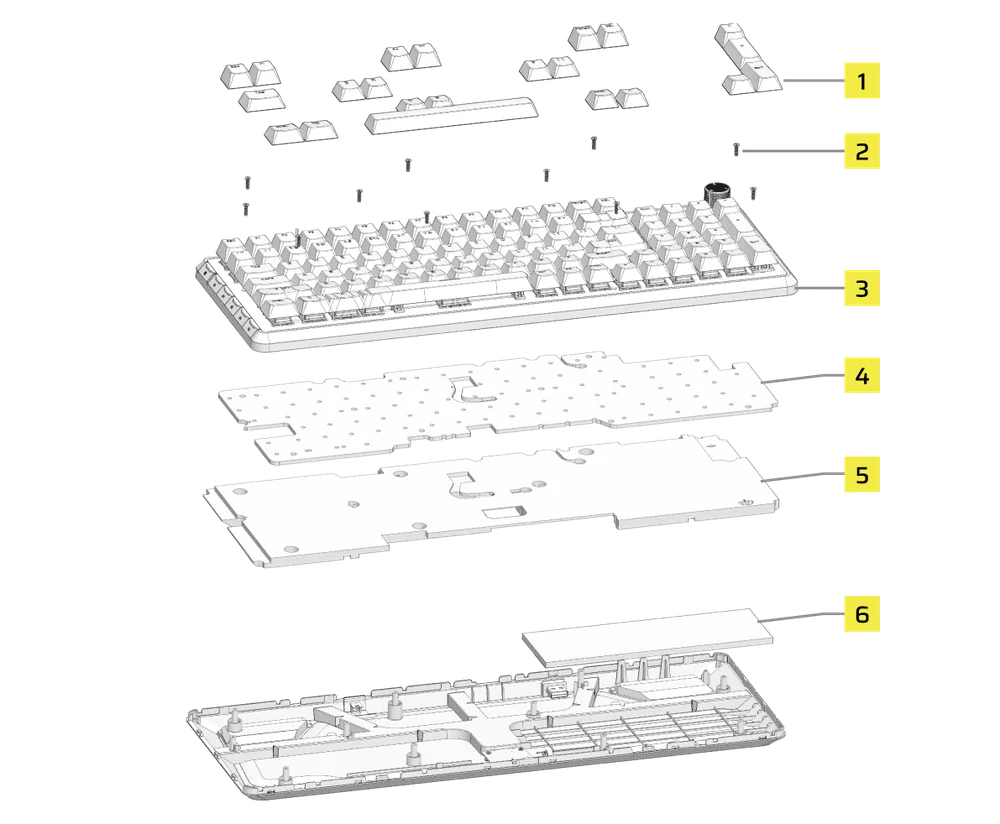
- 移除 21 個鍵帽 (ESC/F1/F6/F7/PRTSC/DEL/TAB/E/R/P/[{/V/B/CTRL_L/WIN/SpaceBar/CTRL_R/</-/+/ENT)
- 卸下 10 個螺絲
- 拆下頂蓋模組
- 拆下吸音海綿
- 拆下矽酮
- 取出電池
CORSAIR MEMORY, Inc. 建議客戶遵照當地法律和規定,回收使用過的電子硬體和可充電電池。
電池資訊
- M/N (型號):3652160
- 容量 (電池容量):3.7V、4200mAh、15.54Wh
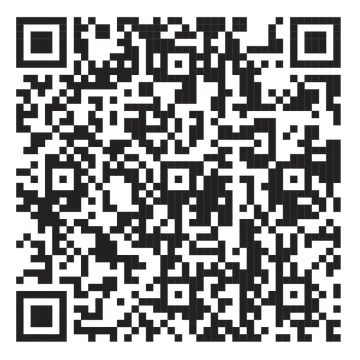
- 掃描 QR 代碼查看電池詳情
鍵盤
M/N (型號):RGP0173
額定值 (電壓/電流):5V  1.5A
1.5A
Dongle
M/N (型號):RGP0177
額定值 (電壓/電流):5V 0.1A
FCC ID:2AAFM-RGP0173 (鍵盤)
FCC ID:2AAFMRGP0177 (Dongle)
IC:10954A-RGP0177 (鍵盤)
IC:10954A-RGP0177 (Dongle)

充電器提供的功率必須介於無線電設備所需的最小 2.5 瓦與最大 7.5 瓦之間,才能達到最高的充電速度。
版權 / 法務資訊
©2026 美商海盜船股份有限公司保留一切權利。CORSAIR 和船帆標誌為在美國及/或其他國家或地區的 CORSAIR 註冊商標。所有其他商標均為個別擁有者的財產。實際產品可能與圖片所示產品稍有不同。


相關內容