MANUAL | QUICK START GUIDE
CORSAIR RS120-R ARGB
REVERSE ROTOR PWM FANS
In this Guide
GETTING TO KNOW YOUR RS120-R FANS
|
A. Female ARGB Connector
|
C. Female PWM Connector |
| B. Male ARGB Connector | D. Male PWM Connector |
BOX CONTENTS
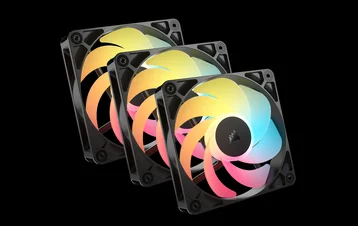
3x RS120-R ARGB Fans
12x Fan Mounting Screws
2x PWM Extension Cables
2x ARGB Extension Cables
FAN INSTALLATION
1. INSTALL THE RS120-R ARGB FANS INSIDE THE CASE
- Mount the RS120-R fans onto your case with the supplied Fan Mounting Screws (2).
2. CREATE A FAN GROUP
- Daisy-chain each fan’s PWM connector from one to the next until you’ve completed the chain.
* Skip this step if you plan to use the RS ARGB fans individually.
3. CREATE AN ARGB GROUP
- Daisy-chain each fan’s RGB connector from one to the next until you’ve completed the chain.
* Skip this step if you plan to use the RS ARGB fans individually.
4. CONNECT THE FAN(S) TO A 4-PIN OR 3-PIN FAN HEADER
- Connect the male end of the PWM Extension Cable (3) to the female PWM connector on the last fan.
- Connect the female end of the PWM Extension Cable (3) to an available 3-pin or 4-pin fan header on your motherboard or fan controller.
5. CONNECT THE FAN(S) TO A +5V ARGB HEADER
- Connect the male end of the ARGB Extension Cable (4) to the female ARGB connector on the last fan.
- Plug the female end of the ARGB Extension Cable (4) into an available +5V ARGB header on your motherboard or fan controller.
FAN SETUP
1. CONFIGURE FAN SPEED
Fan speeds are configured and managed by the devices to which the 4-pin cable is connected. In most situations this is typically the motherboard via a fan header, which requires entering BIOS to configure fan speeds. Please refer to your motherboard manual for additional details.
2. CONFIGURE FAN LIGHTING
Fan lighting is configured and managed by the device to which the +5V ARGB cable is connected. In most situations this is typically the motherboard via a +5V ARGB header, which requires entering BIOS to configure lighting effects. Please refer to your motherboard manual for additional details.
FREQUENTLY ASKED QUESTIONS
Can I connect the 4-pin cable connector into a 3-pin fan header on the motherboard or fan controller?
Yes, you can, but keep in mind, installing a 4-pin connector on a 3-pin header will no longer benefit from PWM control.
In which direction does the air flow?
CORSAIR fans have little arrows on the side of the fan frame that indicate the direction the fan blades spin as well as the direction in which the air flows.
How many fans can I chain together?
Most motherboard fan headers can typically provide up to 1 Amp of current, which would be about 3 fans.
POWER RATING
RS120-R ARGB Input rating: 12Vdc 0.4A
WARRANTY

CORSAIR RS120-R ARGB fans have a 5-year warranty.
LEGAL
© 2025 CORSAIR MEMORY, Inc. All rights reserved. CORSAIR and the sails logo are registered trademarks of CORSAIR in the United States and/or other countries. All other trademarks are the property of their respective owners. Product may vary slightly from those pictured.
RELATED CONTENT