Secure Boot is a setting in the BIOS and when it’s enabled, only software that is trusted by the OEM Is allowed to run. And software that is trusted by the OEM (Original Equipment Manufacturer) is allowed to run at a “deeper” level on your system.
Why do Some Games Require Secure Boot?
The deeper level means that it can function more effectively. This is important for a few reasons, but the most well-known programs that require Secure Boot are PC Gaming Anti-cheat services. The reasons for this are twofold: Firstly, many illicit cheating applications do not work when secure boot is enabled, and secondly, these anti-cheat services can work better when they have the additional access provided by Secure Boot.
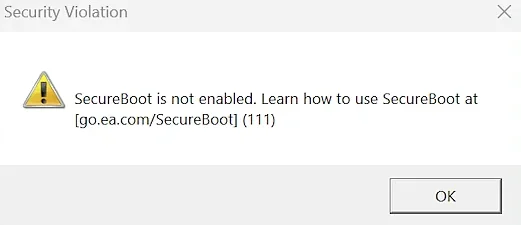
Those trying to play the open beta for Battlefield 6, for example, will be greeted with this error message. Read our guide on how to enable Secure Boot for Battlefield 6 Open Beta to solve this issue.
This means a lot of multiplayer games flat out refuse to run when Secure Booth is not enabled because they won’t allow you to play online without their specific anti-cheat systems working. League of Legends, Valorant, Battlefield 6, and even Fortnite (For certain high-level tournaments) all require Secure Boot to be enabled.
This all sounds fine right? Wrong. The problem is that those still using Windows 10 might not be able to enable Secure Boot, as it’s not always available, as it’s only a compulsory feature for Windows 11, not Windows 10, and that’s because of TPM 2.0.
What is the relationship between Secure Boot and TPM 2.0?
It’s complicated. Depending on the specific system, motherboard, and OS, secure boot does not necessarily require TPM 2.0.
TPM 2.0, by the way, stands for Trusted Platform Module Two Point Zero, and is a physical chip that wasn’t always present on all motherboards in the past, but is now basically ubiquitous due to TPM 2.0 being required for Windows 11.
TPM 2.0 and Secure Boot tend to be lumped in together because Windows 11 requires a TPM 2.0, and Secure Booth capability, not for it to be enabled all the time. However, those anti-cheat systems we mentioned, like EA Javelin and Riot Vanguard require both, creating further confusion. And that’s before we get into Memory Integrity and VBS (SVM), which are two other security features that are related in a similar way as Secure Boot and TPM 2.0.
How to Enable Secure Boot
Enabling Secure Boot is a simple enough process, and in fact might already be enabled depending on how your system was set up initially. So, here’s how to check if Secure Boot is already enabled.
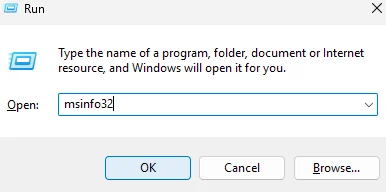
- Open up the “Run” window by holding the Windows key and tapping “R”.
- Type in “msinfo32” and hit the Enter key.
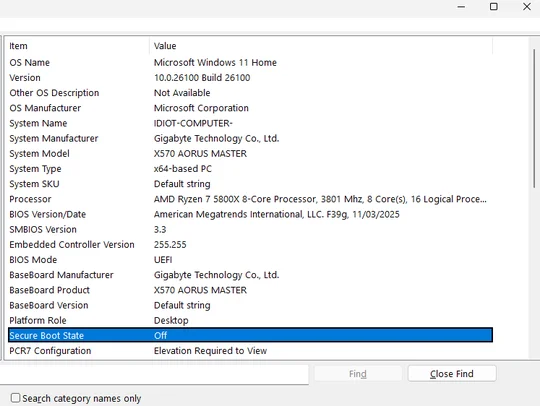
Before Enabling Secure Boot
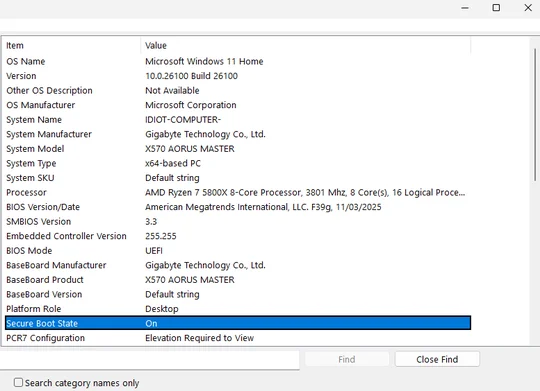
After Enabling Secure Boot
If “Secure Boot State” says “On”, Secure Boot is already enabled and you’re good to go. If it’s “Off”, then you have a little more work to do, and you’ll have to venture into the BIOS to do it. (Your BIOS might look a bit different but they all function very similarly and the names of certain menus and settings might differ a bit.)
Follow steps below to enable Secure boot OR, watch the video below by our very own BobDuckNWeave.
@corsair If you are planning to drop in on the #Battlefield6 beta this weekend, you may be hit with this error message. #corsair #corsairgaming #securebooterror ♬ original sound - corsair
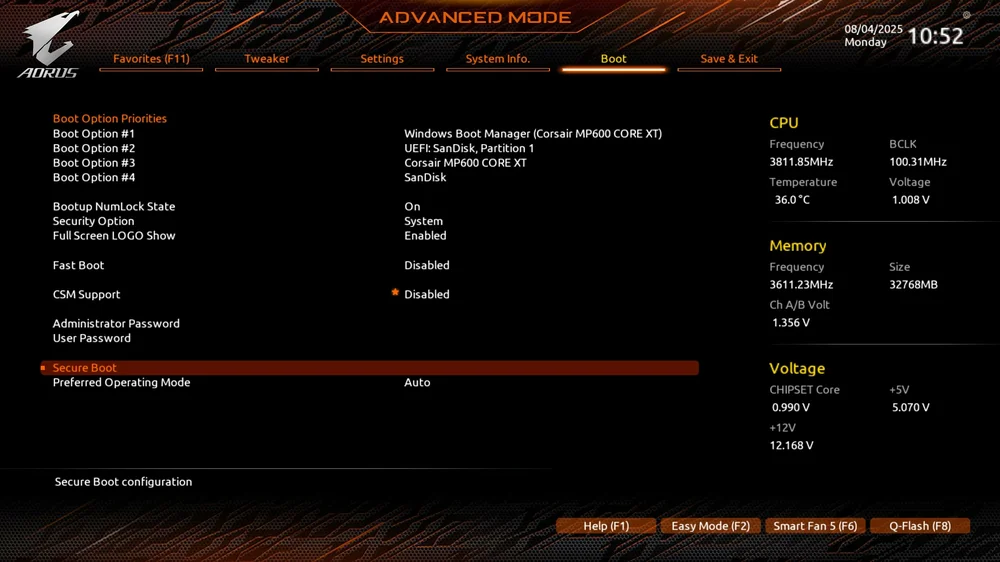
- Restart your PC and slap Delete or F2 until the BIOS appears.
- Once you’re in the BIOS, find the “Boot” or “Startup” tab. (You may have to exit easy mode to do this as some settings are hidden unless you’re in advanced mode.)
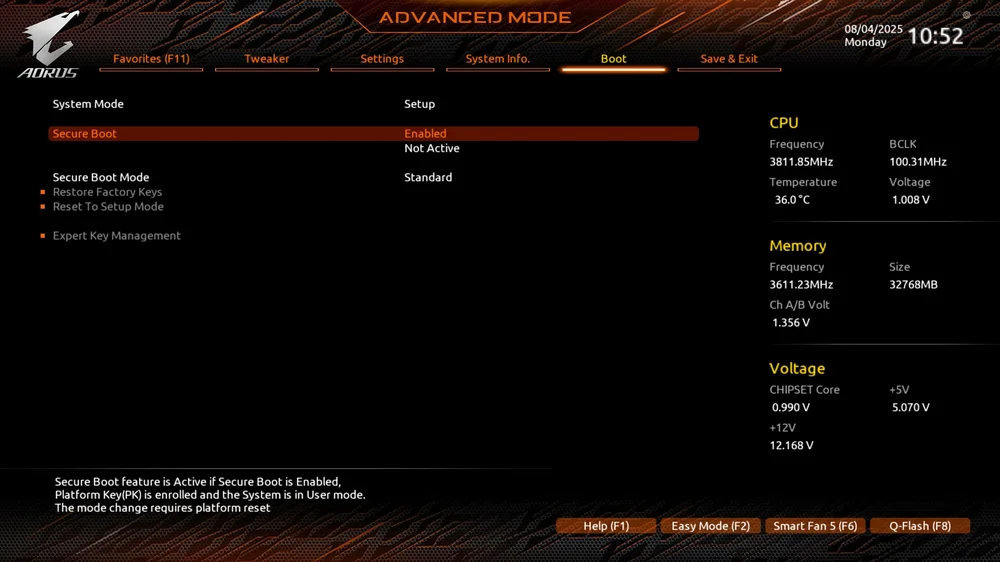
- In the Boot menu, find the “Secure Boot” option and enable it. After this, save and restart your PC.
- Run the "msinfo32" command again and verify that Secure Boot State is now “On”. After this, you’re good to go with whatever game, program, or application that was demanding this.
JOIN OUR OFFICIAL CORSAIR COMMUNITIES
Join our official CORSAIR Communities! Whether you're new or old to PC Building, have questions about our products, or want to chat about the latest PC, tech, and gaming trends, our community is the place for you.