Local LLM tools let you run a large language model (LLM) on your own computer instead of relying on a cloud service. That can be useful for experimenting, working offline, reducing latency, or keeping sensitive inputs on-device.
Two popular options for running models locally are Ollama and LM Studio. Both aim to make local inference easier, but they’re optimized for different workflows:
- Ollama: simple model running + developer-friendly CLI and API
- LM Studio: desktop app experience + model browsing + built-in server controls
What is Ollama?
Ollama is a tool that helps you download and run LLMs locally with a command-line workflow and a local HTTP API. It’s often used when you want a lightweight “runtime” that other programs can talk to (for example, a coding assistant, a chat UI, or your own app).
Common reasons people choose Ollama:
- You’re comfortable using a terminal
- You want an easy way to run a model and expose it as an API
- You want a repeatable setup (for example, sharing a configuration with teammates)
Ollama also supports “Modelfiles,” which define how a model should behave (base model, parameters, prompt template, etc.).
What is LM Studio?
LM Studio is a desktop application for running local LLMs with a GUI. It focuses on convenience: finding models, downloading them, switching between them, chatting, and optionally running a local server for other tools to call.
Common reasons people choose LM Studio:
- You prefer a visual workflow over command line
- You want built-in model discovery and download
- You want “one app” to handle experimenting and serving a model
LM Studio can also run a local API server (including OpenAI-style compatible endpoints in many setups), which helps if you’re connecting local models to apps designed around that style of API.
Which one should you pick?
A big part of deciding is understanding the learning curve and workflow:
- Ollama is straightforward if you’re comfortable with a terminal. Many people use it as a “background service” they rarely think about once it’s working.
- LM Studio is straightforward if you want a UI: pick a model, download it, click to run it.
If you’re brand-new to local models, LM Studio’s UI can make early experimentation feel more approachable. If you’re building software around local inference, Ollama’s runtime/API-first approach can feel simpler.


Model Discovery
- LM Studio emphasizes browsing and downloading supported models from within the app.
- Ollama emphasizes “pull and run” from its model library and config-driven setup.
If you want to explore lots of models quickly, LM Studio tends to feel smoother because discovery is part of the interface.
Security Considerations
“Local” usually means everything stays on your machine but if you run an API server and expose it beyond localhost, you should treat it like any local web service:
- Bind to localhost if you don’t need LAN access
- Use authentication if the tool supports it
- Be careful with firewall rules and shared networks
LM Studio documents API server options and settings; Ollama is typically used locally unless you deliberately expose it.
So which one do I pick?
Choose Ollama if you want:
- a simple runtime you can script and automate
- a CLI-first workflow
- a clean local API for integrating with other tools
- a repeatable configuration approach (Modelfiles)
Choose LM Studio if you want:
- an easy desktop UI for browsing and testing models
- a “download + chat + serve” all-in-one experience
- a visual way to manage models and settings
What hardware do you need for local LLMs?
Local LLM performance depends heavily on:
- model size
- quantization level (smaller/faster variants vs larger/higher-quality variants)
- context length (how much text the model can consider at once)
- your memory capacity and bandwidth (RAM/VRAM)
- GPU/accelerator support
In practice:
- Smaller models can run on CPU-only machines, but will be slower.
- A capable GPU (or high-performance integrated GPU) can speed up inference significantly.
- More memory (RAM/VRAM) makes it easier to run larger models and longer contexts without constant tradeoffs.
Where CORSAIR AI Workstation 300 fits
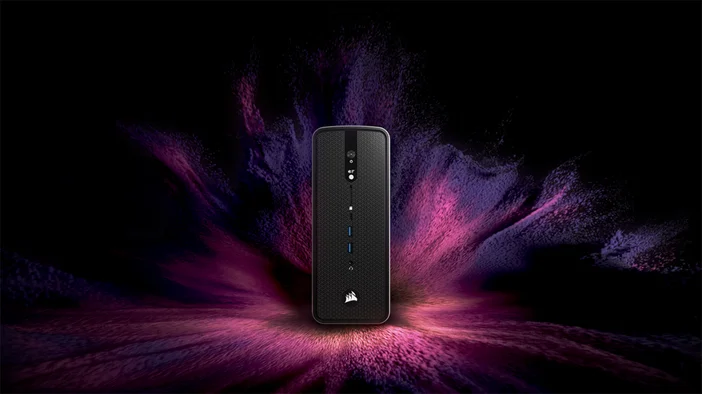
If you’re looking at purpose-built local AI hardware, our CORSAIR’s AI WORKSTATION 300 is positioned for on-device AI workloads, with a configuration that highlights high memory capacity and a large shared memory/VRAM ceiling (depending on workload and configuration).
Separately, the CORSAIR AI Software Stack is as a guided setup approach intended to reduce the friction of installing and configuring common AI tools and workflows. For people who don’t want to spend time on environment setup, that kind of “curated install path” can be useful.
Can I keep my data private with local LLMs?
Often, yes, because prompts and files don’t need to be sent to a third-party server to run inference. But privacy still depends on what you install and what network settings you enable (e.g., whether you expose an API server). General best practice: keep services bound to localhost unless you truly need LAN access.
Can these tools work with other apps?
Yes. Both Ollama and LM Studio can run a local server so external tools can call your model via HTTP. Many workflows involve pairing a local runtime with a separate chat UI, editor plugin, or automation tool.
PRODUCTS IN ARTICLE
JOIN OUR OFFICIAL CORSAIR COMMUNITIES
Join our official CORSAIR Communities! Whether you're new or old to PC Building, have questions about our products, or want to chat about the latest PC, tech, and gaming trends, our community is the place for you.