MANUAL | QUICK START GUIDE
VOID WIRELESS v2
Wireless Gaming Headset
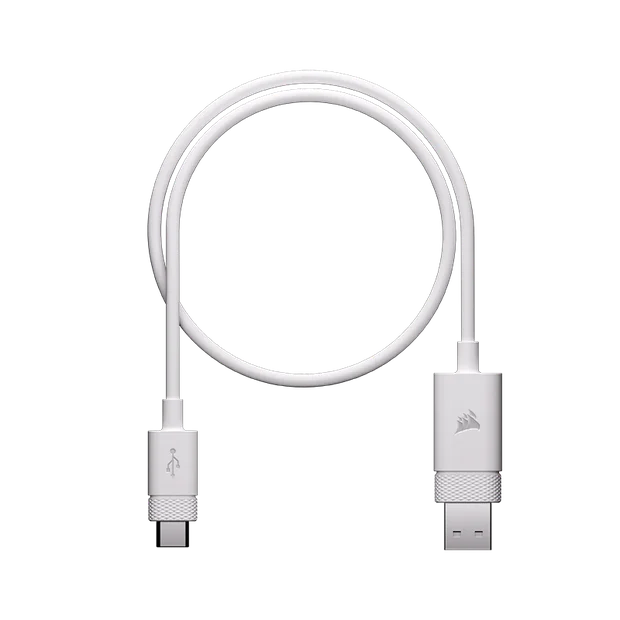
PACKAGE CONTENTS

GETTING TO KNOW YOUR HEADSET
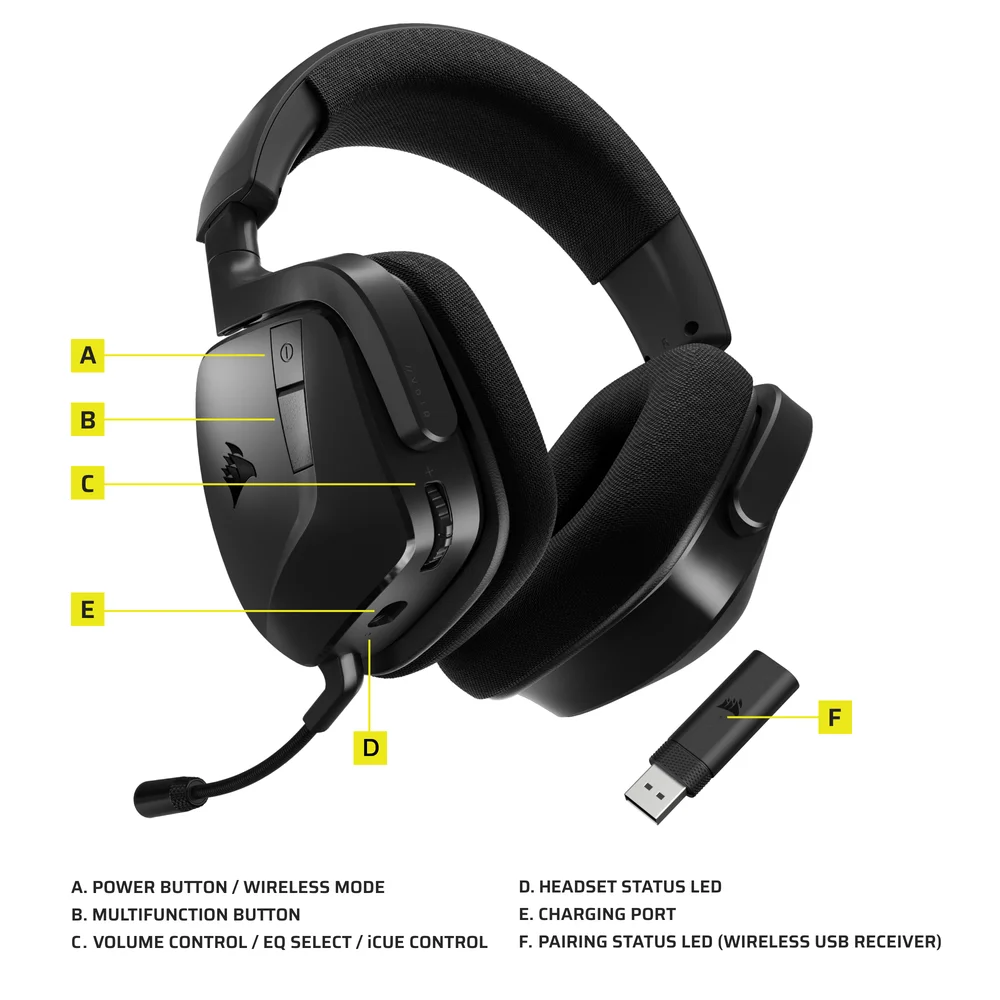
Ports and Buttons
RF WIRELESS MODE
PC - Connect the wireless USB transmitter to any USB (type-A) port on your PC. Press the power button on the headset. The headset powers on in RF wireless mode by default. The headset is designed to operate at a range of up to 50 feet (15.24m) from the transmitter, but other wireless devices, electronics, and obstructions such as walls may impact the connection range.
UPDATE FIRMWARE
Please install CORSAIR iCUE software prior to use.
On first setup, please run iCUE and check for the latest firmware update via the Device Settings.
Note: The first time you use the CORSAIR VOID WIRELESS v2 headset on a PC, the operating system will automatically install a device driver. After this driver is installed, we recommend you reboot your PC before use.
PLAYSTATION - Connect the wireless USB transmitter to any USB port on your PS4 or PS5 console. Use the PlayStation UI to set “Output to Headphones” to “All Audio”. Adjust volume control (Headphones) to maximum level. Then adjust volume with the headset volume control.
BLUETOOTH MODE
With the headset powered on, enable pairing by holding the MFB until the status LED rapid blinks red and blue. When the headset is paired, the status LED will blink blue. Quick press the power button to toggle between RF wireless and Bluetooth modes. When the headset is in RF wireless mode the status LED will blink red, orange or green depending on the current battery level. Note when the headset is in RF wireless mode and paired via Bluetooth with a mobile phone, it will only accept and receive phone calls. Quick press the power button to enter Bluetooth mode and enable both phone calls and Bluetooth audio (such as when listening to music). The headset will default to the last mode it was set to when turned off.
ANSWERING AND ENDING PHONE CALLS
To answer an incoming call, single press the MFB. To end the call, single press the MFB again.
LISTENING TO MUSIC (MEDIA PLAYBACK)
To play a track, single press the MFB. To pause playback, single press the MFB again. To skip forward, press the MFB twice quickly. To skip backwards, press the MFB three times quickly.
FOR OPTIMAL WIRELESS PERFORMANCE
- Place the USB wireless transmitter in an open, unobstructed area.
- Make sure the battery is fully charged before initial use.
- Do not leave the battery fully discharged for long periods. Battery life is maximized by keeping the battery in a partially charged state.
- Keep the headset at room temperature (20-30c or 68-86 F).
NOTE: Prolonged listening at high volumes may adversely affect your hearing. Take breaks between sessions and always begin with the volume at a low level before increasing.
CORSAIR iCUE
Go to corsair.com/icue to download the CORSAIR iCUE software.
Using iCUE software will enable the full feature set of the VOID WIRELESS v2 headset. The USB Wireless Receiver must be connected to your PC to use iCUE software.
Note: If the headset is used without software, some features will be disabled.
- Install the iCUE software on a PC running Windows 10 or later, or on macOS.
- After installation is complete, reboot your PC, and launch iCUE.
iCUE software can be used to:
- Select and customize audio equalizer (EQ) settings.
- Assign and customize the EQ scroll press settings.
- Enable and adjust your microphone sidetone levels.
VOLUME CONTROL
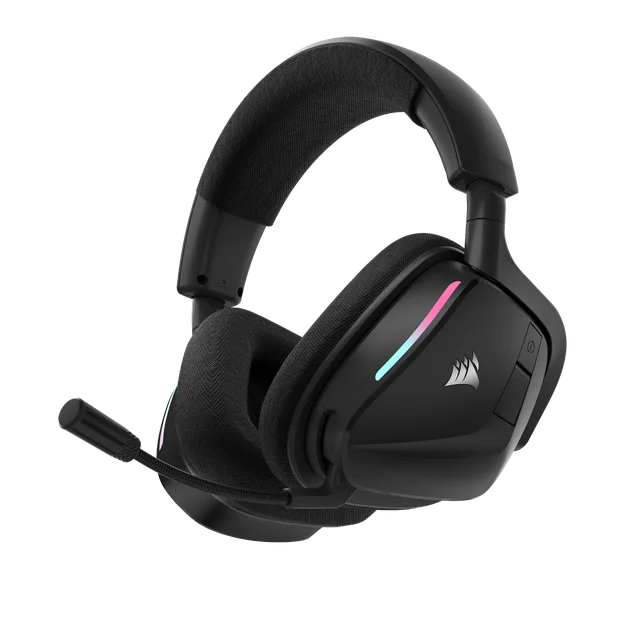
Use the volume control/EQ select wheel to adjust volume up or down. In addition, pressing and holding the volume wheel for 1 second cycles through four audio EQ presets.
MICROPHONE CONTROL
Raising the microphone boom up will mute the microphone and lowering the microphone boom will unmute the microphone.
The headset will sound when the microphone is muted or unmuted.
CHARGING
The CORSAIR VOID WIRELESS v2 Headset must be fully charged before its first use.
- Connect the USB charging cable to any working USB port on your PC.
- Connect the USB charging cable to the CORSAIR VOID WIRELESS v2 Headset.
BATTERY STATUS LED INDICATIONS (ON HEADSET)
| LOW (0-30%) | MEDIUM (31-50%) | HIGH (51-100%) |
| RED | ORANGE | GREEN |
Manufactured under license from Dolby Laboratories. Dolby, Dolby Atmos® and the double-D symbol are trademarks of Dolby Laboratories Licensing Corporation.

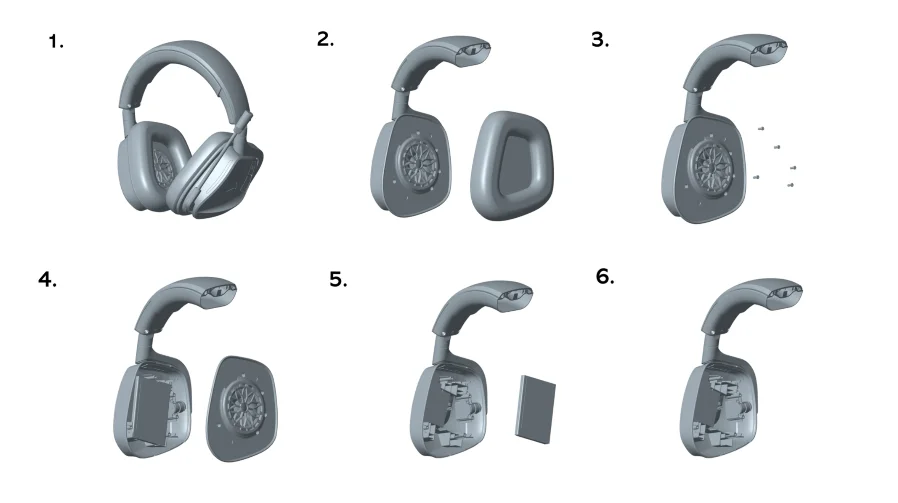
BATTERY REMOVAL INFORMATION
This product uses a rechargeable battery and safety guidelines must be followed in the event that the product is disabled for the disposal and recycling. To safely remove the battery for disposal and recycling, follow the numbered steps with the below diagrams.

The power delivered by the charger must be between min 0.025 Watts required by the radio equipment, and max 2.15 Watts in order to achieve the maximum charging speed.
COPYRIGHT/LEGAL INFORMATION
© 2025 CORSAIR MEMORY, Inc. All rights reserved. CORSAIR and the sails logo are registered trademarks of CORSAIR in the United States and/or other countries. All other trademarks are the property of their respective owners. Product may vary slightly from those pictured.
FCC ID : 2AAFM-RDA0052 (Casque)
FCC ID : 2AAFM-RDA0050 (Récepteur)
IC : 10954A-RDA0052 (Casque)
IC : 10954A-RDA0050 (Récepteur)
M/N (Model): RDA0052 (Headset)
M/N (Model): RDA0050 (Receiver)

RELATED CONTENT