GLOSSARY
What is Virtual Memory?
Virtual memory is a feature of your operating system that sets aside a chunk of your SSD or hard drive as temporary memory when your physical RAM is full. It exists to keep your PC running smoothly when you run out of RAM, preventing it from crashing and allowing you to multitask beyond your system’s physical RAM limits. Instead of shutting down an application, the operating system moves less-used data out of RAM and onto your main storage drive, freeing up space for active tasks.
Virtual memory is a safety net, albeit one that negatively impacts your performance. When your PC heavily uses virtual memory, you will notice a slowdown because storage drives are far slower than RAM. For gamers, this usually is not a major issue because most modern games are memory-efficient. Problems can arise when you are gaming, streaming, or keeping dozens of browser tabs open. In those cases, virtual memory can kick in and that is when performance takes a hit.

How Virtual Memory Works
When your system RAM fills up, the operating system accesses a page file on your storage drive. Data that is not immediately needed is swapped out of physical RAM and written to this page file. When that data is needed again, it is read back from virtual memory into physical memory (RAM). This process is called paging, and while it keeps your system stable, it is much slower than accessing data directly from RAM.
It’s slower because your system RAM operates at anything from 25GB/s up to 96GB/s, depending on how your machine is set up and whether you’re using DDR4 or DDR5. Compare that to storage speeds:
- NVMe SSD: around 3GB/s up to 10GB/s
- SATA SSD: up to 600MB
- HDD: roughly 100–200MB/s
Even the fastest NVMe SSD is almost 10 times slower than RAM, and a hard drive is hundreds of times slower. That gap means every time your PC swaps data between RAM and storage, you will feel it in stutter, drop frames, or see longer load times. If you are gaming on a system with limited RAM and running other heavy applications, virtual memory can become a major bottleneck.

When Virtual Memory Matters for Gamers
For most gamers, virtual memory rarely affects gameplay because modern titles are designed to use memory efficiently, as long as you have enough memory to start with. But if you are multitasking, streaming, chatting on Discord, and keeping multiple browser tabs open, your RAM usage can spike. When that happens, the system starts paging data to storage, and performance suffers.
How do you know if you are hitting virtual memory? Watch for signs like sudden sluggishness or disk activity spikes. You can check in Task Manager under Performance -> Memory to see if the page file is being used. If it is happening regularly, the only real solution is to add more RAM.
So how much memory should you have? For modern gaming, 32GB is the sweet spot, especially if you stream or keep browsers open while playing. It gives you headroom for multitasking without dipping into virtual memory. For serious use such as content creation, heavy multitasking, or professional streaming, 64GB is ideal. Increasing virtual memory size in Windows can help prevent crashes, but it will not improve gaming performance. If you want smooth gameplay, invest in RAM first. An SSD helps reduce the impact compared to an HDD too, and you should be using an SSD in this day and age, but even that can’t compete with the speed of the latest DDR5 RAM.
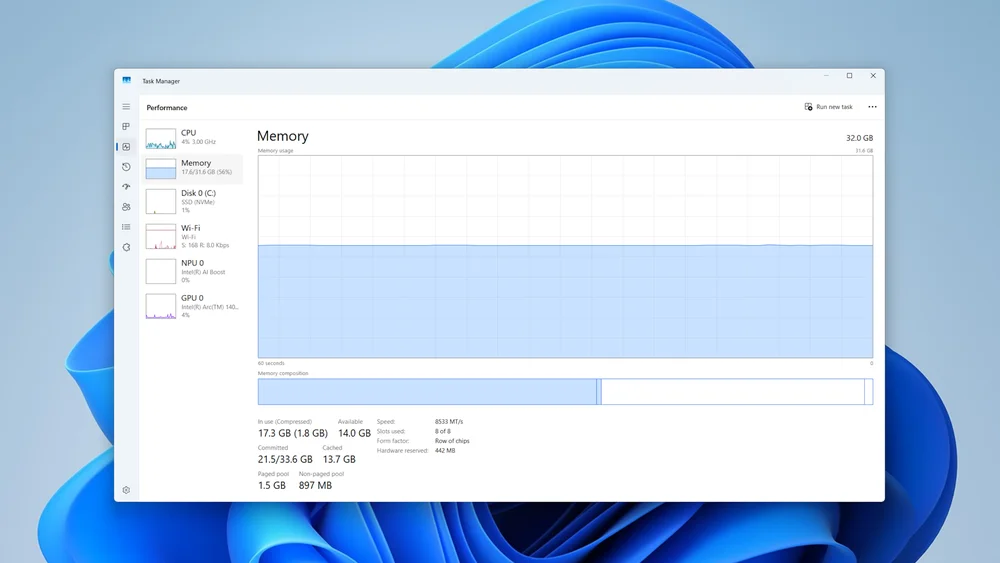
Virtual Memory usage can be seen at the bottom of the Memory Performance screen in Task Manager.
Summary
Virtual memory is a backup system that keeps your PC stable when your physical RAM is full. Using virtual memory will slow your PC down though. For gamers, the best way to avoid slowdowns is simply make sure you have enough RAM.