HOW TO
What to do if your DRAM's RGB is stuck with red ends
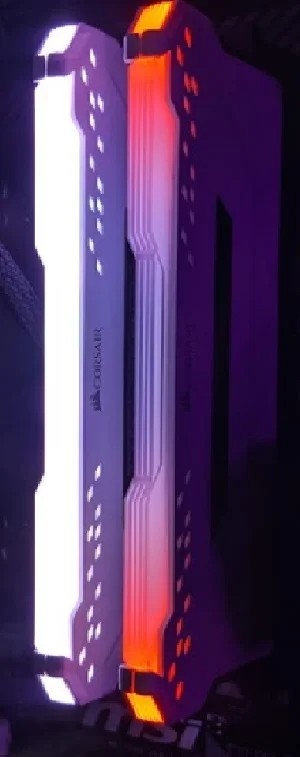
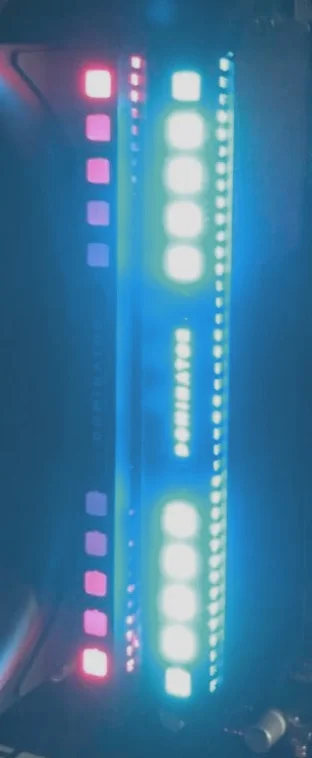
When your CORSAIR DRAM's RGB has red lights on each end, it means that it is in firmware update mode. If your DRAM is currently stuck on firmware update mode, here are some ways to fix the issue.
Step 1: Remove conflicting software
Certain software have been known to conflict with iCUE and cause issues with RGB lighting. Below are some known software that cause conflict; remove them and see if your DRAM issue is resolved:
- EVGA Precision XOC
- MSI Mystic Light and/or Dragon Center
- ASUS Aura RGB
- ASUS Armoury Crate
- Razer Synpase
- Logitech G Hub
- Thaiphoon Burner
- Gigabyte RGB Fusion
Step 2: Force flash the DRAM firmware
If you do not have any conflicting software, try forcing flashing the firmware of your DRAM.
There are two ways to force flash firmware:
- Use iCUE to force an update, which will pull the latest firmware from CORSAIR servers
- Use iCUE to browse for a firmware file provided by our support team; you can ask for the firmware file by contacting the support team and creating a help ticket
To force flash your DRAM firmware:
- Open iCUE.
- Select your DRAM on the iCUE home screen.
- Click Device Settings.
- Click Check for Updates; you should get a message saying "Latest Version."
- Click the three dots next to "Latest Version."
- Select one of the options:
- Click Force Update to force a firmware update to your DRAM.
- Click Browse for Firmware to browse and open the firmware file provided by Tech Support.
JOIN OUR OFFICIAL CORSAIR COMMUNITIES
Join our official CORSAIR Communities! Whether you're new or old to PC Building, have questions about our products, or want to chat the latest PC, tech, and gaming trends, our community is the place for you.