The CORSAIR NOVABLADE PRO Wireless Hall Effect Controller is built to deliver next-level performance with precision magnetic switches, low-latency wireless connectivity, and a premium build made for competition. To keep your controller performing at its best, it’s important to regularly update its firmware (FW) and ensure its properly paired with its wireless dongle.
Firmware updates help maintain peak performance, fix minor bugs, and improve wireless stability across both 2.4GHz and Bluetooth® connections. Here’s how to update your NOVABLADE PRO using the official CORSAIR Firmware Update Utility and pair it to your wireless dongle.
Visit the CORSAIR Firmware Update Utility here:
https://www.corsair.com/firmware-updater/index.html
Why Firmware Updates Matter
Firmware is the software that controls how your NOVABLADE PRO communicates with your PC or console. Keeping it updated ensures:
- Peak Performance: Optimized input response and faster key detection.
- Improved Stability: Smoother connectivity and fewer signal drops.
- Bug Fixes: Resolution of known issues and better system compatibility.
- Feature Enhancements: Enables the latest improvements from CORSAIR engineering.
Updating regularly ensures your controller continues performing like new whether you’re practicing combos or competing online.
Preparing for the Firmware Update
Before beginning, make sure you have:
- A Windows PC or macOS system and a supported browser with internet access.
- The NOVABLADE PRO controller and its wireless dongle nearby.
- The supplied USB-C cable to connect your devices.
Update Your Firmware
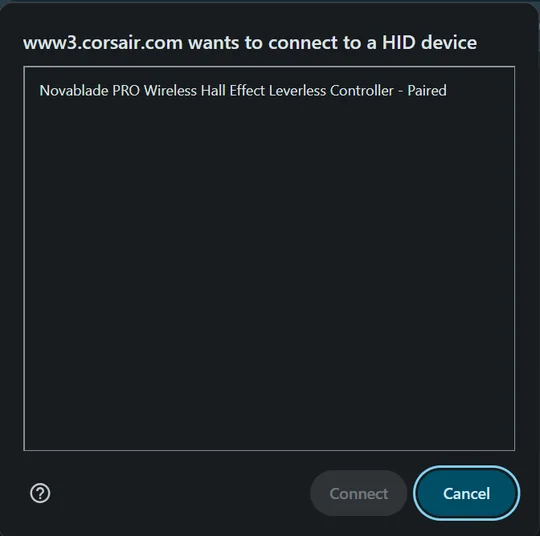
- Visit the Firmware Update Utility:
Go to corsair.com/firmware-updater - Connect Both Devices:
Plug in your NOVABLADE PRO and its wireless dongle to your computer via USB. - Authorize the Devices:
When prompted, allow the utility to recognize and authorize both devices. - Update in Order:
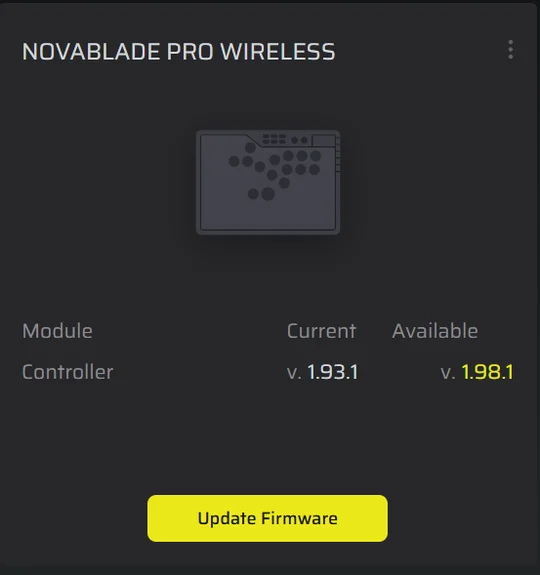
- First, update the wireless dongle.
- Then, update the NOVABLADE PRO controller itself.
The tool will guide you through each step and confirm once the process is complete.
Pair the Controller to the Wireless Dongle
Once both devices are updated, you’ll need to pair them for wireless use:
- Switch the NOVABLADE PRO to Wireless Mode.
- Hold L3 + R3, then press and hold the PlayStation/Power button.
- Continue holding until the lights on the controller flash on, this indicates pairing mode.
- The controller will automatically connect to the wireless dongle once the pairing process is complete.
Once successful, the NOVABLADE PRO’s buttons will flash and return back to regular lighting.
Enjoy Enhanced Performance
After updating and pairing, your NOVABLADE PRO is now running the latest firmware, ensuring the best possible wireless performance, responsiveness, and stability. For future updates, revisit the CORSAIR Firmware Update Utility to stay current with the latest enhancements and fixes.
PRODUCTS IN ARTICLE
JOIN OUR OFFICIAL CORSAIR COMMUNITIES
Join our official CORSAIR Communities! Whether you're new or old to PC Building, have questions about our products, or want to chat about the latest PC, tech, and gaming trends, our community is the place for you.