Our friends over at Elgato have created Virtual Stream Deck, which brings all the functionality of a bona fide Stream Deck onto your screen. Any screen, in fact. And given that the XENEON EDGE can function as an additional screen, and is touch-sensitive, it’s the perfect spot for Virtual Stream Deck.
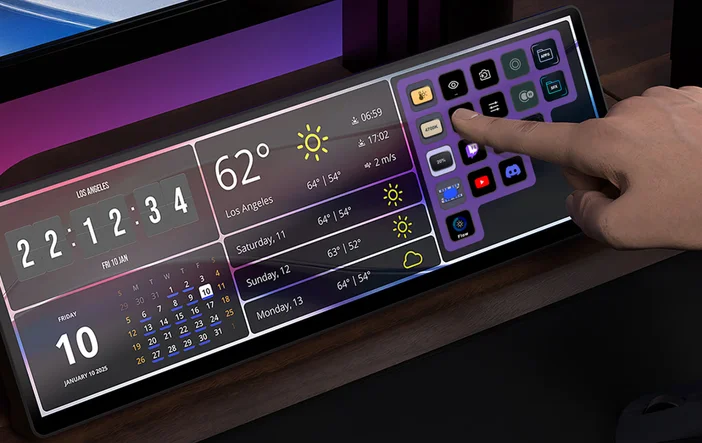
So, here’s a rundown on how to make Elgato Virtual Stream Deck work on the CORSAIR XENEON EDGE and a few suggestions on the best uses for this perfect combo.
How to Install Elgato Virtual Stream Deck
This is a pretty smooth and quick process. Make sure that you already have the latest version of the Stream Deck software installed first. Then follow the steps below.
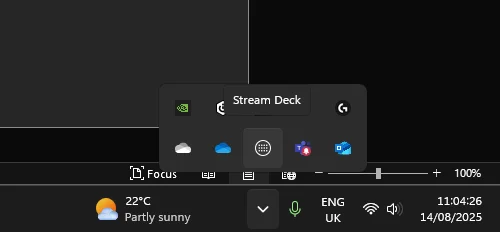
Open the main Stream Deck app. It’s probably minimized, hiding in the system tray. So, click on the chevron in the task bar and click on the little Stream Deck icon.
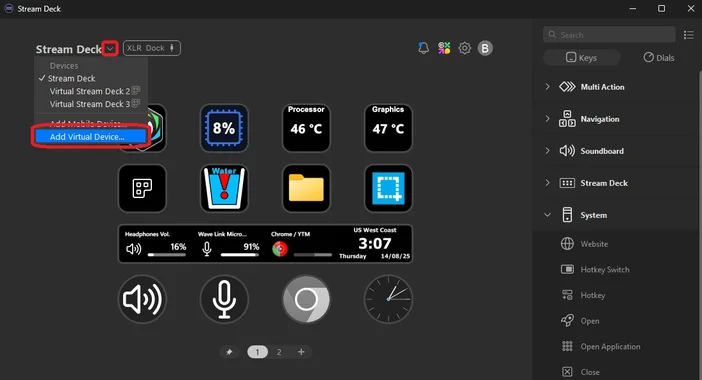
- Click the downward facing chevron in the top right of the app, then click “Add Virtual Device…”.
- This will create Virtual Stream Deck, starting you off with a little 2x3 Stream Deck, approximating Stream Deck Mini.
How to Use Virtual Stream Deck on CORSAIR XENEON EDGE
However, this is just the beginning, as you can make Virtual Stream Deck as big as you like, and customize it to look and behave exactly how you want. Additionally, there’s a few specific settings that make it work perfectly with the XENEON EDGE.
- First, we need to adjust Virtual Stream Deck to get it sized just right for the XENEON EDGE. Drag Virtual Stream Deck across to your XENEON EDGE and align it where you want it.
- Now go back to the Stream Deck software and click the “Interface Settings” symbol.
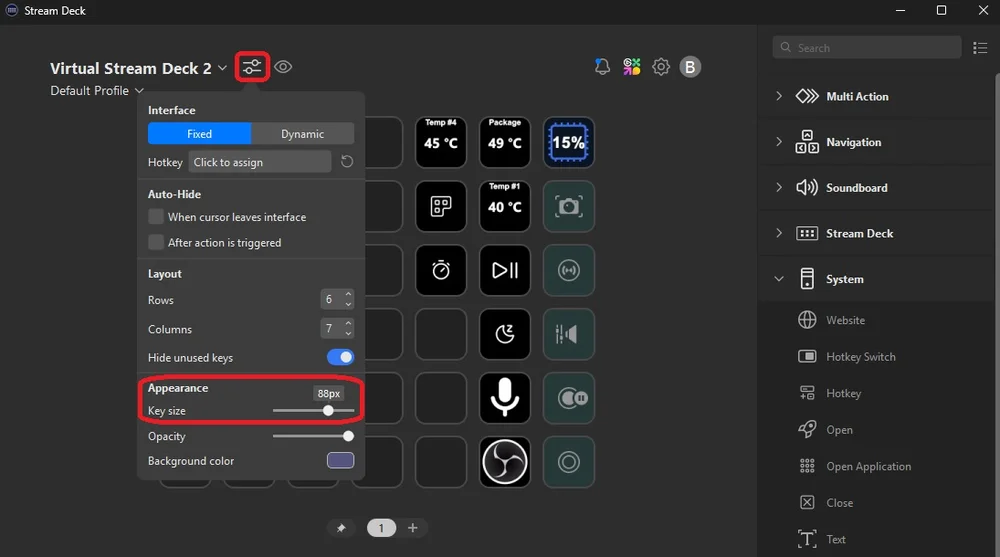
- Head to the “Appearance” section and use the “Key size” slider to adjust how big Virtual Stream Deck is. We found 88px is the best to fit 6 keys vertically up the side of the XENEON EDGE perfectly.
- Next, you’ll want to use the “Background color” option to get your Virtual Stream Deck looking how you want. Those who enjoy a glassy translucent look can play with the “Opacity” slider.
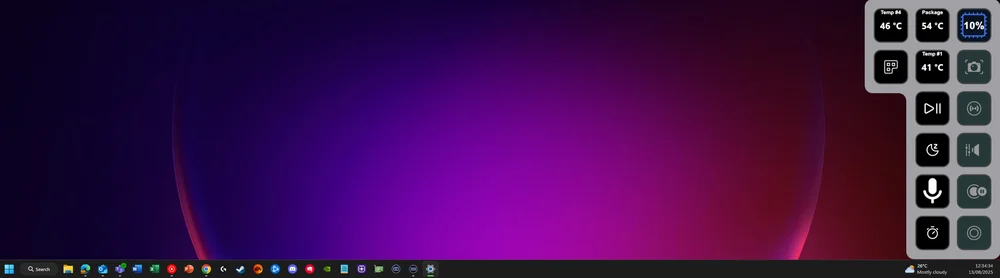
After this, it’s pretty much up to you. Remember that Virtual Stream Deck has identical functionality as compared to the physical Stream Decks, so whatever you can do with those, you can do with this.
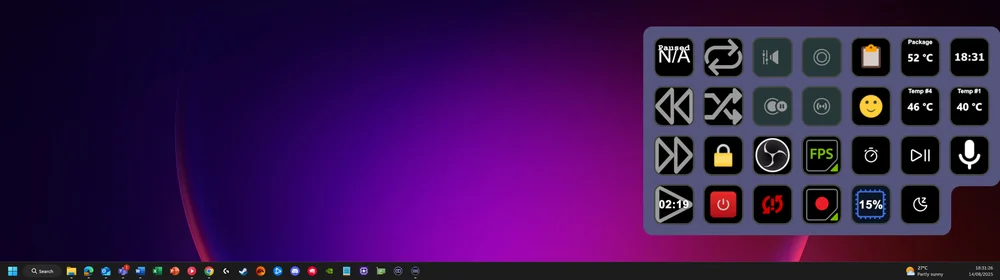
A great use for Virtual Stream Deck is for integrations that utilize visual data on the key itself. Because you can scale the size of the keys up those keys become more visible than they might be on a physical Stream Deck.
PRODUCTS IN ARTICLE
JOIN OUR OFFICIAL CORSAIR COMMUNITIES
Join our official CORSAIR Communities! Whether you're new or old to PC Building, have questions about our products, or want to chat about the latest PC, tech, and gaming trends, our community is the place for you.