Some CORSAIR EX400U USB4 portable drives may encounter an issue where the drive frequently disconnects and may no longer be detected by the system in some cases. Investigation identified the root cause as Link Power Management (LPM), a power-saving feature, designed to place storage devices into a low-power state when idle.
On certain system configurations and with drive Firmware version ULFM91.0, the EX400U may fail to exit this low-power link state, resulting in the drive appearing unresponsive or failing to be recognized by the operating system.
To resolve this, CORSAIR has released the Reinitialization Tool, a simple utility designed to reinitialize affected drives, restore normal functionality and update the drive firmware to version ULFM91.1.
| Affected part numbers | CSSD-EX400U1TB, CSSD-EX400U1TBC, CSSD-EX400U2TB, CSSD-EX400U2TBC, CSSD-EX400U4TB, CSSD-EX400U4TBC, (using Firmware version FW91.0) |
| Affect serial number range | Serial numbers beginning with AA2XB5090 through AA2XB5260 |
Please be aware that this firmware update will erase all user data. Make sure a backup of the drive has been performed before attempting the following steps. The Process is as follows:
- Download the Reinitialization Tool from the link below by selecting “Storage” from the drop-down menu: https://www.corsair.com/downloads.
(Supported platforms: Windows 10 (64-bit) and Windows 11. Please temporarily disable any antivirus or security software and disconnect any other external drives to avoid interference.)
- Connect the EX400U to a Windows PC using the included USB-C cable.
- Run the utility as an administrator. The utility may require approval to access some system functions.
- When the EX400U appears with a yellow background in the utility window, click “Run” to start the reinitialization process.
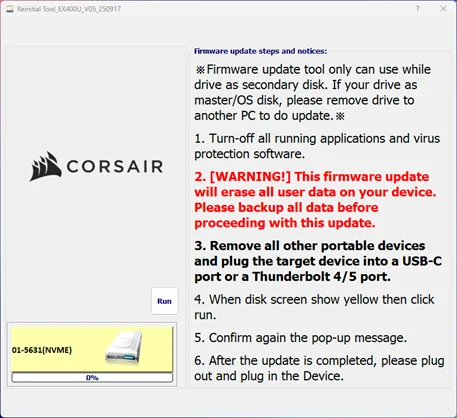
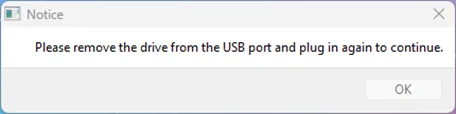
- If the drive is plugged into a TB4/USB4 port, then during the process the utility will pop up the following message. Please remove the drive and plug it back in to complete the process.
- Once the update is completed a pop-up message will appear and the drive box at the bottom left will be green.
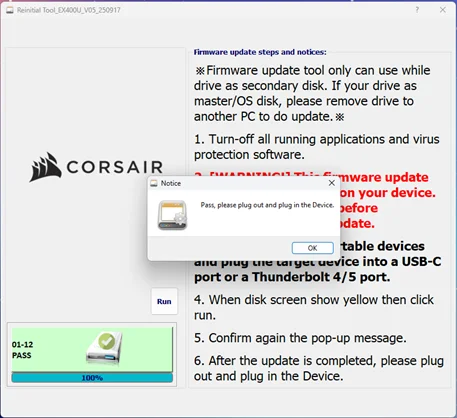
- Please unplug the EX400U from the computer and plug back in to finish.
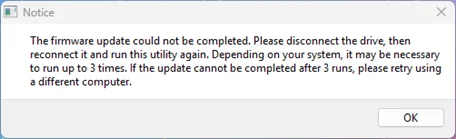
After completion, the EX400U can be used normally. In case the process interrupts or is unable to complete successfully, the following pop-up message will appear. Please disconnect the drive and restart the firmware update process.
For additional help, please contact CORSAIR support.
PRODUCTS IN ARTICLE
JOIN OUR OFFICIAL CORSAIR COMMUNITIES
Join our official CORSAIR Communities! Whether you're new or old to PC Building, have questions about our products, or want to chat about the latest PC, tech, and gaming trends, our community is the place for you.