Most people these days have at least one wireless device connected to their PC, usually two or three. If you have more than one wireless device, you may experience interference.
This can manifest in ways such as audio dropout, missed mouse clicks, or stuttering and reduced range of wireless devices.
What causes interference with USB dongles?
There can be several causes of interference, and the most common culprits are as follows:
- Multiple dongles beside each other
- USB 3.0 ports
- Large amounts of Wi-Fi or Bluetooth signals locally
- Older TVs and radios
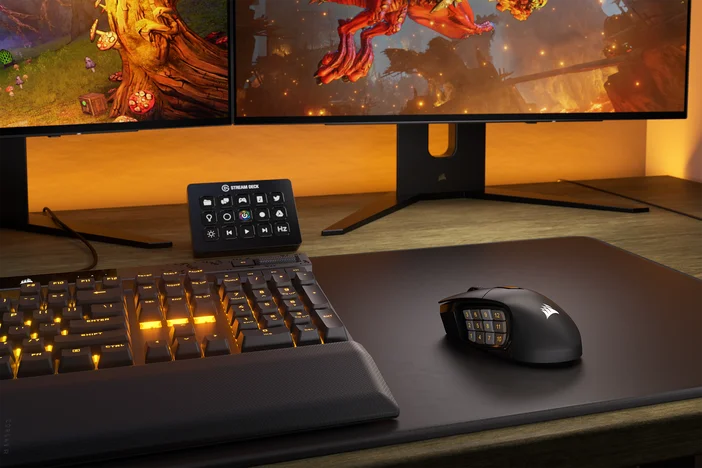
How to stop interference with USB dongles
There are a few things you can do to help prevent this.
- If you have multiple dongles, try putting them as far apart as possible on the rear motherboard I/O.
- You can also use the front USB ports, or a USB extension cable to get a dongle away from the source of the interference. Front USB ports are still prone to interference, so do not use the ports directly adjacent to each other.
- USB 3.0 ports can make interference worse, due to the higher data transfer speed they use. This can generate noise in the same frequency range as 2.4Ghz wireless devices, leading to interference.
- Some monitors have USB ports. Consider using these as they are already likely to be a safe distance from the other USB ports in your setup.
- If you're using Wi-Fi, you may have the option to move from 2.4GHz to 5GHz, this will reduce chances of interference.
- Of course, the best way to remove the wireless interference is to use a wired connection. This might be hard to stomach with a gaming mouse, but you really don't lose anything by plugging your keyboard in.
JOIN OUR OFFICIAL CORSAIR COMMUNITIES
Join our official CORSAIR Communities! Whether you're new or old to PC Building, have questions about our products, or want to chat about the latest PC, tech, and gaming trends, our community is the place for you.