HOW TO
Cómo: Configure la rueda de control iCUE de su teclado K100 RGB
You can use the iCUE control wheel of your K100 RGB gaming keyboard to toggle backlighting settings, record macros, perform custom actions in games and other applications, and more. You can cycle through the various control wheel modes by pressing the wheel key in the center of the wheel, and you can also assign different colors to each control wheel mode.
For iCUE version 4 or newer
- Using the control wheel
- Recording macros with the control wheel
- Creating custom modes
- Saving profiles to onboard memory
- Video instructions
Using the control wheel
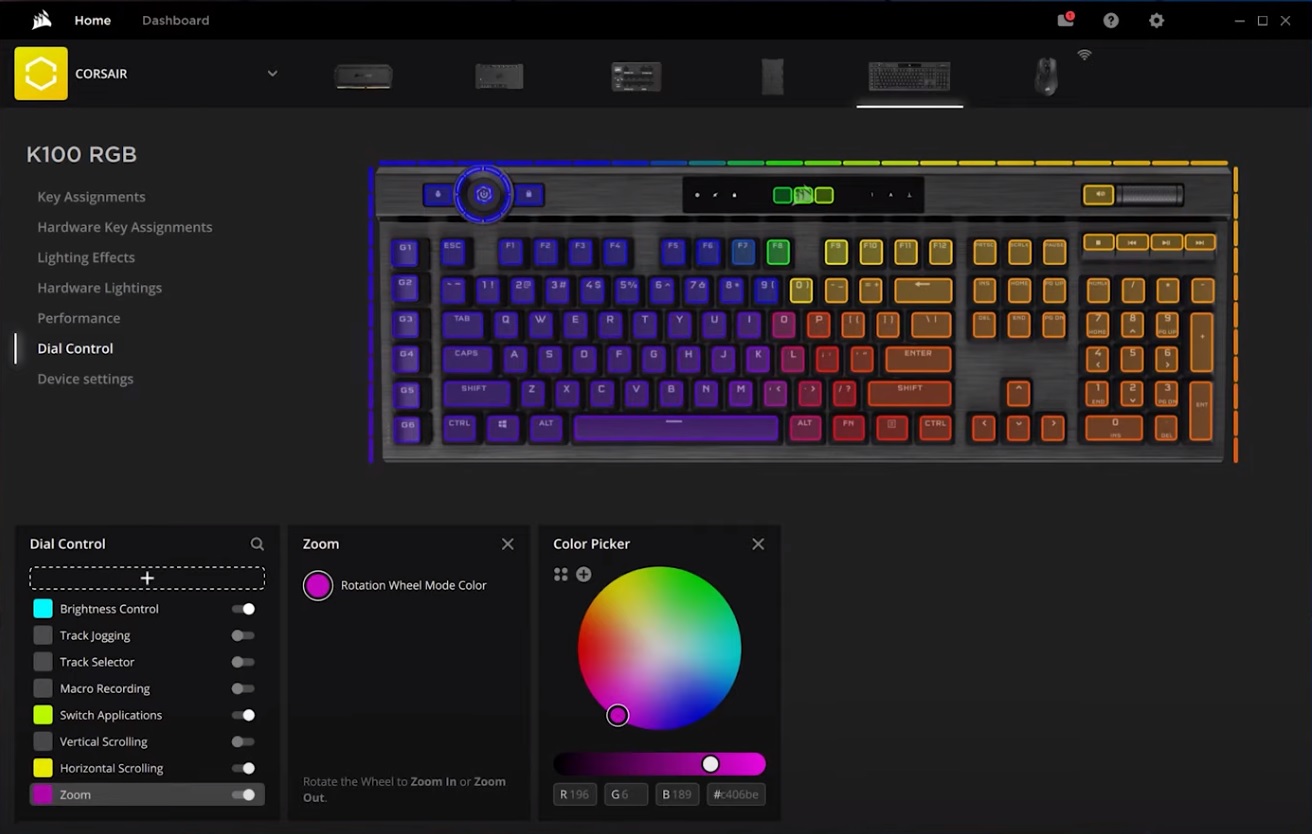
The control wheel of the K100 lets you cycle through several modes by turning the wheel and then performing actions by pressing the wheel key in the middle.
When you turn the control wheel, you can see what mode you are in by the color on the wheel and the wheel key. You can enable or disable these modes in iCUE, as well as assign colors to each mode.
To enable or disable modes:
- In the iCUE home screen, mouse over your K100 and select Dial Control.
- Click the toggle button next to the mode to enable or disable the mode.
- Click the color in Brightness Control to select a color for the mode.
Recording macros with the control wheel
You can use the control wheel to record macros and then assign them to the G-keys.
To record a macro:
- Use the wheel key to cycle to macro recording mode.
- Hold the wheel key until the macro indicator begins to blink.
- Press the G-key that you wish to assign the macro to.
- Enter the combination of keys that you want to record.
- Press the G-key again to save the macro.
Creating custom modes
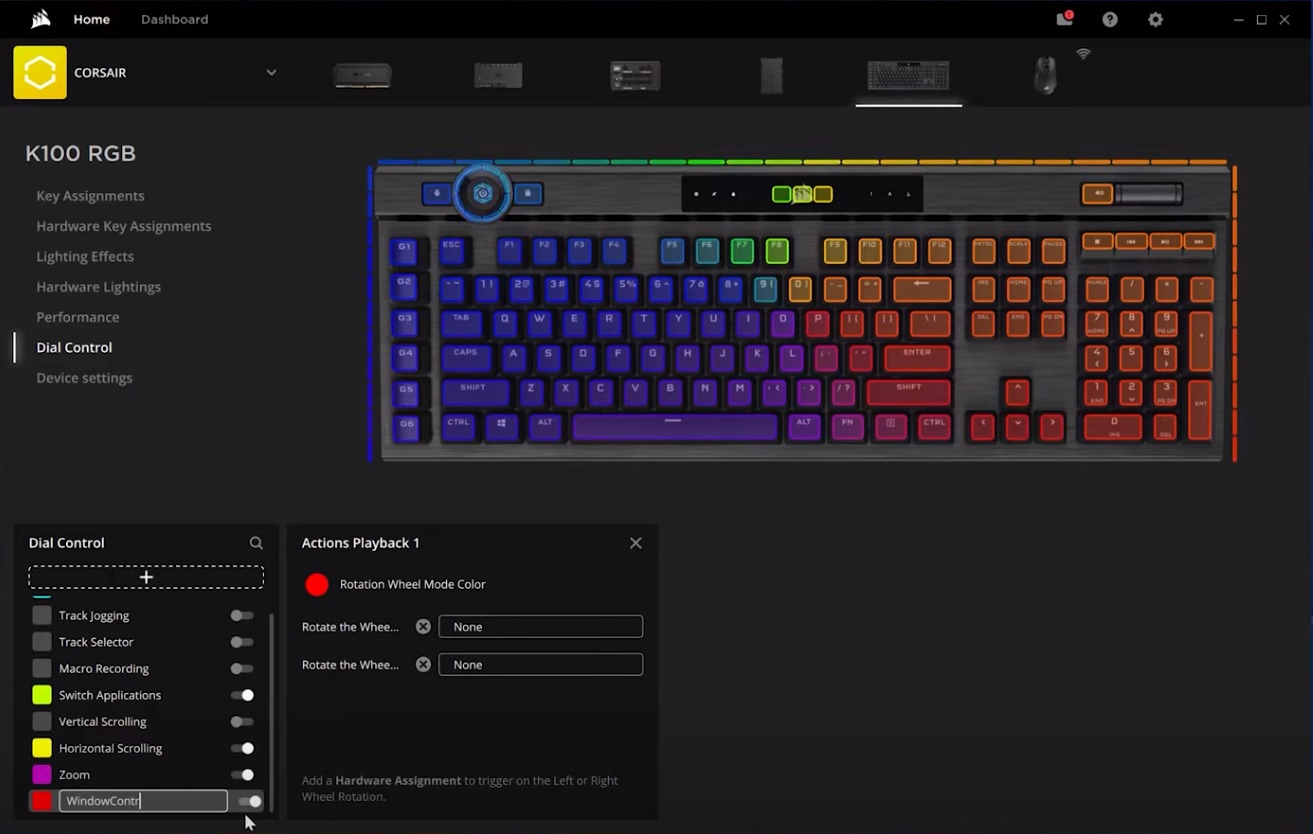
You can create a custom mode for the control wheel in iCUE. When creating a custom mode, you can create and assign custom hardware actions that determine what happens when you turn the control wheel left or right in your custom mode.
To create a custom mode:
- In the iCUE home screen, mouse over your K100 and select Dial Control.
- Click the + button in Dial Control.
- Name your custom mode.
- In the section next to Dial Control, assign a color to your custom mode.
- Assign custom hardware actions to your custom mode.
To create custom hardware actions:
- Select Hardware Key Assignments in the left menu.
- Click the + button in Assignments.
- Select the action type in Assignment Type.
- Customize your action.

Saving profiles to onboard memory
Your K100 keyboard comes with onboard memory for you to save profiles on. When a profile is saved onto the onboard memory, you will be able to use that profile even when iCUE is not running.
Please note that the K100 can only save a limited number of onboard profiles. You will need to delete or overwrite another profile if there is no more room for the profile you want to save.
To save an onboard profile:
- Select Device settings in the left menu.
- Select a profile slot in Onboard Memory.

Video instructions
For iCUE version 3 or older
- Configuring control wheel modes
- Creating custom modes
- Recording macros using the control wheel
- Saving an onboard profile on your K100
- Video instructions
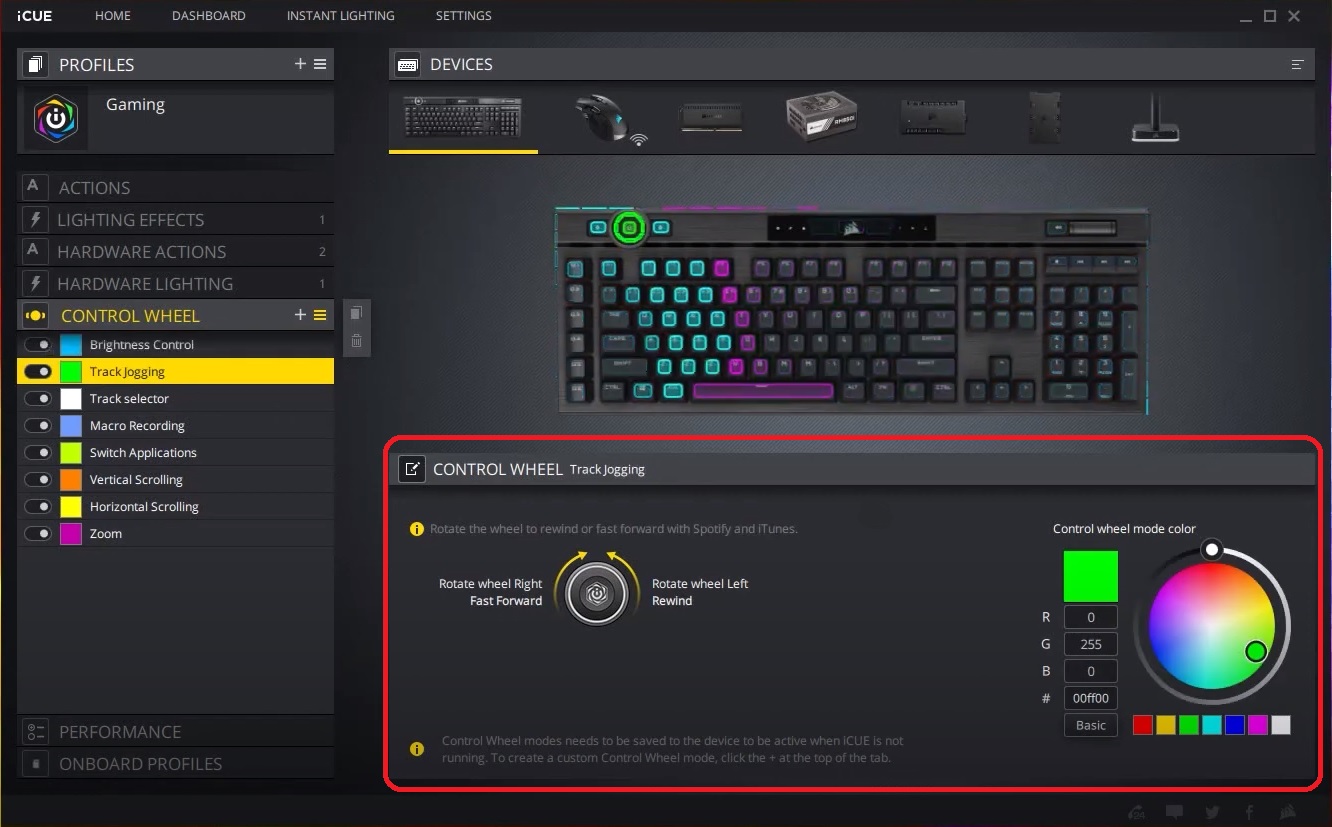
Configuring control wheel modes
With iCUE, you can configure control wheel modes by:
- Selecting the color of the wheel when the mode is active.
- Adjust compatibility for your operating system (Windows or MacOS)
Before configuring, make sure that you have the latest version of iCUE installed.
To configure control wheel modes:
- Open iCUE.
- Select your K100 in the DEVICES section.
- Click CONTROL WHEEL on the left-hand menu.
- Select one of the control wheel modes from the menu to edit
- Edit the control wheel mode as you see fit.
Creating custom modes
In addition to the preexisting control wheel modes, you can also create new custom modes in iCUE. Before creating a custom mode, you will need to create hardware actions.
To create a hardware action:
- Select your K100 in the DEVICES section.
- Click HARDWARE ACTIONS on the left-hand menu.
- Double-click the new hardware action to rename it.
- Use the dropdown menu to select what sort of hardware action you want to create.

Once you have created your hardware actions, you can create a custom mode and assign those hardware actions to your wheel:
- Click CONTROL WHEEL on the left-hand menu.
- Click the + button to create a custom mode.
- Double-click the mode name to rename it.
- Use the dropdown menus to assign what hardware action to do when the wheel is rotated left or right.

Recording macros using the control wheel
To record a macro:
- Press the wheel key until the wheel is in macro record mode.
- Hold the wheel key until the macro indicator starts to blink.
- Press the G-key that you want to assign the macro to.
- Enter the combination of keys you want to record into the macro.
- Press the G-key again to assign the macro to the key.
Saving an onboard profile on your K100
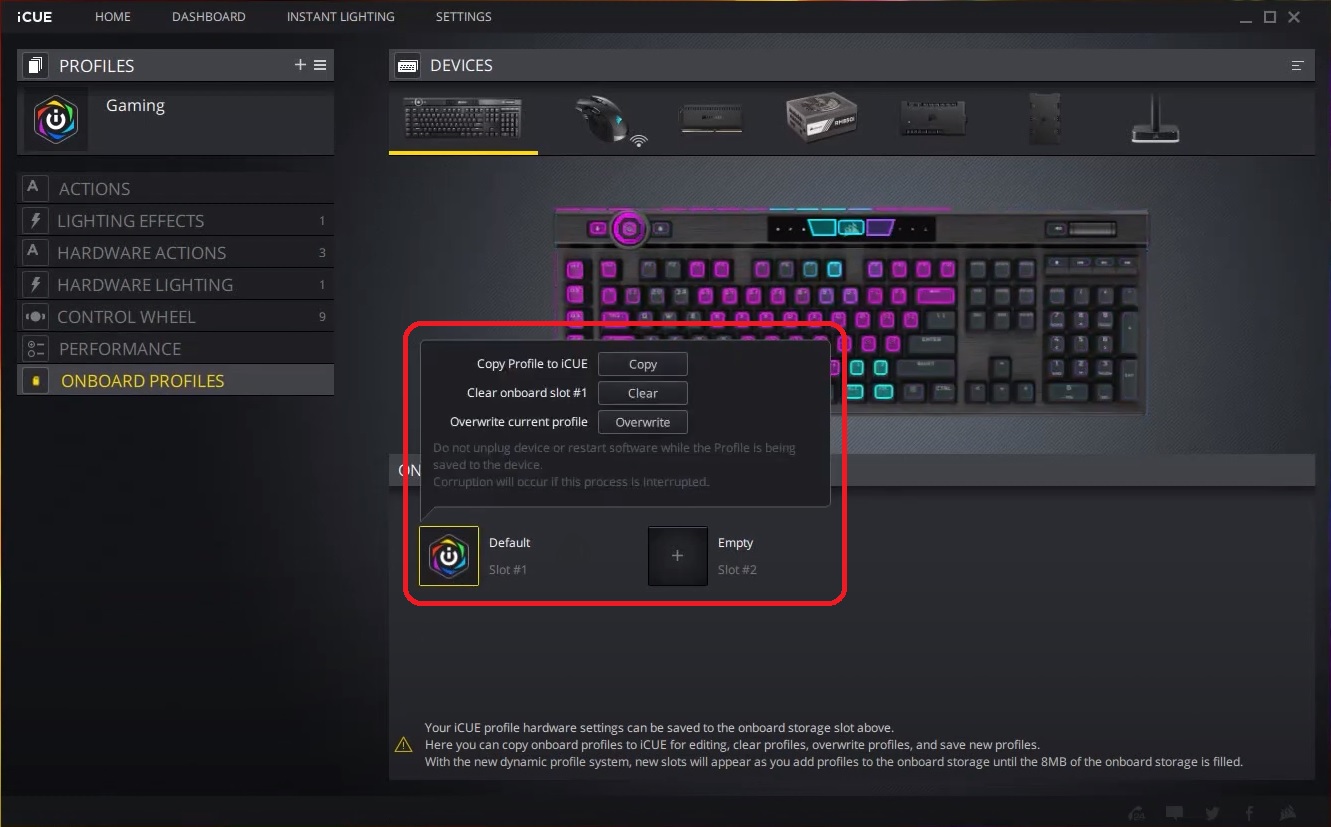
The K100 comes with 8 MB of onboard memory and can store up to 200 onboard profiles depending on the complexity and size of your onboard profiles. Any onboard profile saved can be used when your keyboard is plugged in.
To save an onboard profile:
- Select your K100 in the DEVICES section.
- Click ONBOARD PROFILES on the left-hand menu.
- Select the save slot you want to save the profile to.
- Save the profile to the slot, or overwrite the existing profile in the slot.
Video instructions
Stay up to date with CORSAIR. Get our latest News, Guides, and Product Updates in your Google feeds.
Add CORSAIR as a preferred sourceWas this article helpful?
Feedback received
Thanks for helping us improve this article.
JOIN OUR OFFICIAL CORSAIR COMMUNITIES
Join our official CORSAIR Communities! Whether you're new or old to PC Building, have questions about our products, or want to chat about the latest PC, tech, and gaming trends, our community is the place for you.