MANUAL | QUICK START GUIDE
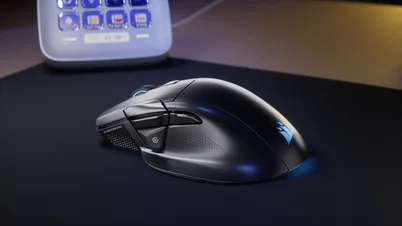
NIGHTSWORD v2 WIRELESS SD
STREAM DECK GAMING MOUSE
In this Guide
CHARGING THE MOUSE
IMPORTANT: The NIGHTSWORD v2 WIRELESS SD must be fully charged before its first use. Please update firmware via CORSAIR WEB HUB for the best experience.
Connect the mouse to an available USB 2.0 or 3.X port on your PC with the USB CHARGING / DATA CABLE (P).
The lighting zones on the mouse will light up according to the battery status and will turn solid green when charging is complete.
GETTING TO KNOW YOUR MOUSE
- LEFT MOUSE BUTTON
- RIGHT MOUSE BUTTON
- MIDDLE CLICK / SCROLL WHEEL
- SCROLL WHEEL LEFT TILT
- SCROLL WHEEL RIGHT TILT
- DPI UP
- DPI DOWN
- PROFILE / PAIRING BUTTON
- FORWARD BUTTON
- BACK BUTTON
- ELGATO VIRTUAL STREAM DECK LAUNCH BUTTON
- POWER / WIRELESS MODE SWITCH
- MARKSMAN S OPTICAL SENSOR
- USB CHARGING / DATA PORT
- 100% VIRGIN-GRADE UPE MOUSE SKATES
- USB CHARGING / DATA CABLE
- USB ADAPTER
- USB WIRELESS RECEIVER
SETTING UP 2.4GHz WIRELESS
- Connect the USB WIRELESS RECEIVER (R) to an available USB 2.0 or 3.x port located on the front panel of your PC or nearby USB port or use the USB ADAPTER (Q) and USB CHARGING / DATA CABLE (P) to gain maximum wireless connectivity by placing the receiver closer to the mouse.
- Power on your mouse by switching the POWER / WIRELESS MODE SWITCH (L) to 2.4GHz wireless.
- The lighting zones will blink battery status for 3 secs and turn solid white when successfully connected to the receiver.
SETTING UP BLUETOOTH
Bluetooth wireless is best for everyday computing tasks, productivity, and office applications.
- Initiate Bluetooth pairing on your Bluetooth 4.0 or higher enabled device.
- Power on your mouse by switching the POWER / WIRELESS MODE SWITCH (L) to Bluetooth.
- The lighting zones will blink battery status for 3 secs and turn solid blue when connected, or blink blue upon entering BT pairing mode.
- If the BT pairing device needs to be re-paired or changed, switch to OFF first. Press and hold PROFILE / PAIRING BUTTON (H) and switch POWER / WIRELESS MODE SWITCH (L) to Bluetooth.
*NIGHTSWORD v2 WIRELESS SD can only be paired to one device. If you need to pair it to another device, please enter re-pairing mode to initialize the pairing process.
DEFAULT DPI STAGES
Default DPI profiles are available for fast configuration.
- Press DPI UP (F) or DPI DOWN (G) to change your DPI Stage.
- When switching DPI stages, the lighting zones on the mouse wheel will display the corresponding DPI stage color for 3 seconds before returning to normal lighting effect behavior.
*Advanced configurations are available via CORSAIR WEB HUB.
MOUSE STATUS AND INDICATIONS
Wireless connection / DPI stages and battery status are communicated through the lighting zones.
| DPI STAGE | LED LIGHTS |
| STAGE 1 - 400 | RED |
| STAGE 2 - 800 | ORANGE |
| STAGE 3 - 1200 | YELLOW |
| STAGE 4 - 1600 | GREEN |
| STAGE 5 - 3200 | BLUE |
|
DPI SHIFT STAGE – 200 |
PURPLE |
| BATTERY STATUS | LED LIGHTS |
| Charging | Breathe Green for 2 secs |
| Battery high | Blink Green 3 times |
| Battery medium | Blink Amber 3 times |
| Battery low | Blink Red 3 times |
| Battery critical, recharge required | Breathing Red |
| Battery fully charged | Solid Green for 5 secs |
| CONNECTION MODE | STATUS | LED LIGHTS |
|
2.4GHz |
Not Paired | Breathe White 2 times |
| Pairing | Rapidly Blink White | |
| Paired/Connected | Solid White for 5 secs | |
| BT | Not Paired | Breathe Blue 2 times |
| Pairing | Rapidly Blink Blue | |
| Paired/Connected | Solid Blue for 5 secs |
STEP-BY-STEP MOUSE SETUP GUIDE
Step 1 – Connect Your Mouse
A. Plug in the NIGHTSWORD v2 WIRELESS SD’s receiver for wireless mode or cable for wired mode.
B. Make sure the power switch on the mouse is set to 2.4 GHz for wireless mode. Connect the other end of the cable to the mouse for wired mode.
Step 2 – Open CORSAIR WEB HUB and Select the Receiver or Mouse
A. Go to https://www.corsair.com/web-hub/index.html.
B. Click [Authorize].
C. Choose NIGHTSWORD v2 WIRELESS SD's receiver ("SLIPSTREAM v2") for wireless mode or mouse for wired mode.


C. This profile will store your DPI, and button assignments.
Step 4 – Set DPI Levels
A. Click [DPI] in the left sidebar.
B. Choose how many DPI stages you want (1~5).
C. Enable the DPI stages you want to use (for example, 800 / 1200 / 1600).
*Sniper (DPI Shift button) is only available if assigned to a button
Suggested DPI settings:
- Desktop/general: 1200–1600 DPI
- FPS games: 800–1200 DPI
- MOBA/MMO: 1600–2400 DPI

Step 5 – Remap Buttons (Assignments)
A. Click [Assignments] in the left sidebar.
B. Click the button on the mouse diagram you want to change.
C. Choose the Assignment Type (keystrokes, macros, other special functions):
- Keyboard (remap to a key like R, E, or P)
- Macro (record multiple keystrokes)
D. Confirm the assignment and test it.
Step 6 – Device Settings
A. Click Device Settings at bottom left.
B. Device Settings.
-
- Battery – Wireless connectivity or battery status.

-
Polling Rate – Select [ 1000 Hz / 1 msec ] polling for 1000Hz polling.
Wired:
Wireless:
- Brightness – Adjust the brightness of mouse lighting. Brighter lights will deplete battery life more quickly.

- Sleep Time – Adjust time before mouse enters Sleep Mode.

-
Power Saving Mode – Enables power-saving optimizations.
- Button Response Optimization – Optimizes debounce time.
- Motion Sense Power Saving – Power saves when the sensor is not detecting any movement.
- Angle Snapping – Smooths out mouse movement via sensor prediction when ON.
- Lift Height – Sensor cut off height.

-
Surface Selection - Select your surface to optimize your mouse performance.

-
Motion Sync – Makes cursor movements feel smoother and more accurate by keeping them in sync with your system.
-
Ripple Control – Reduces tiny unwanted cursor jitters, especially at high DPI.
-
Pair Wireless receiver – Pair or reset the wireless receiver.
-
Reset to Factory Settings– Reset your mouse to default setting.
- Battery – Wireless connectivity or battery status.
A. Connect your mouse via cable to the PC.
B. Authorize Access and choose your mouse.


C. If there is an update available, the “Update Firmware” button will light up.

D. Press “Update Firmware” and “Proceed” to initiate update.
*Do not unplug the mouse or close the browser during the update process*
Step 8 – Pair Wireless Receiver
A. Connect your dongle to the PC.
B. Click on the three dots on the top right of the dongle for more settings
C. Click “ Pair” and select device you would like to pair with.
D. Follow the steps to enter re-pair mode on the mouse.
E. Complete pairing.

STREAM DECK STEP BY STEP
Step 1 – Connect Your Mouse
A. Plug in the NIGHTSWORD v2 WIRELESS SD’s receiver.
B. Make sure the power switch on the mouse is set to 2.4 GHz.
Or
Plug in the NIGHTSWORD v2 WIRELESS SD mouse via cable.
Step 2 – Download and install the latest ELGATO STREAM DECK app
A. Go to Stream Deck Software | Elgato and install the latest version.
B. Launch the app with the mouse connected
C. Choose NIGHTSWORD v2 WIRELESS SD under device settings.

Step 3 – Assign Keys to the buttons
A. On the right, click and drag the Key you would like to add and drop on the button.
B. Adjust and customize settings of the key by clicking on the button assigned.
C. To activate/deactivate Stream Deck control over the mouse, go to "Settings -> Devices" and choose to enable/disable them.
BATTERY REMOVAL INFORMATION
- Remove the front and rear feet
- Disassemble 4 screws
- Disassemble top case sub assy
- Remove battery connector and battery
This product uses a rechargeable battery and safety guidelines must be followed in the event that the product is disabled for disposal and recycling. To safely remove the battery for disposal and recycling, follow the numbered steps with the below diagrams.
BATTERY CHARGING INFO
The power delivered by the charger must be between min 0.5 Watts required by the radio equipment, and max 3.0 Watts in order to achieve the maximum charging speed.

BATTERY INFORMATION
- M/N(型號): FT382944P
- Capacity(電池容量): 3.7V, 500mAh, 1.85Wh
- Scan QR code for battery detail information

M/N(型號): RGP0178
Rating(電壓電流): 5V
 600mA
600mADongle
M/N(型號): RGP0177
Rating(電壓電流): 5V
100mA FCC ID: 2AAFM-RGP0178 (Mouse)
FCC ID: 2AAFMRGP0177 (Dongle)
IC: 10954A-RGP0178 (Mouse)
IC: 10954A-RGP0177 (Dongle)


COPYRIGHT / LEGAL INFORMATION
© 2026 CORSAIR MEMORY, Inc. All rights reserved. CORSAIR and the sails logo are registered trademarks of CORSAIR in the United States and/or other countries. All other trademarks are the property of their respective owners. Product may vary slightly from those pictured.

RELATED CONTENT