MANUAL | QUICK START GUIDE
CORSAIR iCUE LINK
GPU RGB / ARGB ADAPTER
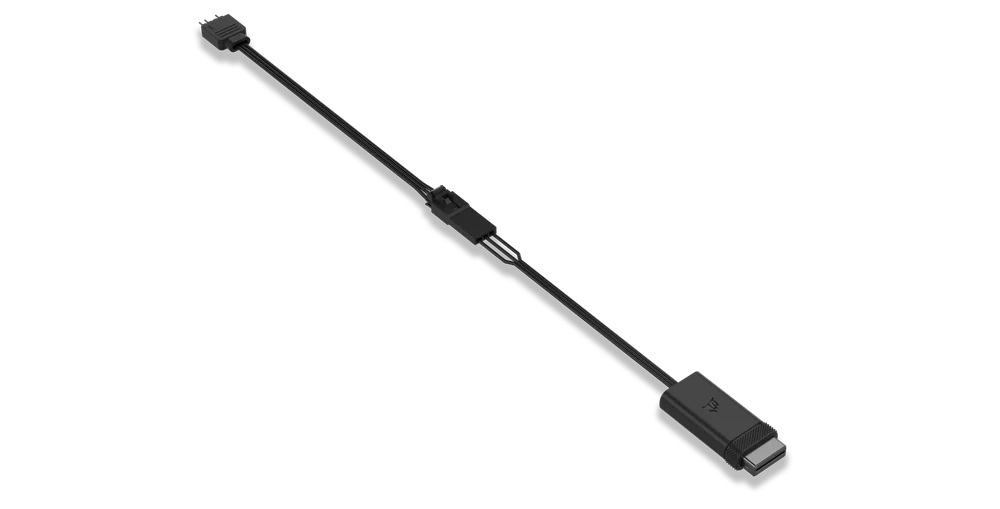

BEFORE YOU START
Download the latest version of iCUE from www.corsair.com/downloads.
Learn more about iCUE LINK System Hub from CORSAIR iCUE LINK System Hub.
PACKAGE CONTENTS
1x iCUE LINK RGB LED Adapter
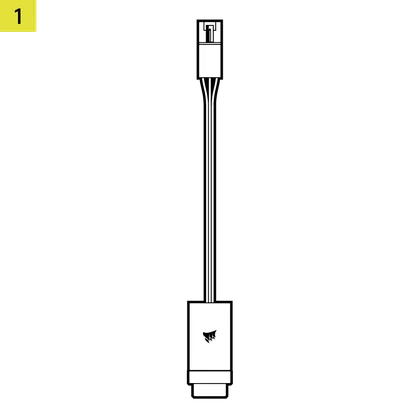
1x ARGB LED Adapter
PREREQUISITES (NOT INCLUDED)
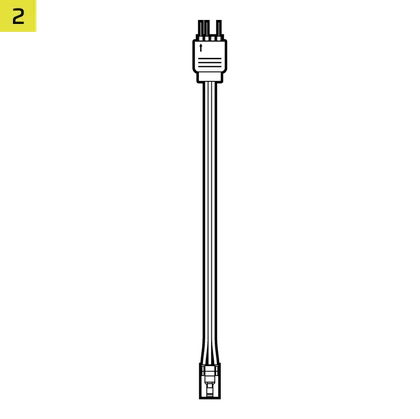
GPU block with integrated
+5V ARGB connection
(CORSAIR XG5, XG7, third-party blocks)
iCUE LINK System Hub

iCUE version 5 or higher
Windows 11 or higher

iCUE LINK CONNECTION
CONNECTING CORSAIR WATER BLOCKS
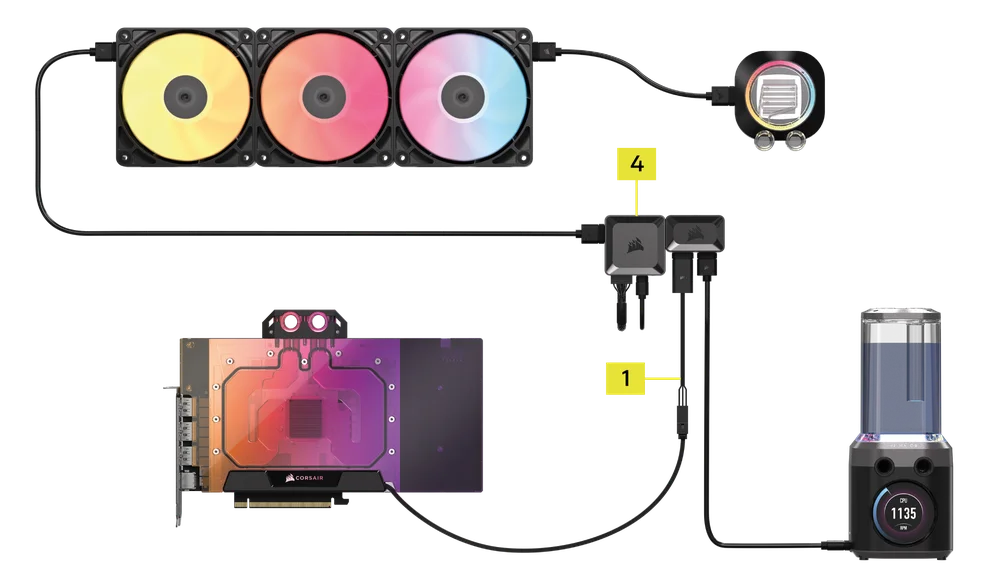
- Plug the 3-pin RGB connector from your CORSAIR GPU water block into the corresponding 3-pin connector on the iCUE LINK RGB LED Adapter (1).
- Insert the LINK connector from the iCUE LINK RGB LED Adapter (1) into an available port on your iCUE LINK System Hub (4). Alternatively, you can integrate it into your existing iCUE LINK hardware setup by connecting it anywhere along the channel string, either directly or using an iCUE LINK 4-way Signal Splitter (sold separately).
(XG5 Water Block connected to a 4-way Signal Splitter shown below)
CONNECTING NON-CORSAIR WATER BLOCKS
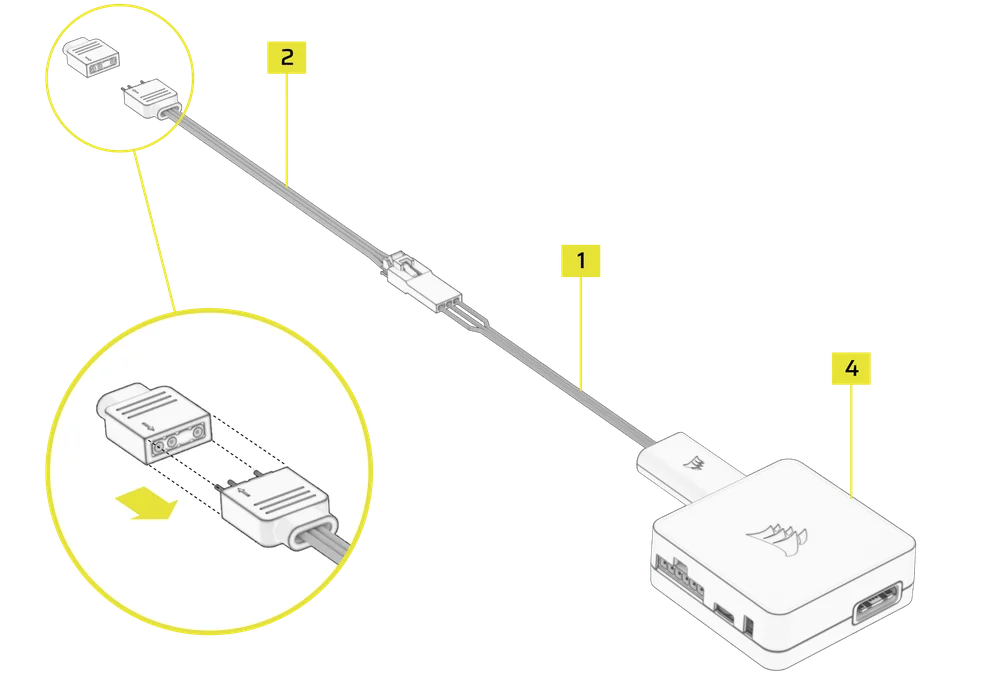
- If you are using a non-CORSAIR GPU water block that features a 3-pin ARGB connector, plug one end of the ARGB LED Adapter (2) into the 3-pin ARGB connector on the water block, and the other end into the iCUE LINK RGB LED Adapter (1).
- Insert the LINK connector from the iCUE LINK LED Adapter (1) into an available port on your iCUE LINK System Hub (4). Alternatively, you can integrate it into your existing iCUE LINK hardware setup by connecting it anywhere along the channel string, either directly or using an iCUE LINK 4-way Signal Splitter.
Once everything is connected, you will be able to control the lighting effects through iCUE software.
FEQUENTLY ASKED QUESTIONS
Can I use the iCUE LINK GPU RGB / ARGB Adapter with other CORSAIR parts?
No, it will only control the 16 LEDs of the XG7 / XG5 RGB GPU Water Blocks.
Can I use a non-CORSAIR GPU Water Block?
Yes, you can use a non-CORSAIR GPU water block, as long as it has a compatible 3-pin ARGB connector that matches the ARGB LED adapter. Additionally, the water block should not contain more than 16 LEDs.
What are the advanced features in CORSAIR iCUE software?
Advanced features in CORSAIR iCUE allow you to monitor your system, customize lighting and cooling, create automated profiles, and control compatible devices intelligently based on real-time conditions.
Why is the lighting effect on my third-party GPU water block reversed or not displaying correctly in iCUE?
For devices with 16 LEDs, the physical LED order on the device may differ from iCUE’s logical LED sequence, which can result in lighting effects appearing in the opposite direction. For devices with fewer than 16 LEDs, some lighting effects may not display correctly due to the limited LED count. iCUE applies effects starting from the highest-numbered LEDs (e.g., LEDs 16 to 9 for an 8-LED device). To ensure proper lighting output, set the actual number of LEDs used and begin selection from the rightmost LEDs in the iCUE layout.
WARRANTY

CORSAIR iCUE LINK GPU RGB / ARGB adapter has a 2-year warranty.
LEGAL
© 2025 CORSAIR MEMORY, Inc. All rights reserved. CORSAIR and the sails logo are registered trademarks of CORSAIR in the United States and/or other countries. All other trademarks are the property of their respective owners. Product may vary slightly from those pictured.