Running an LLM locally means the model lives on your PC, and your prompts (and any files you feed it) don’t have to leave your machine. No cloud account. No API keys. No “we’ll train on your data… probably not… maybe.” Just you, your PC, and a model doing any task you give it.
What is a “Local LLM,” exactly?
A local LLM is a large language model that runs on your computer instead of on a remote server. In practice, that usually means you download model files, load them in a local app, and chat with them the same way you’d chat with a cloud assistant, except the “server” is your PC.
“Running” an LLM locally almost always means inference (generating responses), not training a brand-new model from scratch.
Why run a local LLM?
There are a few reasons people switch from cloud LLMs to local ones:
- Privacy: Your prompts stay on-device (as long as you’re not using cloud connectors).
- Offline use: Once the model is downloaded, you can run it without internet.
- No usage caps: No rate limits, no “you’ve used today’s quota,” no surprise bills.
- Control: Pick the model you want, you are not tied a subscription model.
Of course, you’re trading convenience for control. A cloud model can feel like magic; a local model can feel like magic dependent on your hardware.
What do you need to run a local LLM?
The short version: CPU works, GPU helps, memory matters.
Here’s what actually affects whether you’ll have a good time:
- RAM / VRAM: Bigger models need more memory. If you run out, the model will fail.
- Storage: Models can be big. Some libraries warn that model storage can reach tens to hundreds of GB depending on the model you download.
- GPU: If your app supports your GPU, you’ll usually see a big speed boost.
A modern Windows 10/11 machine with 32GB+ RAM is a solid baseline for smaller local models, and more memory lets you run larger ones more comfortably.
Pick a “local LLM runner” app
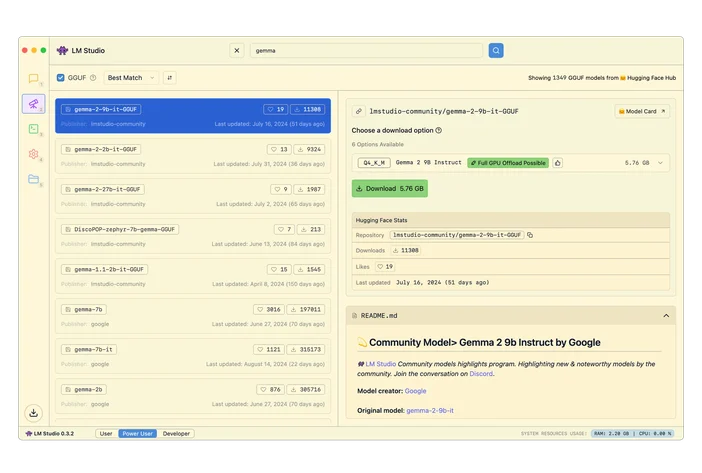
LM Studio (easy GUI)
LM Studio is a desktop app that lets you download models and chat with them locally. It also includes a programmable local API for developers.
Ollama (simple CLI + local API)
Ollama runs as a native Windows app and gives you a command-line workflow plus a local HTTP API endpoint. It explicitly supports NVIDIA and AMD Radeon GPUs on Windows.
llama.cpp (for tinkerers)
If you want maximum control, llama.cpp is a popular open-source inference engine with build instructions and multiple backends.


Install and run your first model
Bigger models need more RAM and/or VRAM. If you don’t have enough, you’ll get slow performance, crashes, or constant swapping to disk (which feels like your PC is thinking through molasses).
A safe rule of thumb for int4 quantized models:
- 8GB RAM → ~3B models
- 16GB RAM → ~7B models
- 32GB RAM → ~13B models
And if you’re leaning on GPU acceleration:
- 6GB VRAM → ~3B models
- 8GB VRAM → ~7B models
- 12GB VRAM → ~13B models
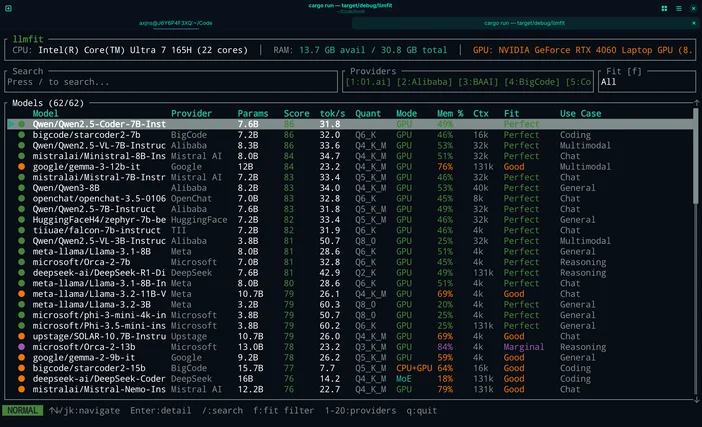
Or if you don't want to guess you can use LLMfit to match models to your exact hardware.
LLMfit is a terminal tool that detects your CPU, RAM, and GPU/VRAM, then ranks models by fit, expected speed, context, and quality so you can see what will run well before you download anything.
What it’s good for:
- Finding models that actually fit your RAM/VRAM limits
- Seeing recommended quantization (so you don’t over-commit memory)
- Getting a ranked shortlist instead of doomscrolling model hubs
How to use it in this workflow:
- Run llmfit to scan your system hardware
- Look at the top “fits” / recommendations
- Pick a model size that matches your machine, then download it in LM Studio / Ollama / llama
You're All Set!
That's it. Pick a runner, download a model that fits your hardware, and start prompting! Everything stays on your machine. You don't need a computer science degree, a cloud subscription, or a weekend of troubleshooting. The whole process takes about as long as installing a game. And once it's running, you've got a private, offline AI assistant that works on your terms.
Where the CORSAIR AI300 Fits
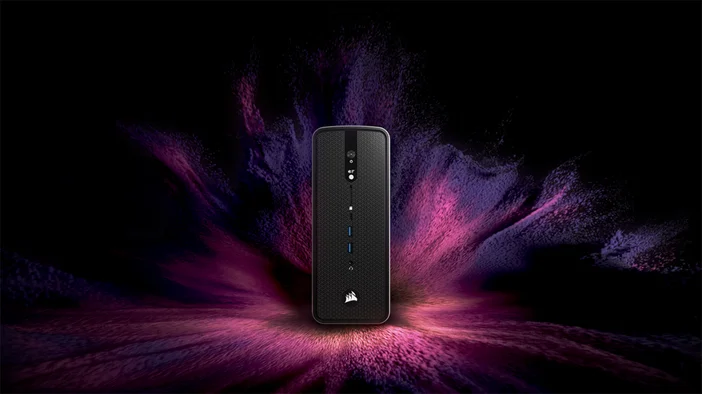
If you’re serious about running local LLMs on Windows especially if you want larger models, larger context windows, or smoother performance this is where CORSAIR AI Workstation 300 (AI300) and the CORSAIR AI Software Stack help you reach the next level.
Local inference usually bottlenecks on memory and throughput. AI300 is designed around that reality:
- A compact workstation built for local AI workflows
- High-memory configuration that gives you breathing room for larger models
- Graphics memory behavior that’s intended to scale for AI use cases
- A hardware-level performance selector (Quiet / Balanced / Max) so you can decide whether you want silence or speed
Do I need an NVIDIA GPU to run a local LLM on Windows?
No. Some tools explicitly support AMD on Windows for example, Ollama’s Windows documentation mentions both NVIDIA and AMD Radeon GPU support.
Can I run a local LLM completely offline?
Yes, after you’ve downloaded the app and model files. Initial installs and model downloads typically require internet, but inference can run offline once everything is local.
Is local AI automatically private?
It can be, but it depends on your setup. Local inference means the model runs on your device but some apps offer optional cloud connections. If your goal is “no cloud required,” keep cloud integrations disabled and use local-only models.
Why is my local model slow?
Usually one of these:
- Model is too large for your available RAM/VRAM
- You’re running CPU-only when GPU acceleration is available
- You picked a high context length and it’s chewing memory
- Your storage is full (yes, it matters)
PRODUCTS IN ARTICLE
JOIN OUR OFFICIAL CORSAIR COMMUNITIES
Join our official CORSAIR Communities! Whether you're new or old to PC Building, have questions about our products, or want to chat about the latest PC, tech, and gaming trends, our community is the place for you.