As working from home, gaming, and streaming videos or movies has become more popular, so has having multiple monitors. The setup might seem simple, but there are many features to take note of and ways to optimize your experience.
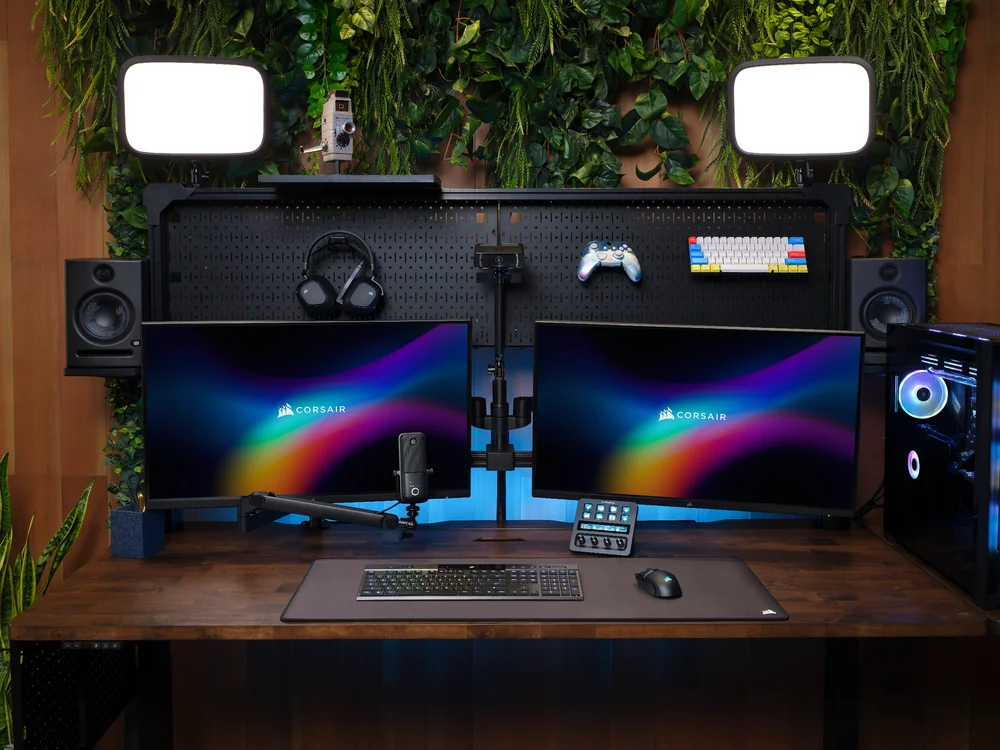
A dual monitor setup is very self-explanatory; it's two monitors hooked up to a PC or laptop. It can be made with any combination of monitors as long as you have the ports and cables to support it. This article will cover how to make your system recognize and utilize two monitors in a simple way.
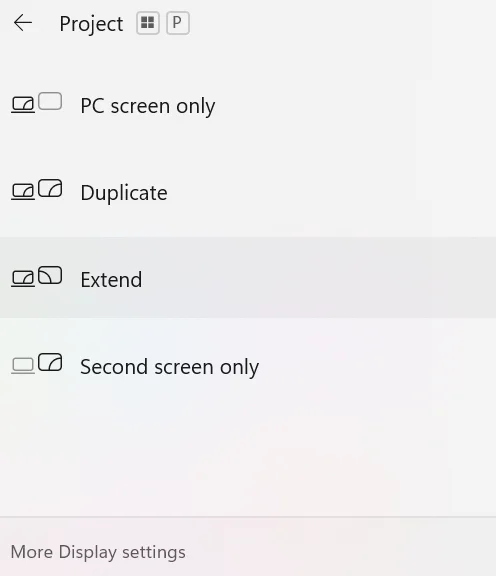
If that doesn’t work -
If you find that your monitor is looking grainy or blurry, incorrect refresh rate might be to blame. In this case, you'll want to scroll down on in your "System > Display" page on your settings and click on “Advanced display”.
You will then see your monitor’s optimal statistics and will want to look at the Hz, or hertz. Then, you will click the dropdown that has a number x amount of Hz and switch that number to the highest in your dropdown.
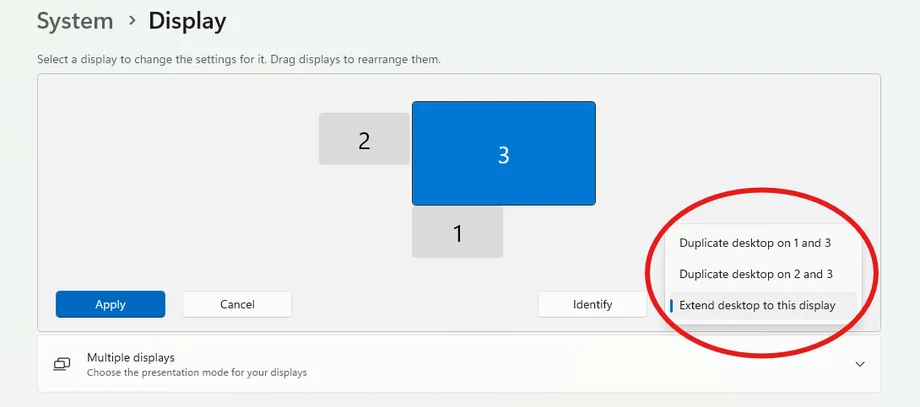
When setting up dual monitors, you will see many different options for each monitor or ways to connect the monitor itself. We will explain each option in simple terms here. For these options, we will be revisiting the System > Display page mentioned before for this.
You will want to have the “Multiple displays” dropdown selected for each option.
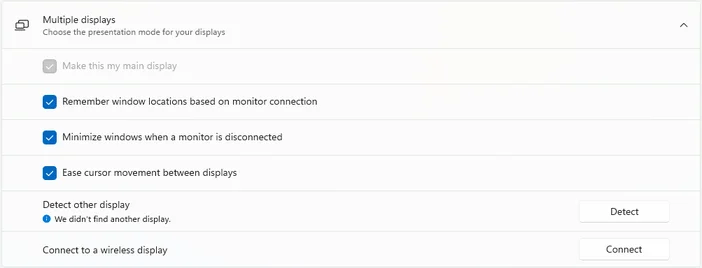
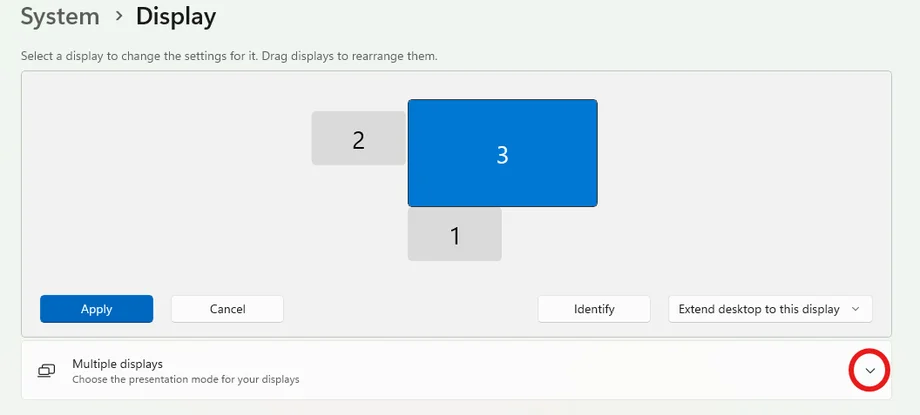
For your biggest, baddest monitor, you will likely want to make it your main display. The main display will be important as it will have your taskbar, desktop icons, clock, corner icons, and your open apps.
You will see the graphic for your two monitors and their relative sizes and will want to click on whichever one you want as your main display, whether that is monitor one or two. Then, you want to select the multiple displays dropdown right below.
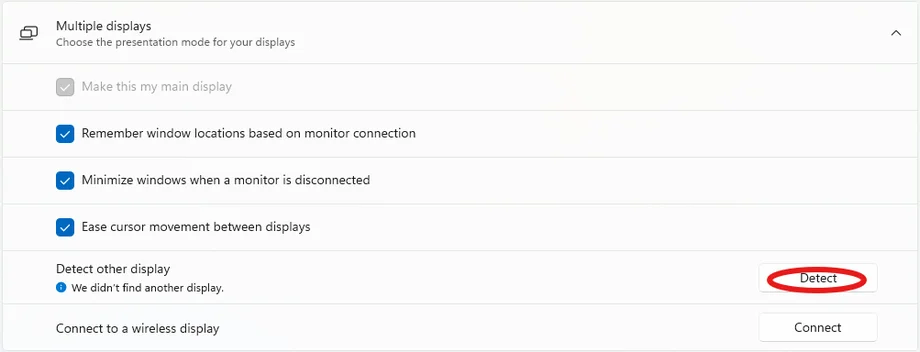
You will see the option to make it your main display if you select the box “Make this my main display".
This setting is very useful and automatically enabled. It makes it so if a monitor gets disconnected, the windows that were open are automatically minimized, instead of jump-scaring you with a huge stack of tabs on your remaining display.
If you are for whatever reason, wanting to be jump scared, then you can click on whichever monitor you want to disable the function on, and then click the checkmark under the “Multiple displays” dropdown for “minimize windows when a monitor is disconnected".
This setting can be found right under feature the previous feature's minimizing option and will also be automatically enabled. This simply smooths your mouse’s movement when moving to another monitor and if you want to disable it you can click the check marked box under “Multiple displays” for “Ease cursor movement between displays”.
This feature works similarly to Bluetooth and will be found under “Multiple displays” as well. To connect to a wireless display, first make sure your chosen monitor is pairing, then you can click connect in your display settings.
You should find a monitor search in the bottom right of your main monitor where you can find your current pairing display. Simply click on your display and then you are done.
Whether you want to set up your XENEON EDGE LCD touchscreen for a livestream, or a XENEON FLEX for an amazing adjustable viewing experience, setting up your monitors is an important step in creating a great setup.
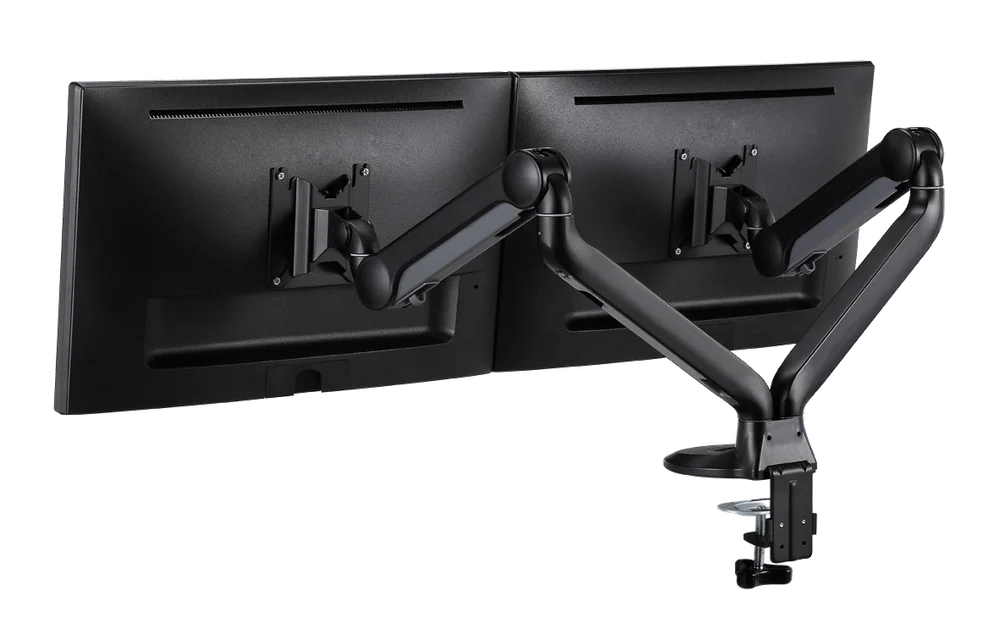
Pro tip: if your monitors are VESA compatible consider getting a mount like the CORSAIR Dual Arm Stand. This allows you to disconnect the bulky legs from the monitors, and makes them both super easy to adjust.
PRODUCTS IN ARTICLE
JOIN OUR OFFICIAL CORSAIR COMMUNITIES
Join our official CORSAIR Communities! Whether you're new or old to PC Building, have questions about our products, or want to chat about the latest PC, tech, and gaming trends, our community is the place for you.