When you buy an external storage device, it often needs to be formatted before it can be used. Formatting a storage volume "installs" a file system on it, allowing the drive to be used by the operating system (OS). This could be a USB flash drive or an external SSD/HDD with several terabytes of capacity. Sometimes drives are pre-formatted so you can plug them in and start using them right out of the box, but this may not be an optimal solution for your needs depending on how you plan to use the drive. To better understand the best format for a USB drive, let’s start with the basics.
What is a File System?
All storage devices need to use a “file system” that is offered by the operating system in order for it to be managed by the OS. It’s like an operating system hosting a party and telling people who are coming where they can park their cars and how many cars are allowed. The file system dictates how data is stored and organized, and what limitations exist, so the OS can access the data on a drive in a way that it understands.
How do I Put a File System on a Drive?
The file system for a storage device is established when the drive is formatted, which is a very appropriate term as that process establishes the correct format for data to be stored (and accessed) on a drive. These days (in 2025) there are three main file systems you can choose from when formatting a storage volume: FAT32, exFAT, and NTFS. Formatting a drive wipes all records of the data that was on the drive and installs a new file system and a new partition table. Whatever data is on a drive will be wiped if you format it, so proceed with caution.
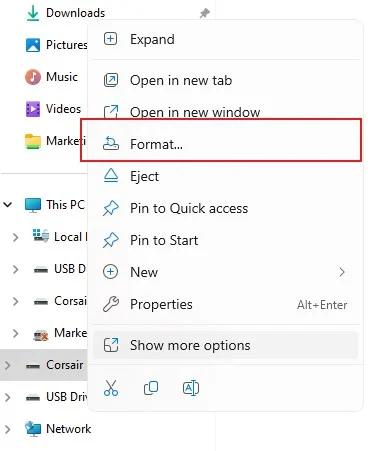
You can format any volume in Windows Explorer by right-clicking on it and selecting "Format."
FAT32
This file system, which is named File Allocation Tab 32, is still in use today for USB flash drives as it has wide compatibility between different types of operating systems. It was introduced way back in 1996 as an evolution of Windows 95’s FAT16 file system, as it offered more of everything including higher storage capacities and longer file names. However, back then people were not doing a lot of file storage aside from saving Office documents and image files, so it’s a bit limited for today’s PCs.
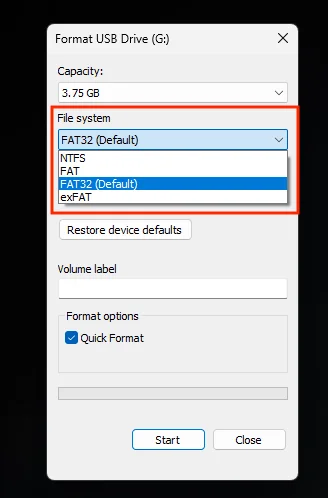
When you are dealing with small capacity drives and small files, FAT32 is great for compatibility and easy of use.
This file system has a file size limit of 4GB and a 32GB partition limit, so you can see how it’s just used for small files and drives these days. Its main benefit is it is compatible with almost every type of device from cameras to Mac computers to Linux PCs to game consoles; almost every device can recognize FAT32. If you aren’t sure what format to use on your new USB drive, you can never go wrong with FAT32.
exFAT
This file system was introduced in 2006 and is named Extended File Allocation Table. It was made by Microsoft as an upgrade to FAT32 as it fixes the issues FAT32 has with small file and partition sizes, making it much more suitable for modern storage demands. It increases the file size from 4GB on FAT32 to 16 exabytes, eliminating the problem entirely. Additionally, it has a partition limit of 128 petabytes, so no home user will ever exceed that number.
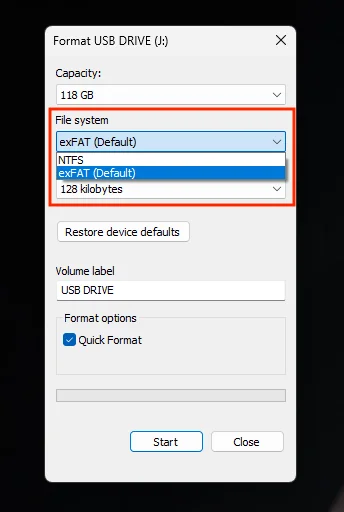
For larger volumes, your only formatting options are usually exFAT and NTFS.
exFAT is a better option for most people than FAT32 if you need to move files around between computers. It is supported by both Windows, MacOS, modern game consoles, and Linux if you install some packages. In general, use exFAT when formatting an external storage device if you have the option to do so as it’s flexible and fast, and made for modern computing.
NTFS
This is a very robust file system named New Technology File System, and it was introduced by Microsoft way back in 1993 for its enterprise-focused Windows NT operating system. It was eventually ported over to Microsoft's consumer OSes, becoming the default file system beginning with Windows XP and carrying all the way through to the current Windows 11. It is fast, secure, and future proof, with the only downside being it is made for modern Windows operating systems and is not nearly as compatible as exFAT or FAT32. However, if you’re only using Windows 10 and 11 devices, it will work just fine.
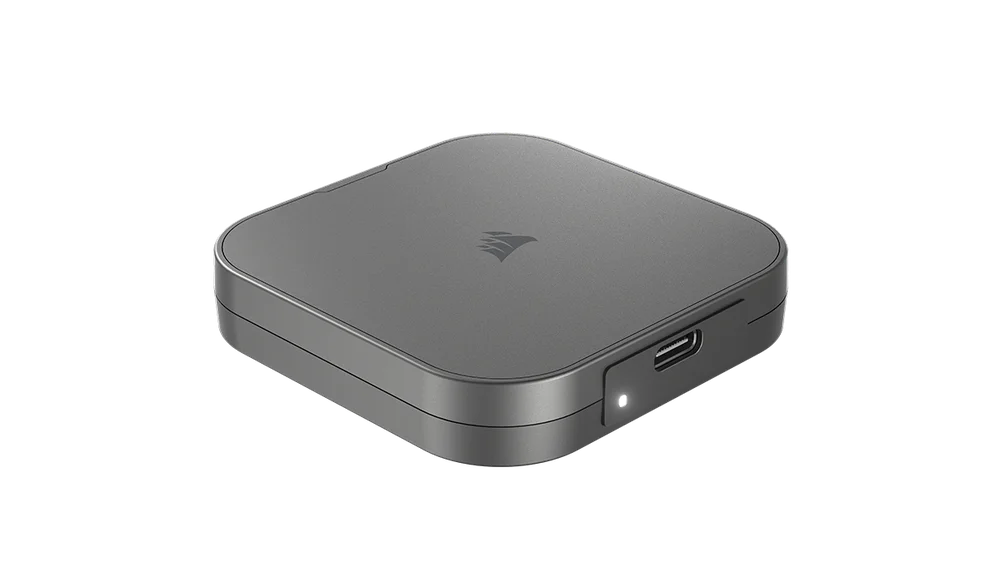
Portable drives like the EX400U can be formatted after purchase if you need something with more cross-platform compatibility.
On your home PC there is a good chance your boot drive is formatted with NTFS if you're using Windows 10/11, and for internal drives it is the best option without question due to its security features and great performance.
For a USB key, if you are just moving files between Windows 10/11 computers, there is no downside to formatting a USB key with NTFS. However, if you are ever out in the world with a USB key and need to plug it into a different computer, it has to be a Windows machine or else you won’t be able to use it.
The Bottom Line
If you have a household with different Windows computers in it, use NTFS. If you need to transfer files from a PC to Mac, use exFAT. If you don’t know what kind of computers you will be using in the future, possibly due to travels or something similar, go with FAT32 for maximum compatibility.
PRODUCTS IN ARTICLE
JOIN OUR OFFICIAL CORSAIR COMMUNITIES
Join our official CORSAIR Communities! Whether you're new or old to PC Building, have questions about our products, or want to chat about the latest PC, tech, and gaming trends, our community is the place for you.