Some games just work better with a controller. That is an inconvenient truth we PC gamers have to accept. The PS5 DualSense controller is a particularly strong option when that's the case, as it’s widely compatible with games via Steam. Many PC games now include the correct symbols, and a few games even taking advantage of the controller's variable resistance triggers.
However, when you plug the PS5 controller into a PC, it automatically becomes the default audio output device, meaning that all your game audio and music is squeezed through the tiny speaker on the controller. Here’s how to stop that.
How to Stop Audio Coming Out of the PS5 Controller on PC
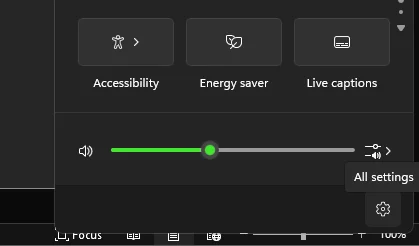
- Click the speaker symbol in your taskbar, then click the gear icon to open Windows settings.
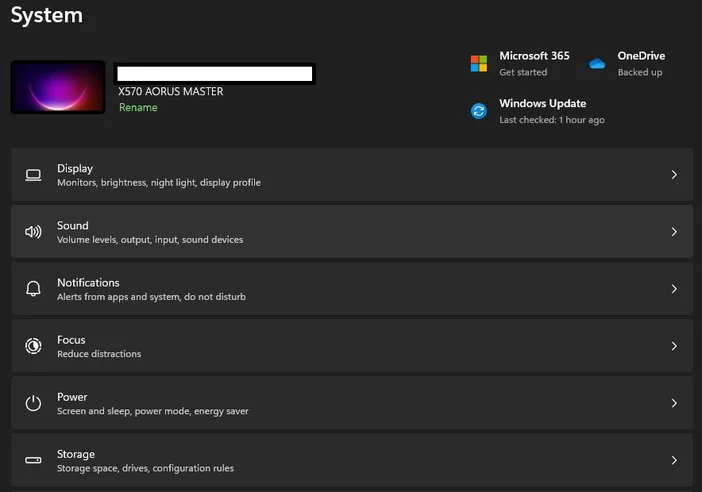
- Now click “System” followed by the “Sound” tab.
- In here, you’ll see a list of outputs. Your headset, speakers, and monitors will appear here.
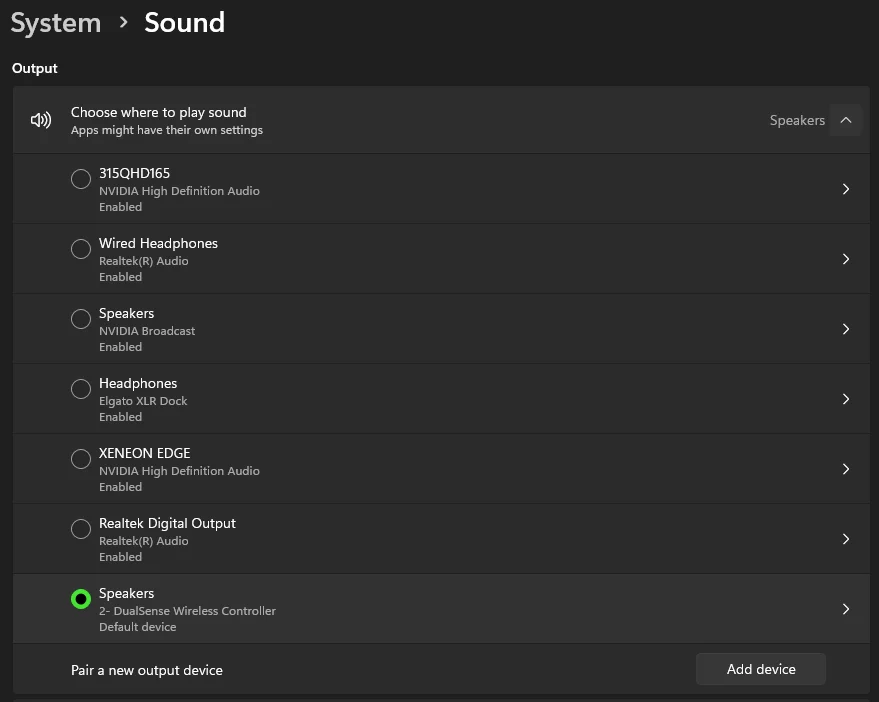
- Find the PS5 controller. Its heading will say “Speaker,” but underneath it will say “2- DualSense Wireless Controller.” Click this and you’ll open the “Properties” menu for the controller.
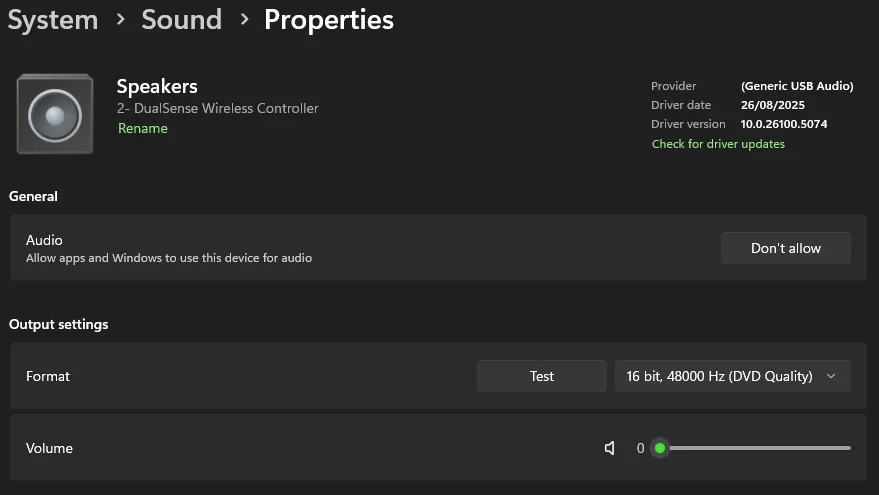
- The "General" tab at the top will have a "Don’t allow" button. Click this, and Windows will no longer play audio through the speaker in the PS5 controller.
This is the quick way to stop this issue, however, Windows has a tendency to undo this change when you plug the controller back in. If you want to permanently disable the PS5 controller speaker, we must head to the Device Manager.
How to Disable the PS5 Controller Speaker on PC Permanently
This way prevent your PC from using the controller as a speaker, but the functionality as a controller and only a controller will remain.
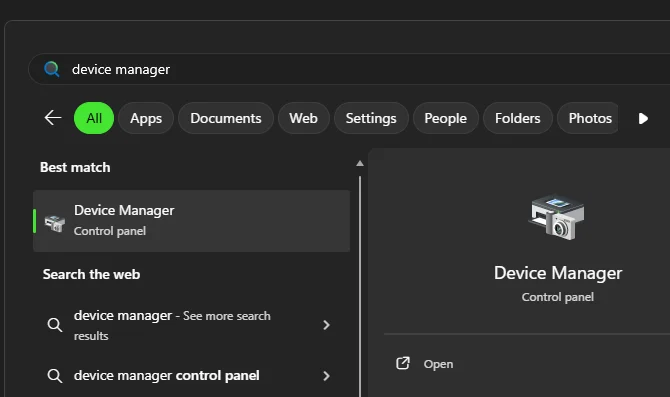
- Click the windows button in the task bar and type in "Device Manager." When it appears, click to open it.
- Here’s where you need to be careful. The PS5 Controller will appear in the “Human Interface Devices” tab, but it will be labelled “HID-compliant game controller.” Do not touch this. This is where its actual controller functionality is controlled, and we want to keep that functionality.
- Scroll down to “Sound, video and game controllers.” We know this is confusing, but trust us, this is where the PS5 controller is counted as a speaker.
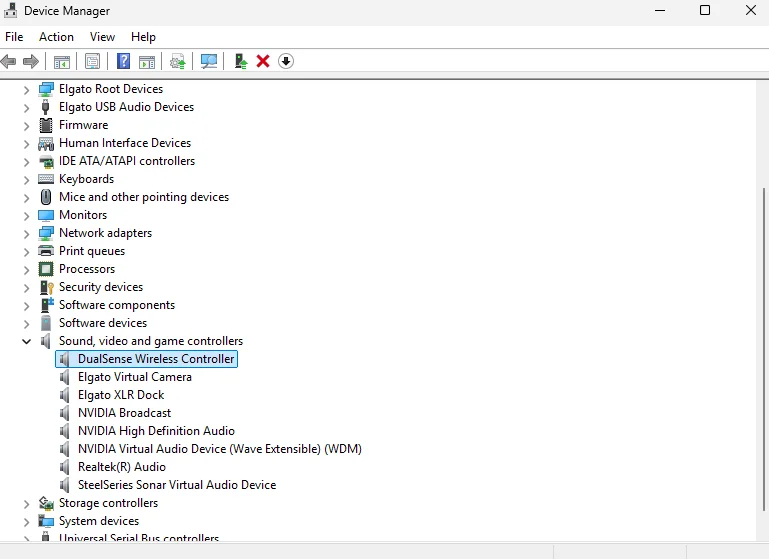
Find “DualSense Wireless Controller,” right-click it, then click “Disable Device.” A warning will appear that sounds scary, but it’s fine. Remember, we’re only disabling the use of the speaker in the controller. Click “Yes” on the warning.
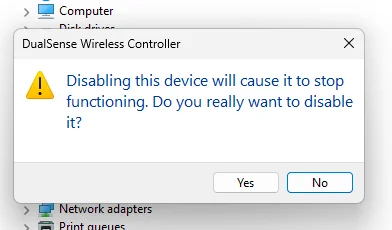
You might have to restart your PC after this, but now the PS5 controller will not be used as a speaker, and you can enjoy gaming without having to listen to the audio being pushed through the tiny tinny speaker.
If you want to use the speaker again, simply find the controller in the Device Manager and re-enable it.
JOIN OUR OFFICIAL CORSAIR COMMUNITIES
Join our official CORSAIR Communities! Whether you're new or old to PC Building, have questions about our products, or want to chat about the latest PC, tech, and gaming trends, our community is the place for you.