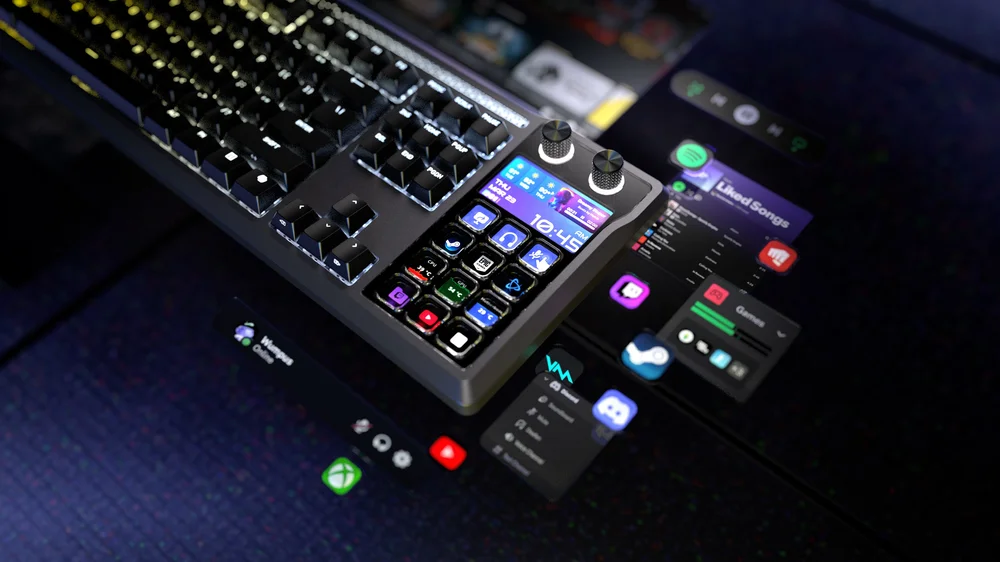
The CORSAIR GALLEON 100 SD features two integrated rotary dials that combine precise physical control with customizable RGB lighting. These dials are fully supported by Windows Dynamic Lighting, allowing users to adjust their illumination through a streamlined, system-level interface without relying on heavyweight desktop software.
The Stream Deck app provides a direct shortcut to Dynamic Lighting, allow quick access to an easy-to-configure and visually expressive part of your set up.
This guide explains how Windows Dynamic Lighting works with the GALLEON 100 SD and walks through the steps for adjusting dial lighting, selecting effects, and assigning colors.
What Is Windows Dynamic Lighting?
Windows Dynamic Lighting is a native Windows framework that enables compatible RGB devices to be controlled through a unified lighting system. Instead of managing lighting independently across multiple applications, Dynamic Lighting centralizes effects, colors, and brightness into a consistent experience.
On the GALLEON 100 SD, Dynamic Lighting can be accessed through the Stream Deck app, which manages lighting for the keyboard’s full LCD module and dual rotary dials. This approach keeps lighting control lightweight, responsive, and tightly integrated with the rest of the Stream Deck ecosystem.
Accessing Dynamic Lighting for the Rotary Dials
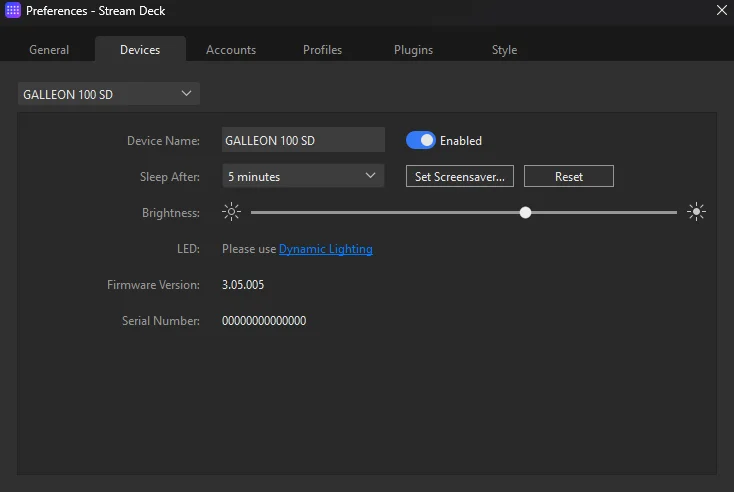
To adjust rotary dial lighting, open the Stream Deck app and open Settings. Navigate to the Devices tab. Under the LED section, select Dynamic Lighting.
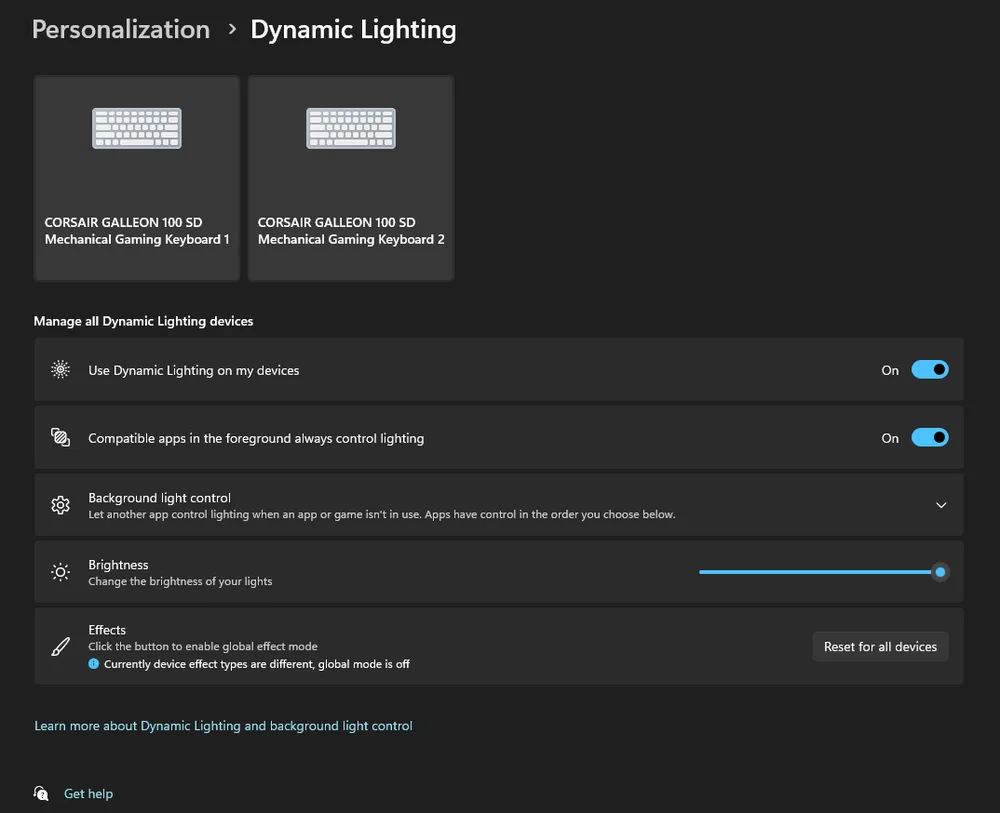
From Windows, users can also get to Dynamic Lighting through Settings and then navigating to Personalization and selecting Dynamic Lighting.
On the Dynamic Lighting page, locate the device panel on the right-hand side that represents the right-side full LCD module. This module also controls the lighting behavior of the two rotary dials. Selecting this panel ensures that any changes you make apply directly to the dials.
Selecting a Lighting Effect
Within the Dynamic Lighting interface, scroll to the Effects section. Here, you can choose from a range of lighting effects supported by Windows Dynamic Lighting, such as static colors or animated transitions.
It’s important to note how effects behave on the GALLEON 100 SD’s rotary dials:
- Most effects apply a single color or animation to both dials simultaneously
- Only the Gradient effect allows independent color control for each dial
If you want both dials to share a unified look, any effect will work. If you want each dial to stand out visually, Gradient is the recommended choice.
Using the Gradient Effect for Independent Dial Colors

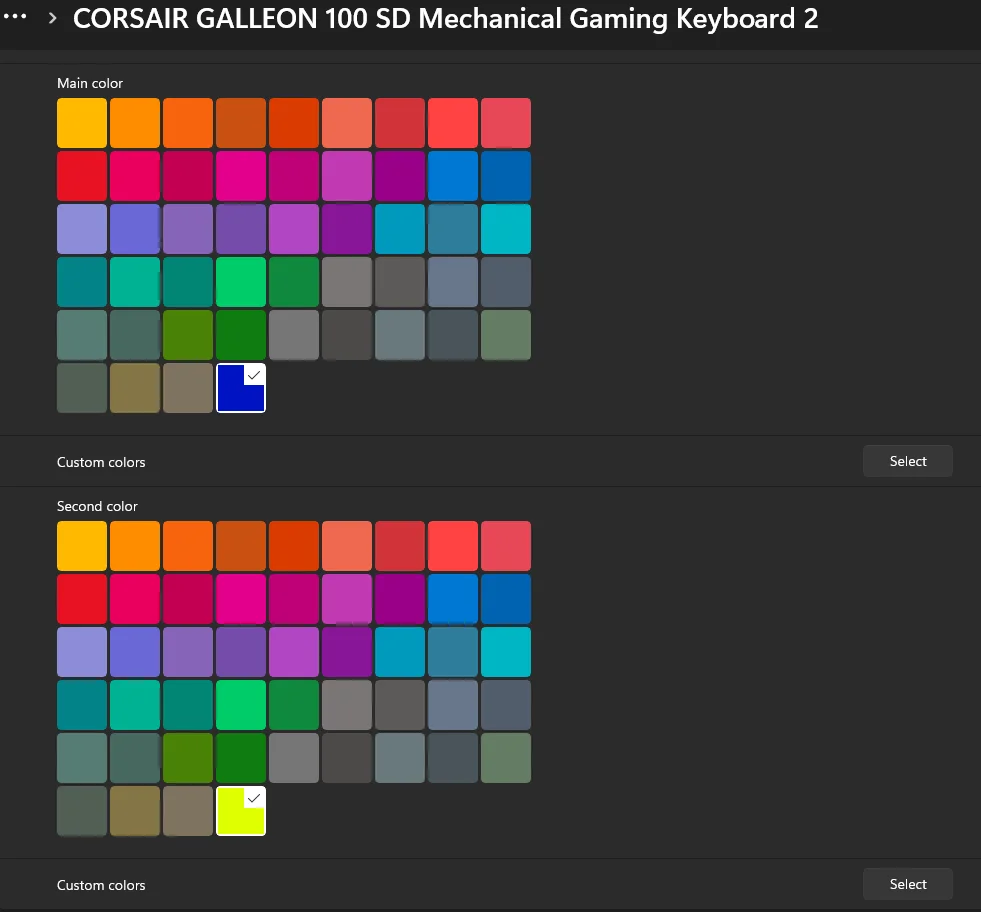
When Gradient is selected, additional color controls become available:
- Main Color controls the left rotary dial
- Custom Color controls the right rotary dial
This allows each dial to display a distinct color, making it easier to associate visual cues with specific functions. For example, one dial might be set to control audio and use a blue color, while the other handles brightness or media navigation and uses a different color. These visual distinctions improve usability and reduce guesswork during gameplay, streaming, or multitasking.
Why Use Dynamic Lighting for Dial RGB Control?
Using Windows Dynamic Lighting with the GALLEON 100 SD offers several advantages:
- System-level consistency with other Dynamic Lighting–compatible devices
- No always-running background software
- Immediate visual feedback when adjusting effects
- Persistent lighting behavior across sessions
Once configured, dial lighting remains consistent whether the Stream Deck app is in focus or running in the background.
Best Practices for Dial Lighting
- Use contrasting colors when assigning different functions to each dial
- Avoid overly bright effects in competitive or focused environments
- Match dial colors with Stream Deck profiles or on-screen actions
- Reserve animated effects for ambient or showcase setups
Thoughtful lighting choices can turn the rotary dials into intuitive visual indicators rather than distractions.
Refined Control Through Dynamic Lighting
By integrating dual rotary dial lighting with Windows Dynamic Lighting, the GALLEON 100 SD offers a modern approach to RGB customization that prioritizes simplicity, responsiveness, and system-level integration.
Whether you prefer subtle illumination or bold color differentiation, Dynamic Lighting makes it easy to fine-tune how the rotary dials look and behave, ensuring they complement both your workflow and your setup with minimal effort.
PRODUCTS IN ARTICLE
JOIN OUR OFFICIAL CORSAIR COMMUNITIES
Join our official CORSAIR Communities! Whether you're new or old to PC Building, have questions about our products, or want to chat about the latest PC, tech, and gaming trends, our community is the place for you.